

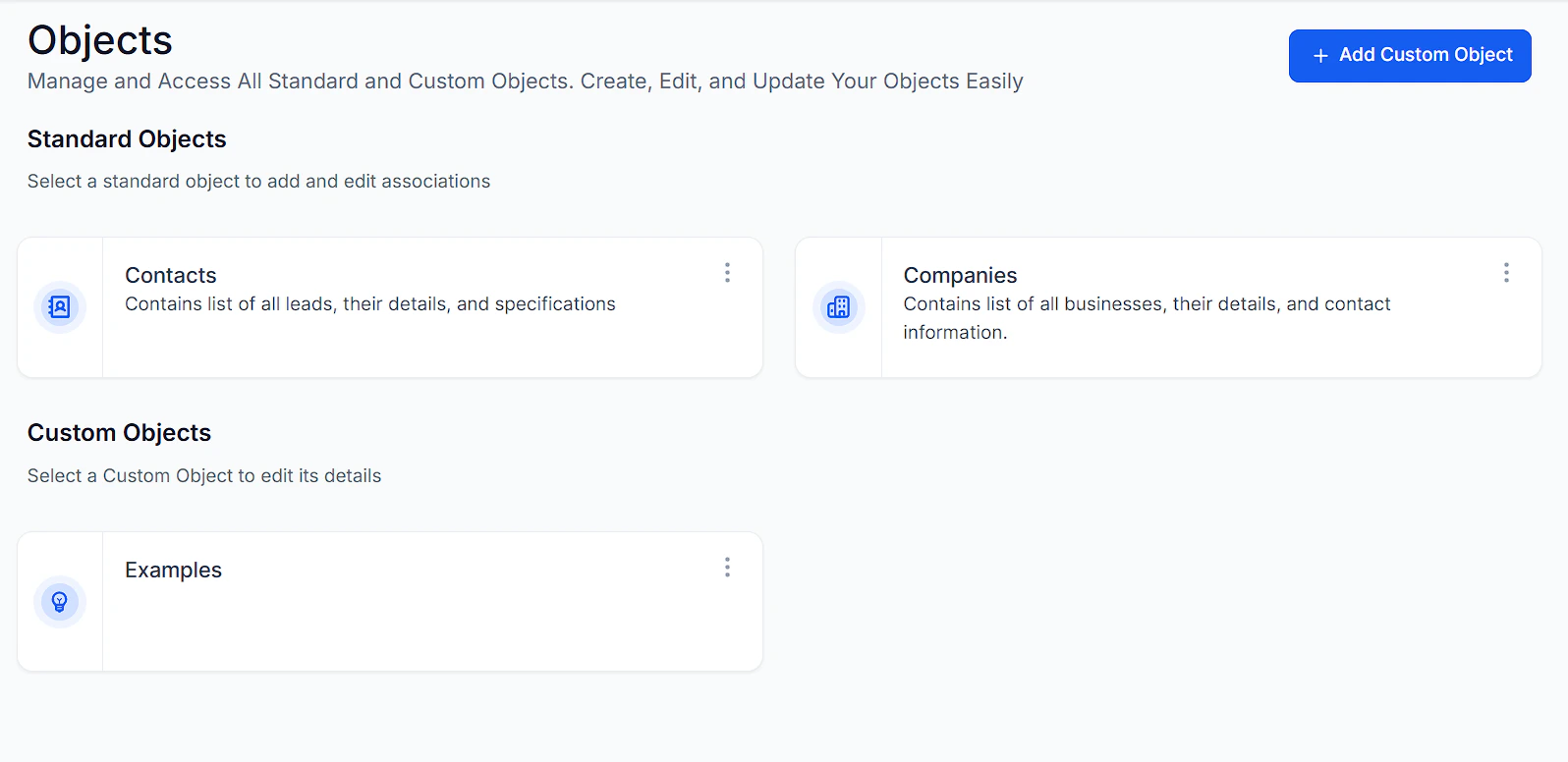
Objects overview
Standard objects
Standard objects are the built-in data models in your account:- Contacts — individual people or organizations you track
- Opportunities — potential deals or sales in your pipelines
- Companies — business entities associated with contacts
Renaming standard objects
- Go to Settings > Objects.
- Click on the standard object you want to rename.
- Click Rename and enter the new display name.
- Save — the new name appears throughout your account.
Custom objects
Custom Objects offer a versatile solution for managing data structures beyond standard contact or opportunity records. This feature empowers you to organize, filter, and visualize data in alignment with your specific operational requirements. Common use cases:- Properties (for real estate businesses)
- Vehicles (for auto dealerships)
- Projects (for teams or service businesses)
- Equipment (for maintenance businesses)
- Locations (for multi-location businesses)
Creating a custom object
1
Navigate to Objects
Go to Settings > Objects and click Create Object.
2
Name your object
Enter a singular and plural name for the object (e.g., “Property” / “Properties”).
3
Add fields
Add the custom fields your object needs. Choose from text, number, date, dropdown, and other field types.
4
Configure associations
Set up associations to link your custom object to contacts, opportunities, or other objects.
5
Save and publish
Save your object configuration. It will appear in your account navigation and can be associated with contact records.
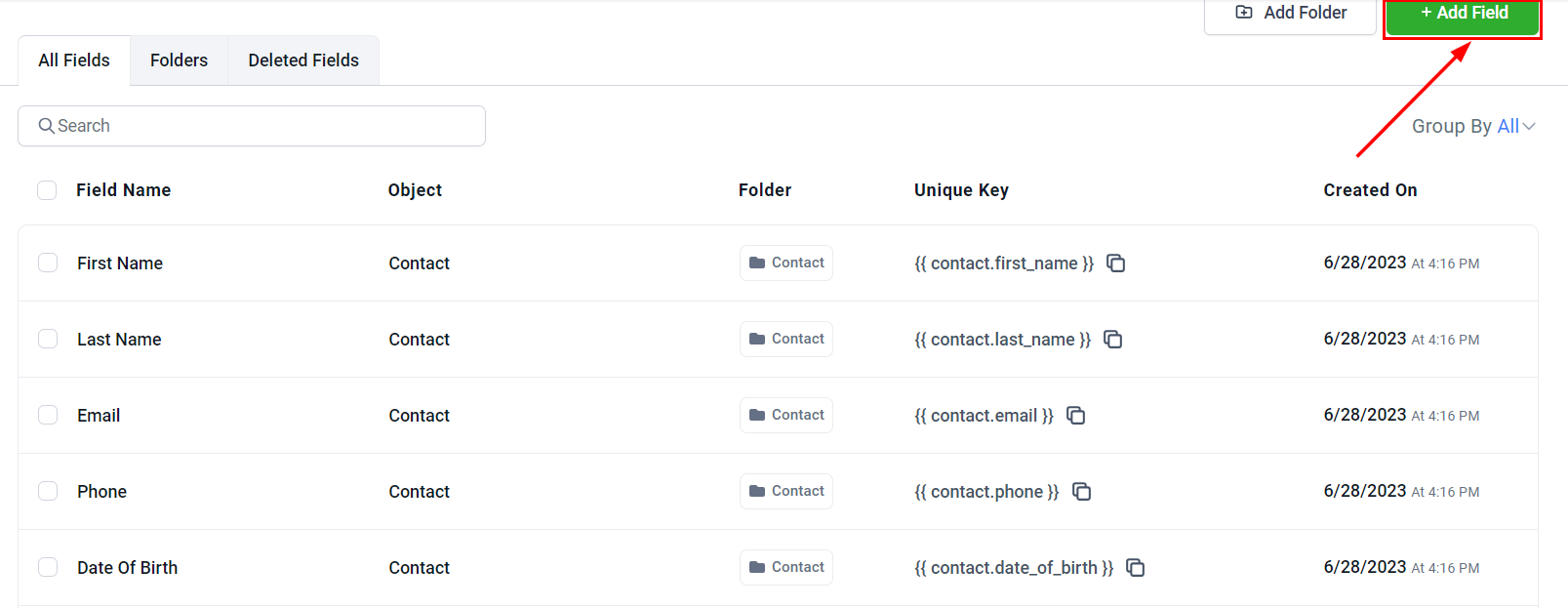
Creating a custom object — define fields, associations, and data structure for your business model
Object associations
Associations create relationships between different record types. For example, you can associate a custom “Property” object with a contact record to track which properties a client is interested in.Contact-to-contact association
Contact-to-contact association
Link contacts to each other to represent relationships such as spouse/partner, employer/employee, or referrer/referred.
- Go to Settings > Objects.
- Select Contacts.
- Click Associations and enable Contact-to-Contact.
- Define the relationship type labels.
Custom object to opportunity association
Custom object to opportunity association
Associate a custom object with opportunities to link deals to specific records in your custom data model.
- Go to Settings > Objects.
- Open your custom object.
- Click Associations and add an association to Opportunities.
- Configure the association type and labels.
Company settings
The Company object is a special standard object that allows you to group multiple contacts under a single business entity. Configure company settings in Settings > Objects > Company. Key features:- Associate multiple contacts with a single company record
- Track company-level fields (industry, size, website)
- View all contacts from a company on the company record page
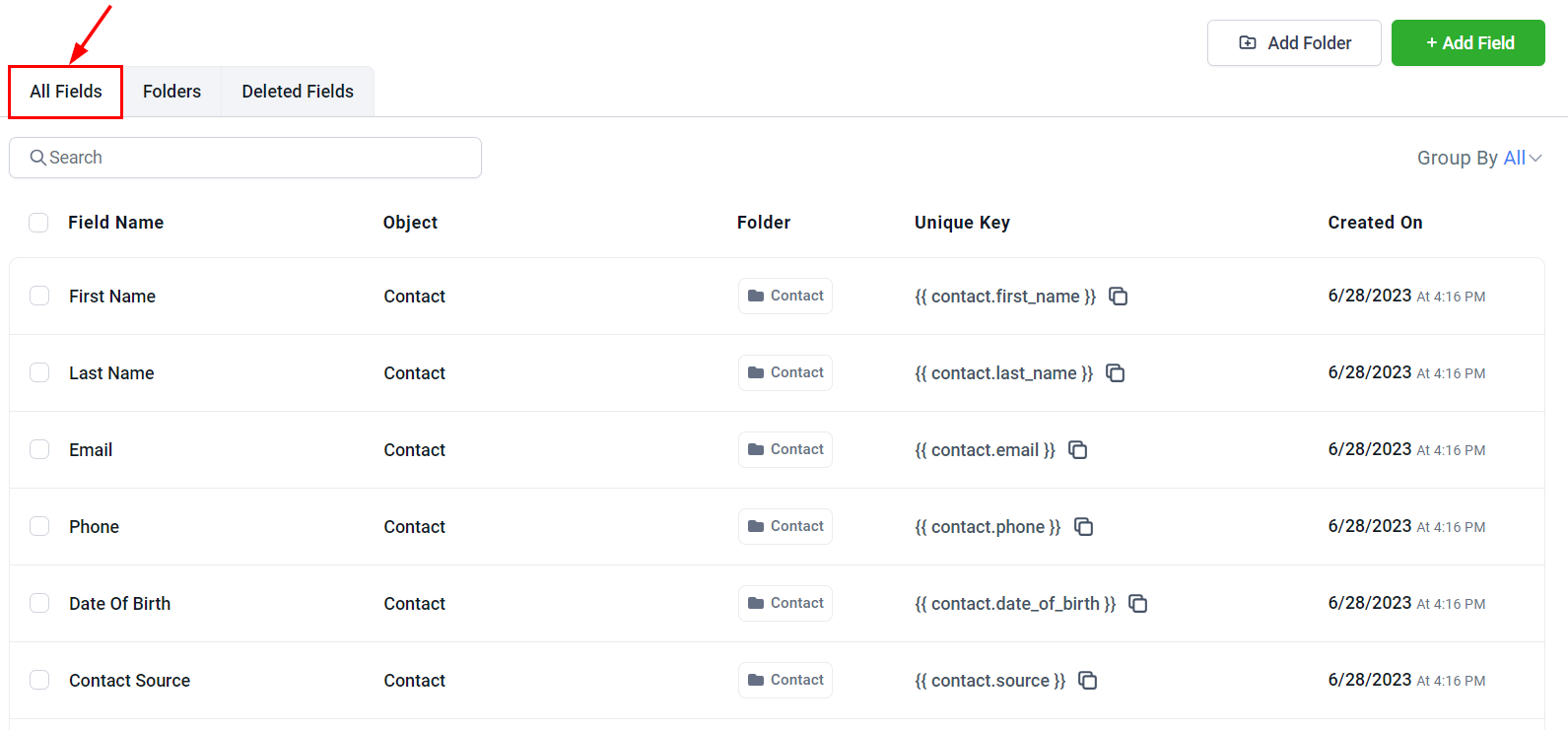
Object associations — link contacts, opportunities, and custom objects to build your complete data model
Smart lists for custom objects
Create smart lists filtered by custom object field values to build targeted views of your data.- Navigate to your custom object’s list view.
- Click Create Smart List.
- Add filter conditions based on the object’s fields.
- Save the smart list for quick access.