

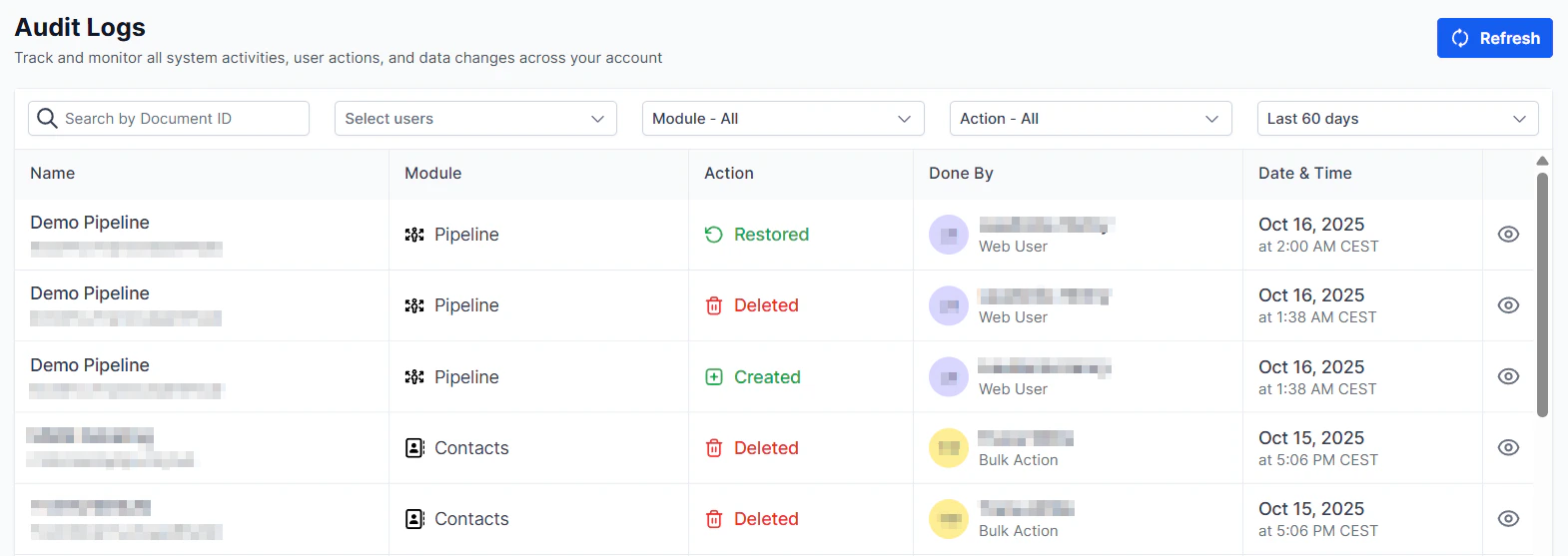
Audit Logs overview
Audit log access is typically restricted to account administrators. Contact your administrator if this section is not visible.
What is logged
The audit log captures a wide range of events including:- User access — logins, logouts, and password changes
- Contact changes — field edits, tag additions and removals, contact deletions
- Opportunity updates — stage changes, value edits, owner reassignments
- Calendar changes — appointment creation, edits, cancellations
- Settings changes — updates to business profile, phone numbers, integrations, and user permissions
- Automation activity — workflow creation, edits, enable/disable toggles
- Payment events — invoice creation, payment status changes
- Staff management — user additions, role changes, deactivations
Reading the log
Each log entry shows: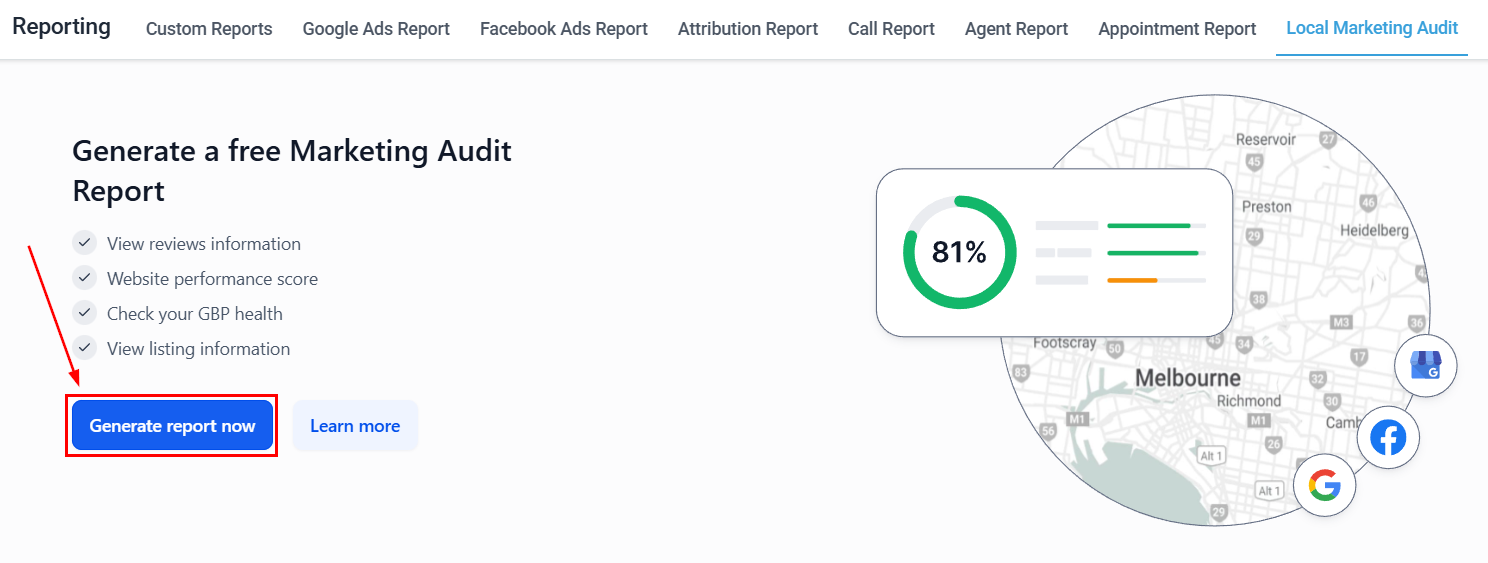
Audit log entry — timestamp, user, event type, description, and affected record for each action
Filtering the log
Use the filter controls to narrow the audit log view:- Date range — view events from a specific period
- User — see only actions from a specific team member
- Event type — focus on a particular category (e.g., only contact changes, only settings changes)
- Module — filter by specific modules (contacts, opportunities, calendars, etc.)
Exporting audit logs
Click Export to download the filtered log as a CSV file. This is useful for compliance reporting, incident investigations, or sharing with external auditors.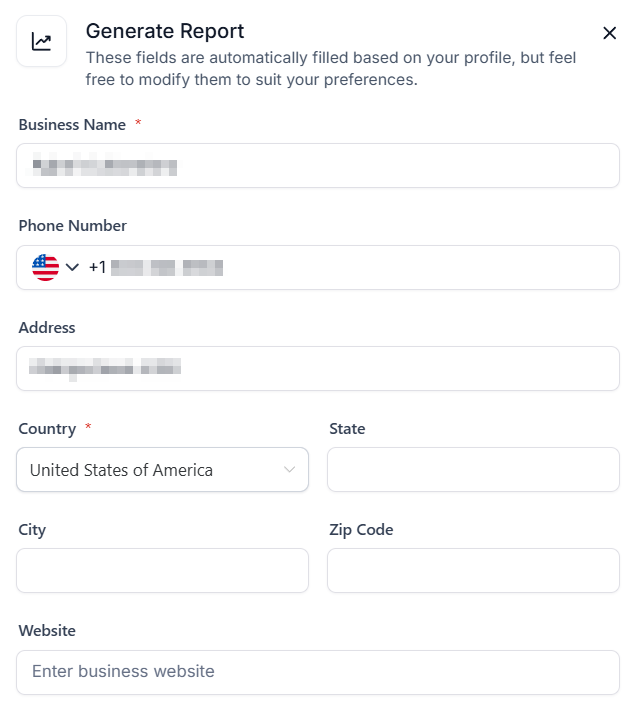
Audit log export and pipeline restore — filter by user, event type, and module, then export as CSV
Restoring a deleted pipeline
If a pipeline is accidentally deleted, you can restore it from the Audit Logs:1
Open Audit Logs
Navigate to Settings > Audit Logs.
2
Filter for pipeline deletion
Filter the log by Event Type: Deleted and look for the pipeline deletion event.
3
Select the event
Click on the pipeline deletion log entry to expand its details.
4
Restore the pipeline
Click the Restore action associated with the deletion event to recover the pipeline and its associated opportunities.
Pipeline restoration is available for a limited time after deletion. Contact Hoop support if the restore option is no longer available for an older deletion.