

Custom Values overview
What are custom values?
Custom values are account-level variables that you define and can insert into any template, automation, email, SMS, or funnel page. They work like placeholder variables — you define the value once, and any template that references that variable automatically displays the correct content. Example use cases:{{custom_values.business_phone}}— your business phone number used in email footers{{custom_values.promo_code}}— a seasonal promo code inserted into all campaign emails{{custom_values.booking_link}}— your calendar booking URL used across SMS and email templates{{custom_values.support_email}}— your support email address for consistent use in automations
Creating a custom value
1
Navigate to Custom Values
Go to Settings > Custom Values.
2
Add a folder (optional)
Organize your custom values by creating folders. Click Add Folder and name it (e.g., “Business Info”, “Promotions”, “Links”).
3
Create a custom value
Click Add Custom Value (or the + icon inside a folder).
4
Name and set the value
- Name — a descriptive label (e.g., “Support Phone Number”)
- Value — the actual content to insert (e.g., “(555) 123-4567”)
5
Save and copy the variable key
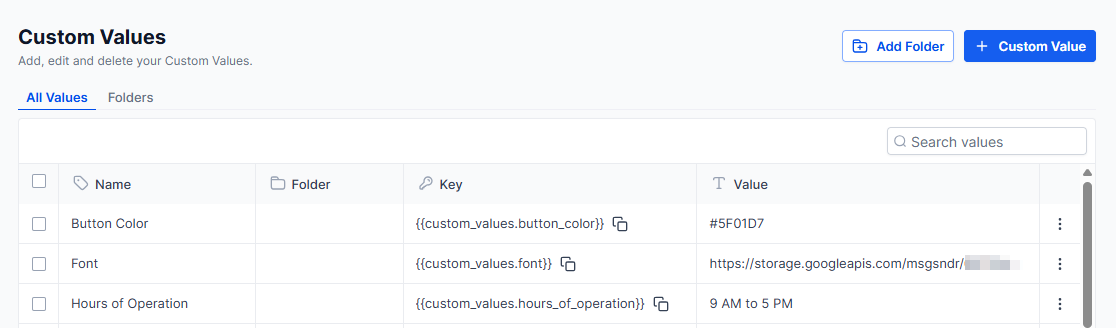
After saving, click Copy to copy the variable syntax (e.g.,
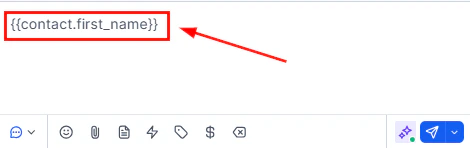
{{custom_values.support_phone_number}}). Paste this into any template or automation where you want the value to appear.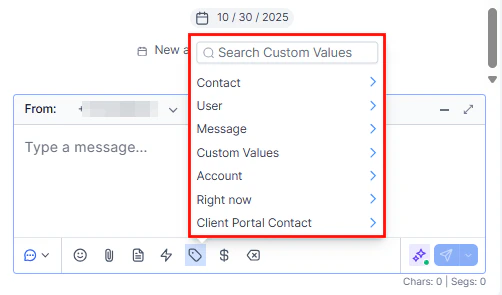
Creating a custom value — name it, set the content, and copy the variable key to use in templates
Using custom values in templates
Custom value variables can be inserted into:- Email templates — paste the variable into the email body or subject line
- SMS templates — insert into message body
- Workflow actions — use in send message, send email, or update field actions
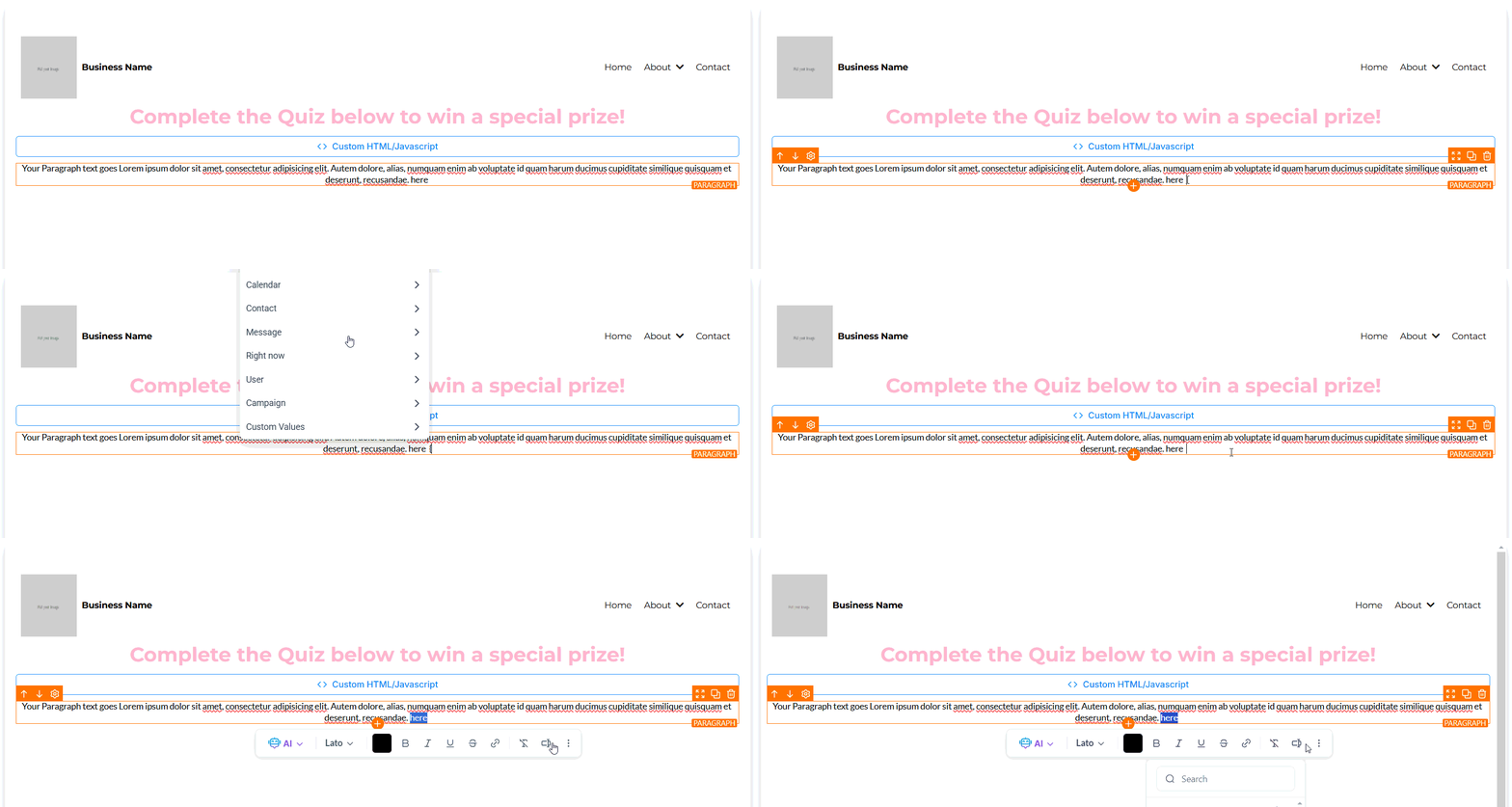
- Funnels and websites — insert into page text using the variable syntax
- Snippets — create reusable message snippets that reference custom values
- Documents and contracts — insert into contract templates
Using custom values in templates — copy the variable key and paste into any email, SMS, or automation action
Inserting a custom value — paste the variable syntax into emails, SMS, funnels, and automation actions