

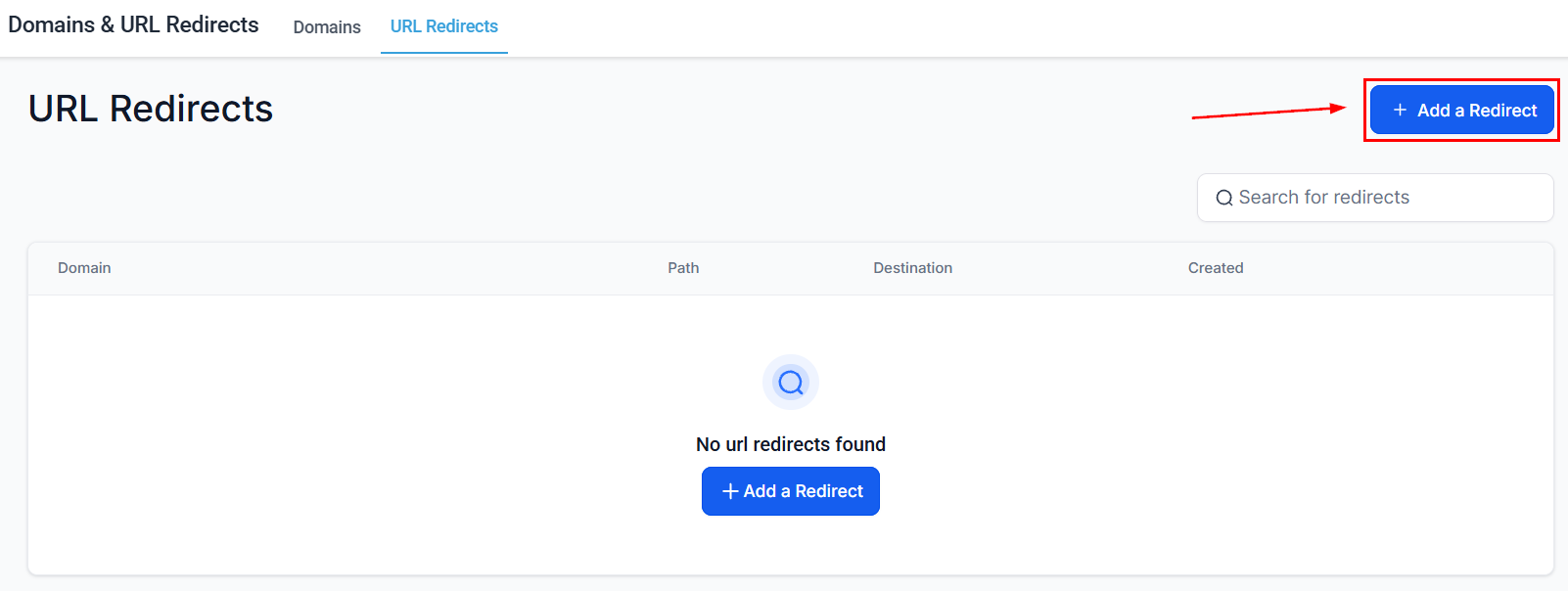
Domains and URL Redirects — connected custom domains and redirect management
Accessing domains and URL redirects
Go to Settings in the left sidebar, then select Domains & URL Redirects.Connecting a custom domain
1
Open domains settings
Navigate to Settings → Domains & URL Redirects.
2
Click add domain
Click Add Domain and enter your domain or subdomain (e.g.
pages.yourcompany.com).3
Add the DNS record
The platform provides a CNAME record. Log in to your domain registrar (GoDaddy, Namecheap, Cloudflare, etc.) and add this record to your DNS settings.
4
Verify the domain
Return to the platform and click Verify. DNS changes can take up to 48 hours to propagate, but usually complete within a few hours.
5
Assign to a site or funnel
Once verified, you can assign the domain to a specific funnel or website from the Sites builder.
Subdomains vs. root domains
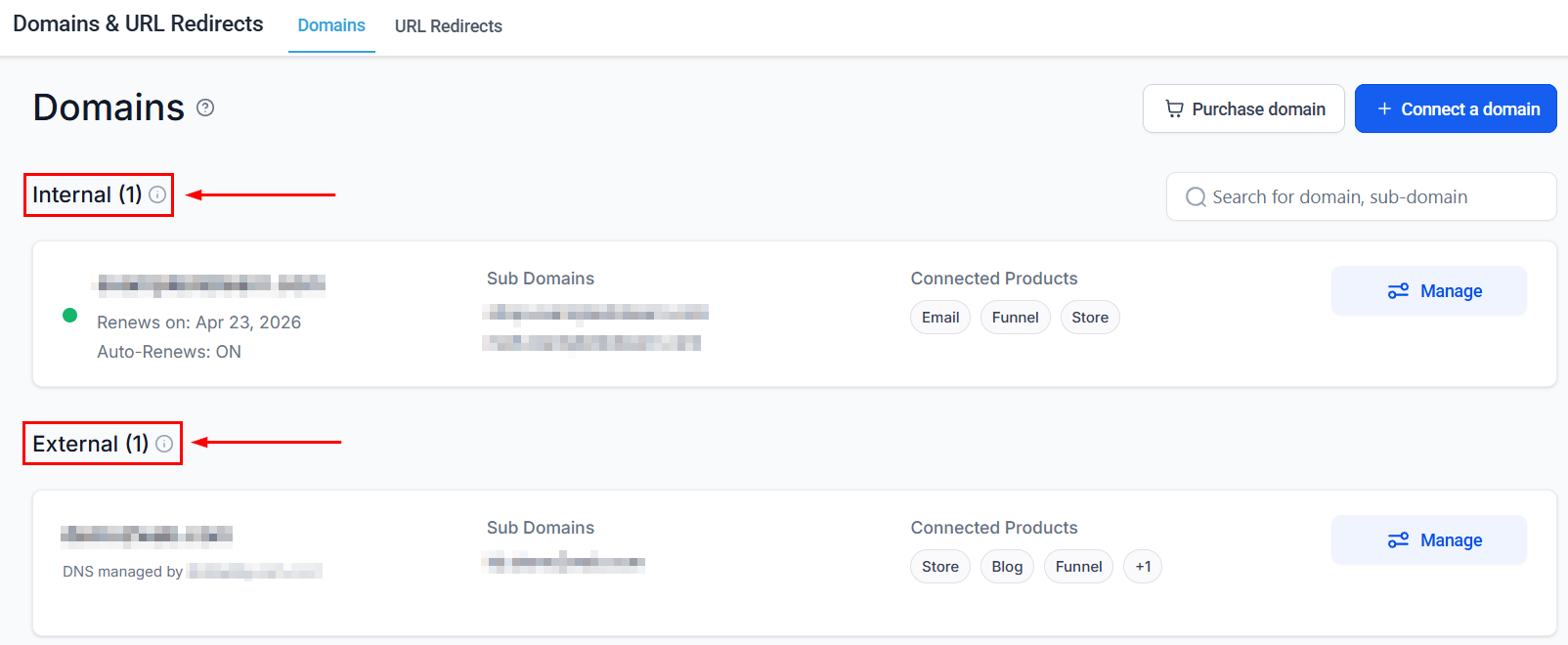
Domain management — verified domains assigned to funnels with HTTPS provisioned automatically
Setting up URL redirects
URL redirects forward traffic from one URL to another. Use them to:- Redirect old page URLs to new ones after a site restructure
- Create short, memorable links that redirect to longer funnel URLs
- Handle domain migrations without breaking existing links
Creating a redirect
- Go to Settings → Domains & URL Redirects → Redirects
- Click Add Redirect
- Enter the source URL (the URL you want to redirect from)
- Enter the destination URL (where traffic should be sent)
- Select the redirect type:
- 301 — permanent redirect (preferred for SEO)
- 302 — temporary redirect
- Click Save
URL redirects — create 301 or 302 redirects from old URLs to new destinations for seamless migrations
SSL certificates
All custom domains connected through the platform are automatically provisioned with SSL certificates (HTTPS). No manual configuration is required.Domain purchase through HoopAI
You can purchase a domain directly through the HoopAI platform without needing a third-party registrar:- Go to Settings > Domains & URL Redirects
- Click Purchase Domain
- Search for your desired domain name to check availability
- Select the domain and complete the purchase
- The domain is automatically connected to your account — no DNS configuration required
Domain transfer
Transferring a domain into HoopAI
To transfer an existing domain from another registrar into the platform:- Unlock the domain at your current registrar
- Request the EPP/authorization code from your current registrar
- In Settings > Domains & URL Redirects, click Transfer Domain
- Enter the domain name and the authorization code
- Follow the prompts to complete the transfer (transfers typically take 5-7 days)
Transferring a domain out of HoopAI
To transfer a domain purchased through the platform to another registrar:- Contact support to unlock the domain and obtain the authorization code
- Initiate the transfer at your new registrar using the authorization code
- Approve the transfer confirmation email
Domain Connect
Domain Connect simplifies DNS configuration by automatically setting up the required DNS records for your domain. If your domain registrar supports Domain Connect:- In Settings > Domains & URL Redirects, click Add Domain
- Enter your domain name
- If the registrar supports Domain Connect, a Connect Automatically option appears
- Click it and authorize the DNS changes at your registrar
- Records are configured automatically — no manual CNAME or A record entry required