External Tracking is a simple integration tool that records user activity — such as page views and form submissions — from websites hosted externally. After placing a small tracking script on your site, data is automatically collected and matched to contact records. This ensures every lead submission is properly attributed and available for automation or follow-up actions. Navigate to Settings > External Tracking to get started.

Key benefits

  • Use existing forms — capture leads directly from your current third-party forms without rebuilding them
  • Seamless contact sync — each submission automatically creates or updates a contact record for immediate follow-up
  • Attribution insights — UTM parameters and traffic source data are captured for easy campaign tracking

Form compatibility requirements

Your external form must meet the following requirements before installing the tracking script:
  • Uses a <form> tag
  • Includes an email input field
  • Includes a submit button
  • Is not embedded within an <iframe>
  • Does not block submission with custom JavaScript
Minimal compatible form example:
<form action="#" method="post">
  <input type="email" name="email" placeholder="email@example.com" required />
  <button type="submit">Submit</button>
</form>

Setting up external tracking

1

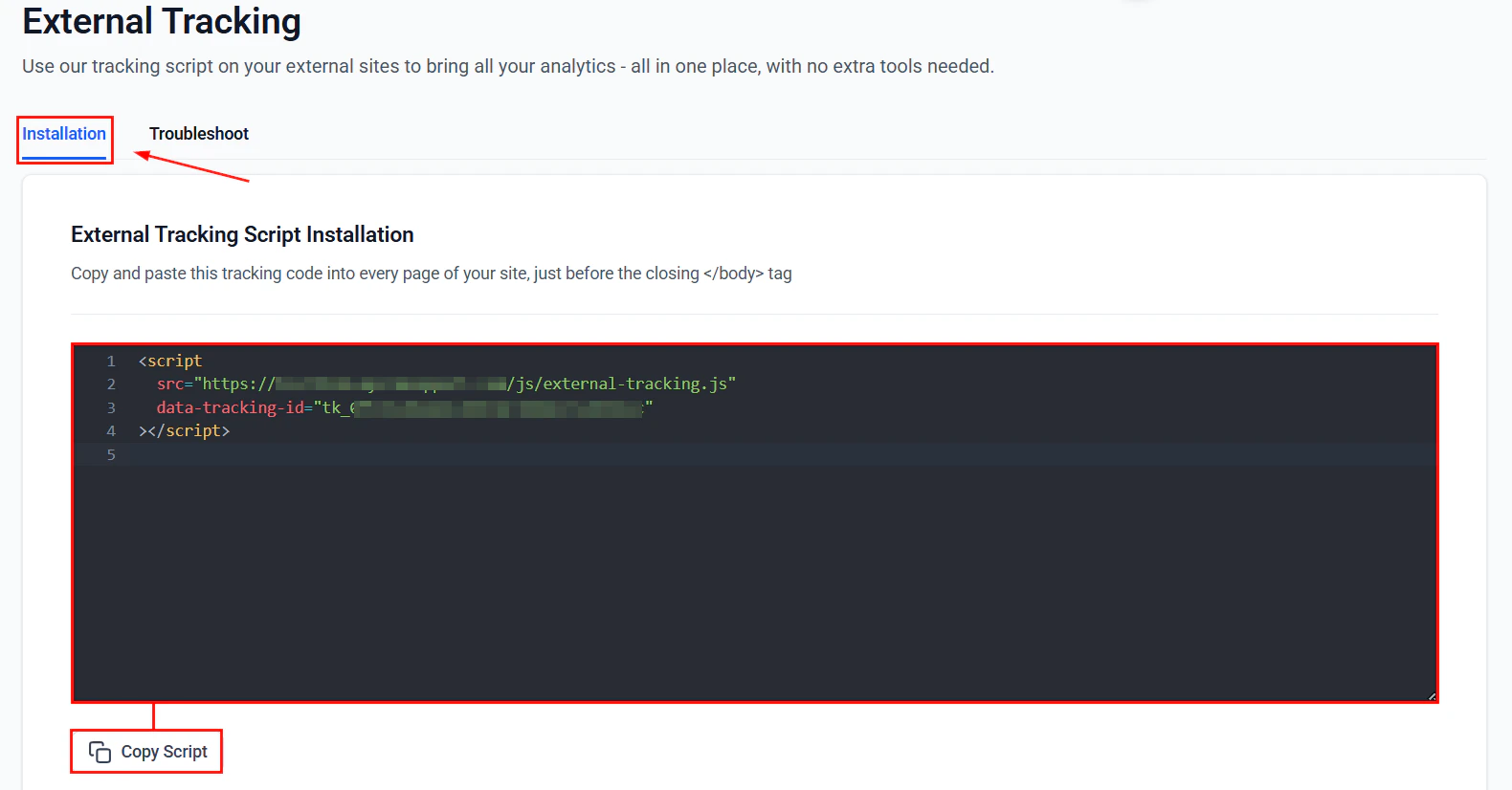
Copy the tracking script

Go to Settings > External Tracking. Under the Installation tab, click Copy Script.
Copy script
The script will resemble:
<script
  src="https://link.example.com/js/external-tracking.js"
  data-tracking-id="tk_xxxxxxxxxxxxxxxxxxxxxxxxxxxxxxxx">
</script>
Do not modify the data-tracking-id — it is unique to your account.
2

Add the script to your website

Paste the script in your website’s footer, immediately before the closing </body> tag.Custom HTML site:
<!-- Paste tracking script here -->
<script
  src="https://link.example.com/js/external-tracking.js"
  data-tracking-id="tk_xxxxxxxxxxxxxxxxxxxxxxxxxxxxxxxx">
</script>
</body>
</html>
WordPress: Go to Appearance > Theme Settings > Footer or use a plugin such as Insert Headers and Footers and paste it into the Footer Scripts box.Wix / Squarespace / Webflow: Navigate to Site Settings > Custom Code > Footer Code Injection and paste the script.
3

Test the installation

Load your website and submit a test form. Then check Settings > External Tracking to verify the submission was captured.

Viewing submissions

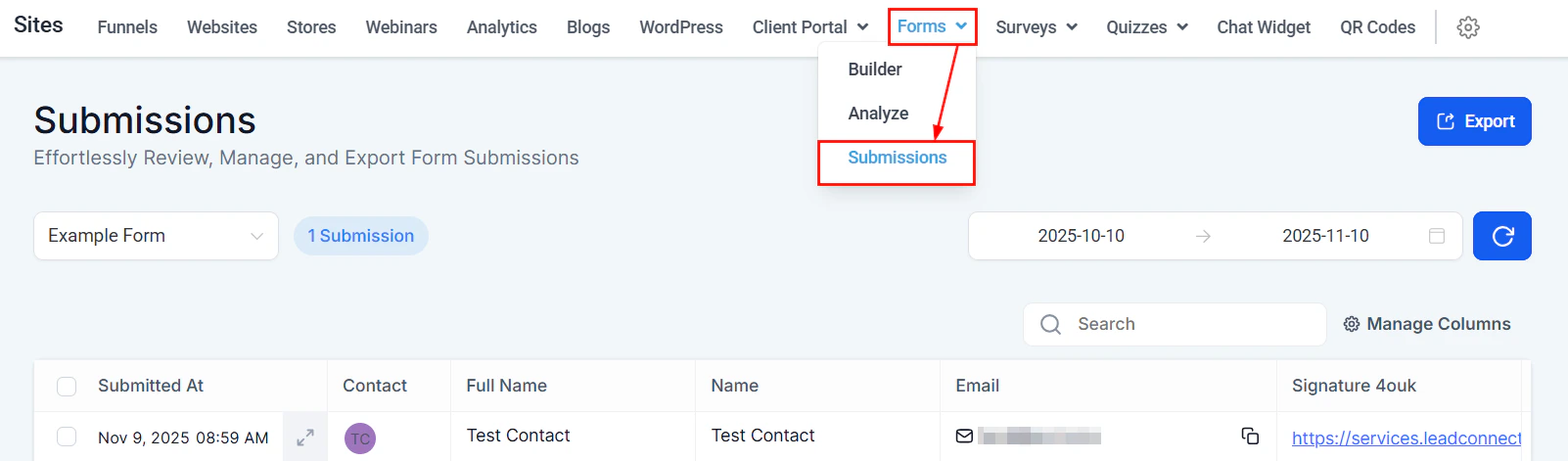
After installation, go to Forms > Submissions to review captured data.
Submissions
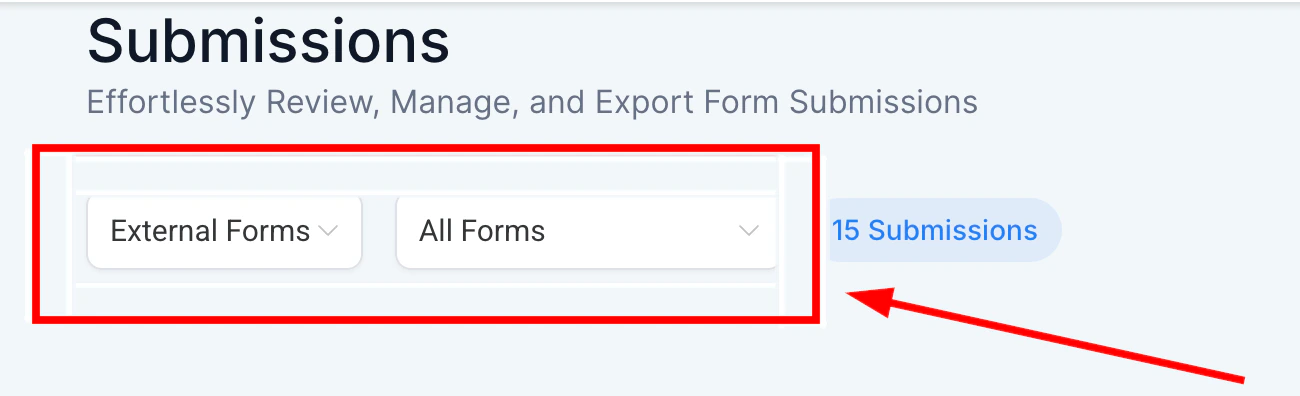
Use the filter External: "Form Name" to find submissions from your external forms.
External filter
Each captured submission includes:
  • Timeline events — page visits and form submissions appear as timestamped events on the contact record
  • Activity details — field data, page titles, URLs, and medium/source information
  • Tagging — contacts can be automatically tagged with the external form name for easier segmentation

Viewing analytics

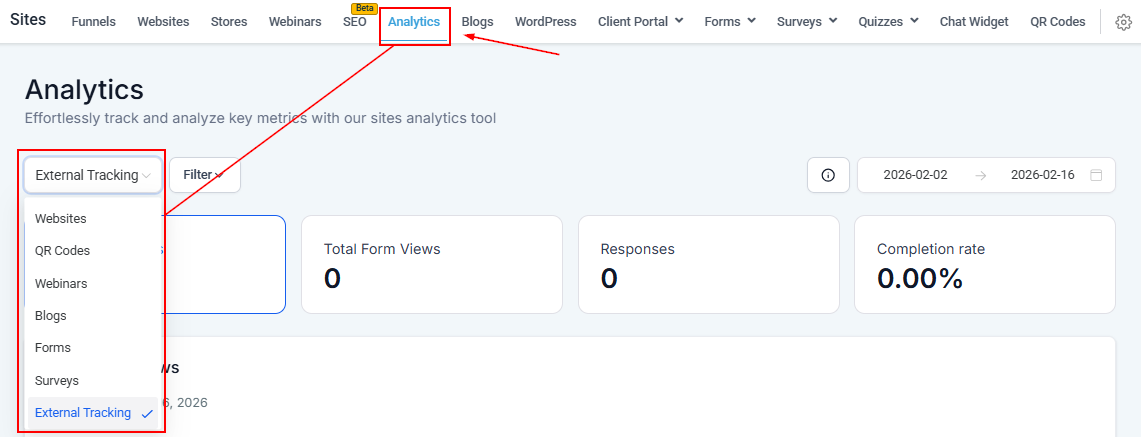
Use the External Tracking filter in the Analytics Dashboard to monitor page views, form views, responses, and completion rates.
Analytics
The External Tracking option appears in the analytics dropdown only when the tracking script is connected.
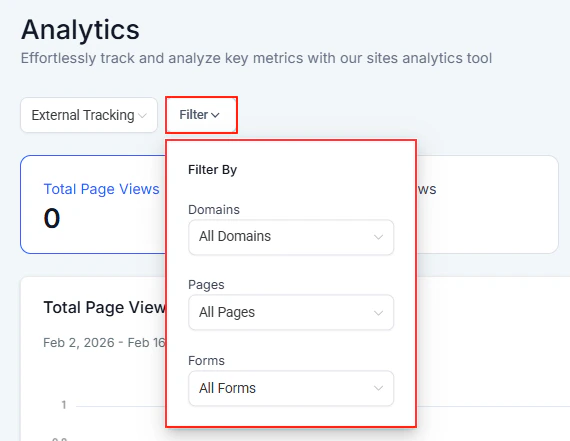
Apply additional filters to target a specific domain, page, or form.
Analytics filter

Example form with additional fields

The tracking script captures any standard named input fields. Here is an example form with full contact data:
<form name="abc">
  <label for="first_name">First Name</label>
  <input type="text" name="first_name" id="first_name" />

  <label for="last_name">Last Name</label>
  <input type="text" name="last_name" id="last_name" />

  <label for="email">Email</label>
  <input type="email" name="email" id="email" />

  <label for="phone">Phone</label>
  <input type="tel" name="phone" id="phone" />

  <label for="company_name">Company Name</label>
  <input type="text" name="company_name" id="company_name" />

  <input type="submit" value="Submit" />
</form>

Troubleshooting

Enable debug mode

If form submissions or tracking data are not appearing, add data-debug="true" to your script:
<script
  src="https://link.example.com/js/external-tracking.js"
  data-tracking-id="tk_xxxxxxxxxxxxxxxxxxxxxxxxxxxxxxxx"
  data-debug="true">
</script>
Reload your page, open the browser console (Ctrl/Cmd + Shift + J), and look for logs beginning with [LC Tracking], such as:
  • Tracker initialized successfully
  • Event sent successfully: external_script_page_view
If no logs appear, confirm the script is on the page, verify your data-tracking-id, and check for ad blockers or Content Security Policy (CSP) restrictions.

Network and API checks

Open the Network tab in your browser developer tools and confirm:
  • Page view requests return a 2xx success status
  • No CORS errors appear
  • Responses show successful acknowledgements

Cookies and sessions

The script uses a session cookie to track users. Check under Application > Storage > Cookies to confirm it exists. If missing, review browser privacy settings or iframe policies.

Common issues

IssuePossible causeSolution
No console logsDebug mode not enabledAdd data-debug="true" to the script
CORS errorsEndpoint restrictionsUpdate CORS policy or verify domain permissions
Form not trackedIncorrect HTML structureEnsure a valid <form> tag and email input exist
Tracking ID errorsInvalid or missing IDVerify script includes correct data-tracking-id
SPA route changesDynamic page loadsAdd manual route-change tracking if needed

Frequently asked questions

No. External Tracking works with compatible forms already on your website. As long as your form uses a standard <form> tag, includes an email input, and is not inside an <iframe>, you can install the tracking script without any form changes.
Use the Form Submitted workflow trigger in Automation to send notifications, apply tags, enroll contacts in sequences, or start campaigns automatically when someone submits your tracked form.
Attribution depends on cookies and URL parameters. Strict browser privacy settings, ad blockers, or missing UTM parameters in the source URL may limit visibility. Ensure your ad and campaign links include utm_source, utm_medium, and utm_campaign parameters.
External Tracking works with standard HTML forms and Formspree-hosted forms. Forms must use a <form> tag, include an email field, include a submit button, and not be embedded in an <iframe> or blocked by custom JavaScript.

Last modified on March 4, 2026