

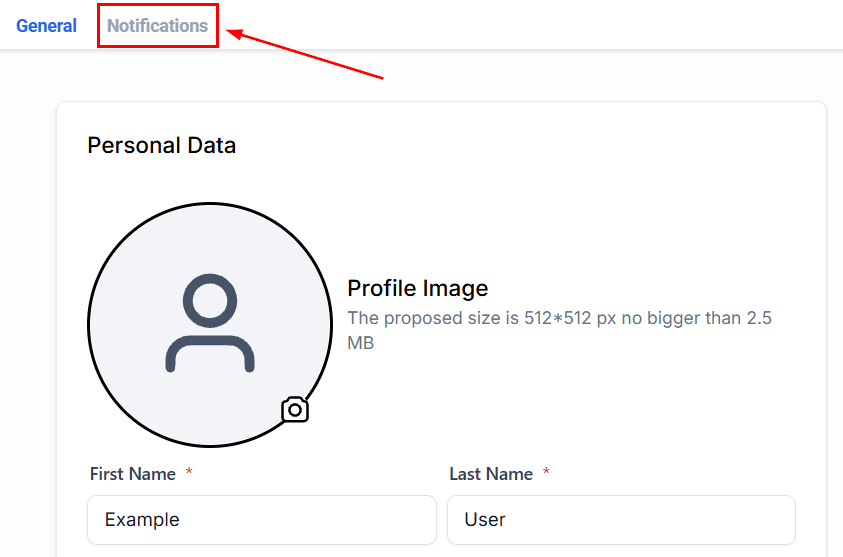
Notifications settings overview
Notification channels
You can control notifications across three channels for most notification types: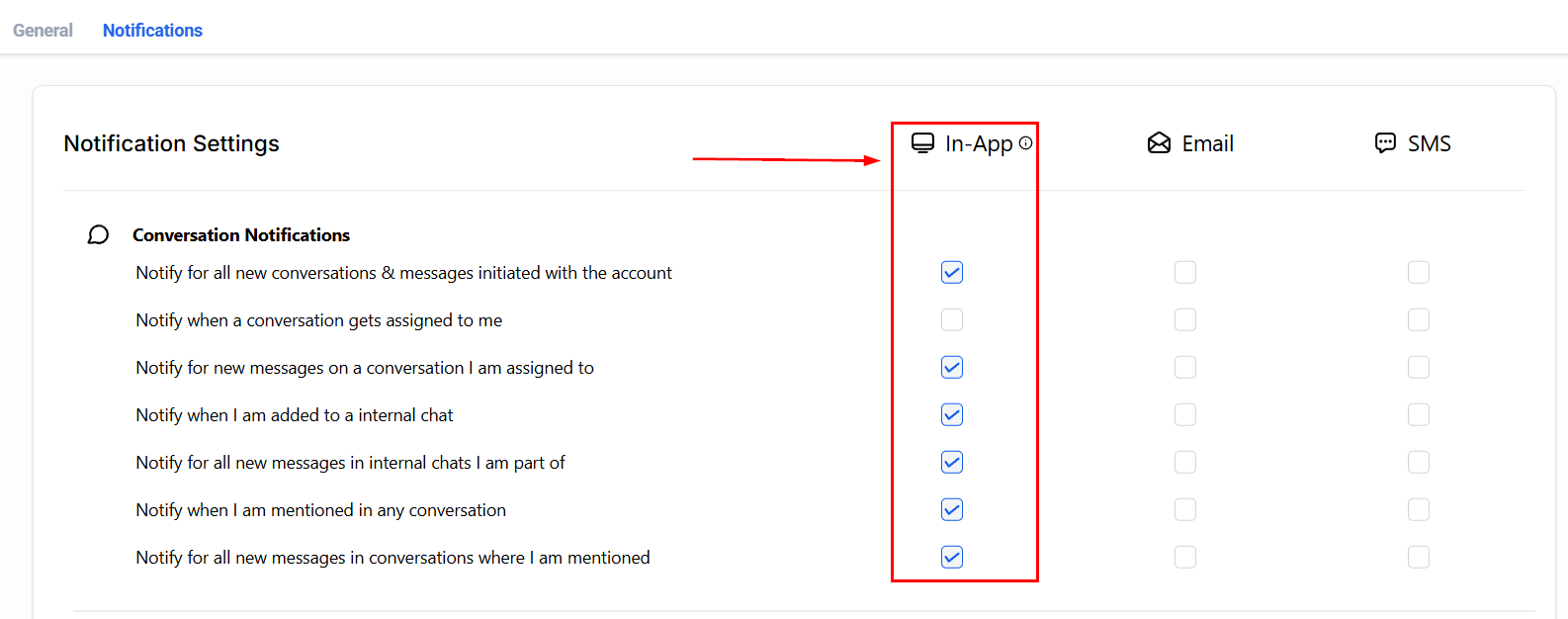
In-app notification settings
- In-app — notifications within the platform and the mobile app. Checking in-app notifications enables them within the mobile app as well.
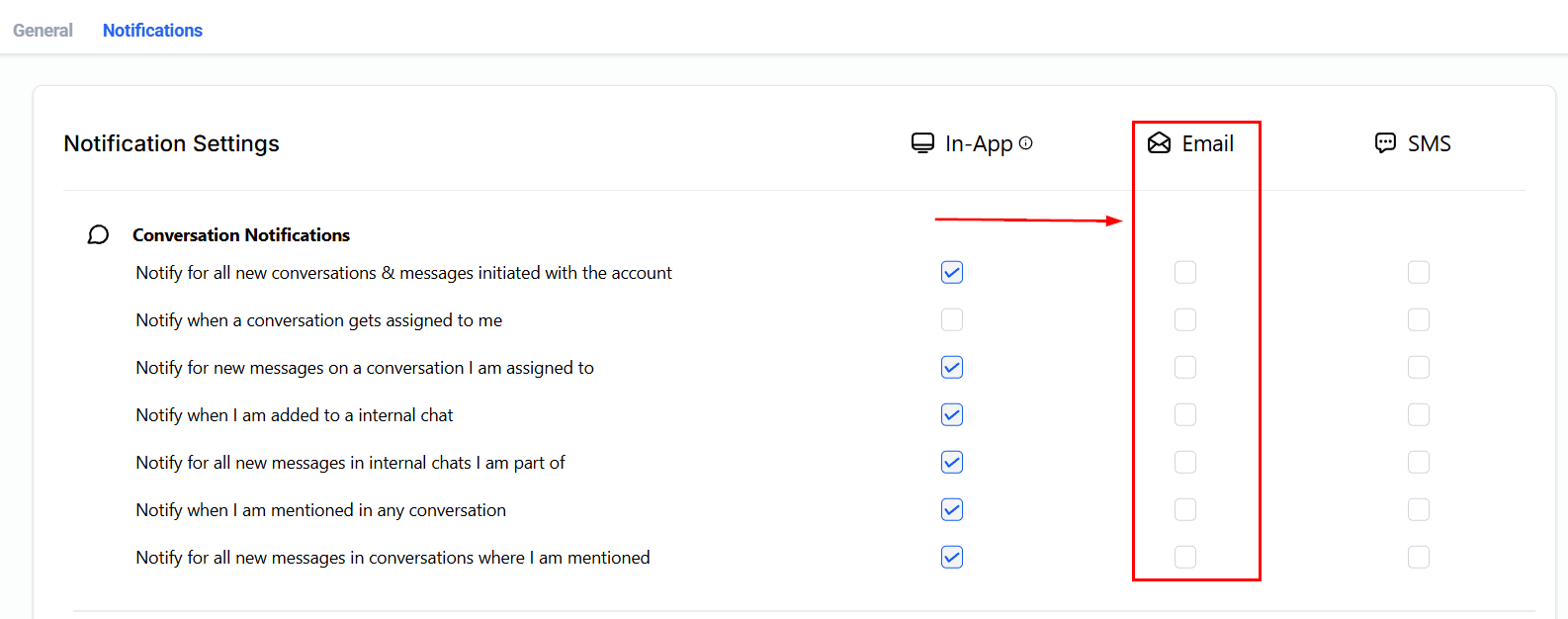
Email notification settings
- Email — notifications delivered to your registered email address. Check or uncheck boxes to create a personalized notification system.
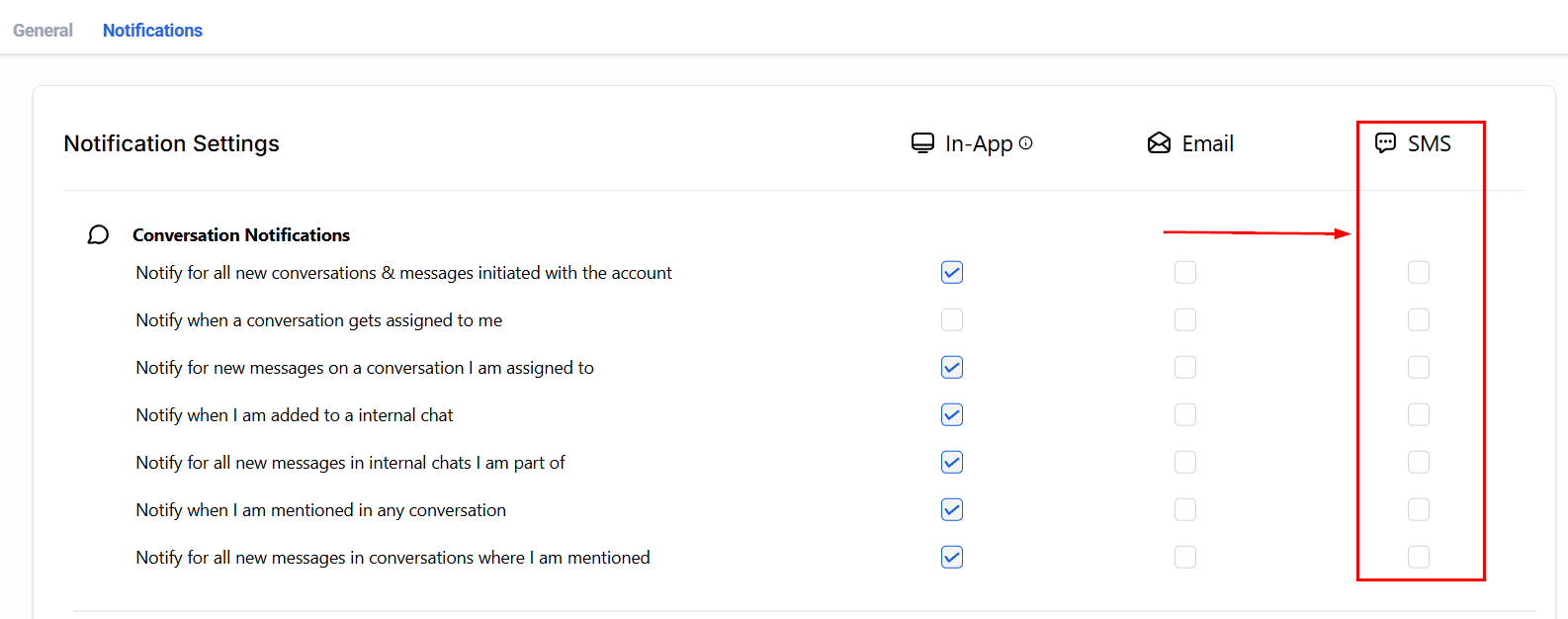
SMS notification settings
- SMS — notifications delivered to your mobile device. Configure your preferences in the SMS column to receive only messages most relevant to your immediate needs.
Conversation notifications
Stay informed of how your clients are communicating with Conversation Notifications. You can take control of the notifications you receive when it comes to email and text message conversations.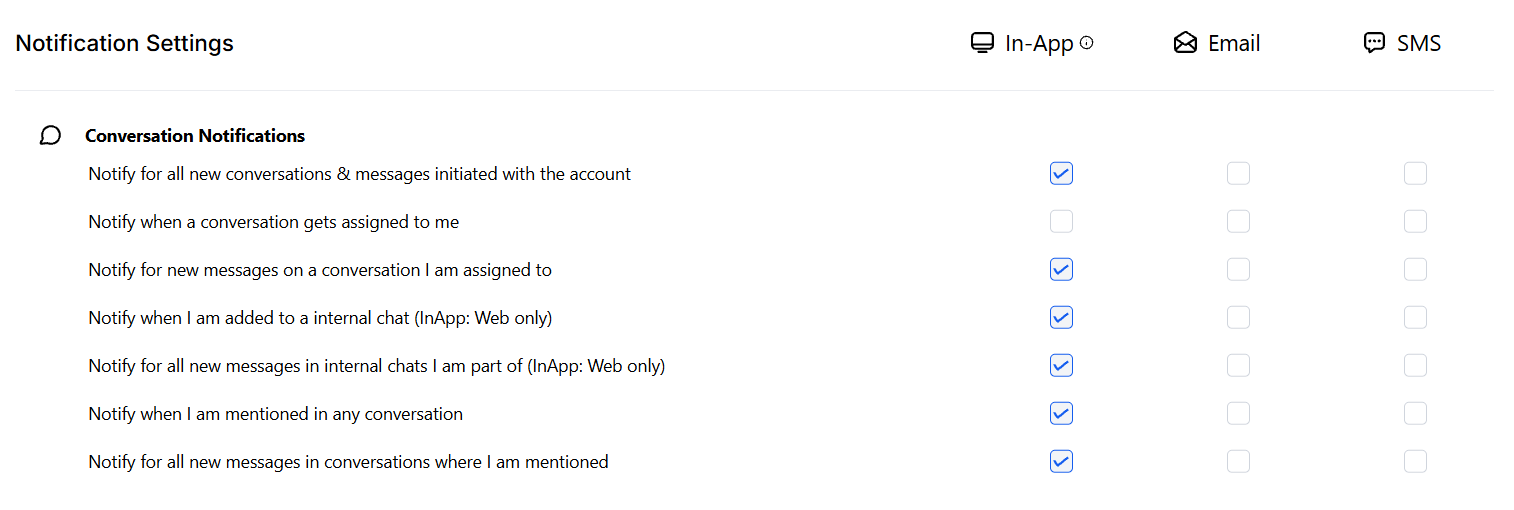
Conversation notifications section
All conversations
All conversations
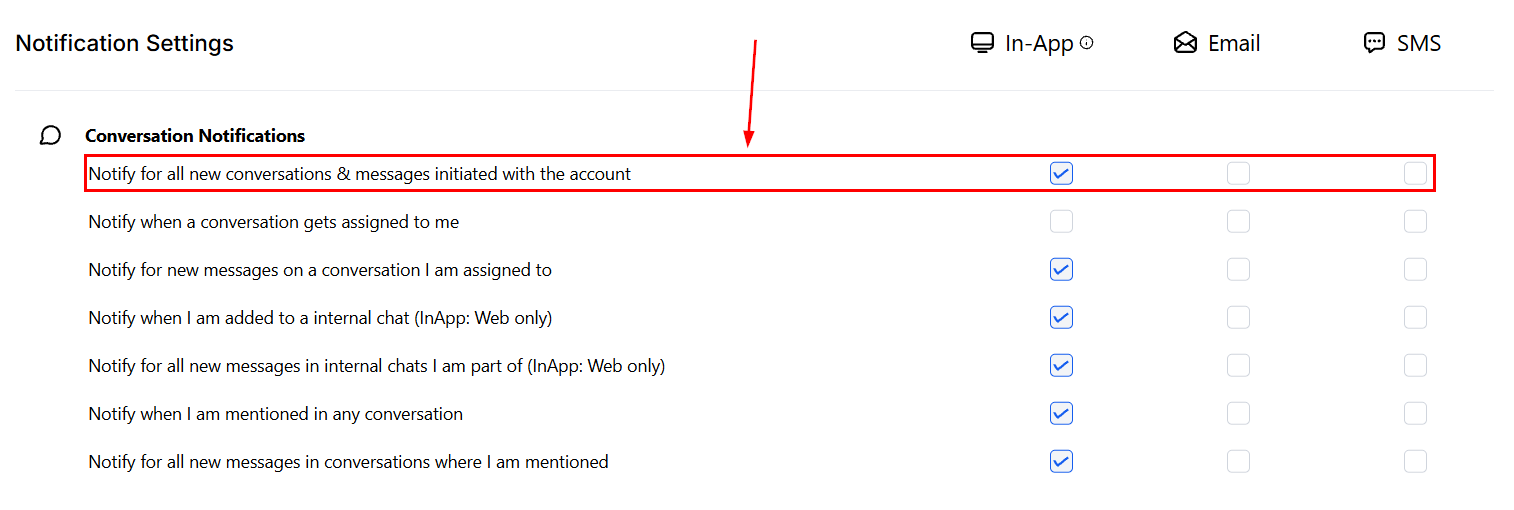
All conversations notification option
Conversation assigned to me
Conversation assigned to me
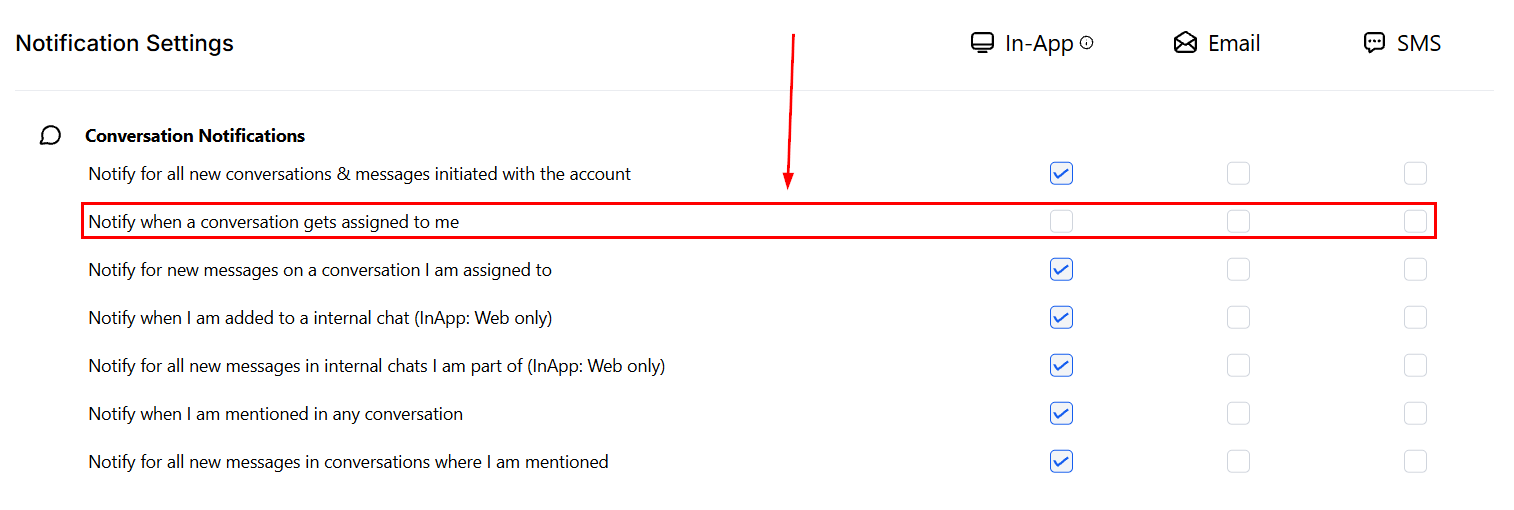
Assigned conversation notification
Added to internal chat
Added to internal chat
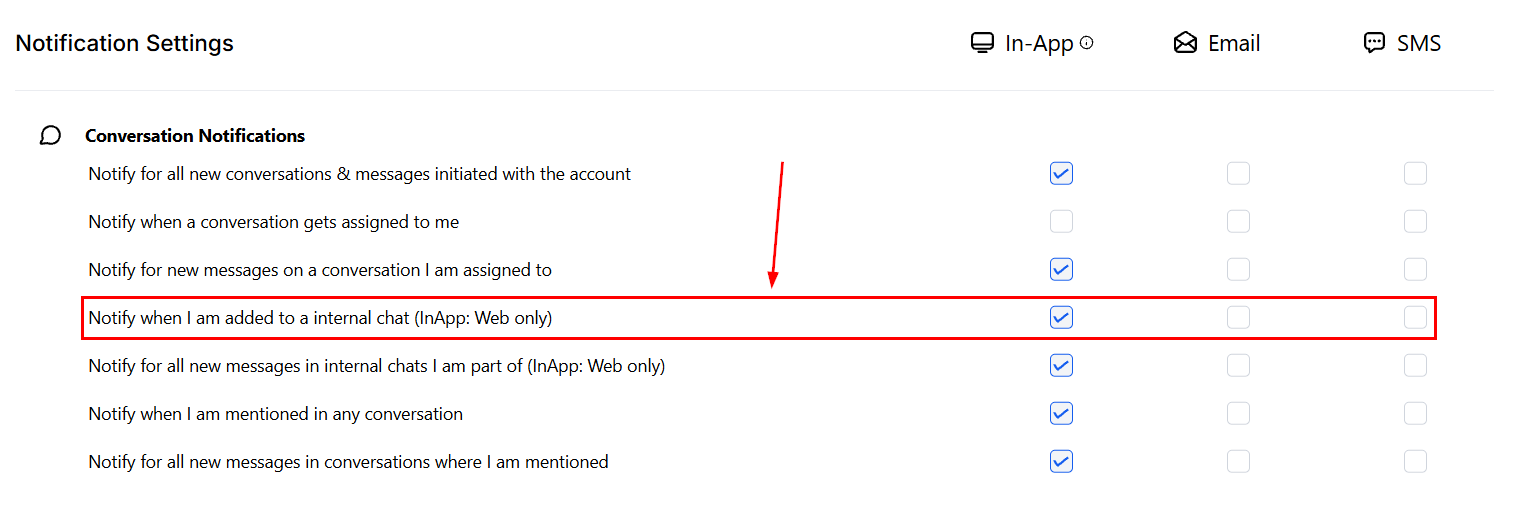
Internal chat notification
Mentions
Mentions
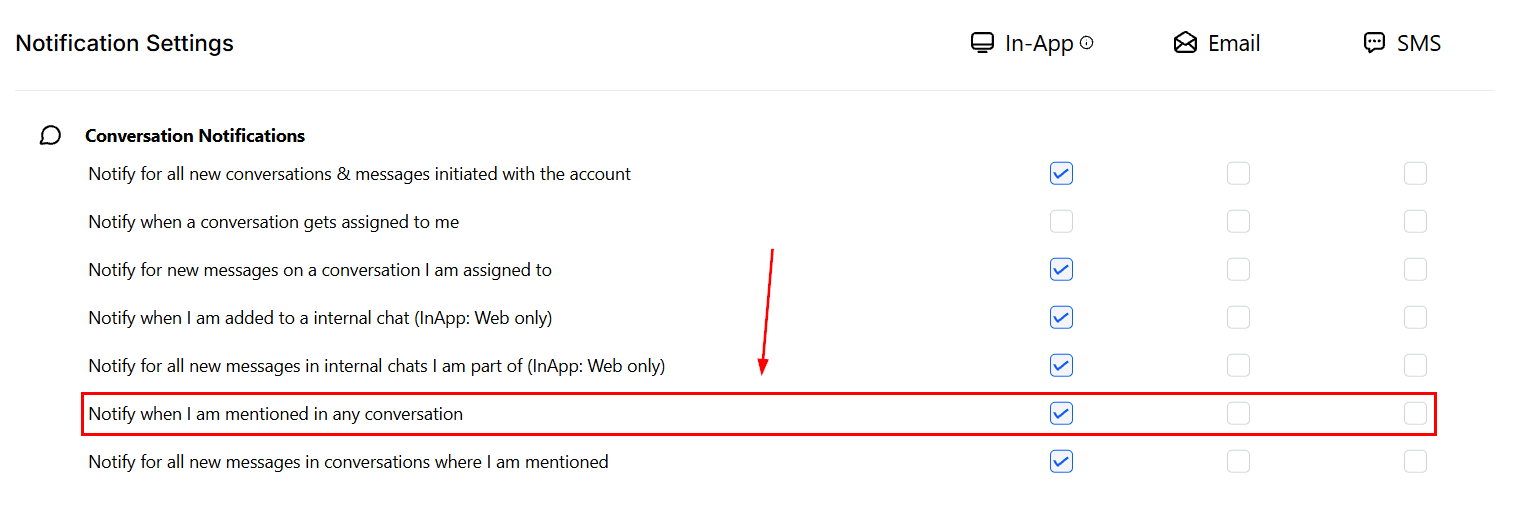
Mention notification
New messages
New messages
- Conversations you are assigned to
- Internal chats you are included in
- Conversations where you are mentioned
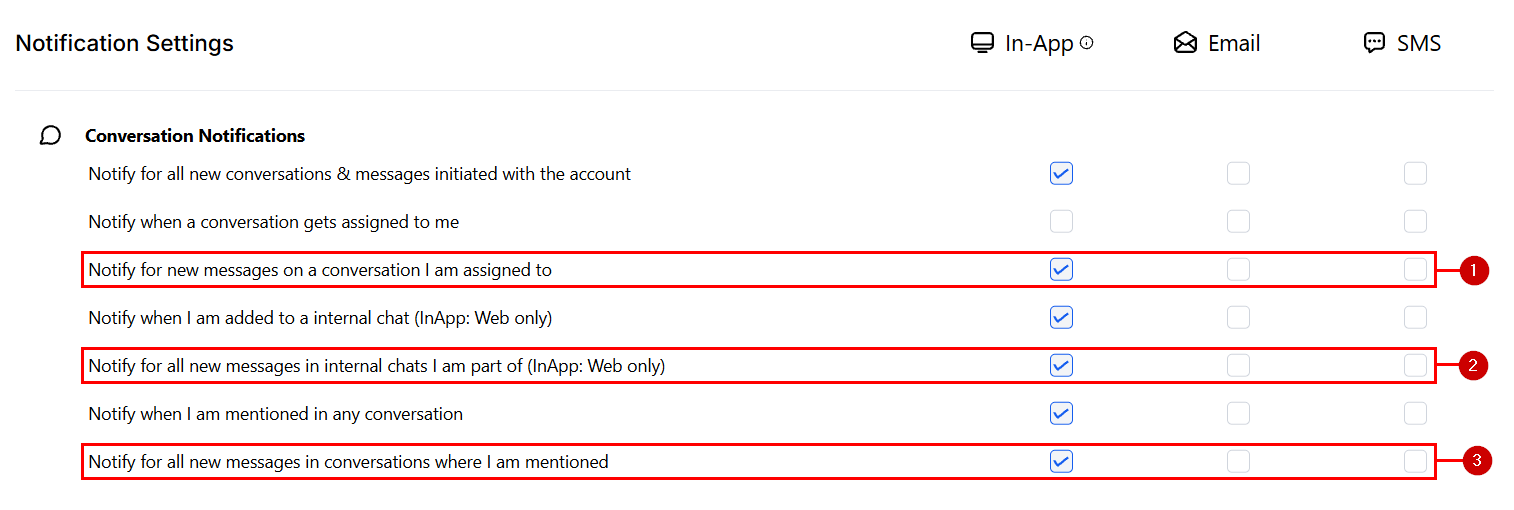
New messages notification
Task notifications
Task notifications give you ultimate control over your to-do list.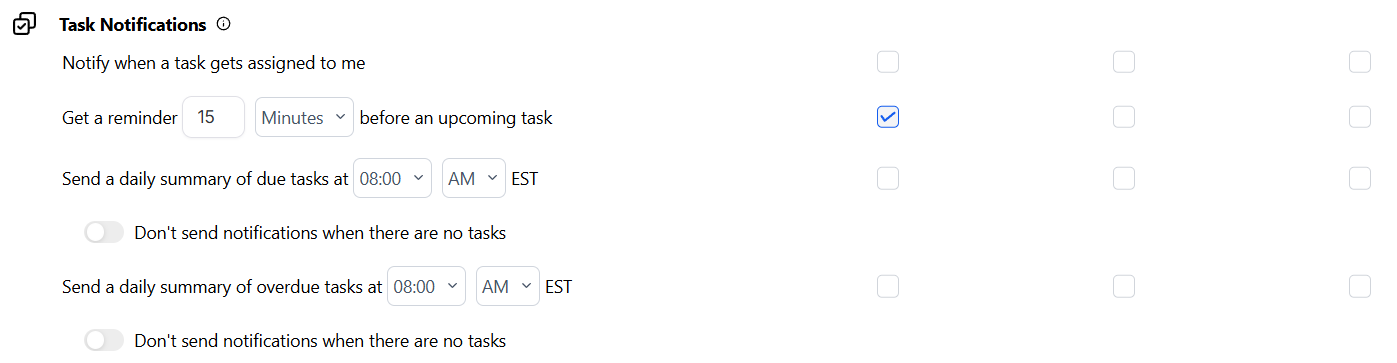
Task notifications section
When a task is assigned
When a task is assigned
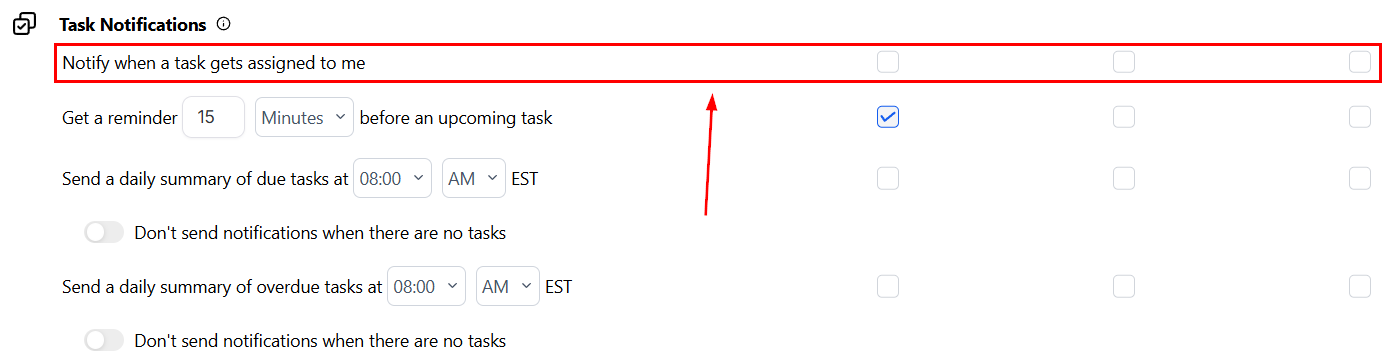
Task assigned notification
Setting a reminder
Setting a reminder
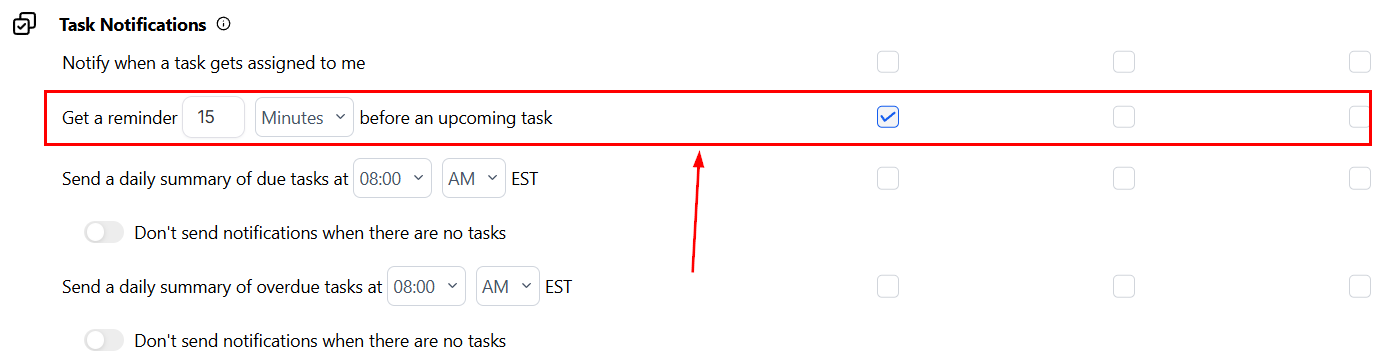
Task reminder notification
Daily summary of due tasks
Daily summary of due tasks
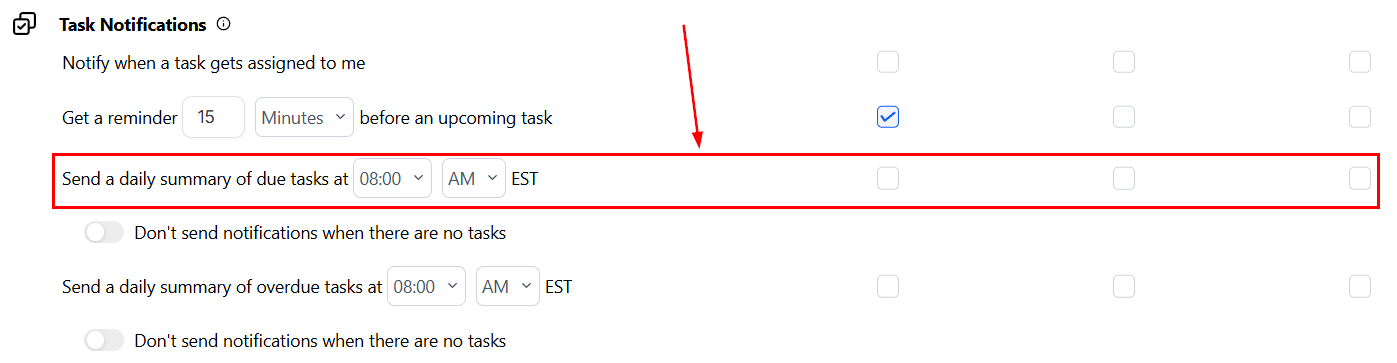
Daily due tasks summary
Daily summary of overdue tasks
Daily summary of overdue tasks
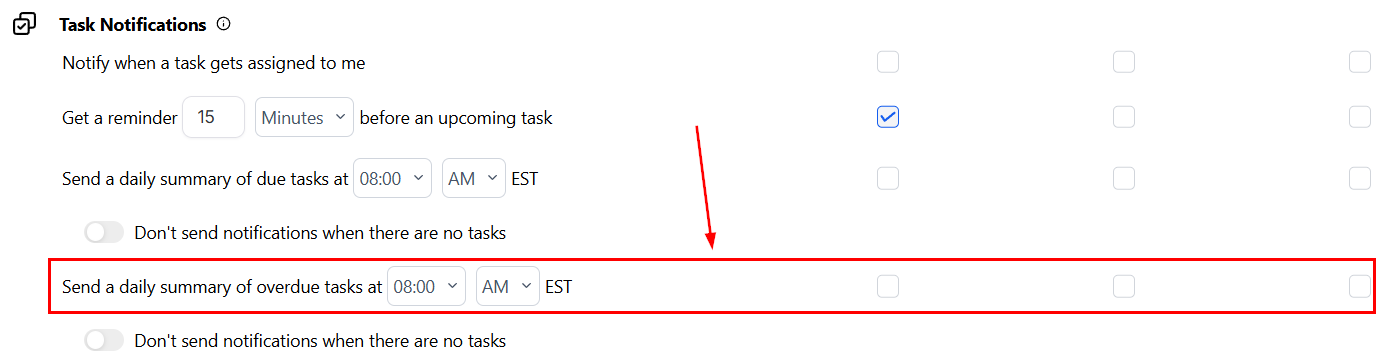
Daily overdue tasks summary
No tasks
No tasks
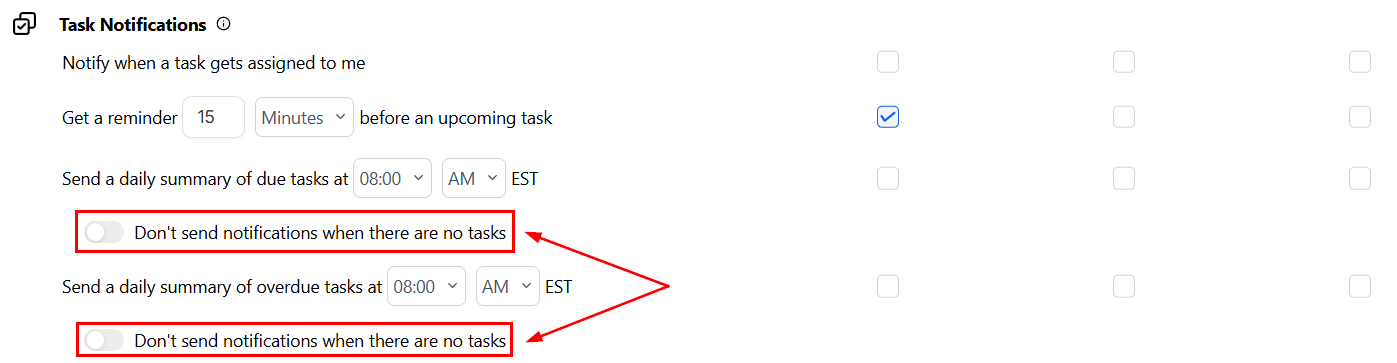
No tasks toggle
WordPress notifications
When a customer makes a purchase through your connected WordPress site, you can be informed via in-app notification, SMS, or email. Ensure the website URL is connected with the platform before configuring these preferences.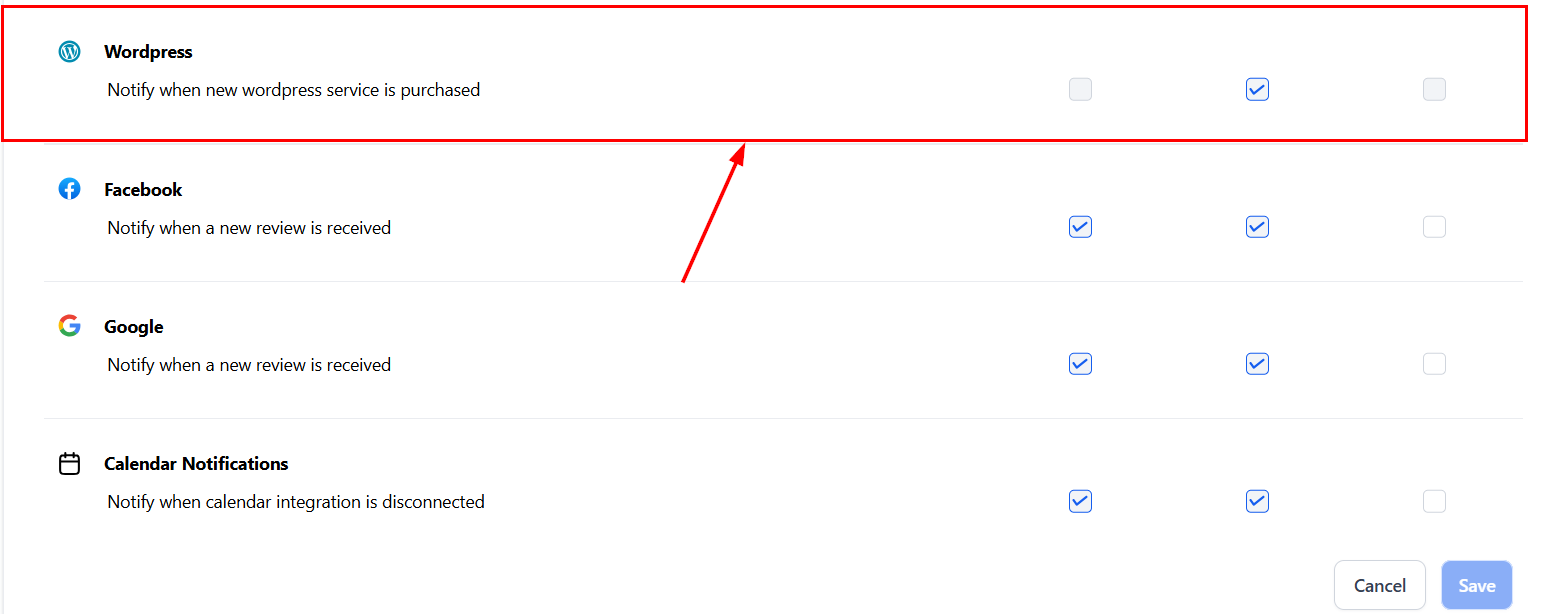
WordPress notification settings
Facebook notifications
Control how you view updates related to your Facebook page — such as new messages, comments, and lead activity. Your Facebook page must be integrated with your account before you can receive these notifications.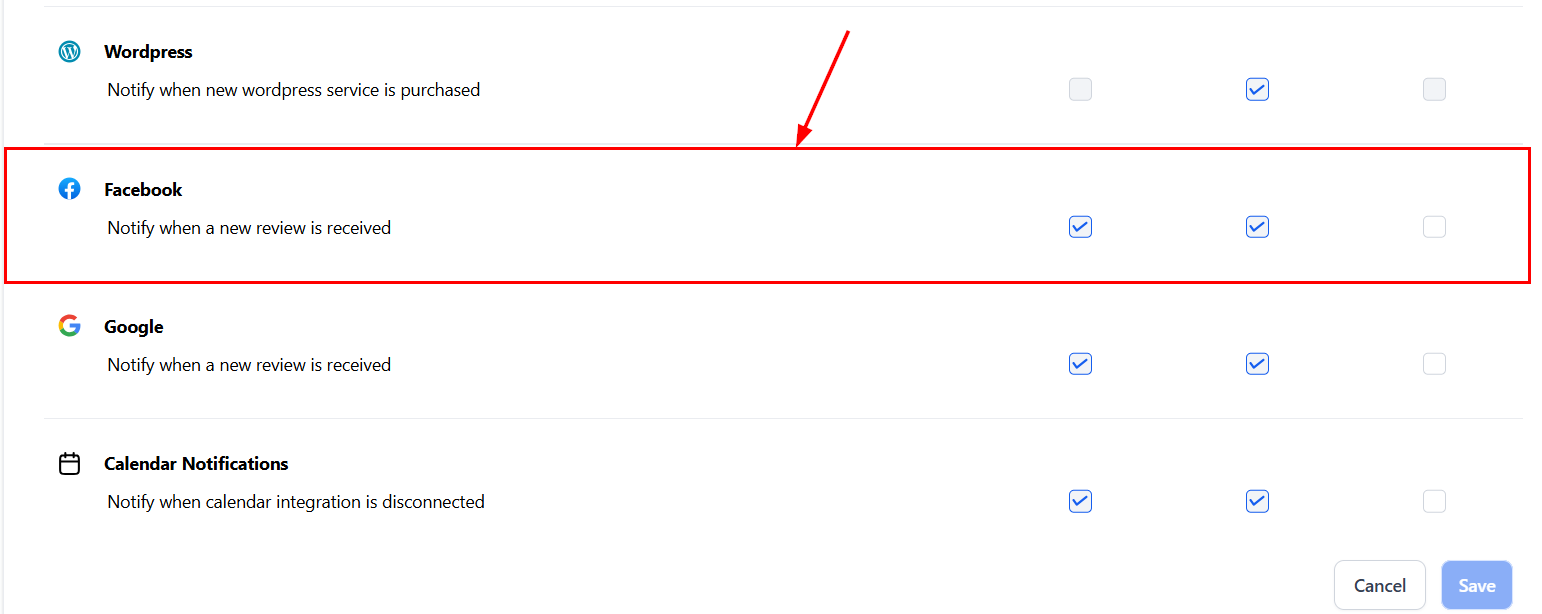
Facebook notification settings
Google notifications
Manage notifications related to your Google My Business page, including new review alerts. If enabled, notifications help you decide the next action based on reviews received on your Google Business Profile.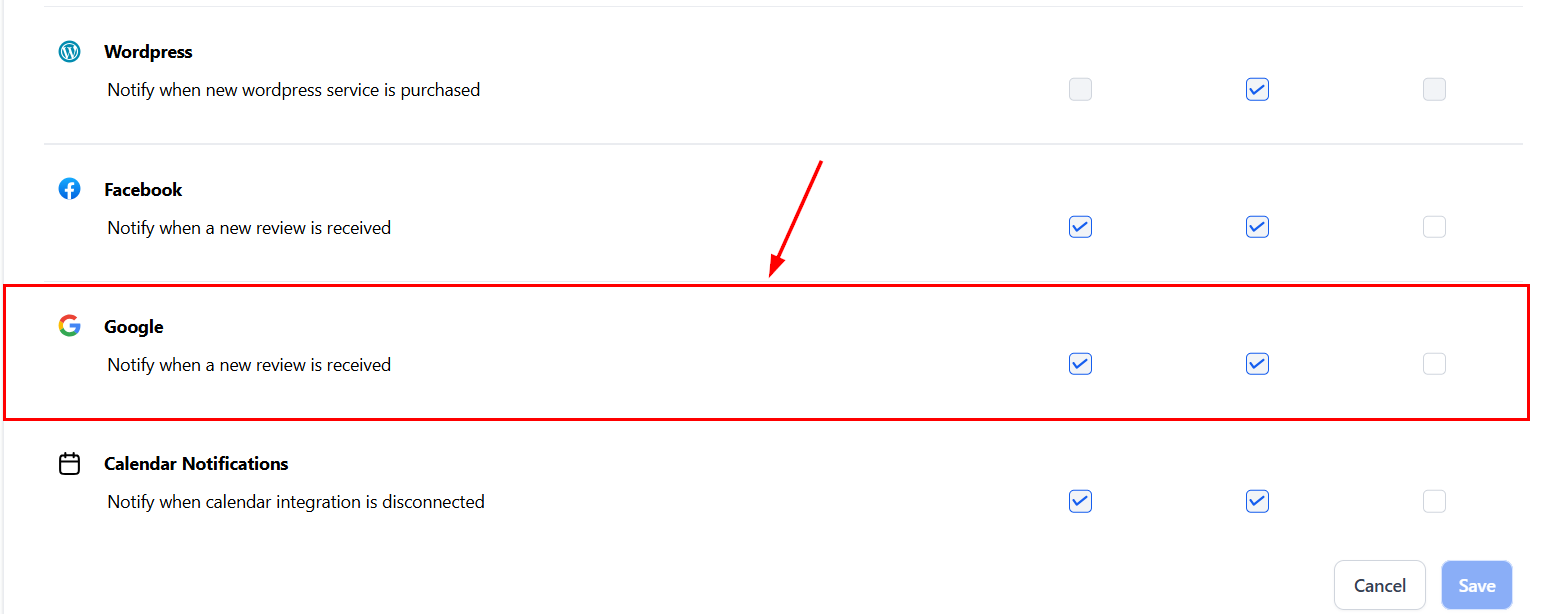
Google notification settings
Calendar notifications
Account users can stay informed with disconnection alerts for calendar and video conferencing integrations. Alerts are sent on Days 1, 3, 7, and 14 via your configured channels. After Day 14, notifications stop automatically. Once you reconnect an integration — such as Google, Outlook, iCloud, Zoom, or Microsoft Teams — no further reminders are sent.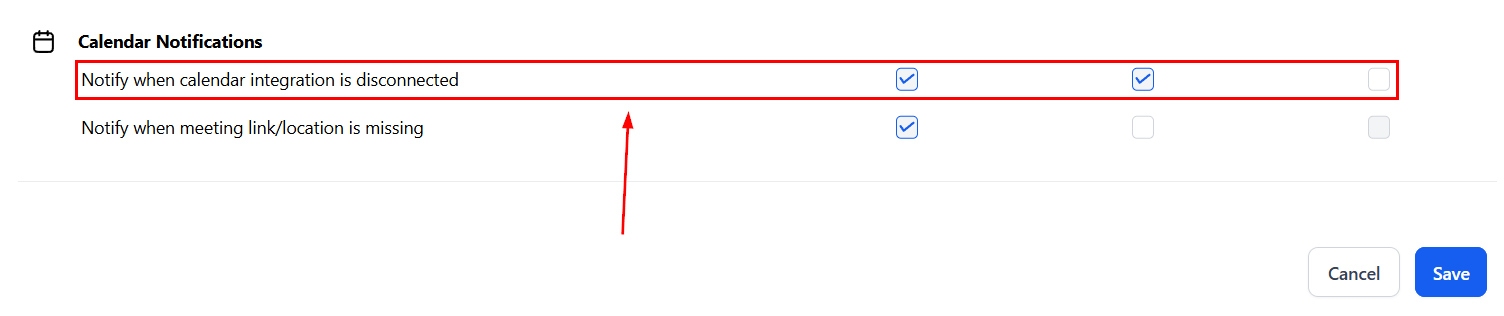
Calendar disconnection notifications
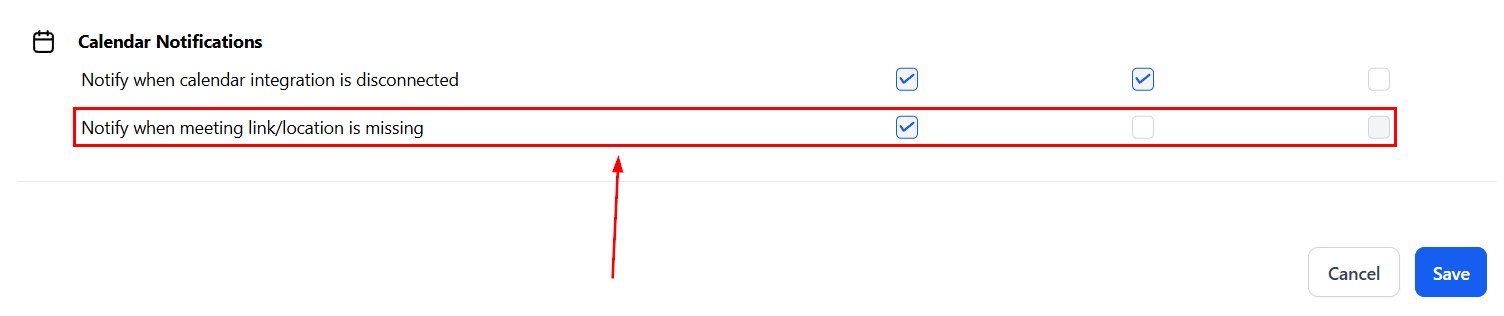
Meeting link issue notifications
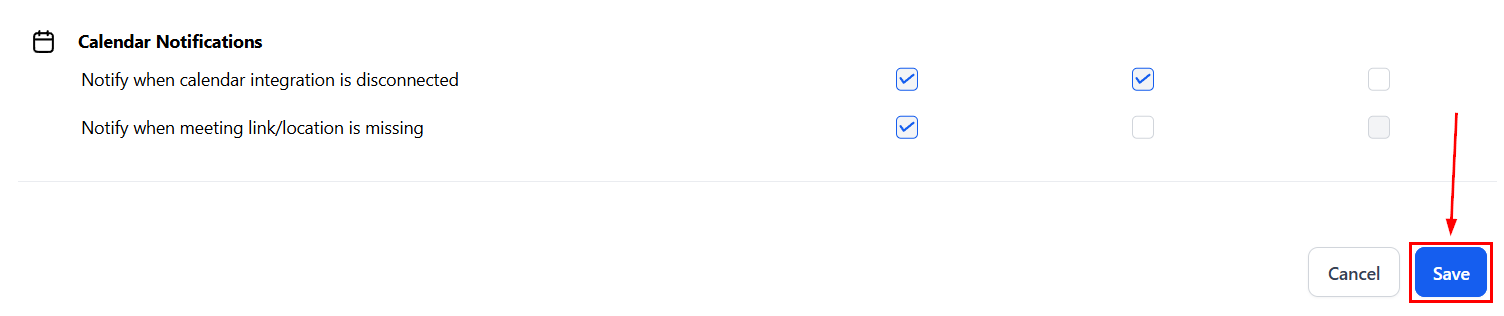
Save notification preferences
Custom notifications per user
Each user can configure their own notification preferences independently. Changes made by one user do not affect other team members. This allows:- Sales reps to receive all conversation and opportunity notifications
- Support agents to receive only assigned conversation alerts
- Managers to receive task summaries and high-priority alerts without individual message notifications
In-app vs. email vs. SMS notification options
For most notification types, you can enable any combination of three delivery channels:Notification preferences for specific events
Beyond the standard categories (conversations, tasks, calendar), you can fine-tune notifications for specific events:- Opportunity stage changes — get notified when a deal moves to a specific stage
- Form submissions — receive alerts when a specific form is submitted
- Payment received — get notified when a payment is processed
- Review received — receive alerts for new Google or Facebook reviews
- Workflow errors — get notified when a workflow encounters an error