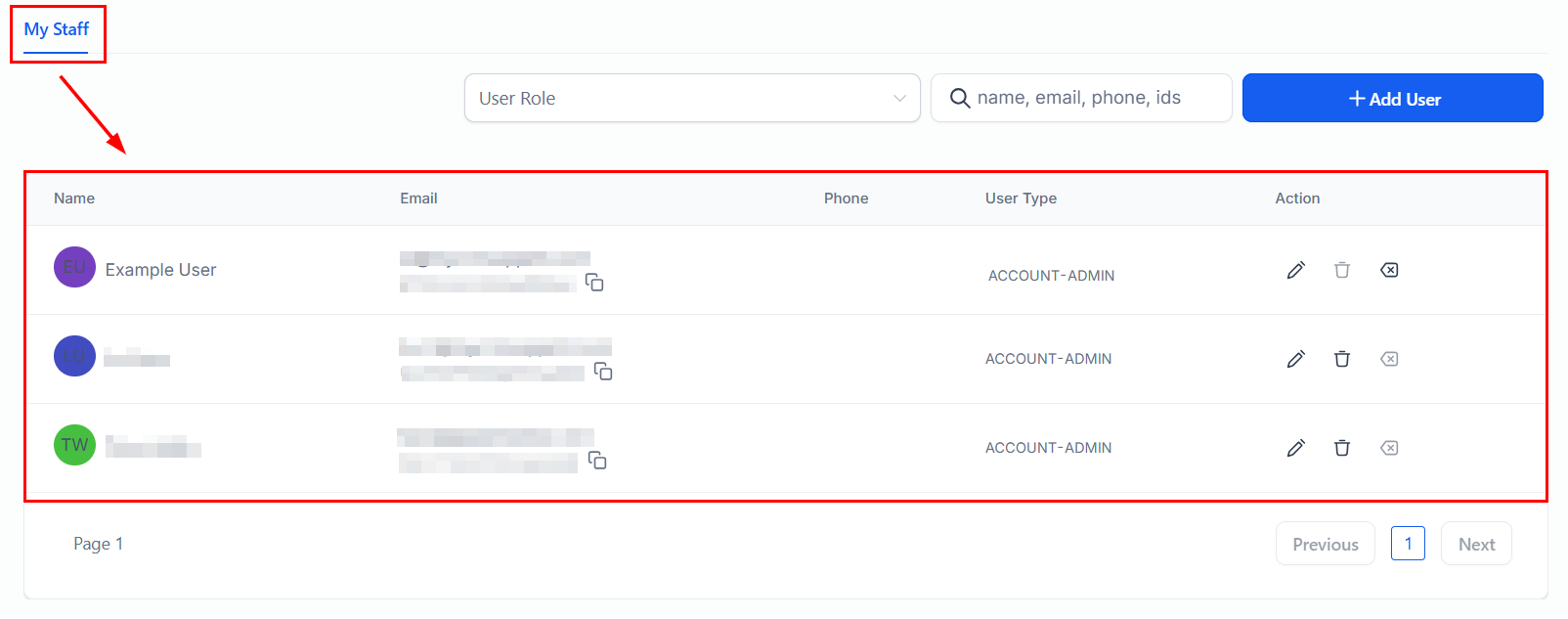
Team members list
The Team Members list shows all users currently added to your account. From here you can:- Search for a specific user
- Filter by role
- View each user’s name, email, role, and status
- Edit or remove users
User roles
Roles define what permissions a user has across the account. Assign roles to control access to specific features and data.
| Role | Access level |
|---|---|
| Admin | Full access to all settings, data, and features |
| User | Access to assigned contacts, conversations, and tasks |
| Custom | Granular permission set configured by an administrator |
User permission settings control visibility at the data level — for example, whether a user can see all contacts or only those assigned to them.
Adding a team member
Set permissions
Customize the user’s access to specific features, pipelines, calendars, and data visibility settings.
Showing only assigned data in dashboards
By default, all users see all data in the dashboard. You can restrict users to see only the data assigned to them — useful for keeping sensitive information private and reducing clutter for individual team members. Steps to enable assigned-data-only view:- Go to Settings > My Staff.
- Open the user’s profile by clicking their name or the edit icon.
- Scroll to Dashboard Permissions.
- Enable Show Only Assigned Data.
- Save the changes.
Password reset
As an administrator, you can reset a staff member’s password:- In My Staff, find the user.
- Click the edit icon next to their name.
- Click Reset Password to send them a password reset email.
Integrating Google Meet for virtual appointments
Connect Google Meet so that virtual appointment links are automatically generated and included in appointment confirmations. Steps:- In My Staff, open the relevant user’s profile.
- Scroll to the Calendar Integration section.
- Click Connect Google Meet and sign in with the user’s Google account.
- Authorize the integration and save.
.png?fit=max&auto=format&n=EQK5eX9kTD8NzWwA&q=85&s=878008bf159fcc4964d0c0d508b6e400)
.png?fit=max&auto=format&n=EQK5eX9kTD8NzWwA&q=85&s=e7fddd192d86dd299bb26a190e6a7e96)