

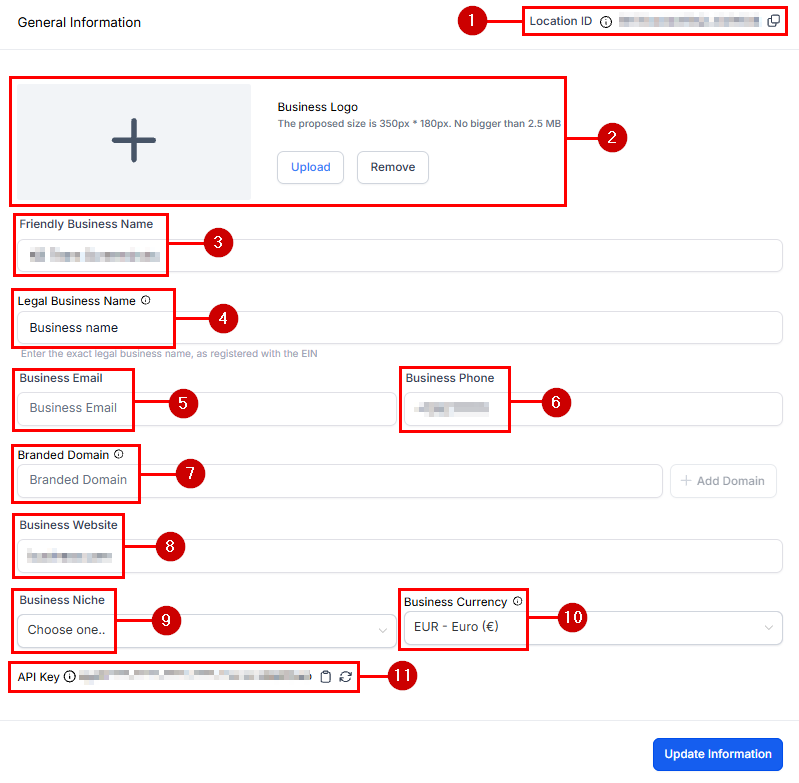
Business Profile settings — General Information section
How to access Business Profile
Go to Settings in the left sidebar and select Business Profile (sometimes labeled Company Info depending on your plan).General information
Fill in the following fields: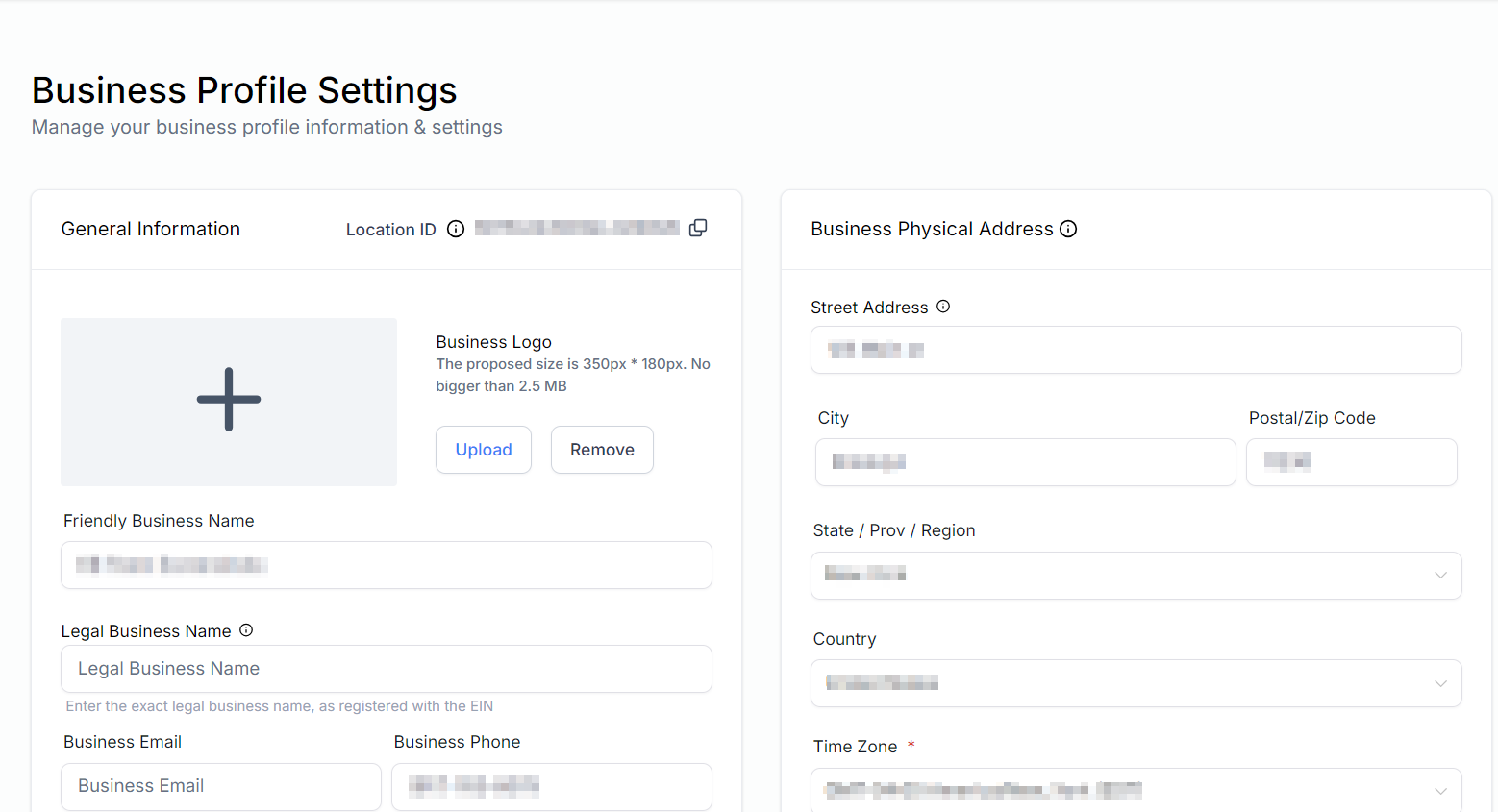
General information fields in Business Profile
Address and time zone
Enter your complete business address including city, state/region, country, and postal code. Then select your time zone carefully — this setting controls the timing of all scheduled messages, appointments, and automations platform-wide.Logo and branding
Upload your business logo. The logo appears in:- Email campaign headers
- Booking confirmation pages sent to contacts
- The client portal (if enabled)
- Invoice headers
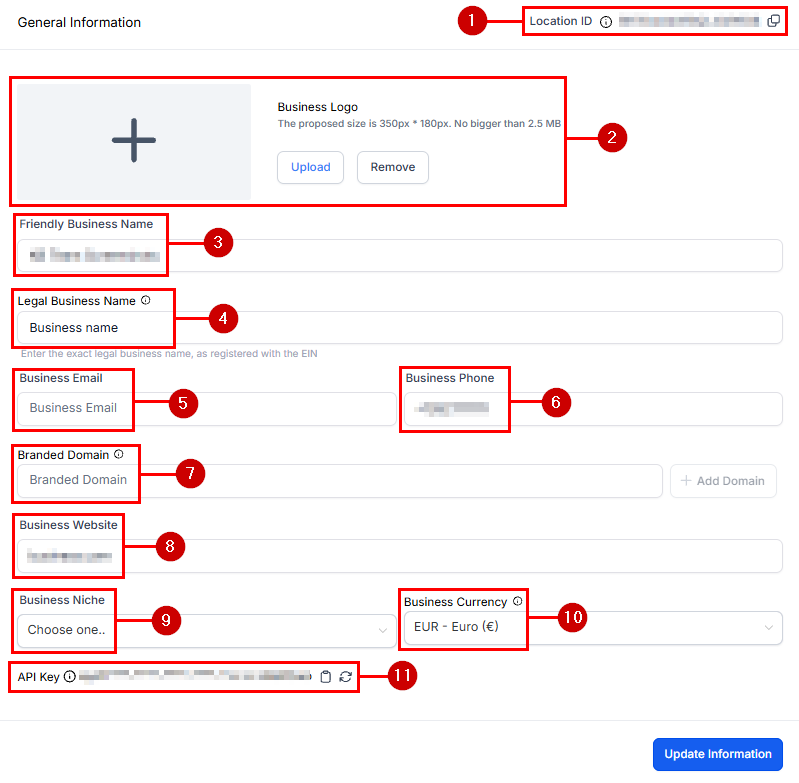
Business Profile with logo and branding fields
Currency
Set your default currency. This applies to invoices, payment links, and payment reporting.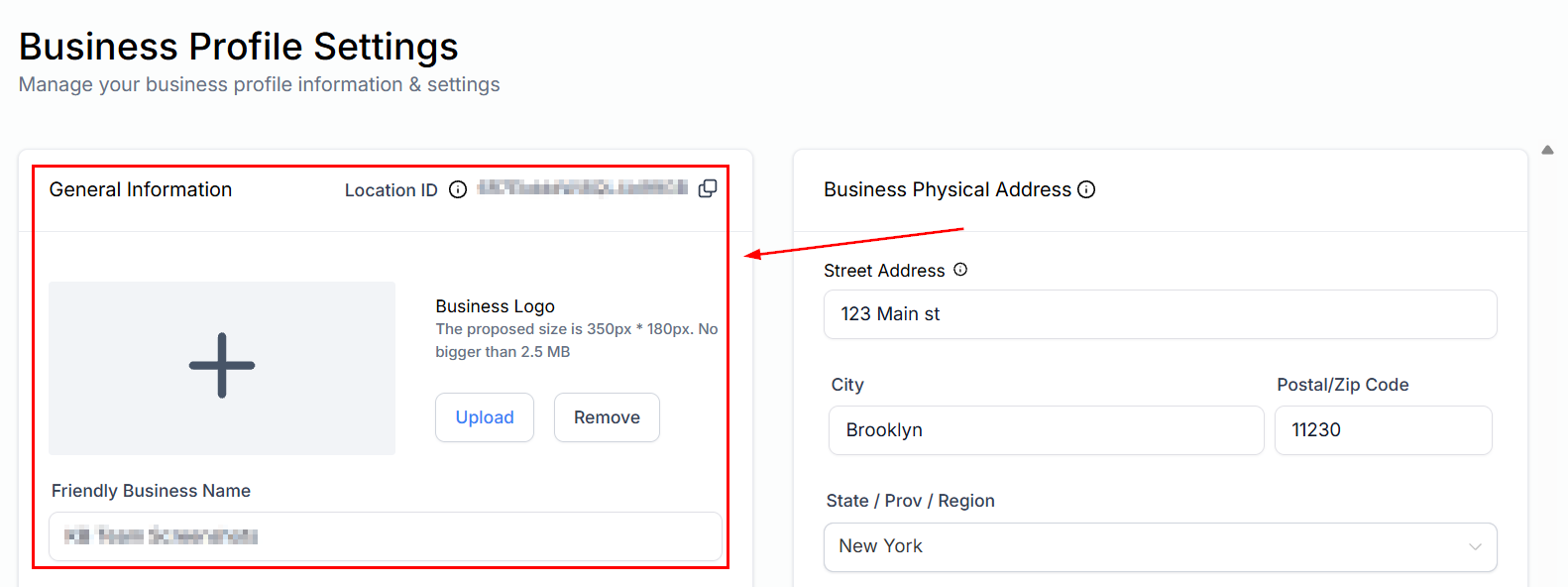
Currency settings in Business Profile
Compliance fields
The compliance section contains fields required for SMS carrier registration and email compliance (CAN-SPAM / GDPR). These include:- Business type (LLC, Sole Proprietor, Corporation, etc.)
- EIN / Tax ID
- Business registration URL or certificate
- Physical mailing address (required for email footers)
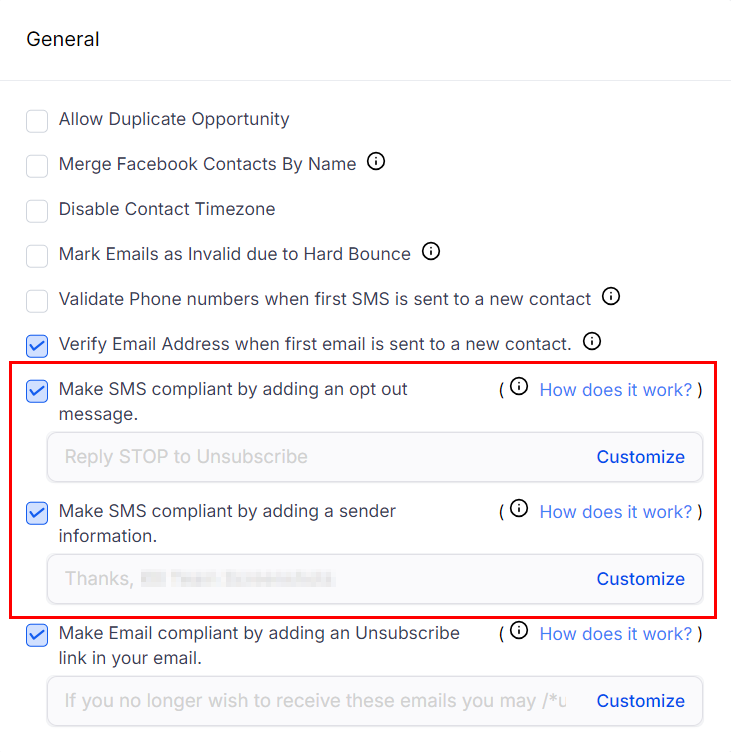
Compliance fields in Business Profile
Accurate compliance fields are required before you can submit your A2P 10DLC registration for SMS. Incomplete information causes delays or rejections by the carriers. A2P 10DLC registration guide →
Email compliance
The email compliance section includes your unsubscribe footer text and physical address for CAN-SPAM compliance. These are automatically appended to all bulk email campaigns.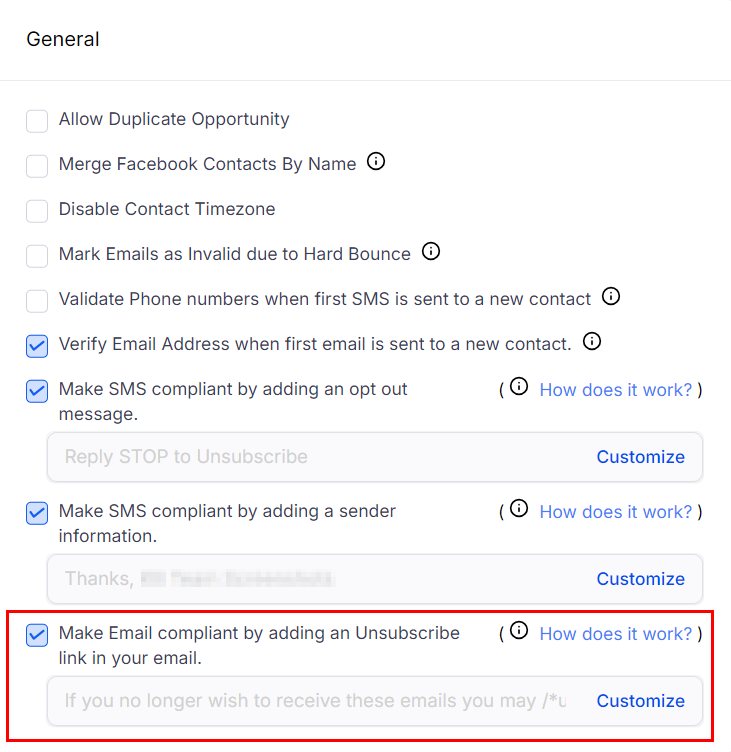
Email compliance settings in Business Profile
Validate SMS sender ID
After completing A2P registration, return here to validate your SMS sender ID.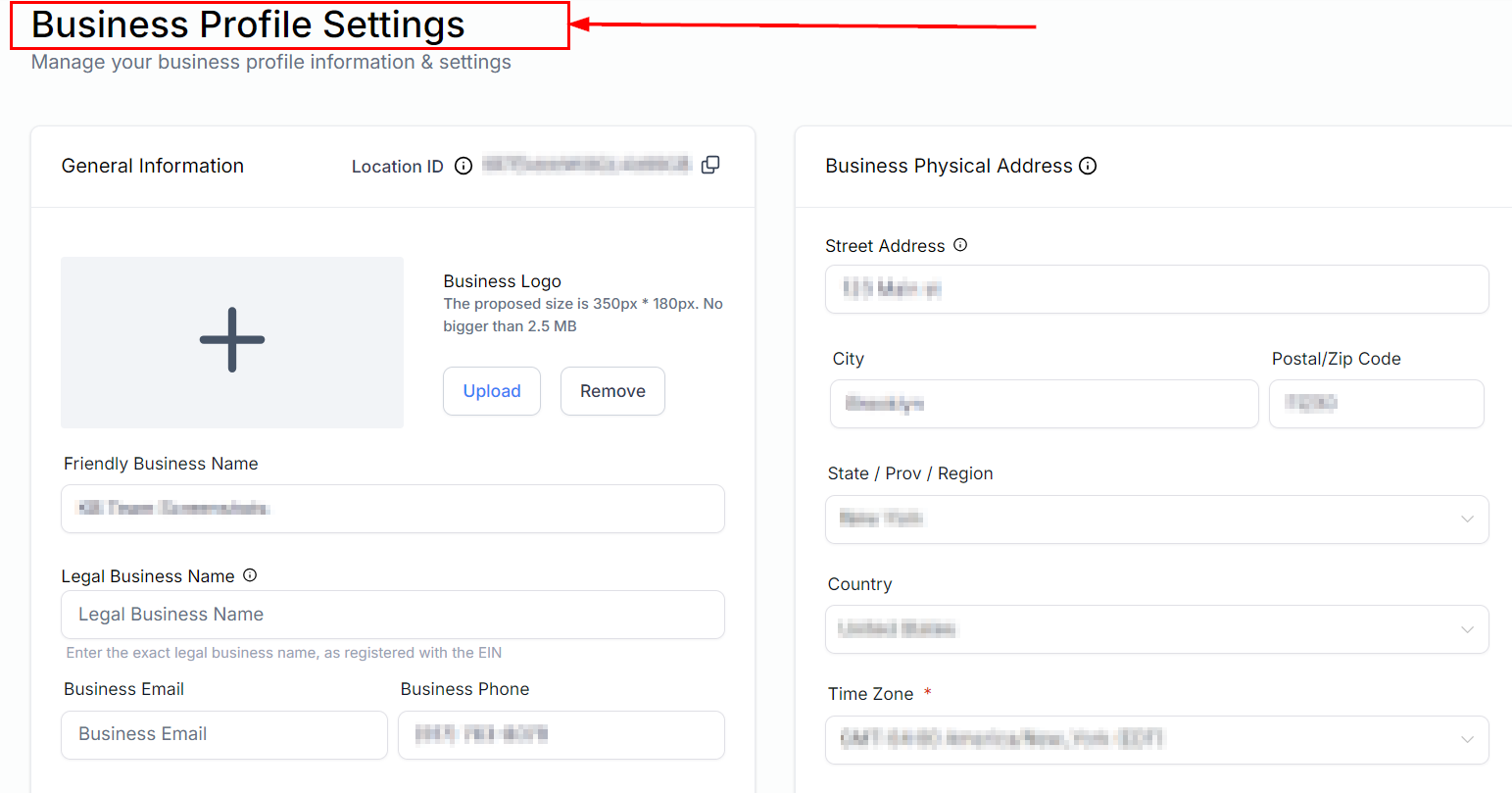
SMS sender ID validation in Business Profile
Frequently asked questions
Can I change my business name later?
Can I change my business name later?
Yes. You can update any field in Business Profile at any time. However, if you have already submitted an A2P 10DLC registration, changing your legal business name may require you to resubmit your brand registration. Contact HoopAI support before making changes post-registration.
What logo format should I use?
What logo format should I use?
PNG with a transparent background is recommended. Minimum width 400px. Avoid uploading logos with white backgrounds if you plan to use the logo on dark-mode email templates or booking pages.
What time zone should I select if I serve clients across multiple zones?
What time zone should I select if I serve clients across multiple zones?
Set the time zone where your business is legally registered or where most operations occur. Automations and appointments fire based on this setting. Contacts can book appointments in their own local time — the platform handles the conversion automatically.
Why is my physical address required for emails?
Why is my physical address required for emails?
CAN-SPAM (US) and GDPR (EU) regulations require all commercial emails to include a valid physical mailing address in the footer. The platform inserts this automatically from your Business Profile.