> ## Documentation Index
> Fetch the complete documentation index at: https://help.hoopai.com/llms.txt
> Use this file to discover all available pages before exploring further.
# WordPress
> Host, manage, and integrate WordPress sites directly from the Hoop platform.
The Hoop platform includes full WordPress hosting and management capabilities. You can create and host WordPress sites, integrate your CRM account with existing WordPress installations via the HoopAI plugin, and manage domains, users, plugins, themes, and backups — all from a single interface.
 ## Connecting an existing WordPress site via plugin
Log in to your WordPress admin dashboard. Go to **Plugins > Add New** and search for **HoopAI**. Click **Install Now**, then **Activate**.
In the WordPress left sidebar, click **HoopAI**. Click **Sign in** and log in to your Hoop account.
If you have multiple accounts, select the correct one. Once selected, your CRM tools — including forms, chat widgets, and phone numbers — are connected to the WordPress site.
***
## Managing a hosted WordPress site
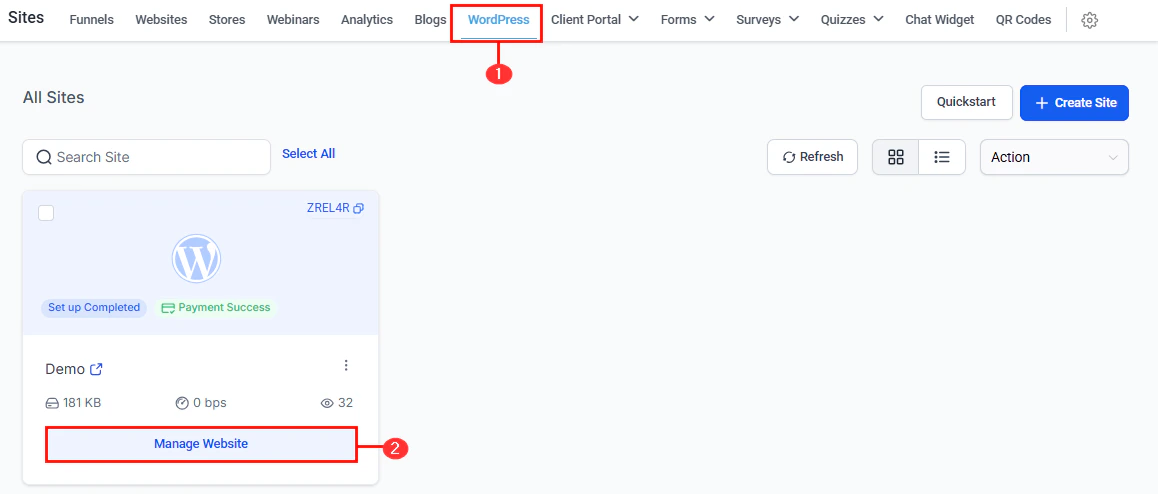
Navigate to **Sites > WordPress** and click on any site to open the management panel.
View your site and admin portal links. Manage domains and subdomains under **Manage Your Domains**. Import an existing WordPress site using the All-in-One WP Migration plugin or by uploading a file manually.
View site performance metrics including response codes, CDN usage, site traffic, visitors by location (map view), top client IPs, top browsers, and access logs.
Add and manage WordPress user accounts. Supported roles:
* **Administrator** — full access to all settings and content
* **Editor** — create and edit content, no settings access
* **Author** — create and edit their own content
* **Contributor** — write content but cannot publish
* **Subscriber** — view content only
View, enable/disable, and delete plugins. Enable automatic updates to keep plugins compatible and secure.
Activate themes. Only one theme can be active at a time. Enable automatic updates for themes.
Schedule automatic backups or create manual backups at any time. Restore a previous backup from this section if needed.
View all pages on the WordPress site. Add new HTML pages directly from the management panel.
Review every action taken on the site — who did it and when. Filter by date for targeted analysis.
## Connecting an existing WordPress site via plugin
Log in to your WordPress admin dashboard. Go to **Plugins > Add New** and search for **HoopAI**. Click **Install Now**, then **Activate**.
In the WordPress left sidebar, click **HoopAI**. Click **Sign in** and log in to your Hoop account.
If you have multiple accounts, select the correct one. Once selected, your CRM tools — including forms, chat widgets, and phone numbers — are connected to the WordPress site.
***
## Managing a hosted WordPress site
Navigate to **Sites > WordPress** and click on any site to open the management panel.
View your site and admin portal links. Manage domains and subdomains under **Manage Your Domains**. Import an existing WordPress site using the All-in-One WP Migration plugin or by uploading a file manually.
View site performance metrics including response codes, CDN usage, site traffic, visitors by location (map view), top client IPs, top browsers, and access logs.
Add and manage WordPress user accounts. Supported roles:
* **Administrator** — full access to all settings and content
* **Editor** — create and edit content, no settings access
* **Author** — create and edit their own content
* **Contributor** — write content but cannot publish
* **Subscriber** — view content only
View, enable/disable, and delete plugins. Enable automatic updates to keep plugins compatible and secure.
Activate themes. Only one theme can be active at a time. Enable automatic updates for themes.
Schedule automatic backups or create manual backups at any time. Restore a previous backup from this section if needed.
View all pages on the WordPress site. Add new HTML pages directly from the management panel.
Review every action taken on the site — who did it and when. Filter by date for targeted analysis.
 ***
## Domain management
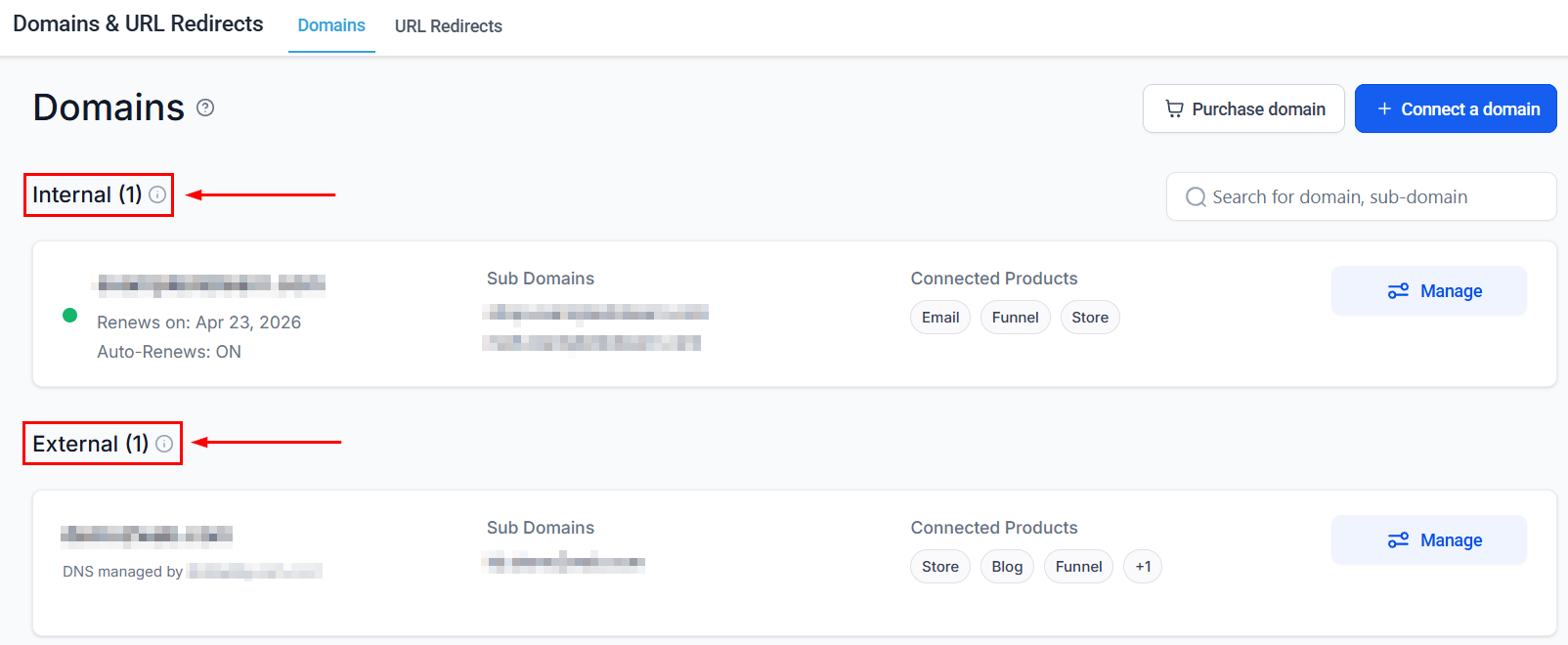
Click **Add Domain** in the **Info > Manage Your Domains** section. Enter the domain name and click **Auto Configure** to trigger the Domain Connect integration for automated DNS setup. You can also set the `www` version as the primary domain from the Info menu.
***
## Hosting management features
| Feature | Description |
| ------------------------ | ------------------------------------------------------------------------------ |
| **PHP Version Update** | Switch PHP versions via Server settings for compatibility with plugins |
| **FTP Access** | Access FTP credentials for direct file management (password hidden by default) |
| **Primary Domain** | Designate the `www` domain as the primary domain for cleaner URLs |
| **Password Security** | FTP accounts require strong passwords; all passwords are hidden by default |
| **Admin User Safeguard** | A new admin must be assigned before deleting an existing admin |
***
## Domain management
Click **Add Domain** in the **Info > Manage Your Domains** section. Enter the domain name and click **Auto Configure** to trigger the Domain Connect integration for automated DNS setup. You can also set the `www` version as the primary domain from the Info menu.
***
## Hosting management features
| Feature | Description |
| ------------------------ | ------------------------------------------------------------------------------ |
| **PHP Version Update** | Switch PHP versions via Server settings for compatibility with plugins |
| **FTP Access** | Access FTP credentials for direct file management (password hidden by default) |
| **Primary Domain** | Designate the `www` domain as the primary domain for cleaner URLs |
| **Password Security** | FTP accounts require strong passwords; all passwords are hidden by default |
| **Admin User Safeguard** | A new admin must be assigned before deleting an existing admin |
 ***
## Quick actions
From the WordPress site list, click the three-dot icon to access:
* **WP Admin** — open the WordPress admin dashboard directly
* **Clear Cache** — force the site to fetch fresh data for improved performance
* **Troubleshoot** — run diagnostics on the site
Use **Automatic Updates** for both plugins and themes to reduce the risk of compatibility issues and security vulnerabilities. Review the activity log periodically to catch unexpected changes.
***
## Quick actions
From the WordPress site list, click the three-dot icon to access:
* **WP Admin** — open the WordPress admin dashboard directly
* **Clear Cache** — force the site to fetch fresh data for improved performance
* **Troubleshoot** — run diagnostics on the site
Use **Automatic Updates** for both plugins and themes to reduce the risk of compatibility issues and security vulnerabilities. Review the activity log periodically to catch unexpected changes.