> ## Documentation Index
> Fetch the complete documentation index at: https://help.hoopai.com/llms.txt
> Use this file to discover all available pages before exploring further.
# Websites
> Build full multi-page websites with global navigation and custom domains in the Hoop platform.
The Websites feature lets you build complete, multi-page websites — not just single landing pages. You can add a global navigation menu, organize content across as many pages as you need, and publish to a custom domain, all without leaving the Hoop platform.
 ## Websites vs funnels
| Feature | Website | Funnel |
| ---------------------- | -------------------------------------- | ------------------------------ |
| Multiple pages | Yes, with free navigation | Yes, but sequential steps only |
| Global header / footer | Yes (via Global Sections) | No (must add per page) |
| Blog | Yes | No |
| SEO / sitemap | Yes | Limited |
| Best for | Brand sites, service pages, portfolios | Lead gen, sales campaigns |
***
## Creating a website
## Websites vs funnels
| Feature | Website | Funnel |
| ---------------------- | -------------------------------------- | ------------------------------ |
| Multiple pages | Yes, with free navigation | Yes, but sequential steps only |
| Global header / footer | Yes (via Global Sections) | No (must add per page) |
| Blog | Yes | No |
| SEO / sitemap | Yes | Limited |
| Best for | Brand sites, service pages, portfolios | Lead gen, sales campaigns |
***
## Creating a website
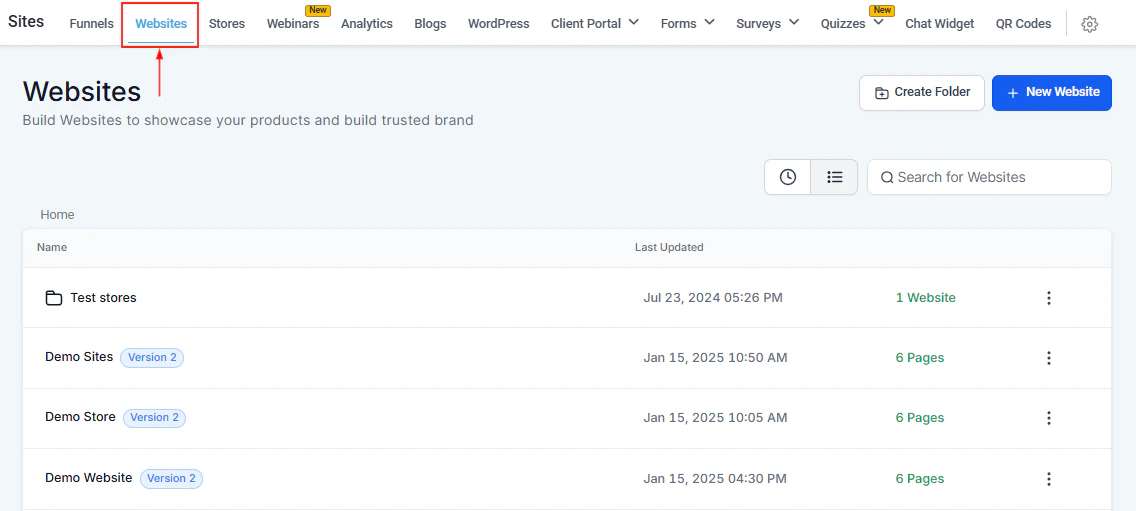
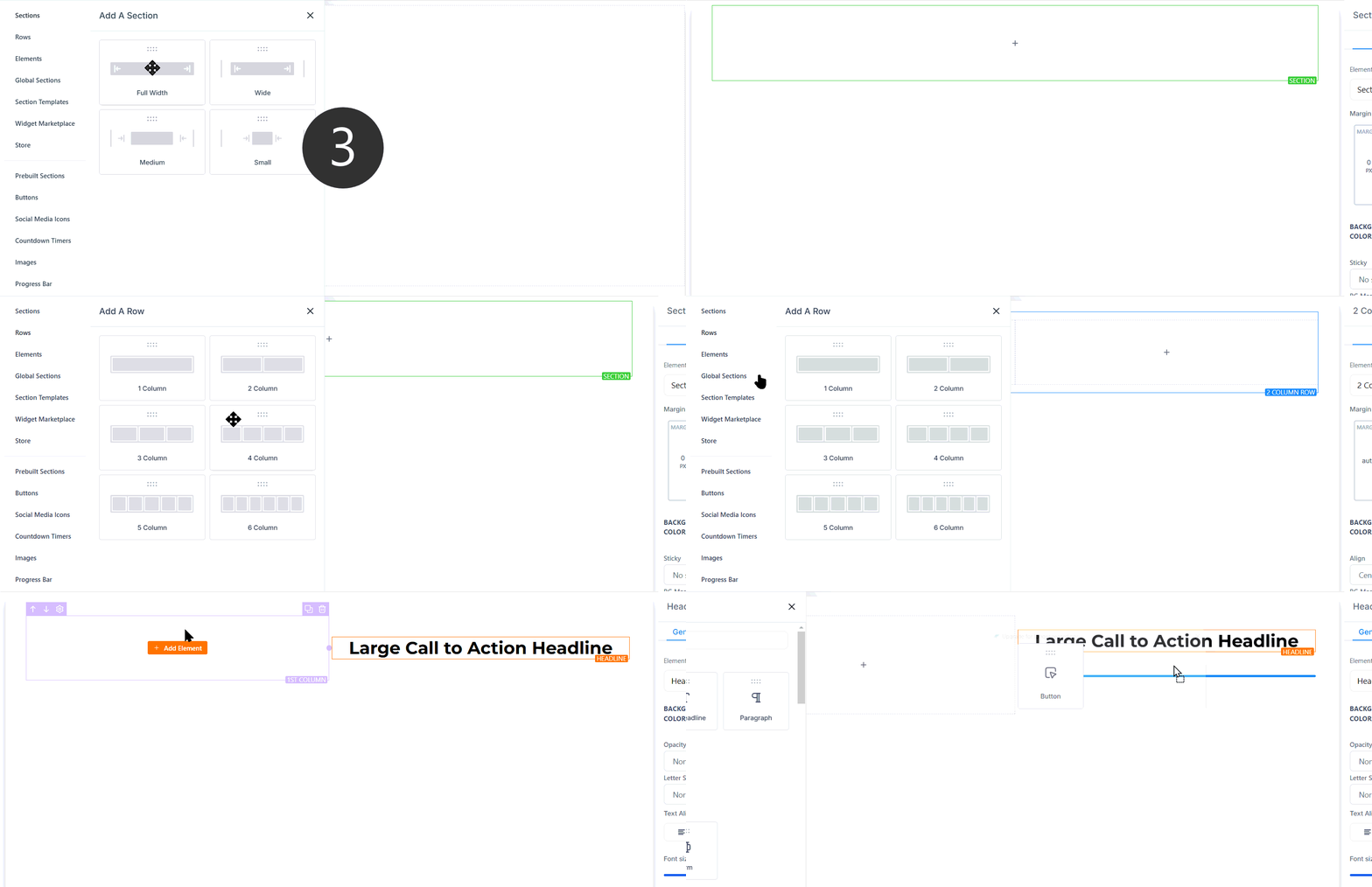 Click **Sites** in the left sidebar, then **Websites**. Click **+ New Website**.
Select from available website templates or choose a blank canvas. Templates provide pre-designed pages for common business types.
Enter a website name (for internal use only — not visible to visitors) and click **Create**.
Click **+ Add New Page** to create pages. Give each page a name and URL path. Common pages include Home, About, Services, Contact, and Blog.
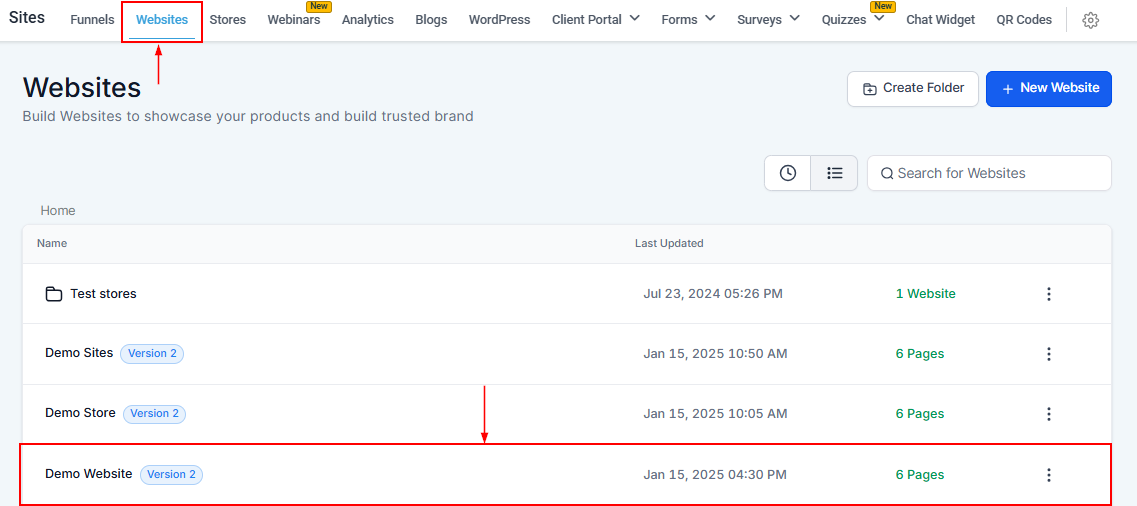
Click **Create from Blank** or select a template to open the page in the drag-and-drop builder. Add sections, rows, columns, and elements to design the layout.
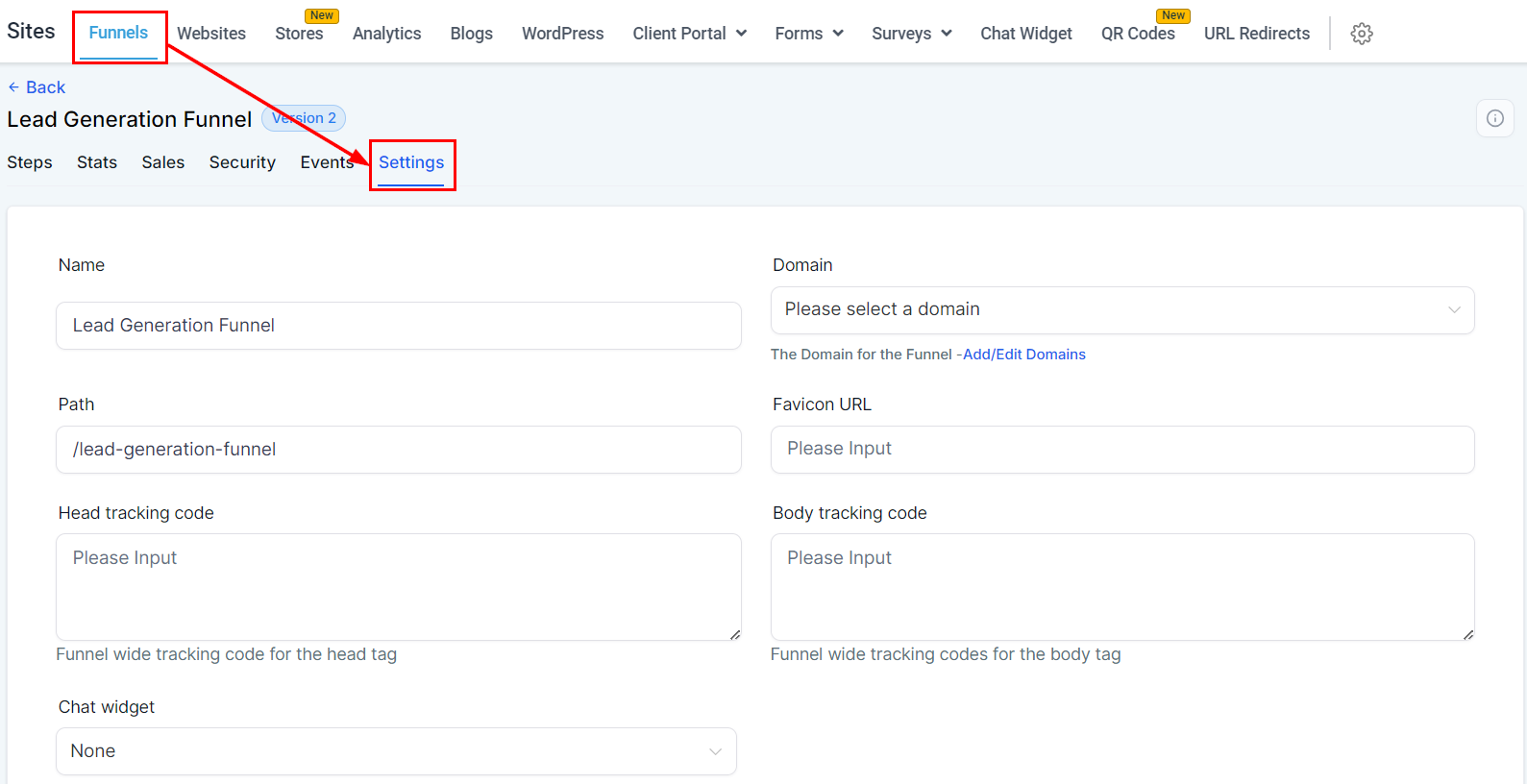
Go to the website's **Settings** tab, select the domain from the dropdown, and click **Save**.
Click **Save** and then **Publish** on each page to make it live.
***
## Managing website pages
The **Pages** tab inside a website lists all pages and their statuses. From this view you can:
Click **Sites** in the left sidebar, then **Websites**. Click **+ New Website**.
Select from available website templates or choose a blank canvas. Templates provide pre-designed pages for common business types.
Enter a website name (for internal use only — not visible to visitors) and click **Create**.
Click **+ Add New Page** to create pages. Give each page a name and URL path. Common pages include Home, About, Services, Contact, and Blog.
Click **Create from Blank** or select a template to open the page in the drag-and-drop builder. Add sections, rows, columns, and elements to design the layout.
Go to the website's **Settings** tab, select the domain from the dropdown, and click **Save**.
Click **Save** and then **Publish** on each page to make it live.
***
## Managing website pages
The **Pages** tab inside a website lists all pages and their statuses. From this view you can:
 * **Add new pages** — click **+ Add new page** and provide a name and path
* **Edit pages** — click any page name to open it in the builder
* **Clone pages** — duplicate a page within the same site or copy it to another website
* **Import from ClickFunnels** — paste a ClickFunnels URL to import a page directly
* **Delete pages** — permanently remove a page (this cannot be undone)
***
## Website settings
The **Settings** tab configures your website's global behavior:
| Setting | Description |
| ----------------------------- | --------------------------------------------------- |
| **Name** | Internal name for the website |
| **Domain** | The domain visitors use to access the site |
| **Path** | Default URL path prefix |
| **Favicon URL** | Small icon shown in browser tabs (`.png` or `.ico`) |
| **Head / Body Tracking Code** | Analytics or ad pixel scripts injected site-wide |
| **Chat Widget** | Attach a chat widget to all pages |
| **Payment Mode** | Toggle live vs. test payment processing |
| **Image Optimization** | Deliver images via CDN for faster load times |
| **GDPR Compliant Fonts** | Use GDPR-friendly fonts instead of Google Fonts |
***
## Global sections for consistent headers and footers
Use **Global Sections** to create a site-wide header and footer that updates across all pages at once:
1. Build your header as a section in the builder.
2. Right-click the section and choose **Save as Global Section**.
3. Add that saved global section to the top of every page.
4. Any edit to the global section updates all pages automatically.
* **Add new pages** — click **+ Add new page** and provide a name and path
* **Edit pages** — click any page name to open it in the builder
* **Clone pages** — duplicate a page within the same site or copy it to another website
* **Import from ClickFunnels** — paste a ClickFunnels URL to import a page directly
* **Delete pages** — permanently remove a page (this cannot be undone)
***
## Website settings
The **Settings** tab configures your website's global behavior:
| Setting | Description |
| ----------------------------- | --------------------------------------------------- |
| **Name** | Internal name for the website |
| **Domain** | The domain visitors use to access the site |
| **Path** | Default URL path prefix |
| **Favicon URL** | Small icon shown in browser tabs (`.png` or `.ico`) |
| **Head / Body Tracking Code** | Analytics or ad pixel scripts injected site-wide |
| **Chat Widget** | Attach a chat widget to all pages |
| **Payment Mode** | Toggle live vs. test payment processing |
| **Image Optimization** | Deliver images via CDN for faster load times |
| **GDPR Compliant Fonts** | Use GDPR-friendly fonts instead of Google Fonts |
***
## Global sections for consistent headers and footers
Use **Global Sections** to create a site-wide header and footer that updates across all pages at once:
1. Build your header as a section in the builder.
2. Right-click the section and choose **Save as Global Section**.
3. Add that saved global section to the top of every page.
4. Any edit to the global section updates all pages automatically.
 ***
## SEO for websites
Each page has its own SEO settings:
* **Title** — shown in browser tabs and search results
* **Description** — the snippet shown under the title in search results
* **Keywords** — help categorize the page for search engines
* **Canonical URL** — prevents duplicate content indexing issues
* **Social share image** — the image shown when the page is shared on social media
* **Language** — ensures correct indexing for international audiences
Use **Clone** to duplicate a high-performing page as a template before making changes. You can clone a page to a different website to reuse layouts across your account.
Your website name is for internal identification only. It is not visible to visitors and does not affect SEO or the live site title.
***
## Keyboard shortcuts
The builder supports comprehensive keyboard shortcuts. Press **Shift + /** inside the builder to open the full shortcut directory. Common shortcuts include:
* Navigate between elements, parent containers, and sections
* Toggle panels for Layers, Settings, Quick Add, and Custom Code
* Save, undo, redo, publish, and preview without a mouse
* Bold, italic, and hyperlink shortcuts for text editing
***
## Saving sections for reuse
If you've designed a footer, hero, or feature block you want to reuse:
1. Click the section's green bar to reveal its actions.
2. Click the **Save** icon to save it as a **Global Section** or **Saved Section**.
3. The section is added to your library and can be dragged onto any page or website in your account.
***
## FAQs
Navigate to **Sites > Websites**, click your site, then open the **Stats** tab. You'll see page views, opt-ins, and conversion rates for each page.
Yes. From the Sites > Websites list, click the three-dot menu next to a website to clone or delete it. Inside a website, you can clone individual pages and copy them to other websites in your account.
Open the website's **Settings** tab, select your domain from the dropdown, and save. Check the Domains section of the docs for full setup guidance including DNS configuration.
Yes. In the builder, add a **Blog Post** element to any page. Set the blog source and filter by recent posts, category, or author to dynamically display content to visitors.
Pre-built section templates let you add ready-made sections (welcome, about, testimonials, etc.) directly into the builder. Click **Add**, select a template, and drag it into your layout. This speeds up page design significantly.
***
## SEO for websites
Each page has its own SEO settings:
* **Title** — shown in browser tabs and search results
* **Description** — the snippet shown under the title in search results
* **Keywords** — help categorize the page for search engines
* **Canonical URL** — prevents duplicate content indexing issues
* **Social share image** — the image shown when the page is shared on social media
* **Language** — ensures correct indexing for international audiences
Use **Clone** to duplicate a high-performing page as a template before making changes. You can clone a page to a different website to reuse layouts across your account.
Your website name is for internal identification only. It is not visible to visitors and does not affect SEO or the live site title.
***
## Keyboard shortcuts
The builder supports comprehensive keyboard shortcuts. Press **Shift + /** inside the builder to open the full shortcut directory. Common shortcuts include:
* Navigate between elements, parent containers, and sections
* Toggle panels for Layers, Settings, Quick Add, and Custom Code
* Save, undo, redo, publish, and preview without a mouse
* Bold, italic, and hyperlink shortcuts for text editing
***
## Saving sections for reuse
If you've designed a footer, hero, or feature block you want to reuse:
1. Click the section's green bar to reveal its actions.
2. Click the **Save** icon to save it as a **Global Section** or **Saved Section**.
3. The section is added to your library and can be dragged onto any page or website in your account.
***
## FAQs
Navigate to **Sites > Websites**, click your site, then open the **Stats** tab. You'll see page views, opt-ins, and conversion rates for each page.
Yes. From the Sites > Websites list, click the three-dot menu next to a website to clone or delete it. Inside a website, you can clone individual pages and copy them to other websites in your account.
Open the website's **Settings** tab, select your domain from the dropdown, and save. Check the Domains section of the docs for full setup guidance including DNS configuration.
Yes. In the builder, add a **Blog Post** element to any page. Set the blog source and filter by recent posts, category, or author to dynamically display content to visitors.
Pre-built section templates let you add ready-made sections (welcome, about, testimonials, etc.) directly into the builder. Click **Add**, select a template, and drag it into your layout. This speeds up page design significantly.