> ## Documentation Index
> Fetch the complete documentation index at: https://help.hoopai.com/llms.txt
> Use this file to discover all available pages before exploring further.
# Webinars
> Create live and on-demand webinar funnels in the Hoop platform.
Webinars are a powerful way to connect with your audience, share insights, and drive conversions in real time or on demand. The Hoop platform lets you build complete webinar funnels — registration pages, live sessions, replays, and follow-up automations — all in one place.
 ## Webinar funnel types
A live webinar funnel hosts a scheduled, real-time broadcast session. Participants register in advance and join at the set date and time. Includes a registration page, live room, and thank-you / replay page.
An on-demand webinar plays a pre-recorded video as if it were live. Visitors register and are immediately directed to the webinar room. Ideal for evergreen lead generation.
## Creating a webinar funnel
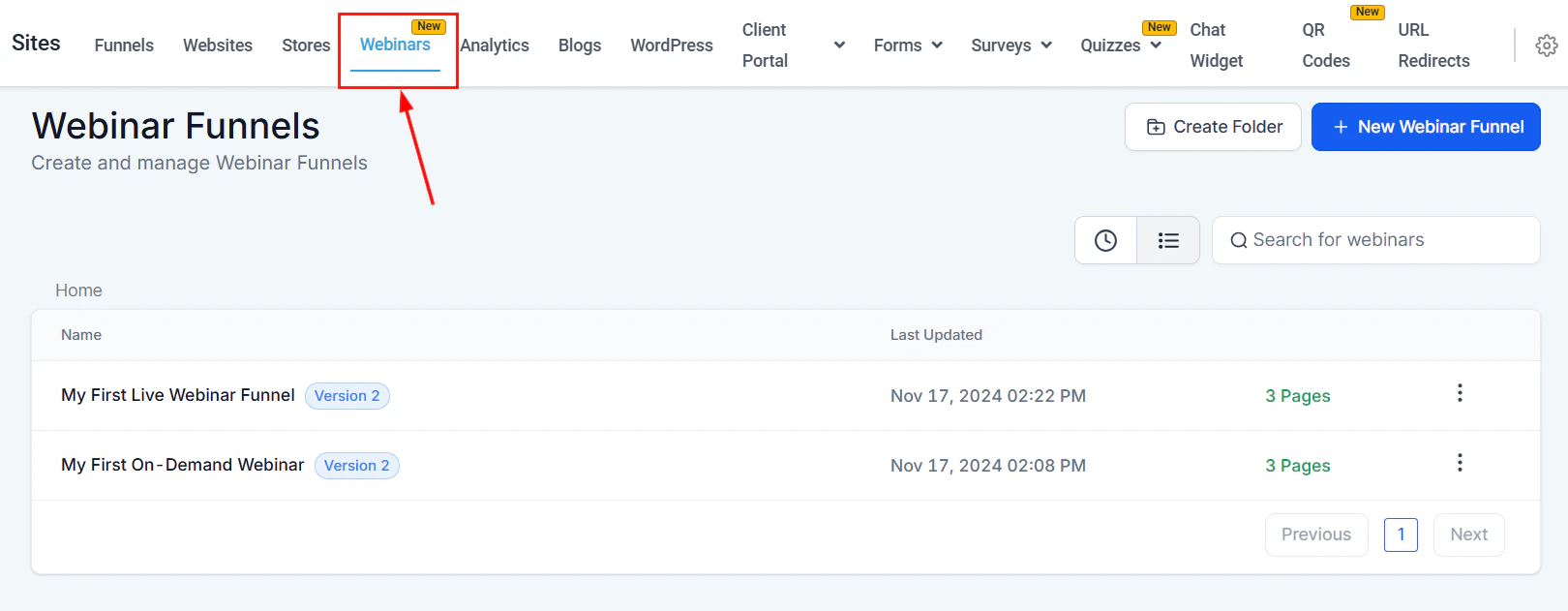
Click **Sites** in the left sidebar, then select **Webinars**. Click **New Webinar Funnel**.
Select whether to create a **Live** or **On-Demand** webinar funnel.
Give the funnel a name. The builder creates the standard webinar pages (registration, webinar room, replay) as funnel steps.
Customize the registration page in the drag-and-drop builder. Add a form element to capture attendee email addresses.
Inside the webinar funnel's **Actions** menu, click **Edit** to access the funnel settings. From here you can manage:
* Webinar **Recipes** — pre-built automation workflows for registration confirmation, reminders, and follow-up
* **Registered guests** — view who has signed up
Connect a domain, publish the funnel, and share the registration page URL to start accepting sign-ups.
## Webinar funnel types
A live webinar funnel hosts a scheduled, real-time broadcast session. Participants register in advance and join at the set date and time. Includes a registration page, live room, and thank-you / replay page.
An on-demand webinar plays a pre-recorded video as if it were live. Visitors register and are immediately directed to the webinar room. Ideal for evergreen lead generation.
## Creating a webinar funnel
Click **Sites** in the left sidebar, then select **Webinars**. Click **New Webinar Funnel**.
Select whether to create a **Live** or **On-Demand** webinar funnel.
Give the funnel a name. The builder creates the standard webinar pages (registration, webinar room, replay) as funnel steps.
Customize the registration page in the drag-and-drop builder. Add a form element to capture attendee email addresses.
Inside the webinar funnel's **Actions** menu, click **Edit** to access the funnel settings. From here you can manage:
* Webinar **Recipes** — pre-built automation workflows for registration confirmation, reminders, and follow-up
* **Registered guests** — view who has signed up
Connect a domain, publish the funnel, and share the registration page URL to start accepting sign-ups.
 ## Managing webinar funnels
The Webinars list displays each funnel's name, last-updated date, and page count. Use the **Actions** menu (three-dot icon) to:
* **Edit** — modify the funnel name, pages, workflows, or registered guest list
* **Duplicate** — clone the funnel to reuse for a future webinar
* **Move to Folder** — organize funnels into named folders
* **Delete** — permanently remove the funnel
## Managing webinar funnels
The Webinars list displays each funnel's name, last-updated date, and page count. Use the **Actions** menu (three-dot icon) to:
* **Edit** — modify the funnel name, pages, workflows, or registered guest list
* **Duplicate** — clone the funnel to reuse for a future webinar
* **Move to Folder** — organize funnels into named folders
* **Delete** — permanently remove the funnel
 ## Webinar analytics
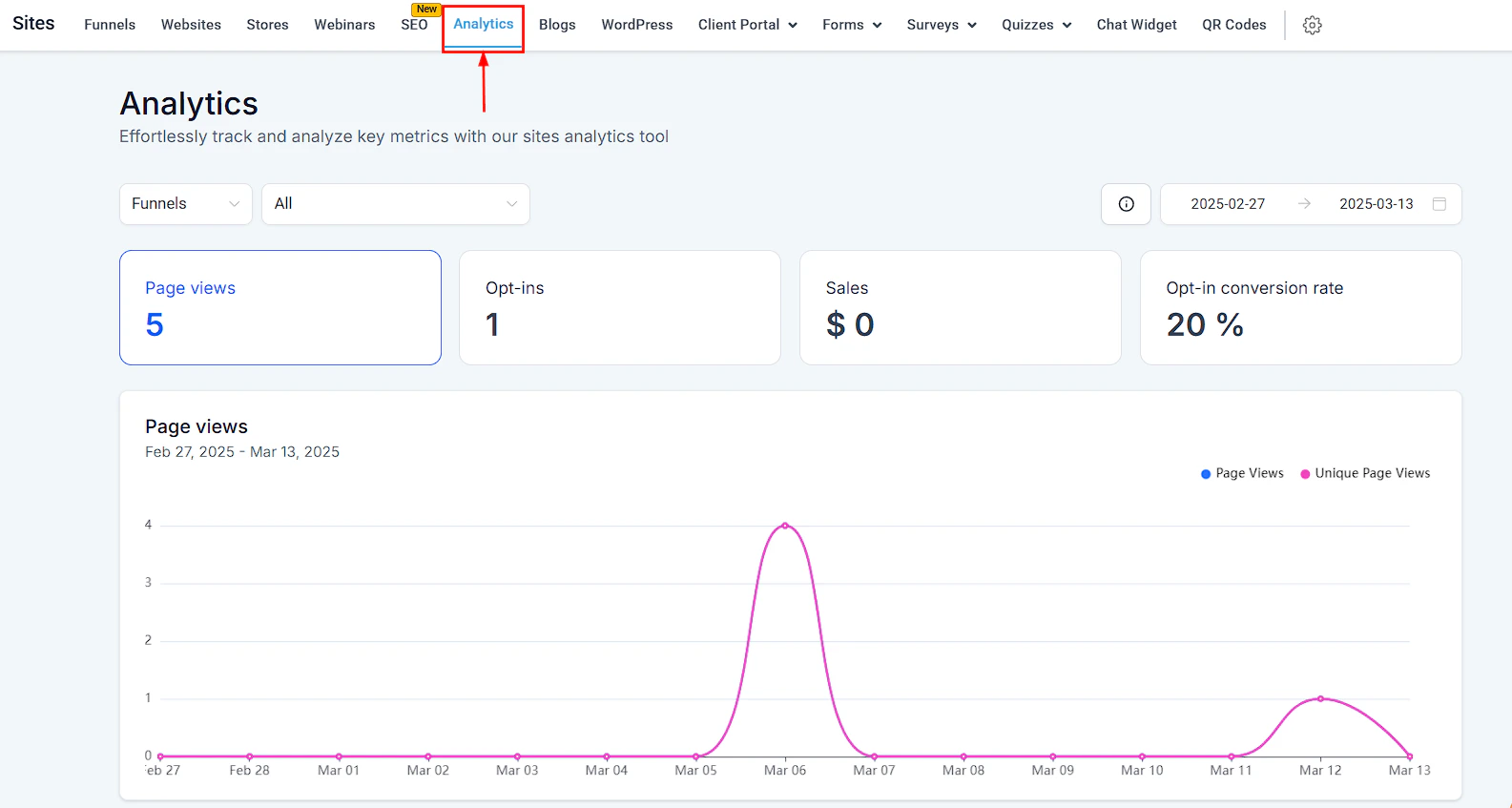
Webinar funnels track the following metrics in the **Sites Analytics Dashboard**:
* **Page Views** — total and unique visits to each funnel page
* **Registrations** — number of people who completed registration
* **Recurring** — total registrations across all sessions for recurring webinars
Use the **Webinar Recipes** automation templates to send a registration confirmation email immediately, reminder emails 24 hours and 1 hour before the session, and a replay follow-up email after the event. This sequence maximizes attendance and post-webinar conversions with minimal manual setup.
## Webinar analytics
Webinar funnels track the following metrics in the **Sites Analytics Dashboard**:
* **Page Views** — total and unique visits to each funnel page
* **Registrations** — number of people who completed registration
* **Recurring** — total registrations across all sessions for recurring webinars
Use the **Webinar Recipes** automation templates to send a registration confirmation email immediately, reminder emails 24 hours and 1 hour before the session, and a replay follow-up email after the event. This sequence maximizes attendance and post-webinar conversions with minimal manual setup.