> ## Documentation Index
> Fetch the complete documentation index at: https://help.hoopai.com/llms.txt
> Use this file to discover all available pages before exploring further.
# Quizzes
> Build interactive scored quizzes that engage leads and deliver personalized outcomes in the Hoop platform.
Quizzes are interactive, multi-slide assessments with scored outcomes. Use them for lead generation, course assessments, product recommendations, or audience segmentation — all with automated follow-up based on quiz results.
 ## Creating a quiz
Click **Sites** in the left sidebar, then select **Quizzes**. Click **+ Add Quiz**.
Give the quiz a name, then choose **Start from Scratch** or select a template. Click **Create**.
Use the left sidebar to drag and drop question types onto slides:
* **Multiple choice** — select one or more options
* **True / False** — binary answer
* **Short answer** — free-text response
* **Essay** — longer free-text response
For multiple-choice questions, assign **Categories** and **Scores** to each answer. Enable the **Jump To** feature to redirect the respondent to a specific slide based on their answer.
Click the **two-square icon** at the top right of any slide or question to duplicate it with all its existing settings.
Scroll to the result page at the bottom of the quiz builder. Customize the content, margins, padding, background color, and layout to match your brand. Preview the result page in the right panel.
Click **Save**, then test the quiz thoroughly before publishing.
Share via direct link, embed on a funnel or website, or integrate with an automation workflow triggered by quiz completion.
***
## Quiz list and actions
The Quizzes list shows the quiz name, last-updated date, and the user who made the last edit. From the three-dot **Actions** menu you can:
* **Edit** — open the quiz builder
* **Preview** — view the quiz as a participant
* **View Submissions** — access all completed quiz responses
* **Duplicate** — copy the quiz with all configurations
* **Share** — distribute the quiz link
* **Move to Folder** — organize quizzes into folders
* **Delete** — permanently remove the quiz (irreversible)
## Creating a quiz
Click **Sites** in the left sidebar, then select **Quizzes**. Click **+ Add Quiz**.
Give the quiz a name, then choose **Start from Scratch** or select a template. Click **Create**.
Use the left sidebar to drag and drop question types onto slides:
* **Multiple choice** — select one or more options
* **True / False** — binary answer
* **Short answer** — free-text response
* **Essay** — longer free-text response
For multiple-choice questions, assign **Categories** and **Scores** to each answer. Enable the **Jump To** feature to redirect the respondent to a specific slide based on their answer.
Click the **two-square icon** at the top right of any slide or question to duplicate it with all its existing settings.
Scroll to the result page at the bottom of the quiz builder. Customize the content, margins, padding, background color, and layout to match your brand. Preview the result page in the right panel.
Click **Save**, then test the quiz thoroughly before publishing.
Share via direct link, embed on a funnel or website, or integrate with an automation workflow triggered by quiz completion.
***
## Quiz list and actions
The Quizzes list shows the quiz name, last-updated date, and the user who made the last edit. From the three-dot **Actions** menu you can:
* **Edit** — open the quiz builder
* **Preview** — view the quiz as a participant
* **View Submissions** — access all completed quiz responses
* **Duplicate** — copy the quiz with all configurations
* **Share** — distribute the quiz link
* **Move to Folder** — organize quizzes into folders
* **Delete** — permanently remove the quiz (irreversible)
 ***
## Quiz submissions
Click **View Submissions** on any quiz to see each respondent's answers, scores, and result outcomes. Use this data to identify which answers correlate with high-intent leads.
***
## Quiz settings
Inside the quiz builder, click **Quiz Settings** to configure:
* **Pass / Fail score** — set the minimum score required to pass
* **Result page behavior** — show different content depending on score
* **Notification emails** — send alerts when a quiz is submitted
***
## Quiz submissions
Click **View Submissions** on any quiz to see each respondent's answers, scores, and result outcomes. Use this data to identify which answers correlate with high-intent leads.
***
## Quiz settings
Inside the quiz builder, click **Quiz Settings** to configure:
* **Pass / Fail score** — set the minimum score required to pass
* **Result page behavior** — show different content depending on score
* **Notification emails** — send alerts when a quiz is submitted
 ***
## Automating follow-up based on quiz results
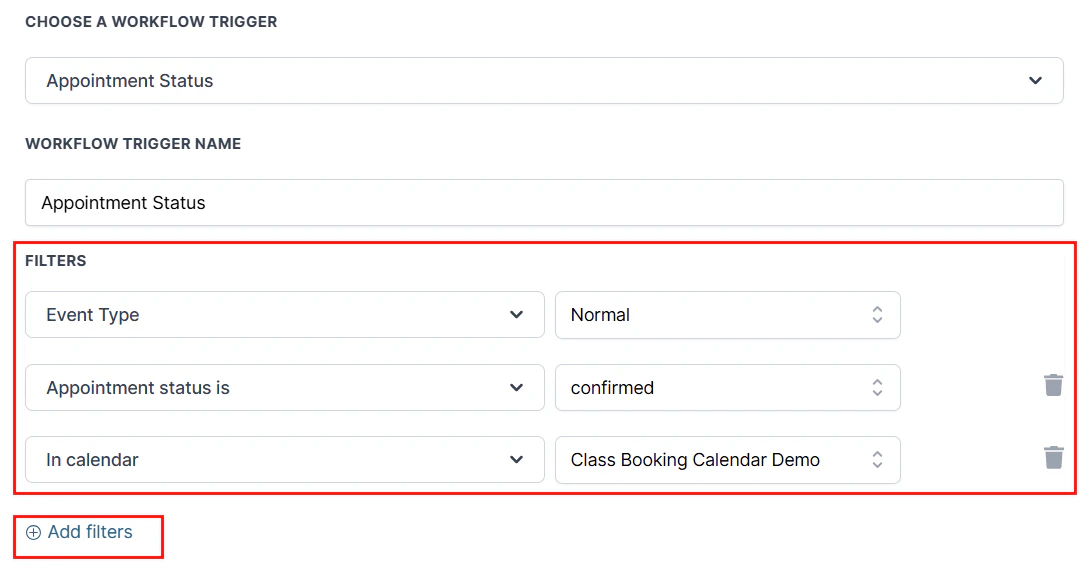
Use the **Quiz Submitted** trigger in Automations to send targeted follow-up based on quiz scores:
1. Create a new workflow in **Automation**.
2. Set the trigger to **Quiz Submitted** and select the quiz.
3. Add conditions based on the score or specific answers.
4. Add email, SMS, or tag actions to route leads into the right sequence.
* **Education and training** — assess student knowledge with pass/fail scoring
* **Product recommendations** — suggest products or services based on quiz results
* **Certification programs** — issue certificates based on performance
* **Lead segmentation** — tag contacts based on their answers and route them into the right automation
Enable the **Jump To** feature on any answer option to send respondents to a different slide based on their choice. This creates a personalized quiz experience that adapts to each respondent.
Click **Integrate** in the quiz builder to get the embed code. Paste this code into a funnel page, website page, or any external HTML page to display the quiz inline.
Connect quiz answer values to contact custom fields. This lets you filter your contact list by quiz results and personalize follow-up messaging based on specific answers.
***
## FAQs
Yes. Enable the **Jump To** feature on any answer option to send respondents to a different slide based on their choice, creating a personalized quiz experience.
Click **View Submissions** on any quiz to see detailed analytics including each respondent's answers, scores, and outcome. Use this data to track performance and engagement.
Yes. Use the **Quiz Submitted** trigger in Automations to set up automated follow-up emails or SMS messages. Add score conditions to send different content to high scorers and low scorers.
Yes. Define pass/fail criteria in **Quiz Settings** and configure the result page to display a certificate or next steps based on the participant's score.
Use the **Quiz Submitted** trigger with a score condition to send different follow-up sequences to high scorers versus low scorers. High scorers might receive a sales offer; low scorers might receive educational content to help them qualify later.
***
## Automating follow-up based on quiz results
Use the **Quiz Submitted** trigger in Automations to send targeted follow-up based on quiz scores:
1. Create a new workflow in **Automation**.
2. Set the trigger to **Quiz Submitted** and select the quiz.
3. Add conditions based on the score or specific answers.
4. Add email, SMS, or tag actions to route leads into the right sequence.
* **Education and training** — assess student knowledge with pass/fail scoring
* **Product recommendations** — suggest products or services based on quiz results
* **Certification programs** — issue certificates based on performance
* **Lead segmentation** — tag contacts based on their answers and route them into the right automation
Enable the **Jump To** feature on any answer option to send respondents to a different slide based on their choice. This creates a personalized quiz experience that adapts to each respondent.
Click **Integrate** in the quiz builder to get the embed code. Paste this code into a funnel page, website page, or any external HTML page to display the quiz inline.
Connect quiz answer values to contact custom fields. This lets you filter your contact list by quiz results and personalize follow-up messaging based on specific answers.
***
## FAQs
Yes. Enable the **Jump To** feature on any answer option to send respondents to a different slide based on their choice, creating a personalized quiz experience.
Click **View Submissions** on any quiz to see detailed analytics including each respondent's answers, scores, and outcome. Use this data to track performance and engagement.
Yes. Use the **Quiz Submitted** trigger in Automations to set up automated follow-up emails or SMS messages. Add score conditions to send different content to high scorers and low scorers.
Yes. Define pass/fail criteria in **Quiz Settings** and configure the result page to display a certificate or next steps based on the participant's score.
Use the **Quiz Submitted** trigger with a score condition to send different follow-up sequences to high scorers versus low scorers. High scorers might receive a sales offer; low scorers might receive educational content to help them qualify later.