> ## Documentation Index
> Fetch the complete documentation index at: https://help.hoopai.com/llms.txt
> Use this file to discover all available pages before exploring further.
# QR codes
> Generate, customize, track, and manage QR codes for any URL, form, contact, or action in the Hoop platform.
QR codes let you share information instantly with a scan — directing customers to a website, collecting reviews, starting a text message, or providing contact details. The Hoop platform includes a full QR code generator with analytics, bulk creation, and download in multiple formats.
 ## Creating a QR code
Click **Sites** in the left sidebar, then select **QR Codes**. Click **Create QR Code** in the top-right corner.
Give the QR code a recognizable name for easy identification later.
Choose the type of action the QR code triggers when scanned. Available types include:
* **Website URL** — link to any web page
* **Call** — dial a phone number
* **SMS** — open a pre-filled text message
* **WhatsApp** — open a WhatsApp chat
* **Email** — compose a pre-filled email
* **Form or Survey** — open a form or survey from your account
* **vCard / Contact info** — share contact details
* **Wi-Fi credentials** — connect to a network
* **Plain text** — display a text message
Click **Next** to proceed.
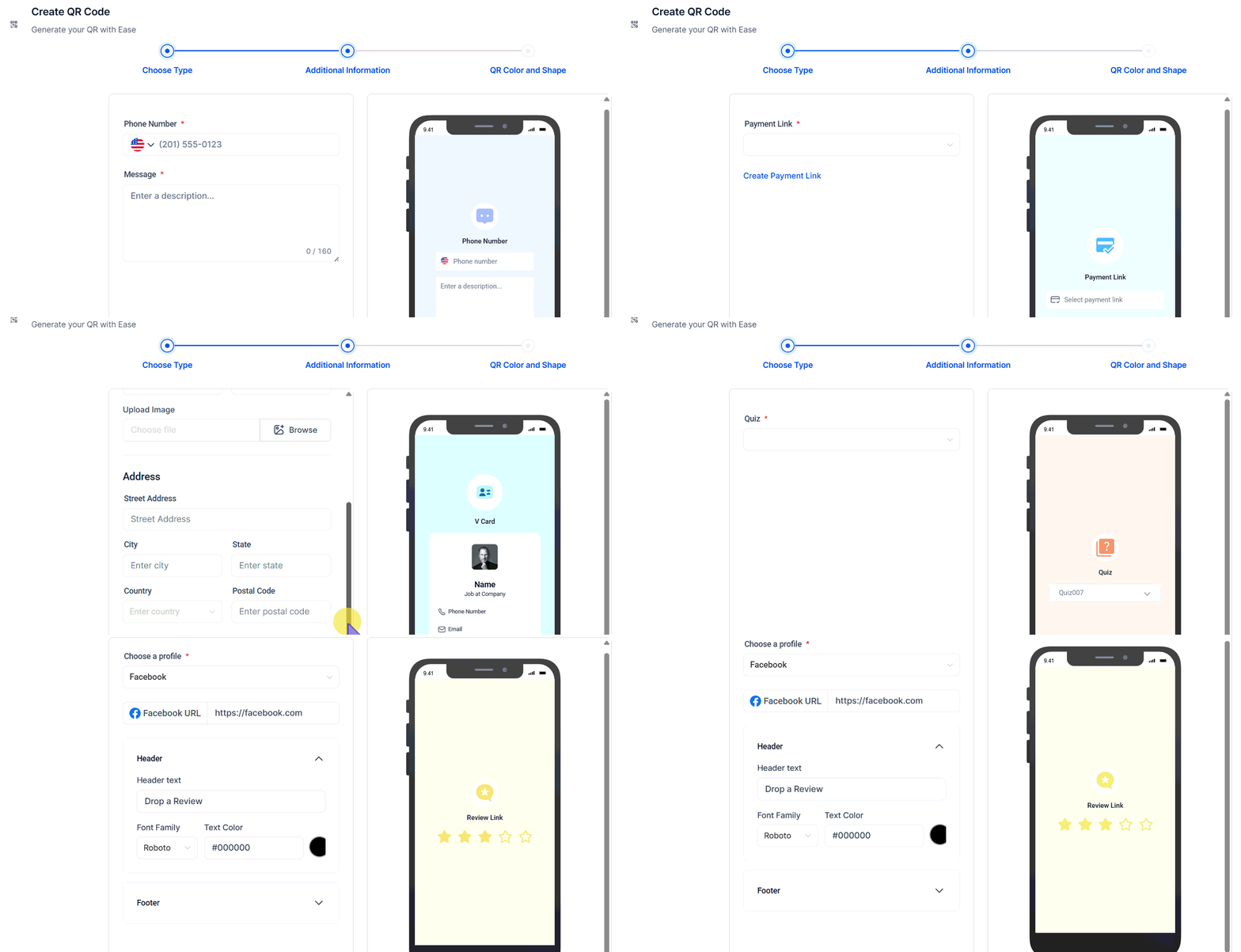
Each type requires specific input. For example:
* A **Call** QR code needs a phone number
* An **Email** QR code needs an email address, subject line, and message
* A **Form or Survey** QR code requires selecting an existing form or survey
Click **Next** to proceed.
Personalize the QR code appearance:
* **Color** — choose a color that fits your brand
* **Shape and form** — adjust the pattern shape
* **Logo** — add your logo to the center of the QR code
* **Page background** — set a background color or pattern
Select a download format — **PNG**, **SVG**, or **PDF** — to save the file immediately. Click the **link icon** to copy a smart link to share digitally without sending the image file. Click **Save** to store the QR code in your account.
## Creating a QR code
Click **Sites** in the left sidebar, then select **QR Codes**. Click **Create QR Code** in the top-right corner.
Give the QR code a recognizable name for easy identification later.
Choose the type of action the QR code triggers when scanned. Available types include:
* **Website URL** — link to any web page
* **Call** — dial a phone number
* **SMS** — open a pre-filled text message
* **WhatsApp** — open a WhatsApp chat
* **Email** — compose a pre-filled email
* **Form or Survey** — open a form or survey from your account
* **vCard / Contact info** — share contact details
* **Wi-Fi credentials** — connect to a network
* **Plain text** — display a text message
Click **Next** to proceed.
Each type requires specific input. For example:
* A **Call** QR code needs a phone number
* An **Email** QR code needs an email address, subject line, and message
* A **Form or Survey** QR code requires selecting an existing form or survey
Click **Next** to proceed.
Personalize the QR code appearance:
* **Color** — choose a color that fits your brand
* **Shape and form** — adjust the pattern shape
* **Logo** — add your logo to the center of the QR code
* **Page background** — set a background color or pattern
Select a download format — **PNG**, **SVG**, or **PDF** — to save the file immediately. Click the **link icon** to copy a smart link to share digitally without sending the image file. Click **Save** to store the QR code in your account.
 ***
## Download formats
| Format | Best for |
| ------- | --------------------------------------------------------------------- |
| **PNG** | Digital use — higher PPI for sharper display |
| **SVG** | Infinitely scalable without quality loss; use editing tools to modify |
| **PDF** | Printing on A4 documents, posters, and flyers |
***
## QR code analytics
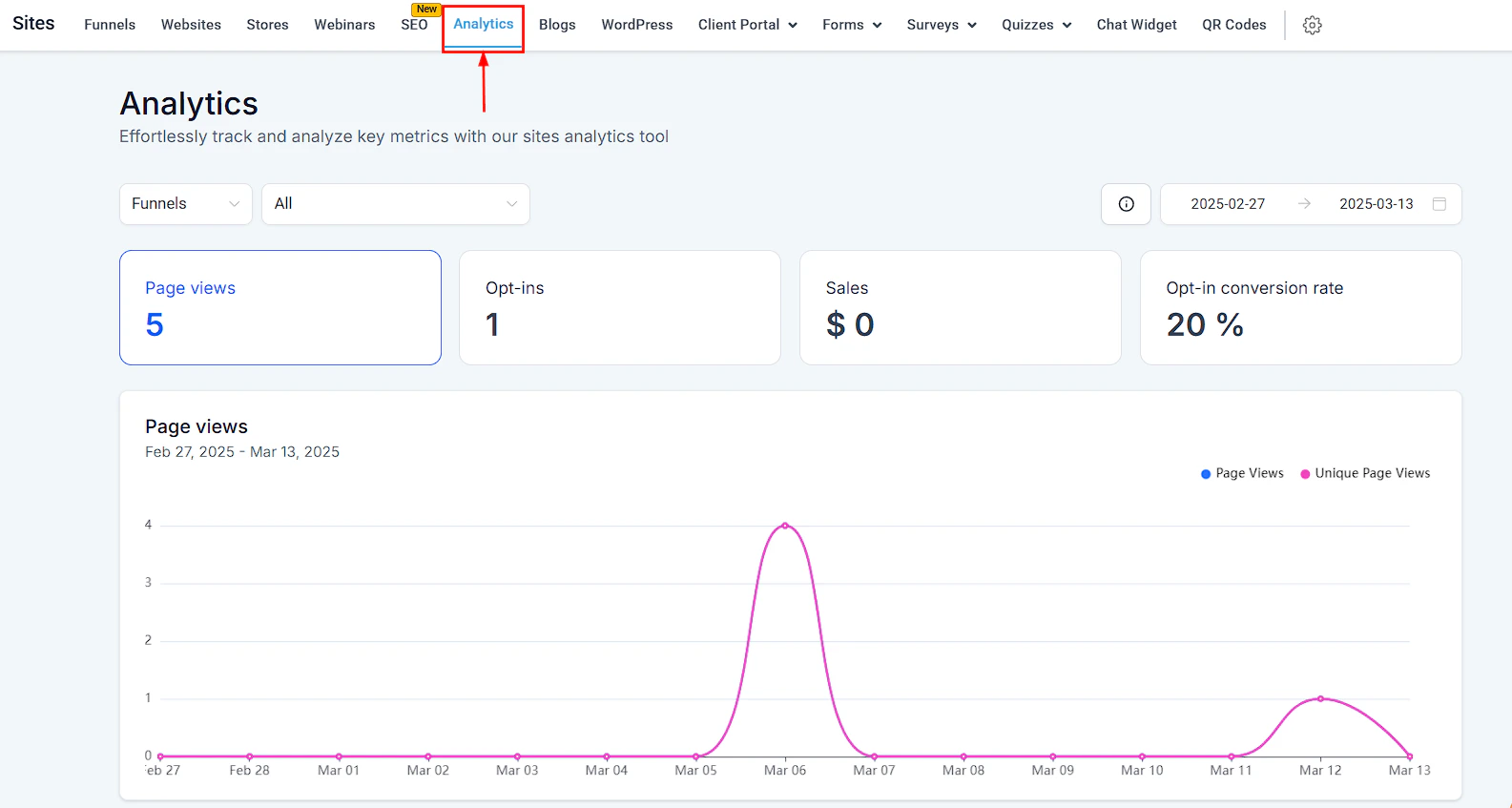
Click the **Analytics** button in the QR Codes section to view:
* Total number of scans
* Unique scans (first-time scanners)
* Scans over a selected time frame
From inside a QR code in the list view, hover to access the edit button. Click the three-dot icon to move, delete, or download the QR code.
***
## Download formats
| Format | Best for |
| ------- | --------------------------------------------------------------------- |
| **PNG** | Digital use — higher PPI for sharper display |
| **SVG** | Infinitely scalable without quality loss; use editing tools to modify |
| **PDF** | Printing on A4 documents, posters, and flyers |
***
## QR code analytics
Click the **Analytics** button in the QR Codes section to view:
* Total number of scans
* Unique scans (first-time scanners)
* Scans over a selected time frame
From inside a QR code in the list view, hover to access the edit button. Click the three-dot icon to move, delete, or download the QR code.
 ***
## Bulk creation
Use **Bulk Creation** to generate multiple QR codes at once in the background while you continue working. Make changes to individual codes after the batch is created.
***
## Organizing QR codes
Create **Folders** to group QR codes by campaign, event, or use case. Double-click a folder to open it. Folders can have sub-folders for deeper organization.
Use the **vCard** type to encode your contact details — name, phone, email, and website — so people can add you to their contacts with a single scan.
Create a **Website URL** QR code pointing to your Google Business or review page. Print it on receipts, menus, or table tents to make it effortless for customers to leave a review.
Create a **Form or Survey** QR code and link it to a feedback form or intake form. Print the QR code on packaging, event materials, or in-store signage to capture leads and responses offline.
Use the **SVG** format when creating QR codes for print materials at large sizes. SVG scales infinitely without pixelation, ensuring the QR code scans cleanly regardless of print size.
***
## Bulk creation
Use **Bulk Creation** to generate multiple QR codes at once in the background while you continue working. Make changes to individual codes after the batch is created.
***
## Organizing QR codes
Create **Folders** to group QR codes by campaign, event, or use case. Double-click a folder to open it. Folders can have sub-folders for deeper organization.
Use the **vCard** type to encode your contact details — name, phone, email, and website — so people can add you to their contacts with a single scan.
Create a **Website URL** QR code pointing to your Google Business or review page. Print it on receipts, menus, or table tents to make it effortless for customers to leave a review.
Create a **Form or Survey** QR code and link it to a feedback form or intake form. Print the QR code on packaging, event materials, or in-store signage to capture leads and responses offline.
Use the **SVG** format when creating QR codes for print materials at large sizes. SVG scales infinitely without pixelation, ensuring the QR code scans cleanly regardless of print size.