> ## Documentation Index
> Fetch the complete documentation index at: https://help.hoopai.com/llms.txt
> Use this file to discover all available pages before exploring further.
# Funnels
> Create, manage, and optimize multi-step sales funnels in the Hoop platform.
Funnels are multi-page flows that guide a visitor through a defined sequence — from a landing page through opt-in, order, and thank-you steps. The Hoop platform's funnel builder lets you create, publish, and optimize each step with full design control and automated follow-up.
 ## Creating a funnel
Click **Sites** in the left sidebar, then select **Funnels**. You will see a list of all existing funnels and folders.
Click the **+ New Funnel** button. Choose to start **From Blank**, use **Funnel AI**, or select **From Templates**. Name the funnel and click **Create**.
Inside the funnel, click **Add New Step or Import** to add steps. Each step becomes a page in the sequence. Assign a unique URL path to each step — this is required to save the step. Common steps include:
* Landing / opt-in page
* Order form page
* Upsell / OTO page
* Thank-you / confirmation page
Click **Edit Page** or **Edit in a New Tab** to open the drag-and-drop builder and design the step content.
Click the **gear icon** next to any step to open its publishing settings. Here you can update the step name and URL path.
Go to the **Settings** tab of the funnel and assign a domain. Without a connected domain, funnels cannot be made publicly accessible.
You can create and edit funnel content without a connected domain. However, a domain must be assigned before the funnel can be published and made publicly accessible.
***
## Funnel steps tab
The **Steps** tab is the main hub for managing your funnel pages.
## Creating a funnel
Click **Sites** in the left sidebar, then select **Funnels**. You will see a list of all existing funnels and folders.
Click the **+ New Funnel** button. Choose to start **From Blank**, use **Funnel AI**, or select **From Templates**. Name the funnel and click **Create**.
Inside the funnel, click **Add New Step or Import** to add steps. Each step becomes a page in the sequence. Assign a unique URL path to each step — this is required to save the step. Common steps include:
* Landing / opt-in page
* Order form page
* Upsell / OTO page
* Thank-you / confirmation page
Click **Edit Page** or **Edit in a New Tab** to open the drag-and-drop builder and design the step content.
Click the **gear icon** next to any step to open its publishing settings. Here you can update the step name and URL path.
Go to the **Settings** tab of the funnel and assign a domain. Without a connected domain, funnels cannot be made publicly accessible.
You can create and edit funnel content without a connected domain. However, a domain must be assigned before the funnel can be published and made publicly accessible.
***
## Funnel steps tab
The **Steps** tab is the main hub for managing your funnel pages.
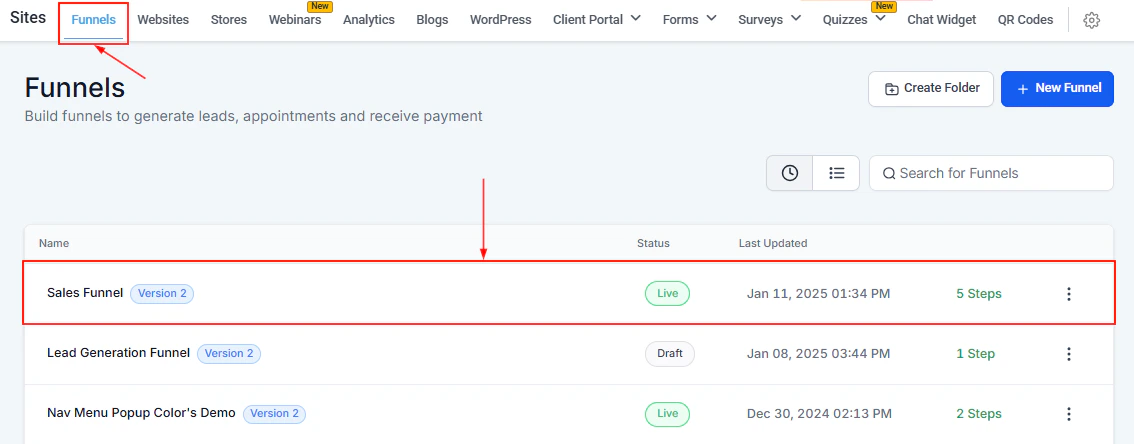 From the Steps tab you can:
* View and rearrange steps via drag-and-drop
* Preview a step in the browser without affecting analytics
* Open the page editor to build or edit a step
* Manage products assigned to each step
* Import steps from ClickFunnels
***
## Funnel settings tab
The **Settings** tab controls how the funnel behaves globally. Key settings include:
From the Steps tab you can:
* View and rearrange steps via drag-and-drop
* Preview a step in the browser without affecting analytics
* Open the page editor to build or edit a step
* Manage products assigned to each step
* Import steps from ClickFunnels
***
## Funnel settings tab
The **Settings** tab controls how the funnel behaves globally. Key settings include:
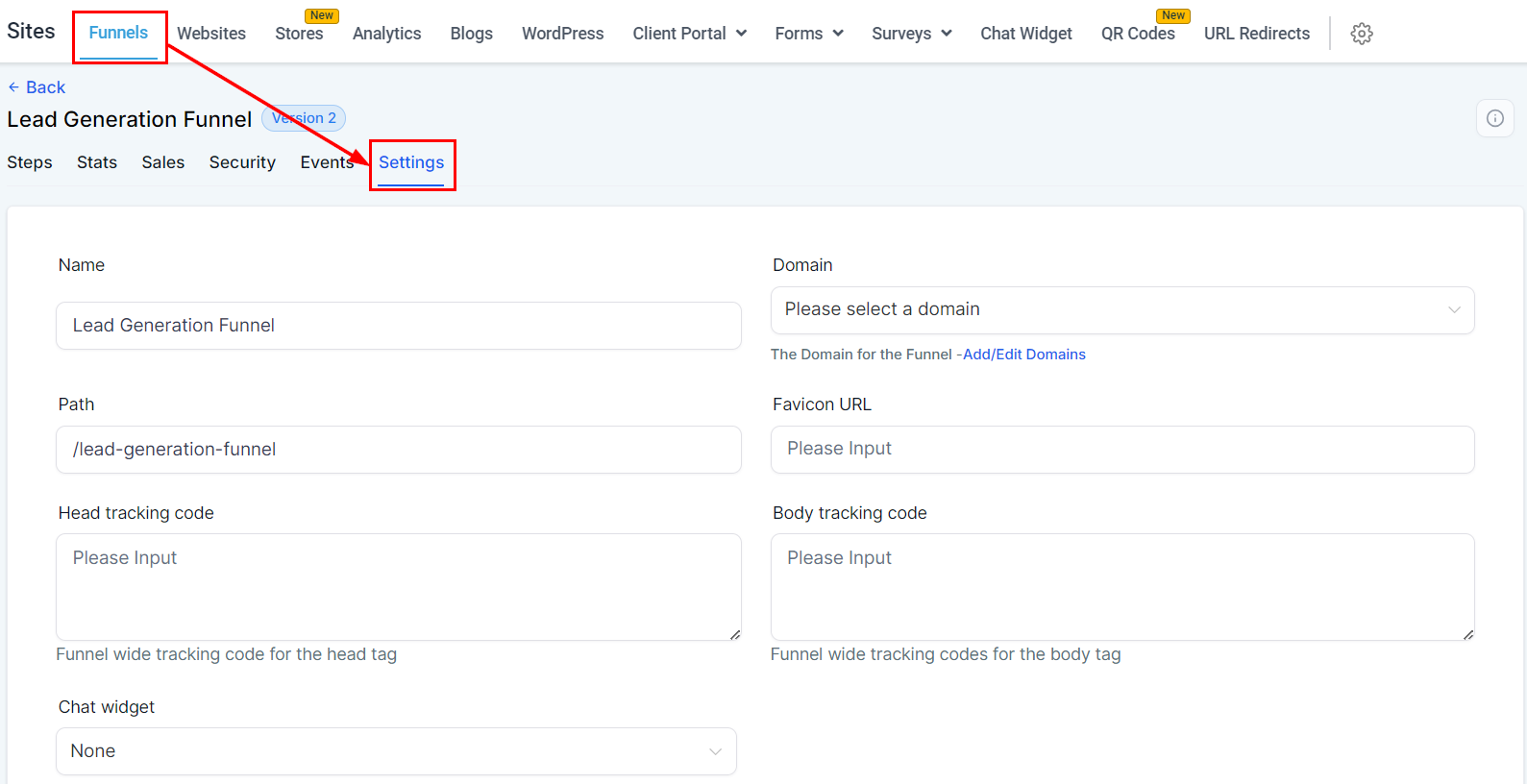 | Setting | Description |
| ----------------------------- | -------------------------------------------------------- |
| **Funnel Name** | Rename the funnel |
| **Domain** | Assign the domain that hosts the funnel |
| **Path** | Set the default path prefix for all steps |
| **Favicon URL** | Add a `.png` or `.ico` favicon displayed in browser tabs |
| **Head / Body Tracking Code** | Insert analytics or ad pixel scripts |
| **Chat Widget** | Attach a chat widget to every page in the funnel |
| **Payment Mode** | Toggle off for test payments, on for live transactions |
| **Require Credit Card** | Force card entry on \$0 purchases |
| **Image Optimization** | Deliver images via CDN for faster load times |
| **Optimize Javascript** | Lazy-load custom JS and HTML for improved page speed |
| **GDPR Compliant Fonts** | Use GDPR-friendly fonts instead of Google Fonts |
***
## Funnel sales tab
The **Sales** tab shows a transaction-level breakdown of purchases made inside the funnel. The table columns are:
| Setting | Description |
| ----------------------------- | -------------------------------------------------------- |
| **Funnel Name** | Rename the funnel |
| **Domain** | Assign the domain that hosts the funnel |
| **Path** | Set the default path prefix for all steps |
| **Favicon URL** | Add a `.png` or `.ico` favicon displayed in browser tabs |
| **Head / Body Tracking Code** | Insert analytics or ad pixel scripts |
| **Chat Widget** | Attach a chat widget to every page in the funnel |
| **Payment Mode** | Toggle off for test payments, on for live transactions |
| **Require Credit Card** | Force card entry on \$0 purchases |
| **Image Optimization** | Deliver images via CDN for faster load times |
| **Optimize Javascript** | Lazy-load custom JS and HTML for improved page speed |
| **GDPR Compliant Fonts** | Use GDPR-friendly fonts instead of Google Fonts |
***
## Funnel sales tab
The **Sales** tab shows a transaction-level breakdown of purchases made inside the funnel. The table columns are:
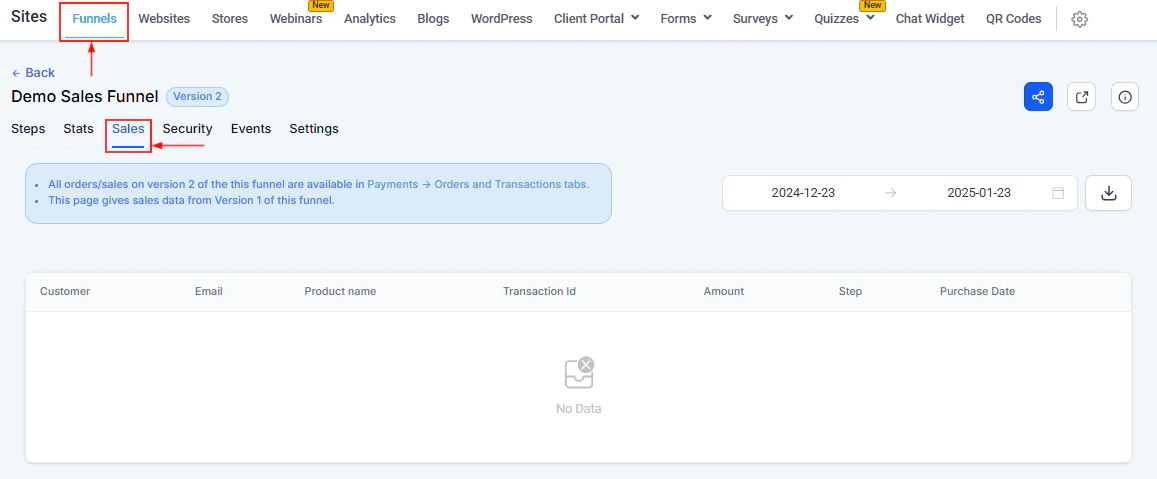 | Column | Description |
| -------------- | ------------------------------------------- |
| Customer | Name of the buyer |
| Email | Buyer's email address |
| Product Name | The product purchased |
| Transaction ID | Unique identifier for each transaction |
| Amount | Purchase price |
| Step | The funnel step where the purchase occurred |
| Purchase Date | Date and time of the transaction |
Use the **Date Range** filter to narrow the view and the **Download** button to export as CSV.
***
## Funnel stats tab
The **Stats** tab provides conversion analytics for each step in the funnel.
| Column | Description |
| -------------- | ------------------------------------------- |
| Customer | Name of the buyer |
| Email | Buyer's email address |
| Product Name | The product purchased |
| Transaction ID | Unique identifier for each transaction |
| Amount | Purchase price |
| Step | The funnel step where the purchase occurred |
| Purchase Date | Date and time of the transaction |
Use the **Date Range** filter to narrow the view and the **Download** button to export as CSV.
***
## Funnel stats tab
The **Stats** tab provides conversion analytics for each step in the funnel.
 | Metric | Description |
| ------------------------ | ----------------------------------------------- |
| **Page Views — All** | Total views including returning visitors |
| **Page Views — Uniques** | Views from first-time visitors only |
| **Opt-ins** | Total number of form submissions or conversions |
| **Opt-in Rate** | Opt-ins divided by unique page views (%) |
| **Sales Orders** | Number of orders placed |
| **Sales Rate** | Orders divided by unique page views (%) |
| **Revenue** | Total revenue generated |
| **Earnings / Page View** | Revenue per unique and total page view |
Clicking **Reset** in the Stats tab permanently deletes all historical stats for the funnel. This action cannot be undone.
***
## Funnel URL paths
Every funnel URL is made up of three configurable parts:
* **Funnel URL** — the main entry point for the funnel; configured in the Settings tab
* **Step URL** — the path for each individual step; configured in the step's Publishing tab
* **Page URL** — the path for A/B test variants; configured via the gear icon next to Edit Page
Customizing these paths creates cleaner, brand-aligned URLs that are easier to share and remember.
***
## Funnel actions
From the funnel list, click the **three-dot icon** on any funnel to access:
Opens the funnel and takes you to the Steps tab for editing.
Duplicates the entire funnel including all steps, pages, and settings. Use this before making major changes to preserve a working version.
Moves the funnel into a named folder to keep the Funnels list organized.
Saves the funnel as a reusable template for future use.
Shares the funnel with team members or collaborators.
Permanently removes the funnel. You must type DELETE to confirm. This action is irreversible.
Duplicate a high-converting funnel before making changes. That way you always have a clean, working copy to refer back to.
| Metric | Description |
| ------------------------ | ----------------------------------------------- |
| **Page Views — All** | Total views including returning visitors |
| **Page Views — Uniques** | Views from first-time visitors only |
| **Opt-ins** | Total number of form submissions or conversions |
| **Opt-in Rate** | Opt-ins divided by unique page views (%) |
| **Sales Orders** | Number of orders placed |
| **Sales Rate** | Orders divided by unique page views (%) |
| **Revenue** | Total revenue generated |
| **Earnings / Page View** | Revenue per unique and total page view |
Clicking **Reset** in the Stats tab permanently deletes all historical stats for the funnel. This action cannot be undone.
***
## Funnel URL paths
Every funnel URL is made up of three configurable parts:
* **Funnel URL** — the main entry point for the funnel; configured in the Settings tab
* **Step URL** — the path for each individual step; configured in the step's Publishing tab
* **Page URL** — the path for A/B test variants; configured via the gear icon next to Edit Page
Customizing these paths creates cleaner, brand-aligned URLs that are easier to share and remember.
***
## Funnel actions
From the funnel list, click the **three-dot icon** on any funnel to access:
Opens the funnel and takes you to the Steps tab for editing.
Duplicates the entire funnel including all steps, pages, and settings. Use this before making major changes to preserve a working version.
Moves the funnel into a named folder to keep the Funnels list organized.
Saves the funnel as a reusable template for future use.
Shares the funnel with team members or collaborators.
Permanently removes the funnel. You must type DELETE to confirm. This action is irreversible.
Duplicate a high-converting funnel before making changes. That way you always have a clean, working copy to refer back to.