> ## Documentation Index
> Fetch the complete documentation index at: https://help.hoopai.com/llms.txt
> Use this file to discover all available pages before exploring further.
# Funnel / website builder
> A comprehensive guide to the HoopAI drag-and-drop page builder for funnels and websites.
The Funnel / Website Builder is the heart of the Sites section. It gives you a drag-and-drop canvas where you can design landing pages, multi-step funnels, and full websites — without writing code.
 ## Page structure
Every page is built from a hierarchy of four element types:
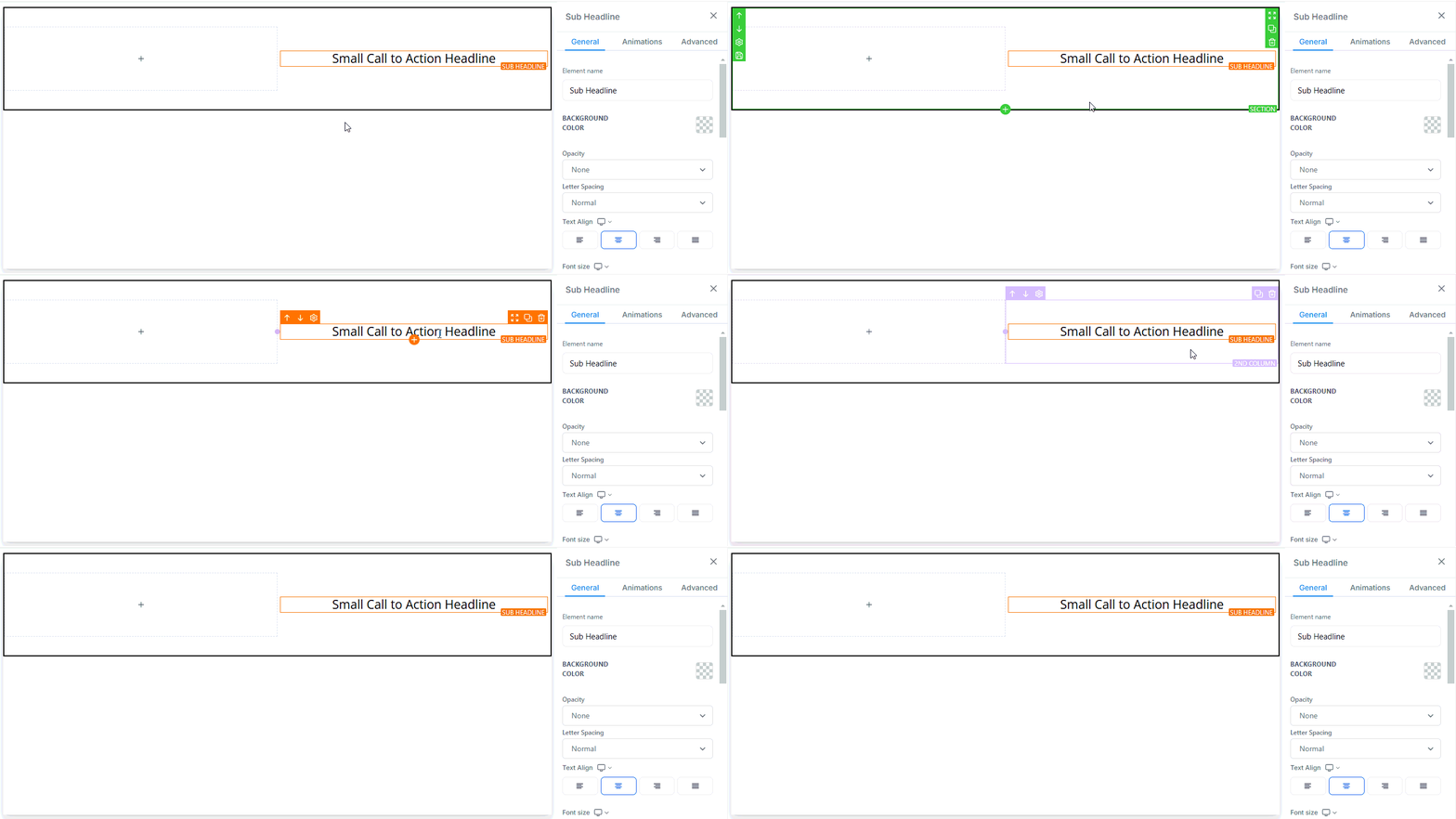
Sections are the largest building blocks of a page. Each section spans the full width of the canvas and typically represents a distinct visual region such as a hero, features block, or footer.
Rows live inside sections and organize content horizontally. A section can contain multiple rows stacked vertically.
Columns divide a row into vertical lanes. Use them to create side-by-side layouts — for example a text block next to an image.
Elements are the individual content pieces you place inside columns: text, images, buttons, videos, forms, timers, and more.
***
## Builder toolbar
## Page structure
Every page is built from a hierarchy of four element types:
Sections are the largest building blocks of a page. Each section spans the full width of the canvas and typically represents a distinct visual region such as a hero, features block, or footer.
Rows live inside sections and organize content horizontally. A section can contain multiple rows stacked vertically.
Columns divide a row into vertical lanes. Use them to create side-by-side layouts — for example a text block next to an image.
Elements are the individual content pieces you place inside columns: text, images, buttons, videos, forms, timers, and more.
***
## Builder toolbar
 ### Add elements
Open the **Add Elements** panel from the left toolbar to add:
* **Sections, Rows, Columns, Elements** — the four structural building blocks
* **Prebuilt Sections** — professionally designed layout templates to speed up your workflow
* **Saved Sections** — reusable sections you have created and saved across pages
* **Widget Marketplace** — third-party and community widgets
* **Forms and Surveys** — embed forms or surveys directly in the page
* **Social Media Icons** — links to your social profiles
* **Countdown Timers** — create urgency with deadline timers
* **Progress Bars** — display goals or sign-up progress
### Layers panel
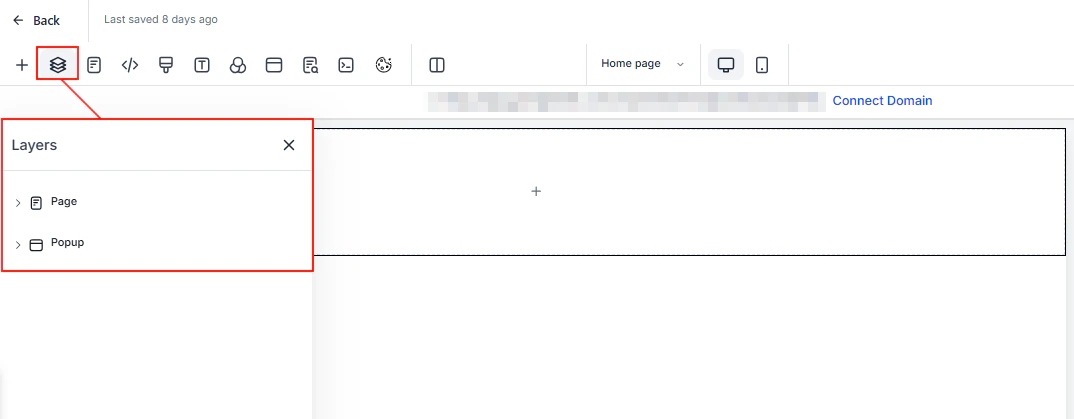
The Layers panel shows the complete structure of your current page, organized as a nested tree of sections, rows, columns, and elements. Use it to select, rearrange, or hide elements quickly. You can also switch between the **Page** layer and any **Popup** layers.
### Pages panel
The Pages panel lists every page inside the current funnel or website. Click any page to navigate to it in the editor.
### Add elements
Open the **Add Elements** panel from the left toolbar to add:
* **Sections, Rows, Columns, Elements** — the four structural building blocks
* **Prebuilt Sections** — professionally designed layout templates to speed up your workflow
* **Saved Sections** — reusable sections you have created and saved across pages
* **Widget Marketplace** — third-party and community widgets
* **Forms and Surveys** — embed forms or surveys directly in the page
* **Social Media Icons** — links to your social profiles
* **Countdown Timers** — create urgency with deadline timers
* **Progress Bars** — display goals or sign-up progress
### Layers panel
The Layers panel shows the complete structure of your current page, organized as a nested tree of sections, rows, columns, and elements. Use it to select, rearrange, or hide elements quickly. You can also switch between the **Page** layer and any **Popup** layers.
### Pages panel
The Pages panel lists every page inside the current funnel or website. Click any page to navigate to it in the editor.
 ***
## Page settings
Access page-level settings from the top toolbar:
Paste header or footer code (e.g. Google Analytics, Facebook Pixel) into the dedicated Tracking Code popup. The code is injected into every page load.
Add custom CSS rules that apply to the current page. Useful for fine-grained style overrides beyond the visual editor.
Change the default text and link colors and adjust the global font size for headlines and body content.
Set the page background to a solid color, gradient, or image. Enter a custom hex code if the color picker does not have the exact shade you need.
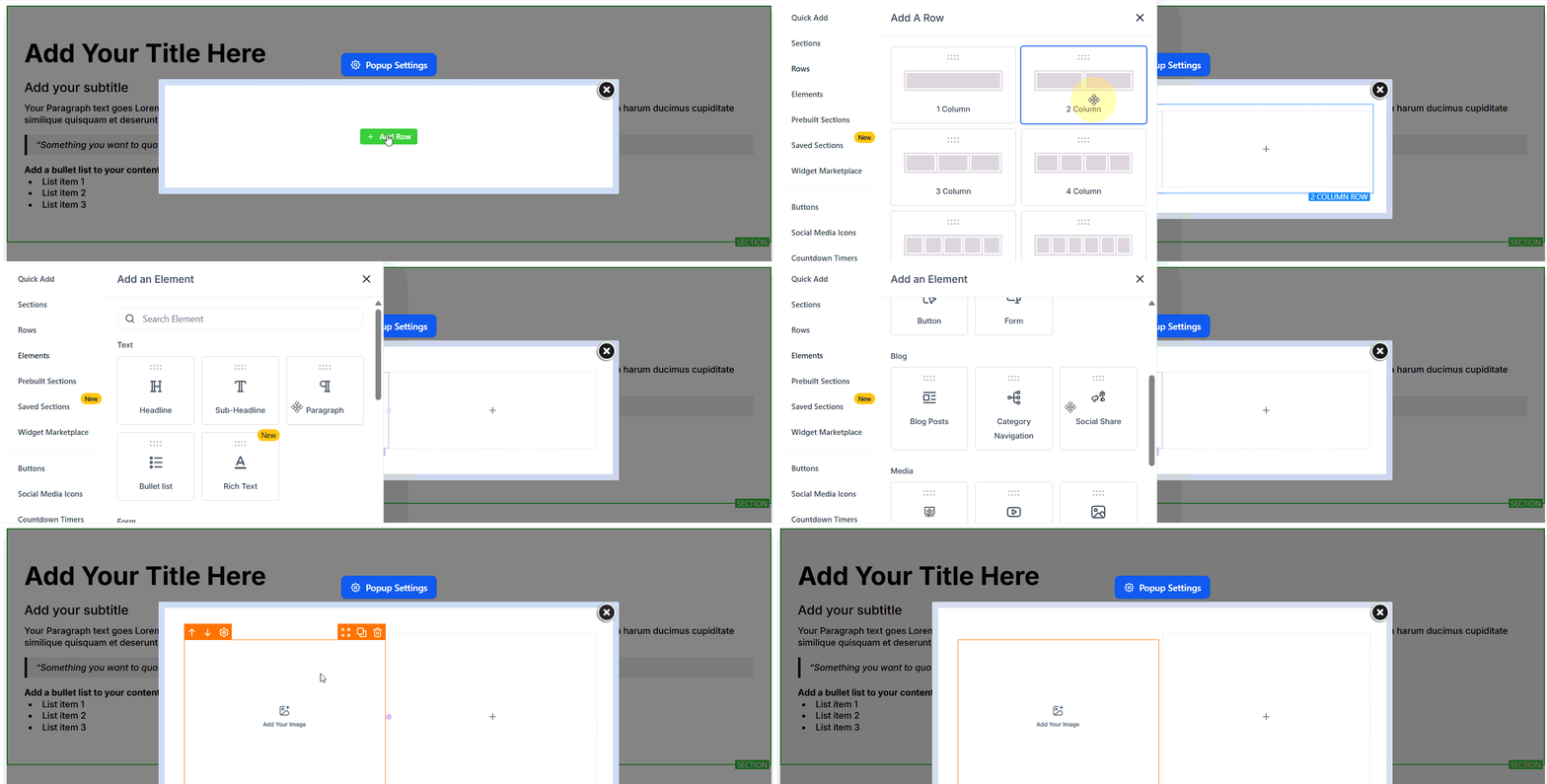
Add an overlay popup to the page. Click **Open Popup Settings** to control trigger behavior, timing, and appearance.
***
## Page settings
Access page-level settings from the top toolbar:
Paste header or footer code (e.g. Google Analytics, Facebook Pixel) into the dedicated Tracking Code popup. The code is injected into every page load.
Add custom CSS rules that apply to the current page. Useful for fine-grained style overrides beyond the visual editor.
Change the default text and link colors and adjust the global font size for headlines and body content.
Set the page background to a solid color, gradient, or image. Enter a custom hex code if the color picker does not have the exact shade you need.
Add an overlay popup to the page. Click **Open Popup Settings** to control trigger behavior, timing, and appearance.
 Configure the page title, meta description, keywords, author, social share image, canonical URL, and language. An SEO preview shows how the page will appear in search results.
Add a GDPR/CCPA-compliant cookie consent banner so visitors are informed about data collection before interacting with the page.
***
## Top toolbar actions
| Control | Purpose |
| ----------------------- | ---------------------------------------------------- |
| Pages dropdown | Switch between pages in the funnel or website |
| Desktop / Mobile toggle | Preview and edit in responsive mobile view |
| Undo / Redo | Step backward or forward through edit history |
| Versions | Review and restore previous saved states of the page |
| Preview | Open a live preview of the page in a new tab |
| Save | Save all changes without publishing |
| Publish | Push saved changes live to the public URL |
Configure the page title, meta description, keywords, author, social share image, canonical URL, and language. An SEO preview shows how the page will appear in search results.
Add a GDPR/CCPA-compliant cookie consent banner so visitors are informed about data collection before interacting with the page.
***
## Top toolbar actions
| Control | Purpose |
| ----------------------- | ---------------------------------------------------- |
| Pages dropdown | Switch between pages in the funnel or website |
| Desktop / Mobile toggle | Preview and edit in responsive mobile view |
| Undo / Redo | Step backward or forward through edit history |
| Versions | Review and restore previous saved states of the page |
| Preview | Open a live preview of the page in a new tab |
| Save | Save all changes without publishing |
| Publish | Push saved changes live to the public URL |
 ***
## Available elements
The builder includes a rich library of drag-and-drop elements:
Headline, Sub-Headline, Paragraph, Bullet List, Rich Text, Text Element
Image, Video, SVG, Photo Gallery, Image Slider, Image Feature, Logo Showcase
Button, Form, Survey, FAQ, Countdown, Minute Timer, Day Timer, Progress Bar, Navigation Menu
1-Step Order Form, 2-Step Order Form, Order Confirmation, Pricing Table, 1-Step Order Form
Code (custom HTML/JS), Calendar, Map, QR Code Element
Social Share Element, Blog Post, Testimonial Element, Number Counter Widget
***
## Advanced features
**Global sections** are saved once and referenced across multiple pages within the same funnel or website. Editing the global section updates every page that uses it. **Universal sections** work the same way but can be shared across multiple funnels and websites in your account.
***
## Available elements
The builder includes a rich library of drag-and-drop elements:
Headline, Sub-Headline, Paragraph, Bullet List, Rich Text, Text Element
Image, Video, SVG, Photo Gallery, Image Slider, Image Feature, Logo Showcase
Button, Form, Survey, FAQ, Countdown, Minute Timer, Day Timer, Progress Bar, Navigation Menu
1-Step Order Form, 2-Step Order Form, Order Confirmation, Pricing Table, 1-Step Order Form
Code (custom HTML/JS), Calendar, Map, QR Code Element
Social Share Element, Blog Post, Testimonial Element, Number Counter Widget
***
## Advanced features
**Global sections** are saved once and referenced across multiple pages within the same funnel or website. Editing the global section updates every page that uses it. **Universal sections** work the same way but can be shared across multiple funnels and websites in your account.
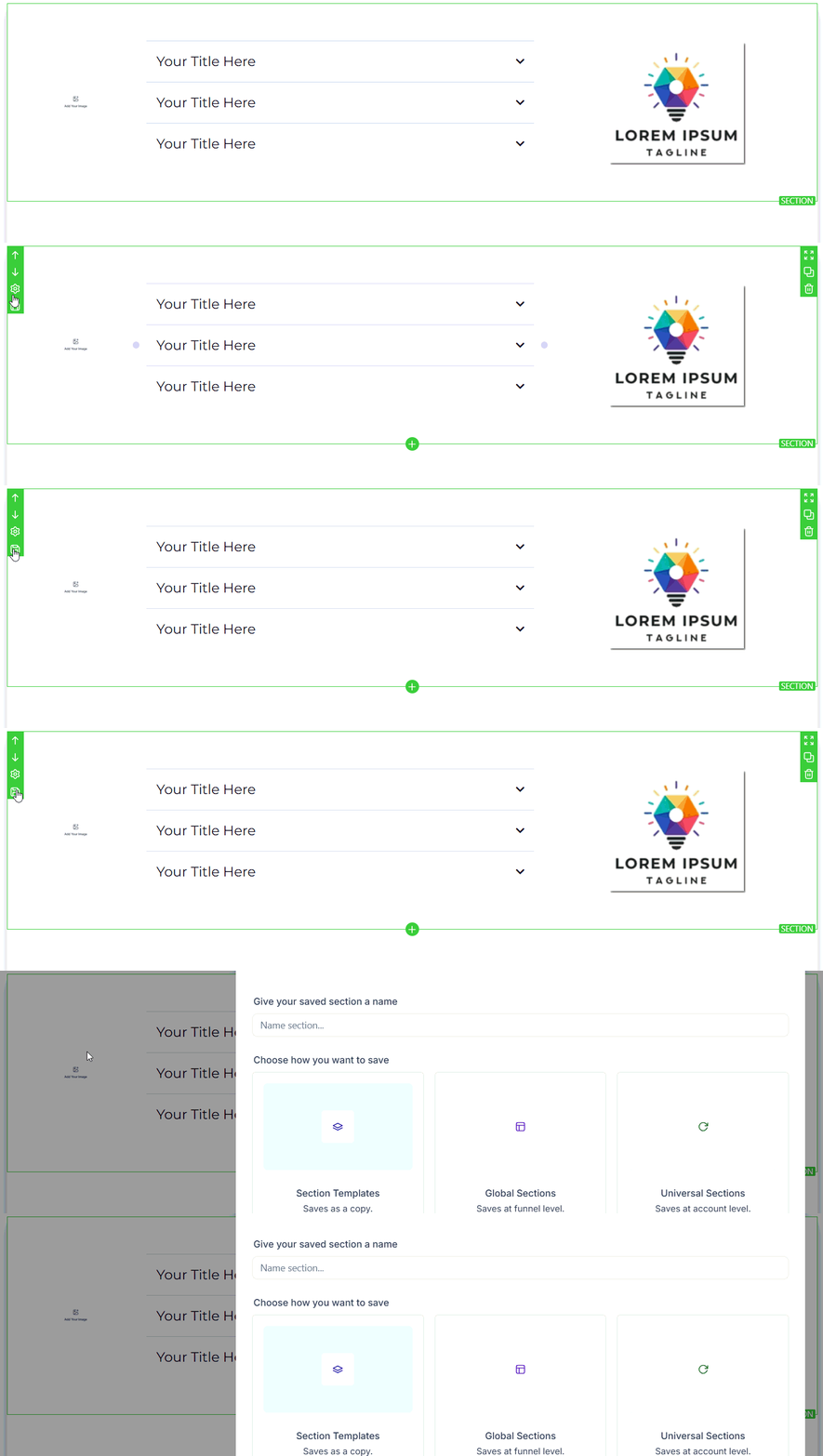 The block editor offers a structured, template-based editing approach inside a section. It is particularly useful for landing pages where you want a consistent grid layout.
Brand boards let you store your color palette and typography presets. When you apply a brand board to a funnel or website, all compatible elements update to match your brand instantly.
Ask AI to generate or rewrite copy for any text element directly inside the builder. Select a text element and click **Ask AI** to open the prompt interface.
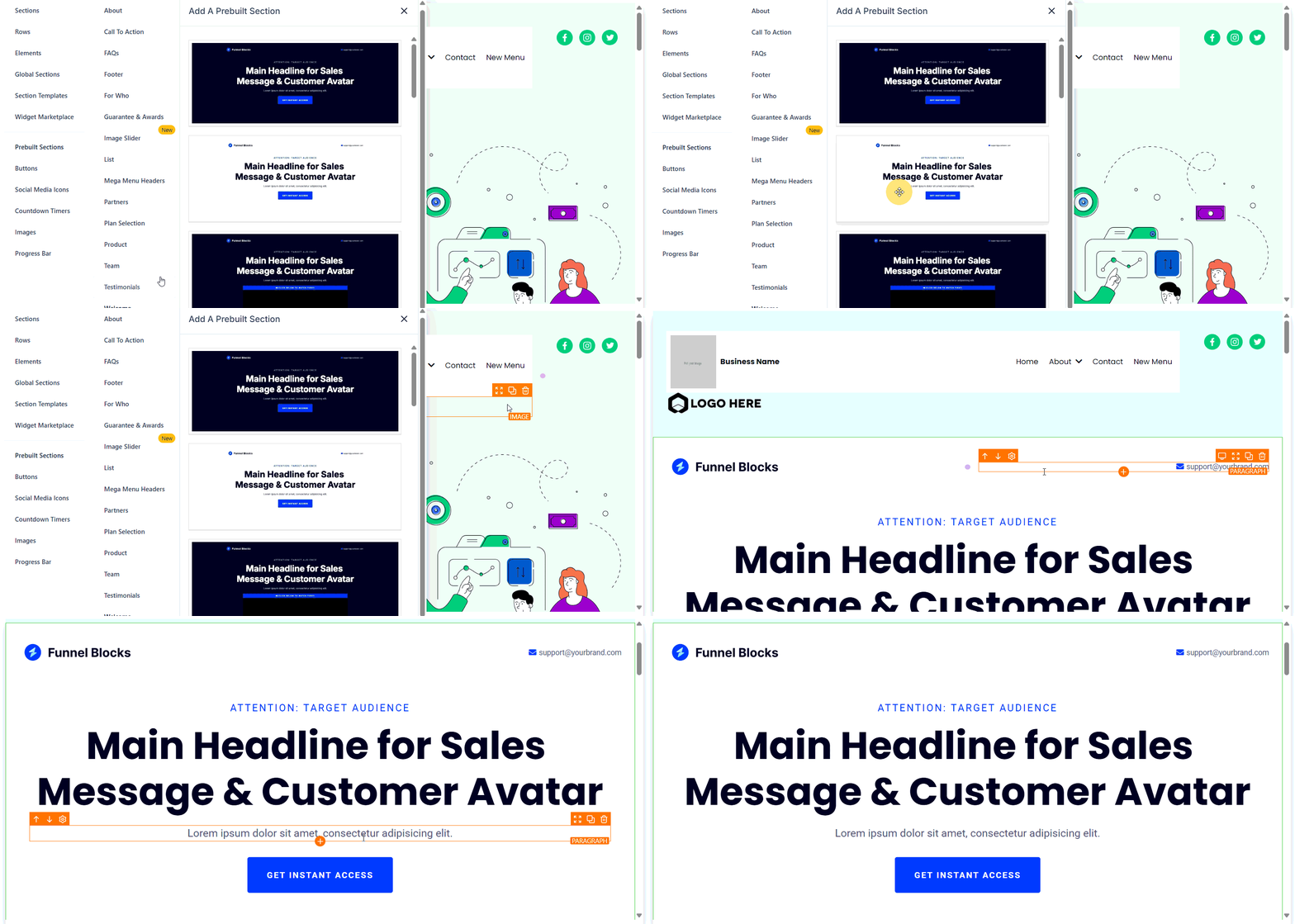
Browse a library of professionally designed section templates and insert them into any page with one click. Prebuilt sections cover common use cases such as hero banners, feature grids, testimonials, pricing tables, and CTAs.
The block editor offers a structured, template-based editing approach inside a section. It is particularly useful for landing pages where you want a consistent grid layout.
Brand boards let you store your color palette and typography presets. When you apply a brand board to a funnel or website, all compatible elements update to match your brand instantly.
Ask AI to generate or rewrite copy for any text element directly inside the builder. Select a text element and click **Ask AI** to open the prompt interface.
Browse a library of professionally designed section templates and insert them into any page with one click. Prebuilt sections cover common use cases such as hero banners, feature grids, testimonials, pricing tables, and CTAs.
 The builder supports keyboard shortcuts for common actions. Open the shortcuts reference from the help icon in the top toolbar.
***
## Tips
Use **Saved Sections** for repeating elements like headers and footers. Update the saved section once and it propagates to every page.
Always click **Save** before closing the builder, then **Publish** to make changes visible to visitors. Saving without publishing keeps the changes in draft state.
The **Versions** feature only shows states that were previously saved. Unsaved changes cannot be recovered from Versions.
The builder supports keyboard shortcuts for common actions. Open the shortcuts reference from the help icon in the top toolbar.
***
## Tips
Use **Saved Sections** for repeating elements like headers and footers. Update the saved section once and it propagates to every page.
Always click **Save** before closing the builder, then **Publish** to make changes visible to visitors. Saving without publishing keeps the changes in draft state.
The **Versions** feature only shows states that were previously saved. Unsaved changes cannot be recovered from Versions.