> ## Documentation Index
> Fetch the complete documentation index at: https://help.hoopai.com/llms.txt
> Use this file to discover all available pages before exploring further.
# Blogs: publish SEO-optimized content with HoopAI
> Create, schedule, and publish SEO-optimized blog posts with a built-in rich text editor, Content AI, and RSS feeds.
Blog posts help build trust, establish authority, and drive organic search traffic to your business. The Hoop platform includes a fully integrated blog publisher with a rich text editor, SEO controls, scheduling, Content AI, and import tools — all without needing a separate CMS.
 ## Blogs dashboard
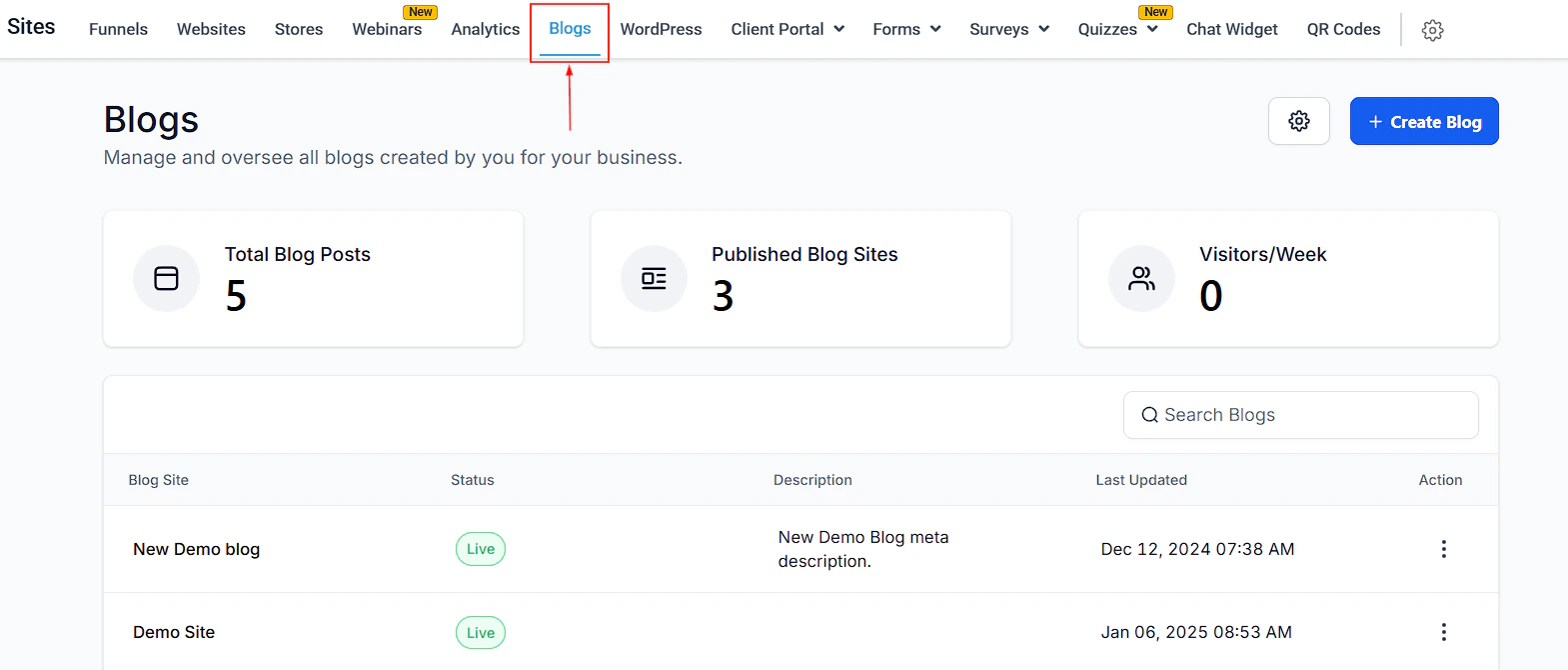
Navigate to **Sites > Blogs** to access the Blogs dashboard. From here you can see:
* **Total Blog Posts** — count of all published and draft posts across all blog sites
* **Published Blog Sites** — number of active live blogs
* **Visitors / Week** — traffic to your blog posts in the last 7 days
The dashboard also lists all blog sites you have created with their status, description, and last-updated date.
***
## Creating a blog site
Click **+ Create Blog** to create a new blog site. A blog site is the container that holds all your posts and is published to a domain or subdomain.
***
## Creating a blog post
From the Blogs dashboard, click the name of the blog site you want to add a post to.
Click **New Post** to open the blog editor.
Type your content in the editor. Use the toolbar to format text, add images, insert videos, embed audio, add quotes and dividers, and format with headings. The editor supports:
* Bold, italic, underline, strikethrough
* Ordered and unordered lists
* Text and background color
* Media from your Media Library or YouTube
* Custom code blocks
Click **Content AI** in the toolbar to let AI generate an outline, introduction, or full section based on your topic.
Click the **eye icon** to auto-save and preview the post in a new tab with full rendering.
Click **Continue** to set the post details before publishing:
* **URL Slug** — the path for the post (e.g. `/email-marketing-tips`)
* **Category** — organize posts by topic
* **Author** — select the post author
* **Title** and **Description** — shown in search results and social shares
* **Cover image** and **alt text**
* **Canonical link** and **keywords** (SEO)
Then click **Draft / Save**, **Schedule**, or **Publish** to set the post status.
## Blogs dashboard
Navigate to **Sites > Blogs** to access the Blogs dashboard. From here you can see:
* **Total Blog Posts** — count of all published and draft posts across all blog sites
* **Published Blog Sites** — number of active live blogs
* **Visitors / Week** — traffic to your blog posts in the last 7 days
The dashboard also lists all blog sites you have created with their status, description, and last-updated date.
***
## Creating a blog site
Click **+ Create Blog** to create a new blog site. A blog site is the container that holds all your posts and is published to a domain or subdomain.
***
## Creating a blog post
From the Blogs dashboard, click the name of the blog site you want to add a post to.
Click **New Post** to open the blog editor.
Type your content in the editor. Use the toolbar to format text, add images, insert videos, embed audio, add quotes and dividers, and format with headings. The editor supports:
* Bold, italic, underline, strikethrough
* Ordered and unordered lists
* Text and background color
* Media from your Media Library or YouTube
* Custom code blocks
Click **Content AI** in the toolbar to let AI generate an outline, introduction, or full section based on your topic.
Click the **eye icon** to auto-save and preview the post in a new tab with full rendering.
Click **Continue** to set the post details before publishing:
* **URL Slug** — the path for the post (e.g. `/email-marketing-tips`)
* **Category** — organize posts by topic
* **Author** — select the post author
* **Title** and **Description** — shown in search results and social shares
* **Cover image** and **alt text**
* **Canonical link** and **keywords** (SEO)
Then click **Draft / Save**, **Schedule**, or **Publish** to set the post status.
 ***
## Blog builder overview
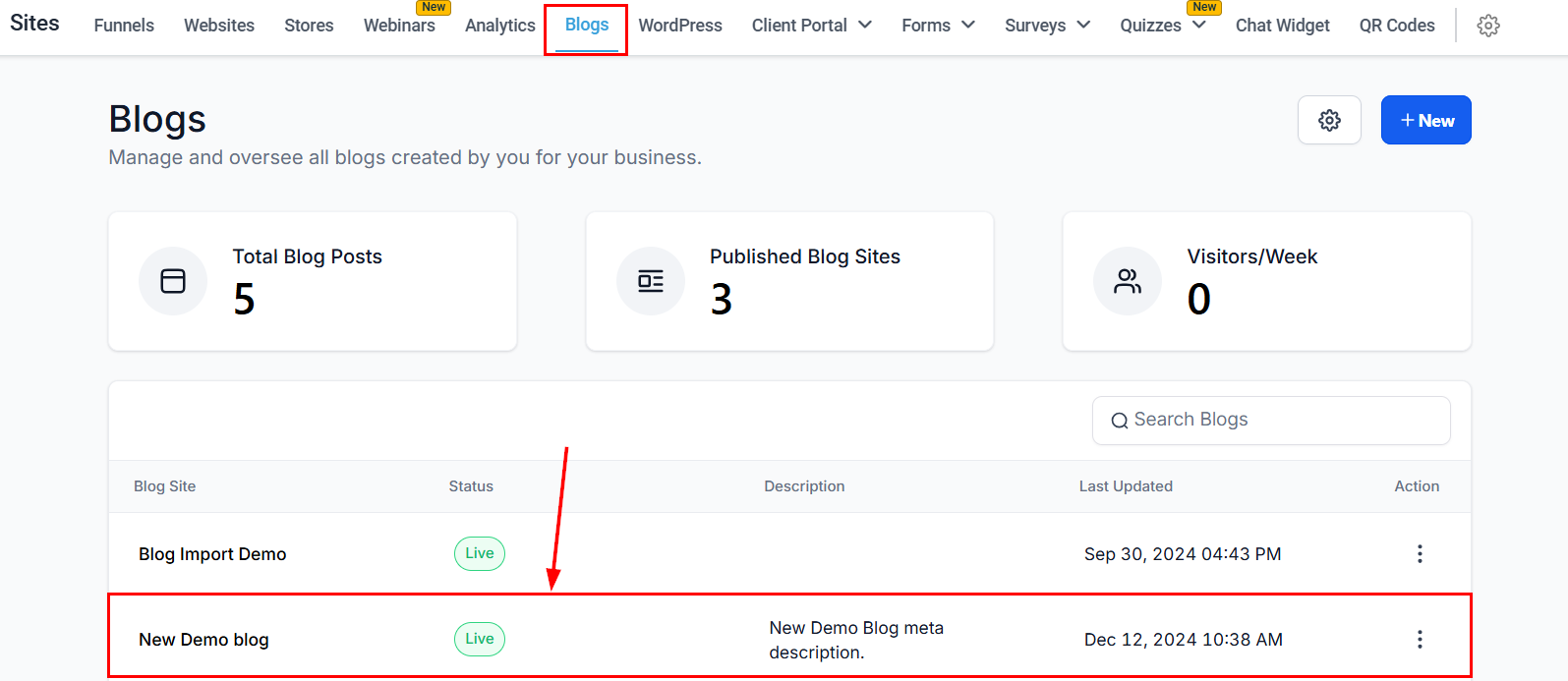
Inside a blog site, the **Blog Builder** lists all posts with their status, author, category, and type. From the Actions menu on each post you can:
* **Edit Post** — modify content, format, or details
* **Duplicate Post** — copy the post as a template
* **Change Blog Post SEO Details** — update meta title, description, and slug
* **Preview Post** — see how it looks to readers
* **Archive Post** — hide the post without deleting it
* **Delete Blog Post** — permanently remove the post
***
## Blog settings
Click the **gear icon** (settings) from within a blog site to configure:
* **Authors** — add or manage author names shown on posts
* **Categories** — define the topics used when publishing posts
* **RSS settings** — configure an RSS feed for the blog
***
## Blog builder overview
Inside a blog site, the **Blog Builder** lists all posts with their status, author, category, and type. From the Actions menu on each post you can:
* **Edit Post** — modify content, format, or details
* **Duplicate Post** — copy the post as a template
* **Change Blog Post SEO Details** — update meta title, description, and slug
* **Preview Post** — see how it looks to readers
* **Archive Post** — hide the post without deleting it
* **Delete Blog Post** — permanently remove the post
***
## Blog settings
Click the **gear icon** (settings) from within a blog site to configure:
* **Authors** — add or manage author names shown on posts
* **Categories** — define the topics used when publishing posts
* **RSS settings** — configure an RSS feed for the blog
 ***
## SEO tips for blog posts
Include the primary search term in the post title and URL slug. This is the single highest-impact SEO change you can make for any post.
The description field is shown in search results below the title. Write 1-2 sentences that summarize the post and include the primary keyword.
Alt text improves accessibility and gives search engines additional context about the images on the page.
If you publish the same content in multiple places, add a canonical link pointing to the primary URL to avoid duplicate content penalties.
Use **Content AI** to generate a full post outline from a topic, then edit the sections to add your own voice and specific details. This speeds up content production significantly.
***
## SEO tips for blog posts
Include the primary search term in the post title and URL slug. This is the single highest-impact SEO change you can make for any post.
The description field is shown in search results below the title. Write 1-2 sentences that summarize the post and include the primary keyword.
Alt text improves accessibility and gives search engines additional context about the images on the page.
If you publish the same content in multiple places, add a canonical link pointing to the primary URL to avoid duplicate content penalties.
Use **Content AI** to generate a full post outline from a topic, then edit the sections to add your own voice and specific details. This speeds up content production significantly.