> ## Documentation Index
> Fetch the complete documentation index at: https://help.hoopai.com/llms.txt
> Use this file to discover all available pages before exploring further.
# WhatsApp
> Connect and configure your WhatsApp Business account, create message templates, manage analytics, and set up appointment booking flows.
Connect your WhatsApp Business account to send and receive WhatsApp messages directly within your account. The WhatsApp settings section covers your business profile, message templates, analytics, and advanced features like appointment booking flows and countdown timers.
Navigate to **Settings > WhatsApp** to get started.
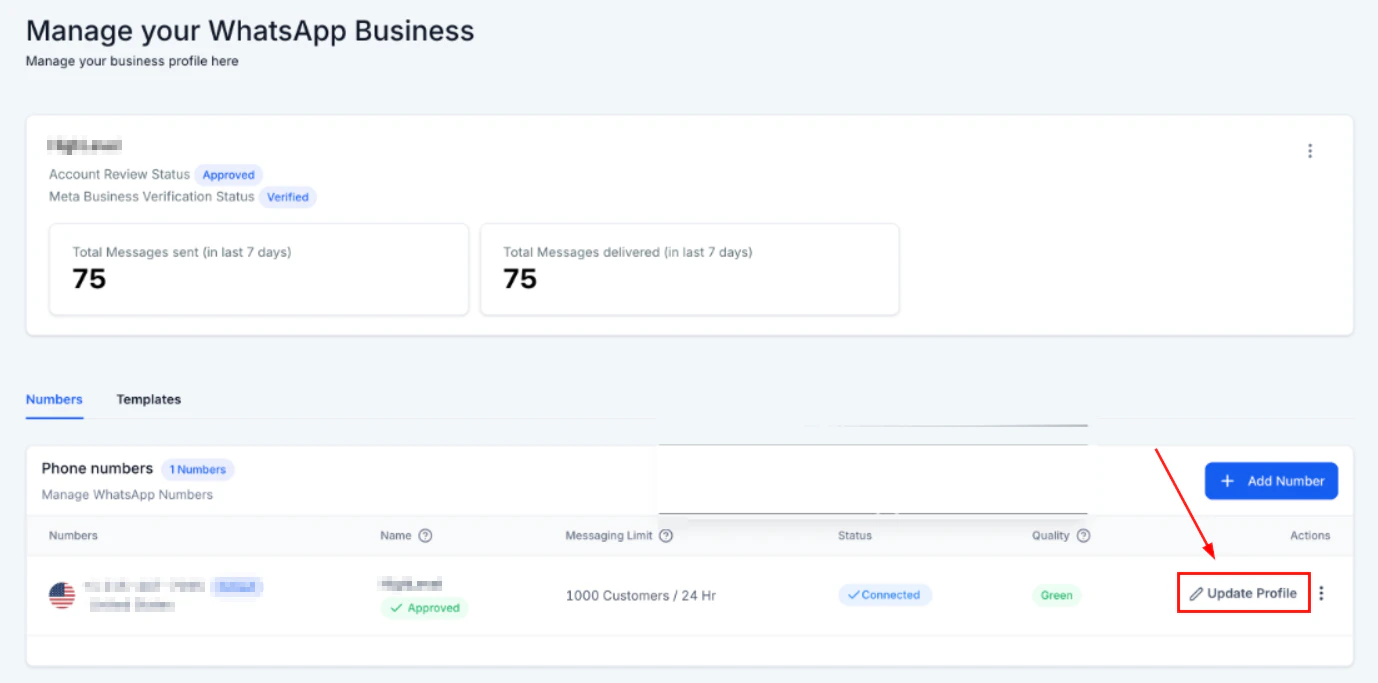 To use WhatsApp, you must first connect your WhatsApp Business account through the Integrations settings. See [Integrations](/settings/integrations) for the connection steps.
## WhatsApp Business profile management
Your Business Profile is the face of your company for any contact interacting with you through WhatsApp. Contacts can see your business name, address, website, and description — helping to build trust and credibility.
**To update your WhatsApp Business profile:**
1. Go to **Settings > WhatsApp**.
2. Click **Business Profile**.
3. Update your business name, category, description, address, website, and profile photo.
4. Save changes.
***
## WhatsApp message templates
WhatsApp requires pre-approved message templates for proactive outbound messages (messages sent to contacts outside of an active conversation window). Templates are submitted to Meta for review and must comply with WhatsApp's messaging policies.
### Creating a WhatsApp template
Go to **Settings > WhatsApp > Templates**.
To use WhatsApp, you must first connect your WhatsApp Business account through the Integrations settings. See [Integrations](/settings/integrations) for the connection steps.
## WhatsApp Business profile management
Your Business Profile is the face of your company for any contact interacting with you through WhatsApp. Contacts can see your business name, address, website, and description — helping to build trust and credibility.
**To update your WhatsApp Business profile:**
1. Go to **Settings > WhatsApp**.
2. Click **Business Profile**.
3. Update your business name, category, description, address, website, and profile photo.
4. Save changes.
***
## WhatsApp message templates
WhatsApp requires pre-approved message templates for proactive outbound messages (messages sent to contacts outside of an active conversation window). Templates are submitted to Meta for review and must comply with WhatsApp's messaging policies.
### Creating a WhatsApp template
Go to **Settings > WhatsApp > Templates**.
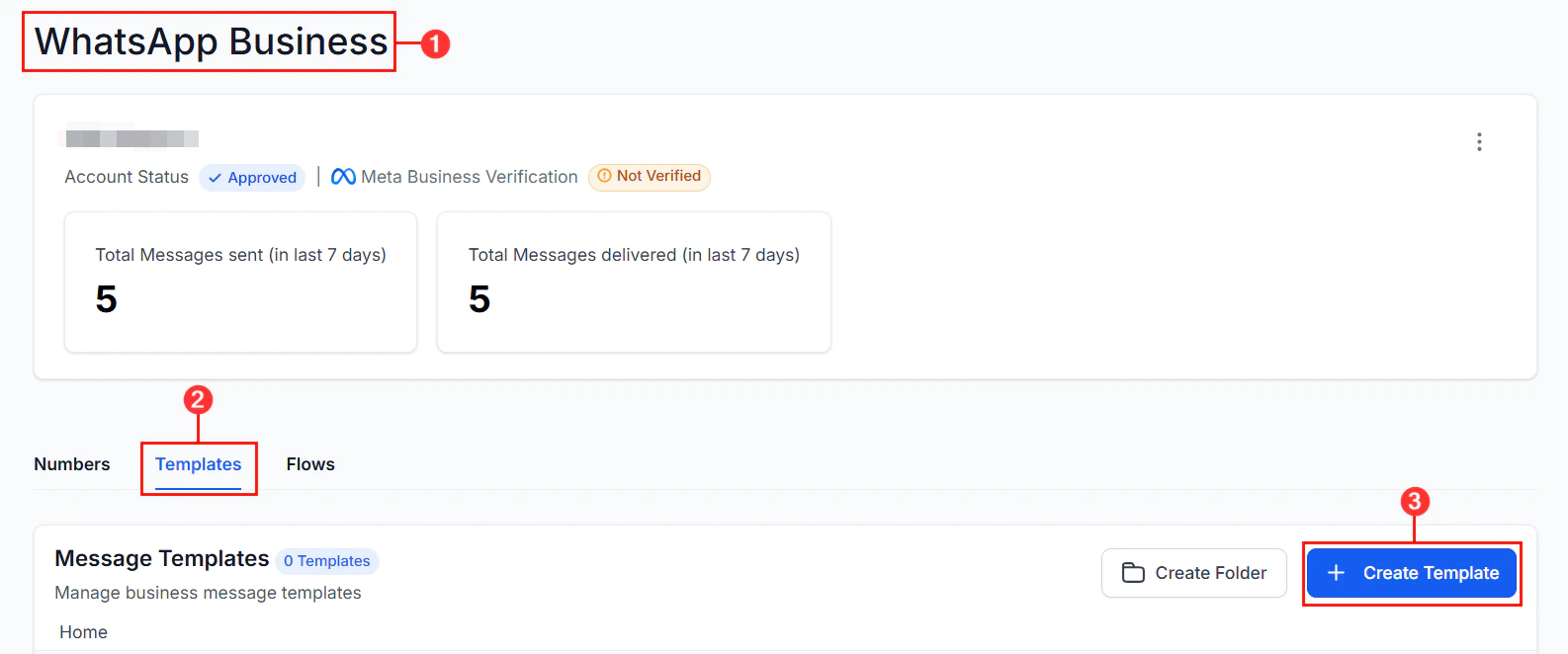 Click **Create Template** or the + button.
* **Template name** — a unique identifier (lowercase letters, numbers, underscores only)
* **Category** — Marketing, Utility, or Authentication
* **Language** — select the language for this template
Write the message body. Use `{{1}}`, `{{2}}` etc. as placeholders for variable content (e.g., contact name, appointment time).
You can also add:
* **Header** — text, image, video, or document header
* **Footer** — short disclaimer or opt-out note
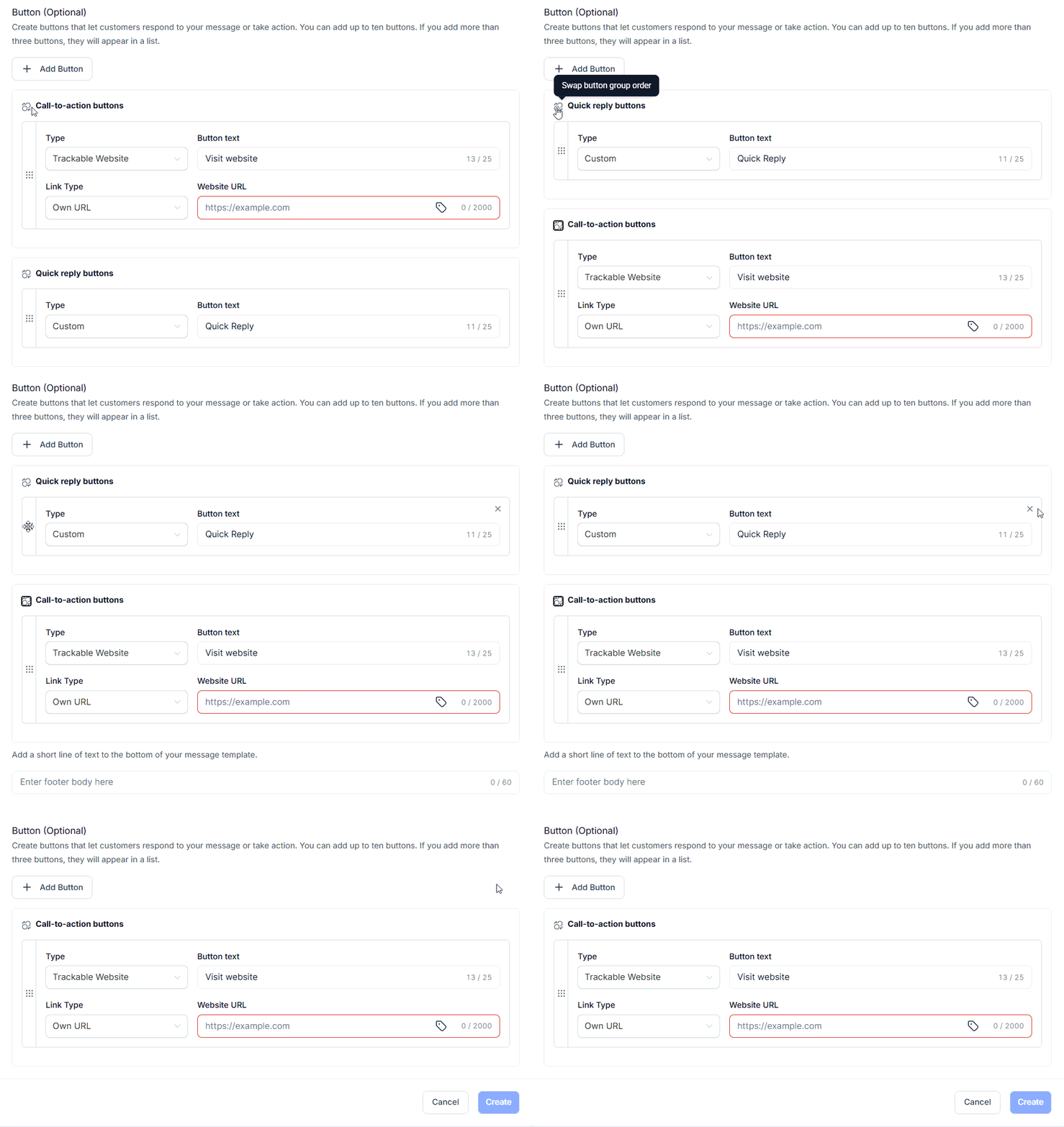
* **Buttons** — Call to Action (phone call / website visit) or Quick Reply buttons
Click **Submit**. Meta reviews templates within 24–48 hours. Approved templates become available immediately.
Click **Create Template** or the + button.
* **Template name** — a unique identifier (lowercase letters, numbers, underscores only)
* **Category** — Marketing, Utility, or Authentication
* **Language** — select the language for this template
Write the message body. Use `{{1}}`, `{{2}}` etc. as placeholders for variable content (e.g., contact name, appointment time).
You can also add:
* **Header** — text, image, video, or document header
* **Footer** — short disclaimer or opt-out note
* **Buttons** — Call to Action (phone call / website visit) or Quick Reply buttons
Click **Submit**. Meta reviews templates within 24–48 hours. Approved templates become available immediately.
 ### Template categories
| Category | Use case |
| ------------------ | ----------------------------------------------------------------------------- |
| **Marketing** | Promotions, offers, newsletters — requires explicit opt-in |
| **Utility** | Transactional messages — appointment reminders, order updates, account alerts |
| **Authentication** | One-time passwords and verification codes |
Marketing templates can only be sent to contacts who have explicitly opted in to receive WhatsApp marketing messages. Sending to non-opted-in contacts risks your WhatsApp account being restricted.
### Using WhatsApp media templates
Media templates include an image, video, or document in the header. To create one:
1. When building a template, select **Media** as the header type.
2. Choose Image, Video, or Document.
3. Upload a sample media file for the template review (the actual media is uploaded when sending).
### Converting a template to utility
If a Marketing template was incorrectly categorized, you can convert it to a Utility template (subject to Meta's policies):
1. Open the template in **Settings > WhatsApp > Templates**.
2. Click **Convert to Utility**.
3. Confirm and resubmit for review.
***
## WhatsApp template analytics
Monitor the performance of your WhatsApp templates in the **Template Analytics** section:
* **Delivered** — messages successfully delivered to recipients
* **Read** — messages opened by recipients
* **Replied** — recipients who responded to the template
Use this data to optimize template content and improve engagement rates.
***
## WhatsApp messaging limits and message links
WhatsApp enforces messaging limits based on your account's Business Verification status and message quality rating:
| Tier | Daily messages |
| ---------- | --------------------------- |
| Unverified | 250 unique contacts/day |
| Tier 1 | 1,000 unique contacts/day |
| Tier 2 | 10,000 unique contacts/day |
| Tier 3 | 100,000 unique contacts/day |
Limits increase automatically when you consistently send high-quality, low-spam-rate messages.
**WhatsApp message links** — generate shareable `wa.me` links that open a WhatsApp conversation with your number. These are useful for website widgets, email signatures, and QR codes.
***
## Appointment booking WhatsApp flow
Set up a WhatsApp Flow to allow contacts to book appointments directly within a WhatsApp conversation — no website visit required.
1. Go to **Settings > WhatsApp > Appointment Booking Flow**.
2. Select the calendar to use for bookings.
3. Configure the flow messages (greeting, available slots, confirmation).
4. Publish and test the flow.
***
## WhatsApp countdown timer
Add a countdown timer to WhatsApp templates to create urgency for time-limited offers:
1. In the template builder, add a **Limited Time Offer** component.
2. Set the expiry date and time.
3. The template will display a countdown in the recipient's WhatsApp.
***
## WhatsApp coexistence
WhatsApp coexistence allows you to use the same WhatsApp Business number across both the WhatsApp Business App and your platform simultaneously. Configure this in **Settings > WhatsApp > Coexistence**.
***
## Linking WhatsApp Business account to a Facebook Page
Connecting your WhatsApp Business account to a Facebook Page enables advanced features like Click-to-WhatsApp ads:
1. Go to **Settings > WhatsApp**.
2. Click **Link to Facebook Page**.
3. Select your Facebook Page from the list and confirm.
***
## Related articles
* [Integrations](/settings/integrations)
* [Conversations overview](/conversations/overview)
* [Phone system](/settings/phone-system)
### Template categories
| Category | Use case |
| ------------------ | ----------------------------------------------------------------------------- |
| **Marketing** | Promotions, offers, newsletters — requires explicit opt-in |
| **Utility** | Transactional messages — appointment reminders, order updates, account alerts |
| **Authentication** | One-time passwords and verification codes |
Marketing templates can only be sent to contacts who have explicitly opted in to receive WhatsApp marketing messages. Sending to non-opted-in contacts risks your WhatsApp account being restricted.
### Using WhatsApp media templates
Media templates include an image, video, or document in the header. To create one:
1. When building a template, select **Media** as the header type.
2. Choose Image, Video, or Document.
3. Upload a sample media file for the template review (the actual media is uploaded when sending).
### Converting a template to utility
If a Marketing template was incorrectly categorized, you can convert it to a Utility template (subject to Meta's policies):
1. Open the template in **Settings > WhatsApp > Templates**.
2. Click **Convert to Utility**.
3. Confirm and resubmit for review.
***
## WhatsApp template analytics
Monitor the performance of your WhatsApp templates in the **Template Analytics** section:
* **Delivered** — messages successfully delivered to recipients
* **Read** — messages opened by recipients
* **Replied** — recipients who responded to the template
Use this data to optimize template content and improve engagement rates.
***
## WhatsApp messaging limits and message links
WhatsApp enforces messaging limits based on your account's Business Verification status and message quality rating:
| Tier | Daily messages |
| ---------- | --------------------------- |
| Unverified | 250 unique contacts/day |
| Tier 1 | 1,000 unique contacts/day |
| Tier 2 | 10,000 unique contacts/day |
| Tier 3 | 100,000 unique contacts/day |
Limits increase automatically when you consistently send high-quality, low-spam-rate messages.
**WhatsApp message links** — generate shareable `wa.me` links that open a WhatsApp conversation with your number. These are useful for website widgets, email signatures, and QR codes.
***
## Appointment booking WhatsApp flow
Set up a WhatsApp Flow to allow contacts to book appointments directly within a WhatsApp conversation — no website visit required.
1. Go to **Settings > WhatsApp > Appointment Booking Flow**.
2. Select the calendar to use for bookings.
3. Configure the flow messages (greeting, available slots, confirmation).
4. Publish and test the flow.
***
## WhatsApp countdown timer
Add a countdown timer to WhatsApp templates to create urgency for time-limited offers:
1. In the template builder, add a **Limited Time Offer** component.
2. Set the expiry date and time.
3. The template will display a countdown in the recipient's WhatsApp.
***
## WhatsApp coexistence
WhatsApp coexistence allows you to use the same WhatsApp Business number across both the WhatsApp Business App and your platform simultaneously. Configure this in **Settings > WhatsApp > Coexistence**.
***
## Linking WhatsApp Business account to a Facebook Page
Connecting your WhatsApp Business account to a Facebook Page enables advanced features like Click-to-WhatsApp ads:
1. Go to **Settings > WhatsApp**.
2. Click **Link to Facebook Page**.
3. Select your Facebook Page from the list and confirm.
***
## Related articles
* [Integrations](/settings/integrations)
* [Conversations overview](/conversations/overview)
* [Phone system](/settings/phone-system)