> ## Documentation Index
> Fetch the complete documentation index at: https://help.hoopai.com/llms.txt
> Use this file to discover all available pages before exploring further.
# Tags
> Create and manage tags to organize contacts, trigger automations, and segment your audience in the HoopAI Platform.
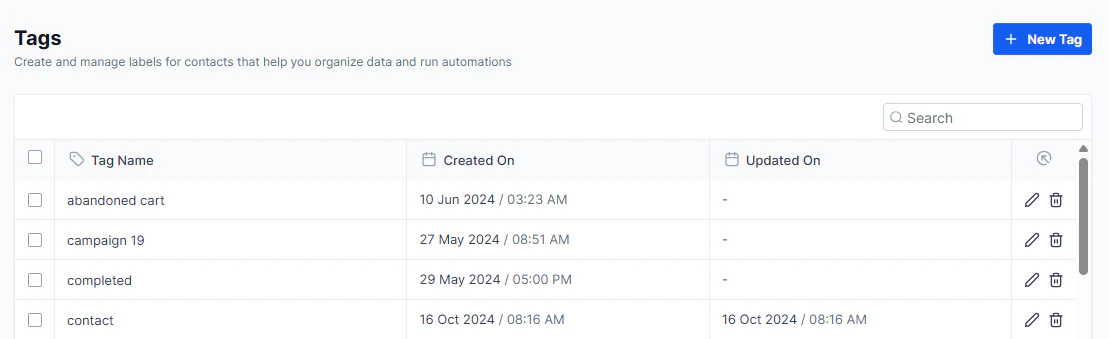
The Tags section provides a central location for managing all contact tags in your account. While tags can be created in other areas (directly on contacts, through automations, etc.), the Tags settings page lets you view, edit, rename, and delete existing tags across your entire account.
Navigate to **Settings > Tags** to get started.
 ## What tags do
Tags are labels you attach to contacts for quick identification and segmentation. They are useful for:
* **Quick filtering** — create smart lists of contacts with a specific tag
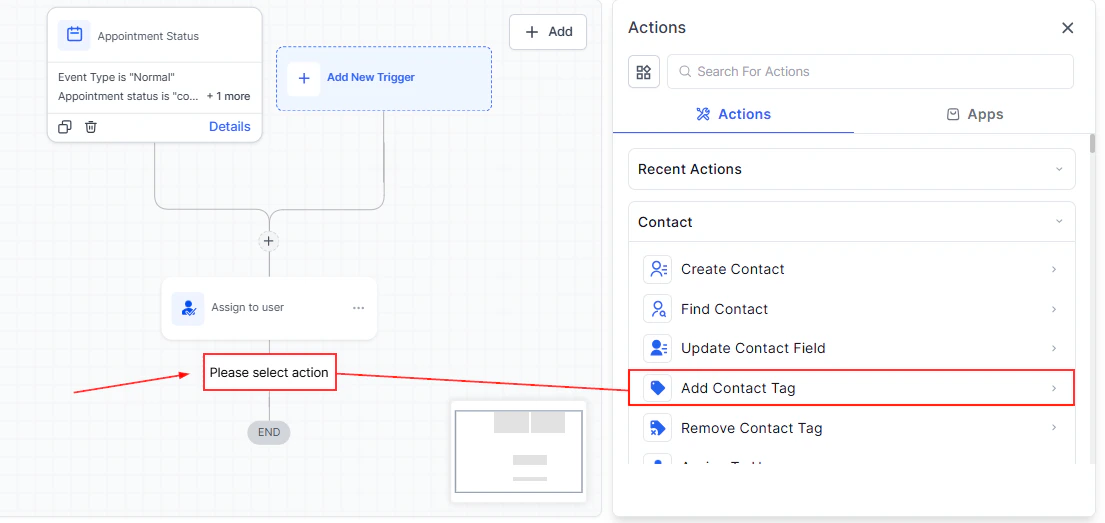
* **Trigger automations** — use tag additions/removals as workflow triggers
* **Segment campaigns** — target contacts by tag in email and SMS campaigns
* **Merging contacts** — tag-based deduplication and contact merge triggers
* **Sales routing** — automatically assign contacts to agents or pipelines based on tags
## Managing tags
### Creating a new tag
Tags are most commonly created directly when editing a contact record or through a workflow action. In the Tags settings page, you can also:
1. Click **Add Tag** or the + icon.
2. Enter a name for the tag.
3. Save.
### Searching for tags
Use the search bar at the top of the Tags page to quickly find a specific tag by name.
### Renaming a tag
1. Find the tag you want to rename.
2. Click the edit (pencil) icon.
3. Enter the new name and save.
Renaming a tag updates it everywhere it is used — all contacts with that tag will reflect the new name immediately.
### Deleting a tag
1. Find the tag you want to delete.
2. Click the delete (trash) icon.
3. Confirm deletion.
Deleting a tag removes it from all contacts that have it and from any automations or smart lists that reference it. Review your workflows and lists before deleting commonly used tags.
## What tags do
Tags are labels you attach to contacts for quick identification and segmentation. They are useful for:
* **Quick filtering** — create smart lists of contacts with a specific tag
* **Trigger automations** — use tag additions/removals as workflow triggers
* **Segment campaigns** — target contacts by tag in email and SMS campaigns
* **Merging contacts** — tag-based deduplication and contact merge triggers
* **Sales routing** — automatically assign contacts to agents or pipelines based on tags
## Managing tags
### Creating a new tag
Tags are most commonly created directly when editing a contact record or through a workflow action. In the Tags settings page, you can also:
1. Click **Add Tag** or the + icon.
2. Enter a name for the tag.
3. Save.
### Searching for tags
Use the search bar at the top of the Tags page to quickly find a specific tag by name.
### Renaming a tag
1. Find the tag you want to rename.
2. Click the edit (pencil) icon.
3. Enter the new name and save.
Renaming a tag updates it everywhere it is used — all contacts with that tag will reflect the new name immediately.
### Deleting a tag
1. Find the tag you want to delete.
2. Click the delete (trash) icon.
3. Confirm deletion.
Deleting a tag removes it from all contacts that have it and from any automations or smart lists that reference it. Review your workflows and lists before deleting commonly used tags.
 ## Tag best practices
Use a consistent naming convention for tags to keep your account organized. For example: `lead-source-google`, `lead-source-facebook`, `status-hot`, `status-cold`, `campaign-spring-2025`.
* Use tags for contact categorization that does not fit into standard fields (status, source, campaign)
* Avoid creating too many similar tags — consolidate where possible
* Regularly audit unused tags in the Tags settings page and remove ones no longer in use
* Document your tagging conventions so your whole team applies them consistently
## Related articles
* [Contacts overview](/contacts/overview)
* [Smart lists](/contacts/smart-lists)
* [Automations](/automation/overview)
* [Custom fields](/settings/custom-fields)
## Tag best practices
Use a consistent naming convention for tags to keep your account organized. For example: `lead-source-google`, `lead-source-facebook`, `status-hot`, `status-cold`, `campaign-spring-2025`.
* Use tags for contact categorization that does not fit into standard fields (status, source, campaign)
* Avoid creating too many similar tags — consolidate where possible
* Regularly audit unused tags in the Tags settings page and remove ones no longer in use
* Document your tagging conventions so your whole team applies them consistently
## Related articles
* [Contacts overview](/contacts/overview)
* [Smart lists](/contacts/smart-lists)
* [Automations](/automation/overview)
* [Custom fields](/settings/custom-fields)