> ## Documentation Index
> Fetch the complete documentation index at: https://help.hoopai.com/llms.txt
> Use this file to discover all available pages before exploring further.
# Private integrations
> Create secure OAuth access tokens with scoped permissions to connect external applications to the HoopAI Platform API v2.
Private Integrations is designed to enhance the security and functionality of your account integrations. By moving beyond the limitations of API keys, Private Integrations offers a more robust, secure, and manageable solution for connecting third-party applications to your account.
Navigate to **Settings > Private Integrations** to get started.
## Key features
* **Enhanced security** — restrict the scopes and permissions that a developer can access on your account, providing a higher level of security compared to API keys
* **Feature-rich API access** — Private Integrations grant access to API v2.0, which includes more API features and Webhooks, expanding the possibilities for custom integrations
* **Token management** — includes token management best practices such as Rotate and Expire Now/Later, making it easier to manage your integrations securely and efficiently
Private Integrations are the recommended migration path for customers using custom integrations built on API v1. API v2 offers better security, more features, and improved management controls.
***
## Creating a private integration
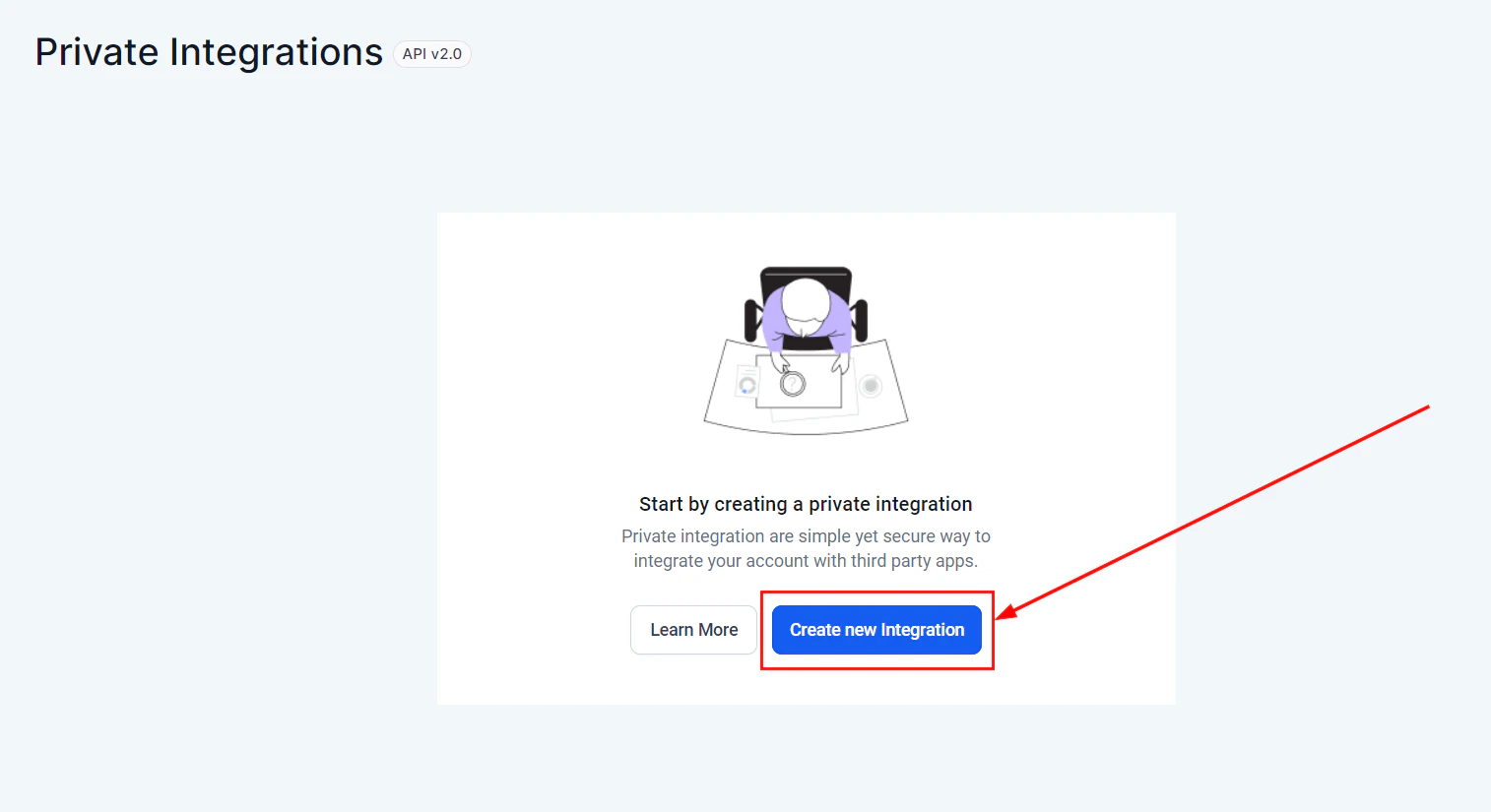
Go to **Settings > Private Integrations**, then click **Create New Integration**.
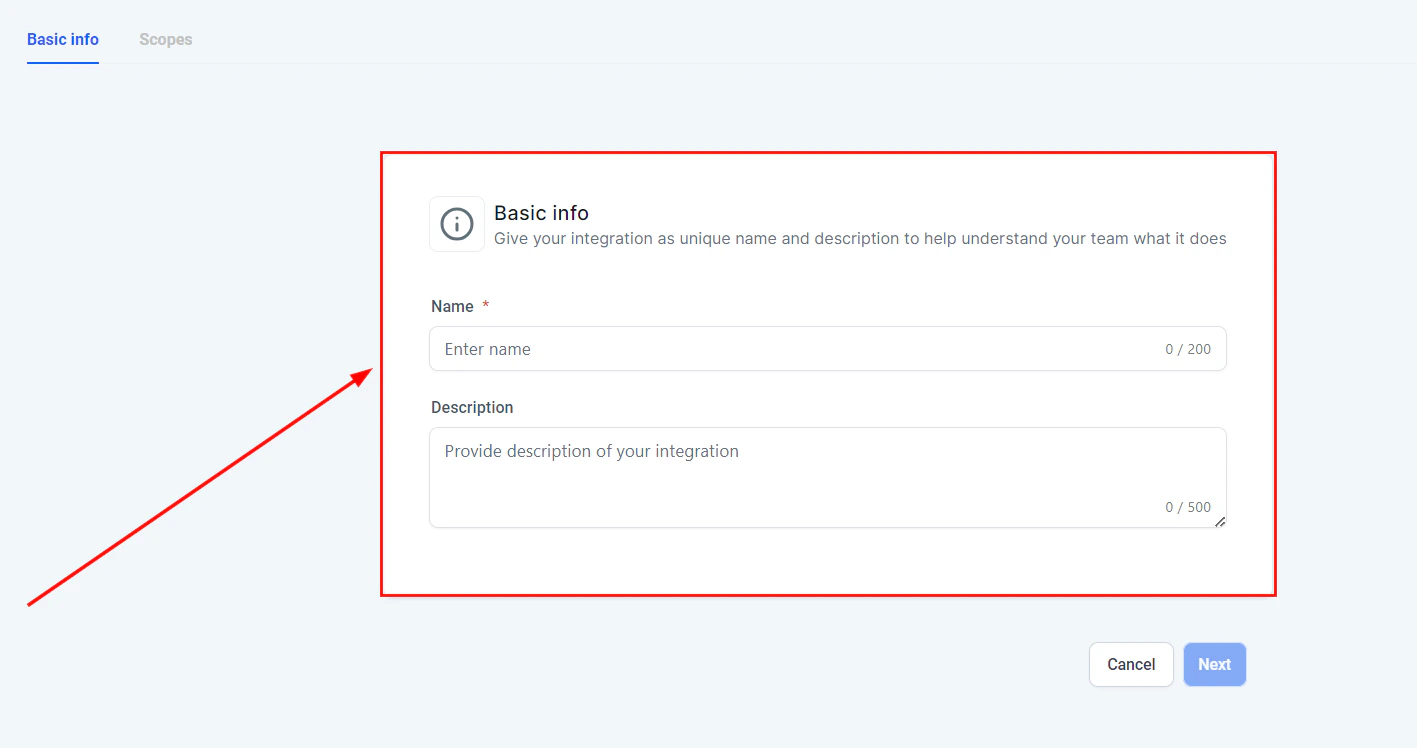
 Configure the integration details:
* **Integration name** — give your integration a meaningful name to identify it easily
* **Description** — provide a brief description of what the integration does
Configure the integration details:
* **Integration name** — give your integration a meaningful name to identify it easily
* **Description** — provide a brief description of what the integration does
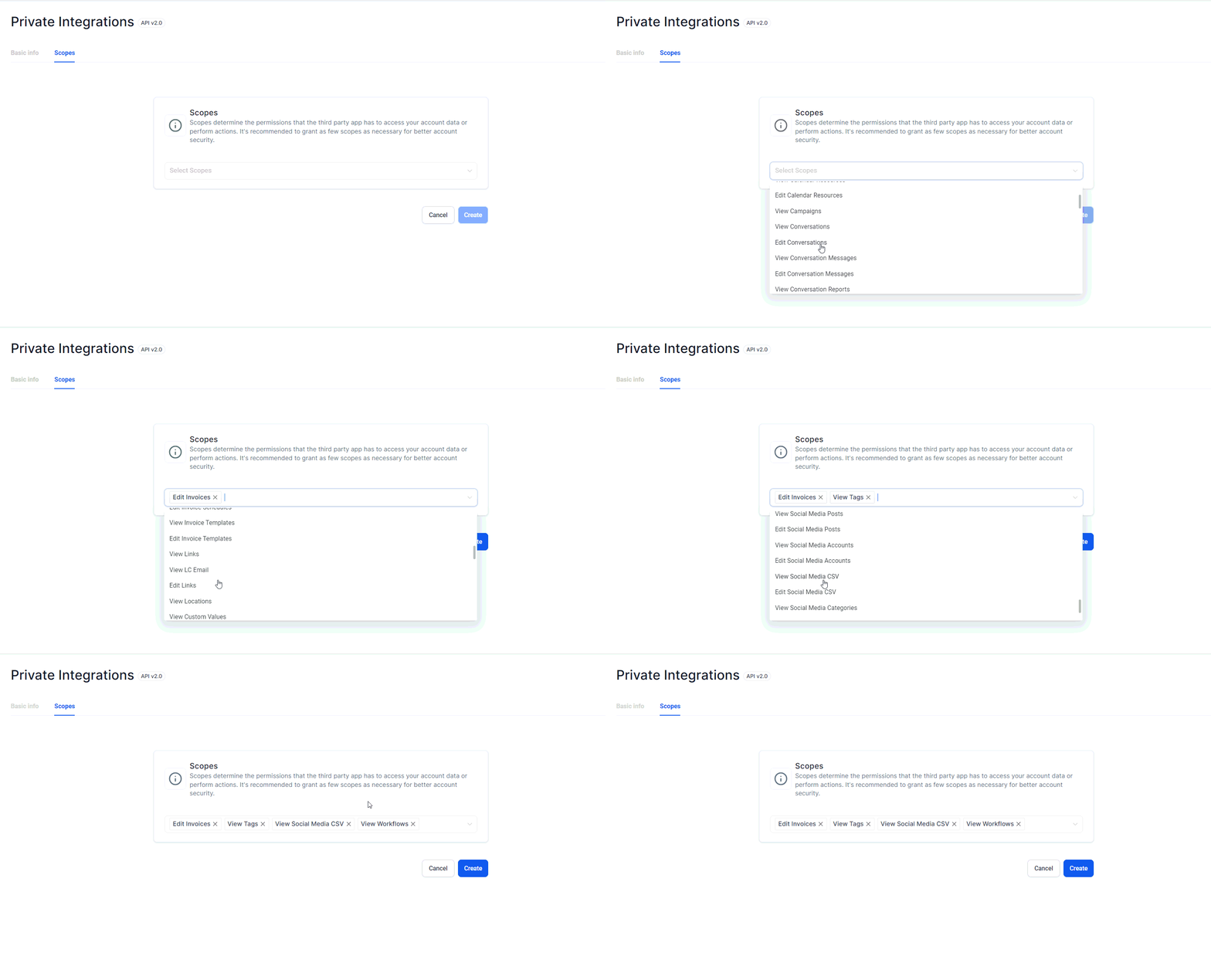
 Define the scopes and permissions that the third-party application will have access to. Restricting scopes to only what is necessary is crucial for maintaining security.
 Click **Generate Access Token**. This token will be used by the third-party application to authenticate with your account.
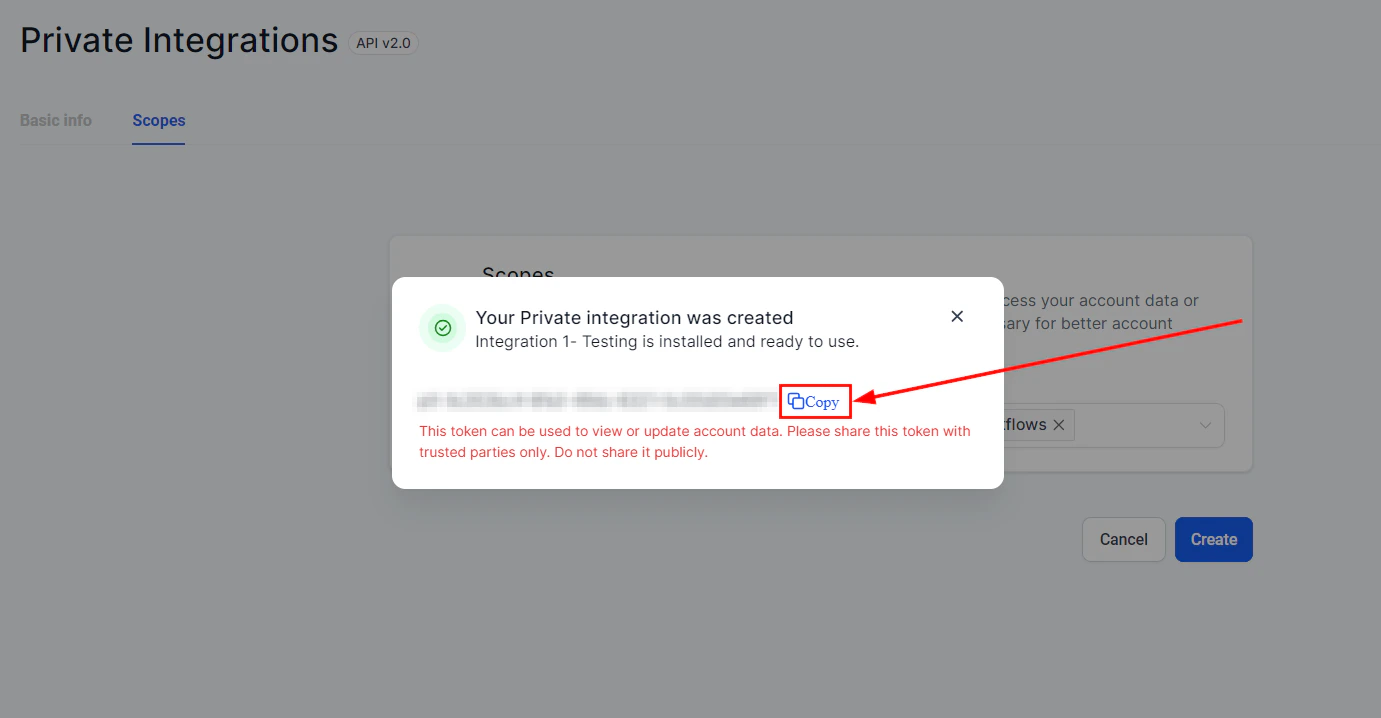 Copy and store the access token securely — it will not be displayed again after you leave this screen.
Use the access token to connect your third-party application with the platform. Test the integration to ensure it works as expected and has the correct permissions.
***
## Managing integration tokens
After creating an integration, you can manage its tokens from the **Private Integrations** tab:
Copy and store the access token securely — it will not be displayed again after you leave this screen.
Use the access token to connect your third-party application with the platform. Test the integration to ensure it works as expected and has the correct permissions.
***
## Managing integration tokens
After creating an integration, you can manage its tokens from the **Private Integrations** tab:
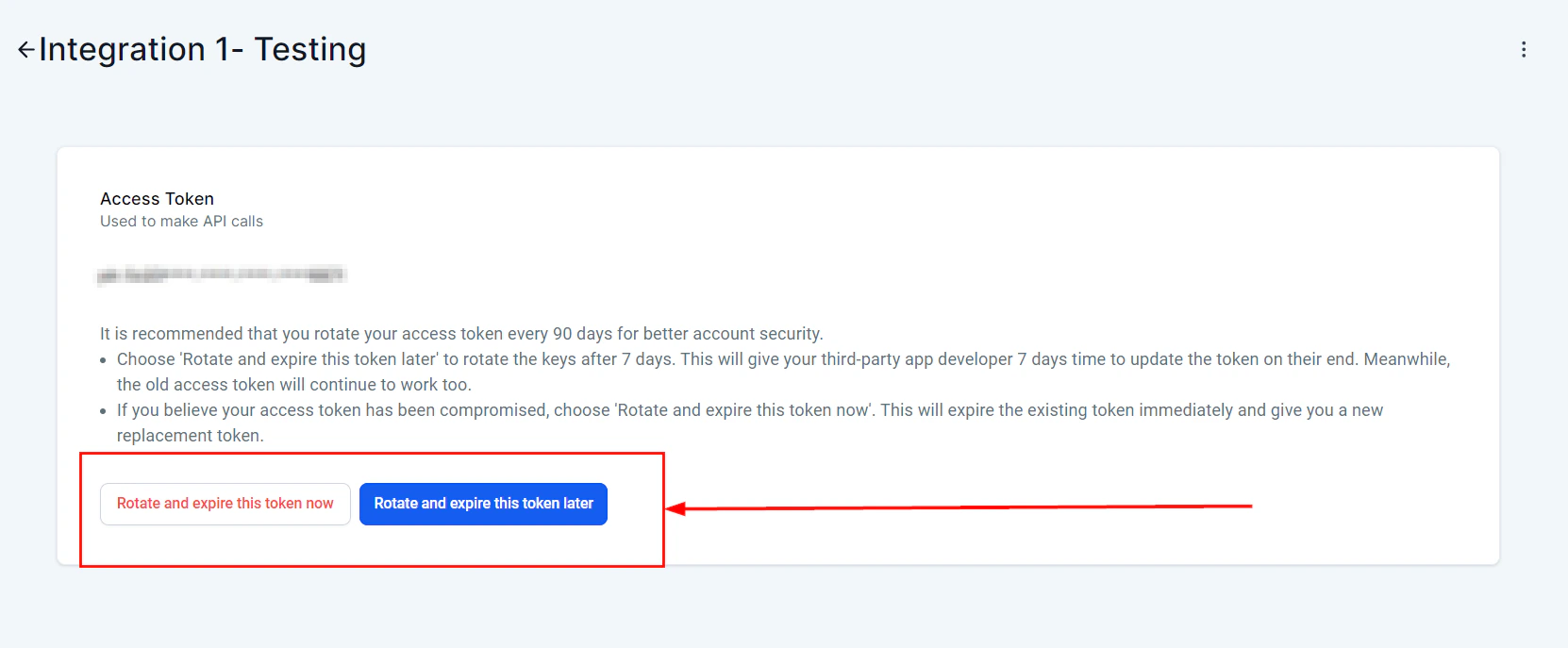 | Action | Description |
| ---------------- | ---------------------------------------------------------------------- |
| **Rotate Now** | Generates a new token immediately and invalidates the old one |
| **Expire Now** | Immediately invalidates the current token without generating a new one |
| **Expire Later** | Schedule a future expiration date for a planned rotation |
Regularly rotate your integration tokens using the Rotate Now feature to enhance security, especially for integrations with broad API access scopes.
***
## Frequently asked questions
Private Integrations allow you to restrict the scopes and permissions that developers can access, reducing the risk of unauthorized access. API keys provide broad access, while Private Integration tokens can be scoped to only the specific data and actions the integration needs.
API v2.0 includes more features and Webhooks, providing greater functionality and flexibility for custom integrations compared to API v1. Private Integrations exclusively use API v2.0.
Follow these best practices:
* Rotate tokens regularly using the Rotate Now feature
* Expire tokens immediately if you suspect they have been compromised
* Monitor token usage and set expiry dates for time-limited integrations
* Keep token names descriptive so you can identify each integration's purpose
***
## Troubleshooting
| Issue | Solution |
| ------------------------------- | ------------------------------------------------------------------------------------------------------------- |
| **Unauthorized API errors** | Verify the correct token is being passed in the Authorization header and that the required scopes are enabled |
| **Integration stopped working** | Check if the token was rotated or expired — generate a new token if needed |
| **Missing API features** | Ensure your integration is using API v2.0 endpoints, not v1 |
| **Scope errors** | Review the scopes assigned to the integration and add any missing permissions |
***
## Related articles
* [Integrations](/settings/integrations)
* [External tracking](/settings/external-tracking)
* [Audit logs](/settings/audit-logs)
| Action | Description |
| ---------------- | ---------------------------------------------------------------------- |
| **Rotate Now** | Generates a new token immediately and invalidates the old one |
| **Expire Now** | Immediately invalidates the current token without generating a new one |
| **Expire Later** | Schedule a future expiration date for a planned rotation |
Regularly rotate your integration tokens using the Rotate Now feature to enhance security, especially for integrations with broad API access scopes.
***
## Frequently asked questions
Private Integrations allow you to restrict the scopes and permissions that developers can access, reducing the risk of unauthorized access. API keys provide broad access, while Private Integration tokens can be scoped to only the specific data and actions the integration needs.
API v2.0 includes more features and Webhooks, providing greater functionality and flexibility for custom integrations compared to API v1. Private Integrations exclusively use API v2.0.
Follow these best practices:
* Rotate tokens regularly using the Rotate Now feature
* Expire tokens immediately if you suspect they have been compromised
* Monitor token usage and set expiry dates for time-limited integrations
* Keep token names descriptive so you can identify each integration's purpose
***
## Troubleshooting
| Issue | Solution |
| ------------------------------- | ------------------------------------------------------------------------------------------------------------- |
| **Unauthorized API errors** | Verify the correct token is being passed in the Authorization header and that the required scopes are enabled |
| **Integration stopped working** | Check if the token was rotated or expired — generate a new token if needed |
| **Missing API features** | Ensure your integration is using API v2.0 endpoints, not v1 |
| **Scope errors** | Review the scopes assigned to the integration and add any missing permissions |
***
## Related articles
* [Integrations](/settings/integrations)
* [External tracking](/settings/external-tracking)
* [Audit logs](/settings/audit-logs)