> ## Documentation Index
> Fetch the complete documentation index at: https://help.hoopai.com/llms.txt
> Use this file to discover all available pages before exploring further.
# Phone System
> Purchase phone numbers, configure calling and SMS, set up call recording, voicemail, forwarding, and manage your phone system in the HoopAI Platform.
Your phone number is more than a direct line to your company — it is a memorable part of your brand. The Phone System settings let you acquire and manage phone numbers, configure call behavior, set up recording and transcription, and control every aspect of your voice and SMS communications.
Navigate to **Settings > Phone System** to get started.
 ## Buying a phone number
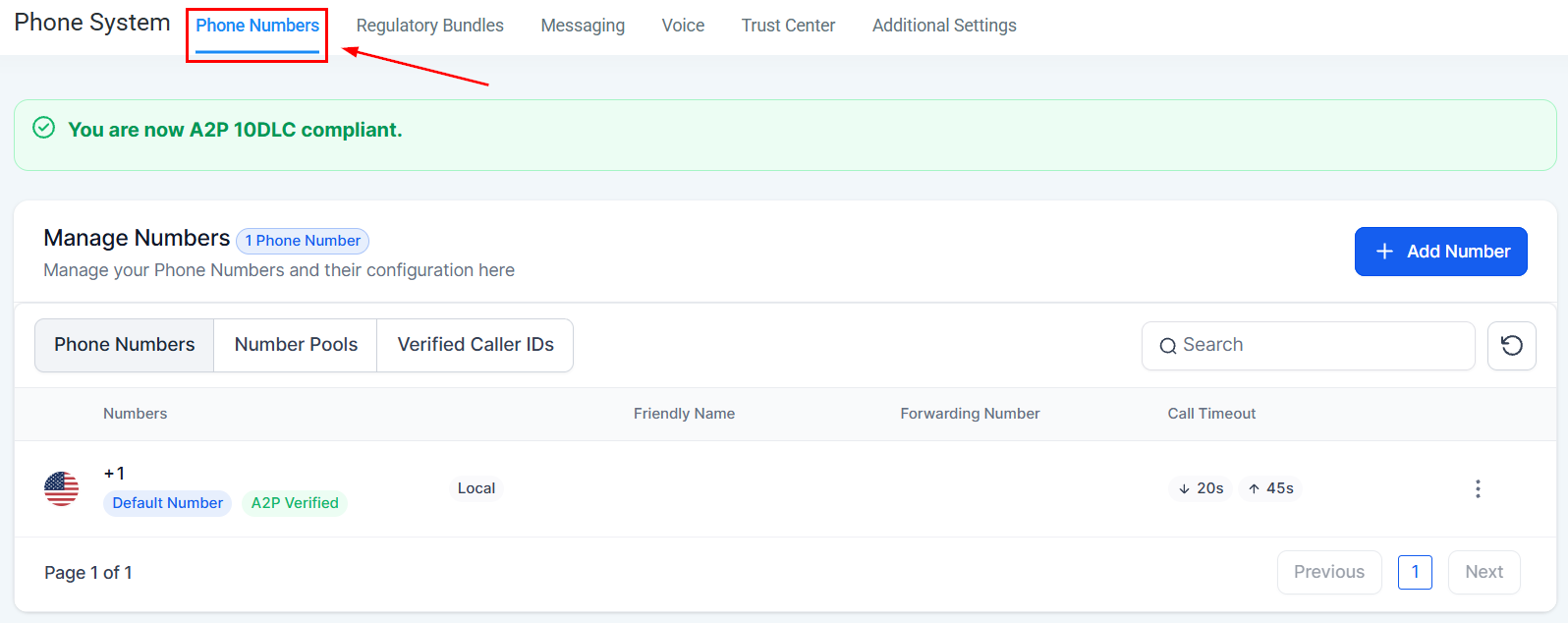
Go to **Settings > Phone System > Phone Numbers**.
Click **Buy Number** or **Add Number** to search for available numbers.
Search for local numbers by area code, toll-free numbers (1-800, 1-888, etc.), or select a specific state or region.
Click the number you want to purchase and confirm.
After purchase, configure the number's settings (forwarding, messaging, etc.) and save.
Some countries and number types require address verification or identity verification before purchase. Follow the on-screen prompts to complete any required verification steps.
***
## Configuring a phone number
After purchasing a number, you can configure its behavior in detail.
## Buying a phone number
Go to **Settings > Phone System > Phone Numbers**.
Click **Buy Number** or **Add Number** to search for available numbers.
Search for local numbers by area code, toll-free numbers (1-800, 1-888, etc.), or select a specific state or region.
Click the number you want to purchase and confirm.
After purchase, configure the number's settings (forwarding, messaging, etc.) and save.
Some countries and number types require address verification or identity verification before purchase. Follow the on-screen prompts to complete any required verification steps.
***
## Configuring a phone number
After purchasing a number, you can configure its behavior in detail.
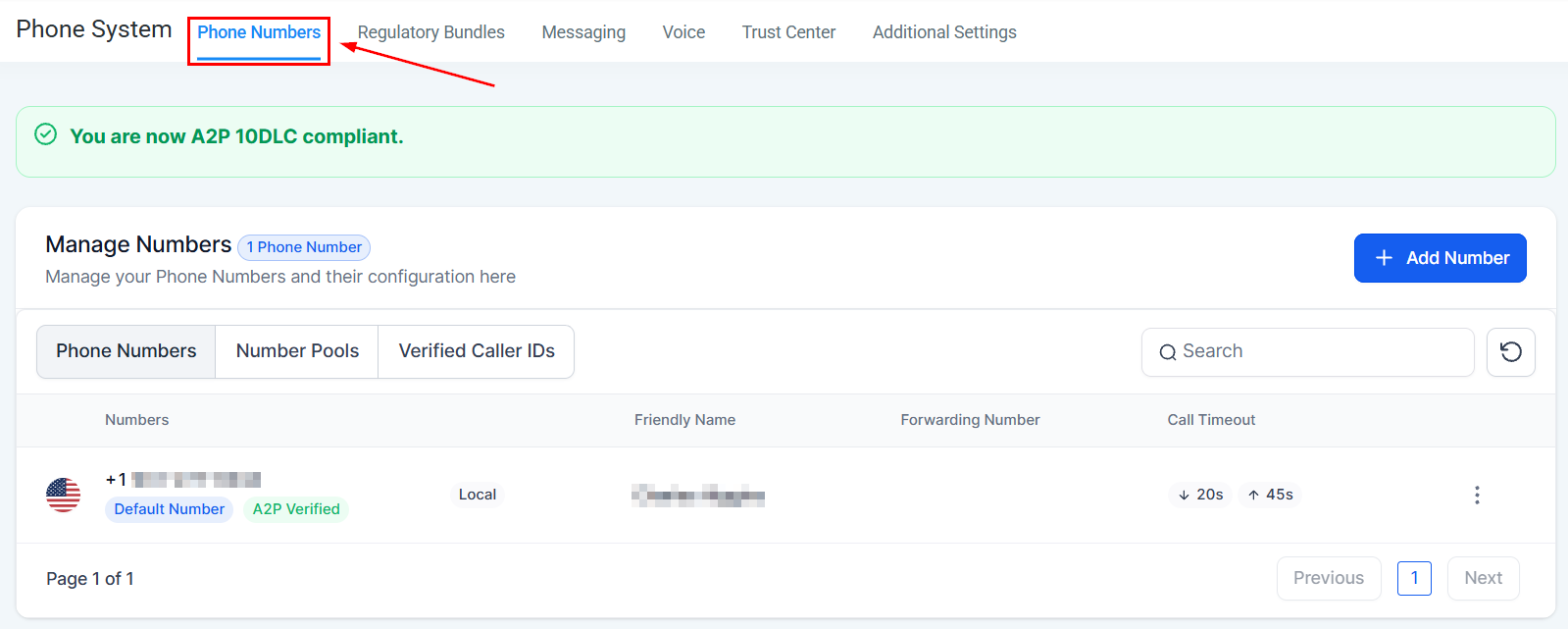 Set up call forwarding to route inbound calls to a specific team member, device, or external phone number.
1. In **Phone Numbers**, click the settings icon next to a number.
2. Select **Incoming Call** settings.
3. Choose **Forward to Number** and enter the destination.
4. Save your changes.
Configure advanced call routing to distribute inbound calls across multiple users, use round-robin assignment, or route based on business hours.
* **Round robin** — distribute calls evenly across available agents
* **Simultaneous ring** — ring all agents at the same time
* **Business hours routing** — different routing during and outside business hours
To allow multiple users to receive calls on the same number simultaneously:
1. Open the phone number settings.
2. Under **Incoming Call**, add multiple users to the call recipients list.
3. Configure whether they ring simultaneously or in sequence.
Configure a voicemail greeting for when calls go unanswered. Upload an audio file or use text-to-speech for your voicemail message.
1. In the phone number settings, scroll to **Voicemail**.
2. Upload your greeting audio file or enter text for text-to-speech.
3. Save.
Automatically send an SMS to callers when their call is missed. This ensures you never lose a lead even when you can't answer.
1. Open the phone number settings.
2. Enable **Missed Call Text-Back**.
3. Enter the auto-reply message.
4. Save.
***
## Voice calls settings
The Voice Calls settings section provides global controls for all call behavior across your account.
Set up call forwarding to route inbound calls to a specific team member, device, or external phone number.
1. In **Phone Numbers**, click the settings icon next to a number.
2. Select **Incoming Call** settings.
3. Choose **Forward to Number** and enter the destination.
4. Save your changes.
Configure advanced call routing to distribute inbound calls across multiple users, use round-robin assignment, or route based on business hours.
* **Round robin** — distribute calls evenly across available agents
* **Simultaneous ring** — ring all agents at the same time
* **Business hours routing** — different routing during and outside business hours
To allow multiple users to receive calls on the same number simultaneously:
1. Open the phone number settings.
2. Under **Incoming Call**, add multiple users to the call recipients list.
3. Configure whether they ring simultaneously or in sequence.
Configure a voicemail greeting for when calls go unanswered. Upload an audio file or use text-to-speech for your voicemail message.
1. In the phone number settings, scroll to **Voicemail**.
2. Upload your greeting audio file or enter text for text-to-speech.
3. Save.
Automatically send an SMS to callers when their call is missed. This ensures you never lose a lead even when you can't answer.
1. Open the phone number settings.
2. Enable **Missed Call Text-Back**.
3. Enter the auto-reply message.
4. Save.
***
## Voice calls settings
The Voice Calls settings section provides global controls for all call behavior across your account.
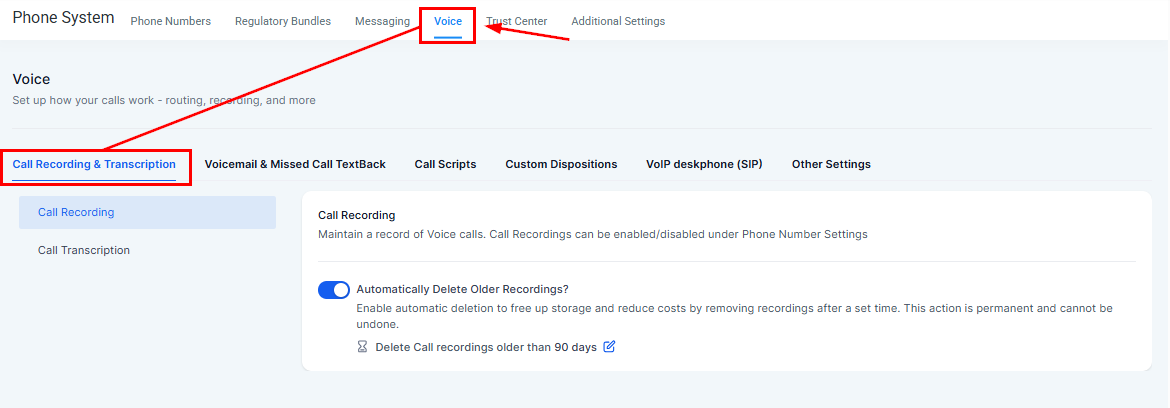 Enable call recording to automatically record all inbound and/or outbound calls.
**Steps to enable:**
1. Go to **Settings > Phone System > Voice Calls**.
2. Toggle on **Call Recording**.
3. Choose whether to record inbound calls, outbound calls, or both.
4. Save.
Optionally, set up **Auto Delete for Call Recordings** to automatically purge old recordings after a set number of days for storage management and compliance.
Enable AI-powered call transcription to automatically generate text transcripts of recorded calls.
1. Go to **Settings > Phone System > Voice Calls**.
2. Toggle on **Call Transcriptions**.
3. Save.
Transcripts appear in the contact's conversation timeline alongside the recording.
A warm transfer lets you speak with the receiving agent before transferring the caller, ensuring the recipient is briefed before the call connects.
Enable **Warm Transfer** in Voice Calls settings, then use the in-call transfer controls to initiate a warm transfer during a live call.
Set up Verified Caller ID (CNAM) to display your business name on outbound calls instead of just the phone number.
1. Go to **Settings > Phone System > Phone Numbers**.
2. Select a number and click **CNAM Registration**.
3. Enter your business name and submit for registration.
Note: CNAM registration can take several business days to propagate across carriers.
Call dispositions let agents categorize calls after they end — for example, "Interested", "Not Interested", "Left Voicemail", or custom labels.
1. Go to **Settings > Phone System > Voice Calls**.
2. Scroll to **Call Dispositions**.
3. Add or customize disposition options.
4. Agents will see these options after each call ends.
Create call scripts to guide agents through structured conversations. Scripts appear on-screen during calls.
1. Go to **Settings > Phone System**.
2. Navigate to **Call Scripts**.
3. Click **Create Script**, add your script content, and save.
Local Presence Dialing makes outbound calls appear to come from a local number in the same area code as the contact, increasing answer rates.
Enable this in **Settings > Phone System > Voice Calls** under the **Dialer** section.
***
## Call tracking
Set up call tracking to attribute inbound calls to specific marketing campaigns, landing pages, or ad sources.
**Steps:**
1. Navigate to **Settings > Phone System**.
2. Select a phone number to use as a tracking number.
3. Configure the tracking source (campaign name, medium, keyword).
4. Assign the tracking number to your landing page or ad.
Tracked call data flows into the [Call Reporting](/reporting/call-reporting) section automatically.
***
## Messaging settings
A2P (Application-to-Person) 10DLC registration is required in the United States for sending SMS messages through 10-digit long codes (standard local numbers). See the [Trust Center](/settings/trust-center) section for full registration steps.
Toll-free numbers (1-800, 1-888, etc.) can be used for high-volume messaging and calling. They require separate toll-free verification registration before SMS can be sent.
View SMS delivery rates, bounce rates, and opt-out data in the **Messaging Analytics** section of Phone System settings.
New phone numbers go through a messaging ramp period where daily SMS limits are gradually increased as your number establishes a positive sending history. Monitor progress in the **Messaging Ramp Progress Card**.
Enable spam call identification and blocking to automatically screen and block known spam callers from reaching your agents.
Go to **Settings > Phone System > Voice Calls** and enable **Block Spam Calls**.
If you send SMS messages to Canadian recipients, different messaging policies apply. Review the Canadian 10DLC policies in the Phone System settings to ensure compliance.
***
## VoIP deskphone setup
Connect a VoIP desk phone to your account for traditional office calling through the platform's phone system.
1. Go to **Settings > Phone System**.
2. Select **VoIP Deskphone Setup**.
3. Follow the setup wizard to configure your SIP credentials and connect your device.
***
## Managing and releasing numbers
To remove a phone number from your account:
1. Go to **Settings > Phone System > Phone Numbers**.
2. Click the settings icon next to the number.
3. Select **Delete Number** and confirm.
Deleting a phone number releases it permanently. Any automations, workflows, or campaigns using that number will stop working. Update those before deleting.
***
## Related articles
* [Trust center](/settings/trust-center)
* [Call reporting](/reporting/call-reporting)
* [Mobile app — phone and dialer](/mobile-app/phone-and-dialer)
* [Business profile](/settings/business-profile)
Enable call recording to automatically record all inbound and/or outbound calls.
**Steps to enable:**
1. Go to **Settings > Phone System > Voice Calls**.
2. Toggle on **Call Recording**.
3. Choose whether to record inbound calls, outbound calls, or both.
4. Save.
Optionally, set up **Auto Delete for Call Recordings** to automatically purge old recordings after a set number of days for storage management and compliance.
Enable AI-powered call transcription to automatically generate text transcripts of recorded calls.
1. Go to **Settings > Phone System > Voice Calls**.
2. Toggle on **Call Transcriptions**.
3. Save.
Transcripts appear in the contact's conversation timeline alongside the recording.
A warm transfer lets you speak with the receiving agent before transferring the caller, ensuring the recipient is briefed before the call connects.
Enable **Warm Transfer** in Voice Calls settings, then use the in-call transfer controls to initiate a warm transfer during a live call.
Set up Verified Caller ID (CNAM) to display your business name on outbound calls instead of just the phone number.
1. Go to **Settings > Phone System > Phone Numbers**.
2. Select a number and click **CNAM Registration**.
3. Enter your business name and submit for registration.
Note: CNAM registration can take several business days to propagate across carriers.
Call dispositions let agents categorize calls after they end — for example, "Interested", "Not Interested", "Left Voicemail", or custom labels.
1. Go to **Settings > Phone System > Voice Calls**.
2. Scroll to **Call Dispositions**.
3. Add or customize disposition options.
4. Agents will see these options after each call ends.
Create call scripts to guide agents through structured conversations. Scripts appear on-screen during calls.
1. Go to **Settings > Phone System**.
2. Navigate to **Call Scripts**.
3. Click **Create Script**, add your script content, and save.
Local Presence Dialing makes outbound calls appear to come from a local number in the same area code as the contact, increasing answer rates.
Enable this in **Settings > Phone System > Voice Calls** under the **Dialer** section.
***
## Call tracking
Set up call tracking to attribute inbound calls to specific marketing campaigns, landing pages, or ad sources.
**Steps:**
1. Navigate to **Settings > Phone System**.
2. Select a phone number to use as a tracking number.
3. Configure the tracking source (campaign name, medium, keyword).
4. Assign the tracking number to your landing page or ad.
Tracked call data flows into the [Call Reporting](/reporting/call-reporting) section automatically.
***
## Messaging settings
A2P (Application-to-Person) 10DLC registration is required in the United States for sending SMS messages through 10-digit long codes (standard local numbers). See the [Trust Center](/settings/trust-center) section for full registration steps.
Toll-free numbers (1-800, 1-888, etc.) can be used for high-volume messaging and calling. They require separate toll-free verification registration before SMS can be sent.
View SMS delivery rates, bounce rates, and opt-out data in the **Messaging Analytics** section of Phone System settings.
New phone numbers go through a messaging ramp period where daily SMS limits are gradually increased as your number establishes a positive sending history. Monitor progress in the **Messaging Ramp Progress Card**.
Enable spam call identification and blocking to automatically screen and block known spam callers from reaching your agents.
Go to **Settings > Phone System > Voice Calls** and enable **Block Spam Calls**.
If you send SMS messages to Canadian recipients, different messaging policies apply. Review the Canadian 10DLC policies in the Phone System settings to ensure compliance.
***
## VoIP deskphone setup
Connect a VoIP desk phone to your account for traditional office calling through the platform's phone system.
1. Go to **Settings > Phone System**.
2. Select **VoIP Deskphone Setup**.
3. Follow the setup wizard to configure your SIP credentials and connect your device.
***
## Managing and releasing numbers
To remove a phone number from your account:
1. Go to **Settings > Phone System > Phone Numbers**.
2. Click the settings icon next to the number.
3. Select **Delete Number** and confirm.
Deleting a phone number releases it permanently. Any automations, workflows, or campaigns using that number will stop working. Update those before deleting.
***
## Related articles
* [Trust center](/settings/trust-center)
* [Call reporting](/reporting/call-reporting)
* [Mobile app — phone and dialer](/mobile-app/phone-and-dialer)
* [Business profile](/settings/business-profile)