> ## Documentation Index
> Fetch the complete documentation index at: https://help.hoopai.com/llms.txt
> Use this file to discover all available pages before exploring further.
# Settings overview — account configuration in HoopAI
> Configure your business profile, team and permissions, email services, phone system, integrations, custom fields, custom values, scoring, domains, tags, audit logs, objects, WhatsApp, external tracking, and webhooks.
The Settings section is the central hub for configuring every aspect of the HoopAI Platform to match your business. From your business profile and staff permissions to phone numbers, integrations, and custom data fields — all platform-level configuration lives here.
 ## Account and team
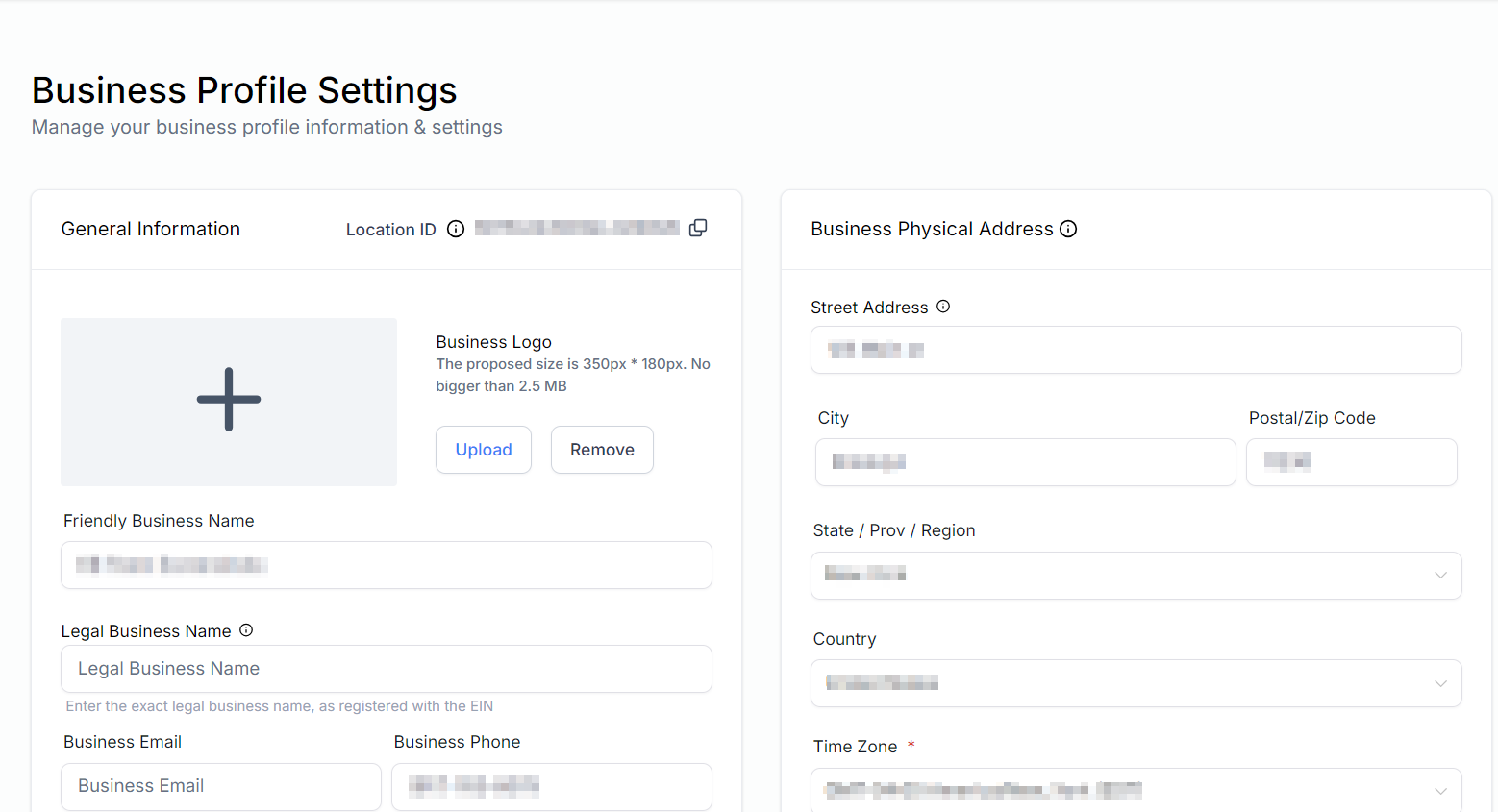
Set your company name, address, logo, timezone, and other account-level details.
Update your personal details, avatar, email address, and login password.
Control which system events send you email, SMS, or in-app notifications.
Add team members, assign user roles, and manage individual permissions.
Review a searchable history of account-level changes and user actions.
## Communications
Configure sending domains, SMTP providers, and email authentication settings.
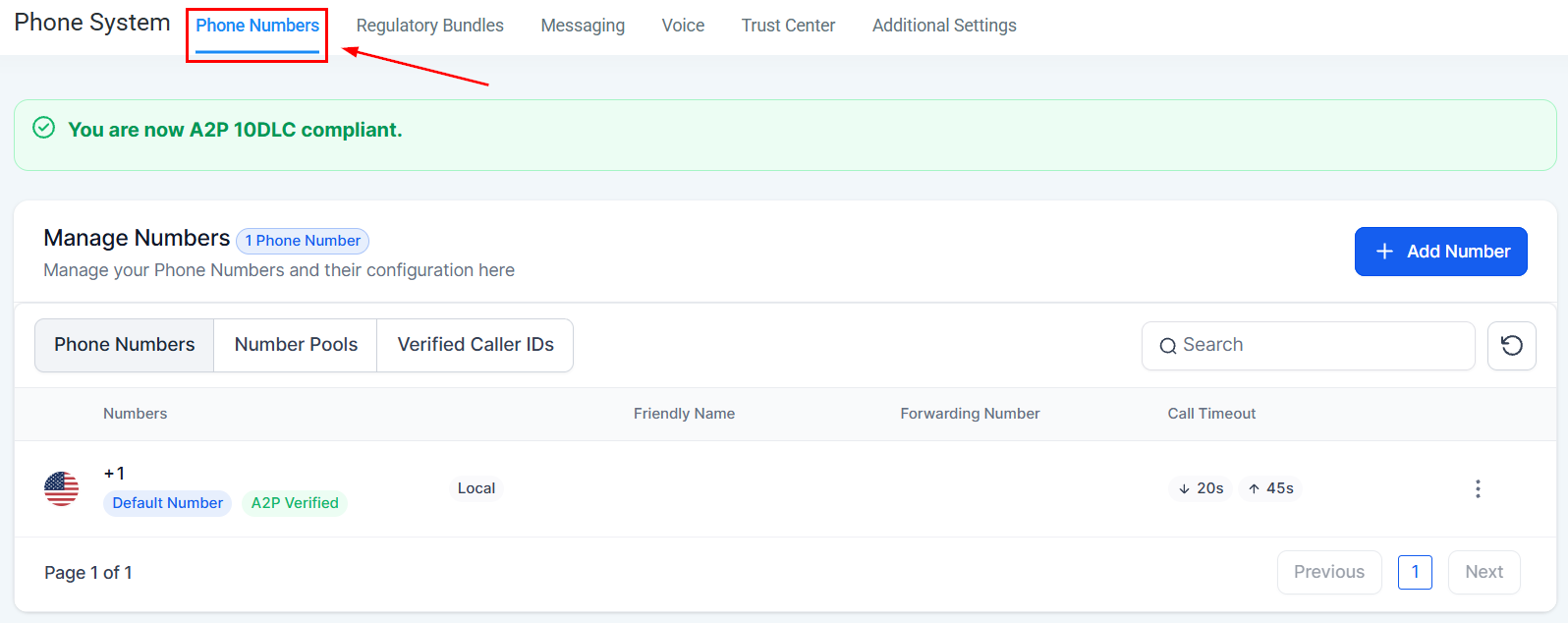
Purchase phone numbers, configure calling behavior, and manage SMS settings.
Complete A2P 10DLC registration and manage SMS compliance settings.
Connect and configure your WhatsApp Business account for two-way messaging.
## Data and customization
Create fields to capture unique data on contact, opportunity, and other object records.
Store reusable dynamic values — such as your brand name or phone number — for use in templates and automations.
Define the engagement behaviors that increase or decrease a contact's score.
Create and manage the master list of tags available for organizing contacts and other records.
Create custom object types to extend the CRM data model beyond contacts and opportunities.
## Integrations and connectivity
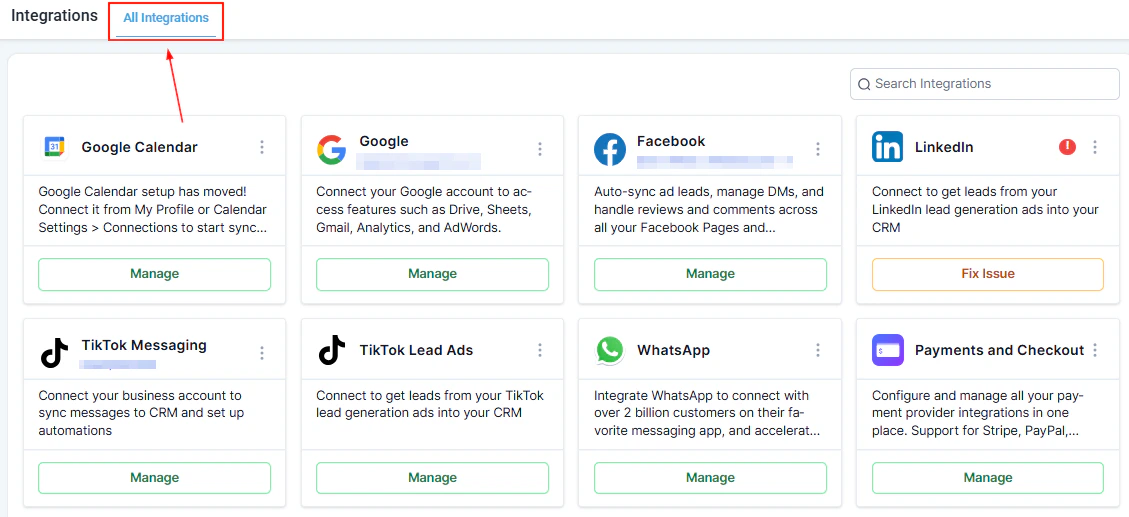
Connect Google, Facebook, Stripe, and other third-party platforms to your HoopAI account.
Build and manage custom API integrations using HoopAI's private app framework.
Connect custom domains to your funnels, websites, and stores, and configure URL redirects.
Add tracking scripts, pixels, and analytics tags to your published pages globally.
Send real-time event data to external applications via outbound HTTP webhooks.
## Getting started
Go to **Settings → Business Profile** and fill in your company name, address, logo, and timezone. This information is used across invoices, emails, and automation templates throughout the platform.
Navigate to **Settings → My Staff** and invite the people on your team. Assign each person a role that controls which sections and actions they can access.
Configure your email sending domain under **Settings → Email Services** and purchase or import phone numbers under **Settings → Phone System**. If you plan to send SMS at volume, complete A2P 10DLC registration in **Settings → Trust Center**.
Go to **Settings → Integrations** and connect the external tools your business uses — Google Workspace, Facebook, Stripe, and any others. Integrations unlock features across the platform such as calendar sync, ad reporting, and payment processing.
Under **Settings → Custom Fields**, add any data fields your team needs that are not in the default contact or opportunity records. Under **Settings → Custom Values**, store reusable values (like your company phone number or brand color hex code) that can be dropped into any template.
Changes made in Settings apply account-wide and affect all users. Some settings — such as custom fields and custom values — are also accessible from inside specific modules. Changes made in either place are reflected everywhere.
## Frequently asked questions
Custom fields are data fields that appear on individual records — for example, a "Preferred Location" field on a contact record. Each record has its own value for that field. Custom values are account-level constants — for example, your brand name or support phone number — that you store once and reference using a merge tag in any template or automation. Custom fields hold per-record data; custom values hold global account data.
Integrations are pre-built connectors to popular platforms like Google, Facebook, and Stripe — you authenticate and the connection is configured for you. Private integrations are custom API connections you build yourself using HoopAI's developer tools, used when connecting to platforms that do not have a pre-built integration.
A2P 10DLC (Application-to-Person, 10-digit long code) is the US carrier standard for business SMS. If you send SMS messages in the United States at any volume, carrier regulations require you to register your business and messaging use case. Unregistered SMS traffic is blocked or filtered. Complete registration in Settings → Trust Center before running SMS campaigns.
External tracking is where you add third-party scripts — such as a Google Analytics tag or a Facebook Pixel — that run on your published pages and send data to those external platforms. The analytics dashboard built into HoopAI shows you first-party data about your pages and funnels within the platform itself. The two are complementary and independent.
Yes. Roles in Settings → My Staff determine which navigation items and actions each user can access. You can also configure user-level permissions for specific features like calendars and pipelines. Reach out to your account admin if you need a role with a custom permission set.
Webhooks send a real-time HTTP POST request to a URL of your choice whenever a specific event occurs in HoopAI — for example, when a contact is created, a form is submitted, or an opportunity changes stage. Use webhooks to push data into external tools (like a custom database, a BI platform, or a third-party automation tool) that are not covered by a pre-built integration.
## Account and team
Set your company name, address, logo, timezone, and other account-level details.
Update your personal details, avatar, email address, and login password.
Control which system events send you email, SMS, or in-app notifications.
Add team members, assign user roles, and manage individual permissions.
Review a searchable history of account-level changes and user actions.
## Communications
Configure sending domains, SMTP providers, and email authentication settings.
Purchase phone numbers, configure calling behavior, and manage SMS settings.
Complete A2P 10DLC registration and manage SMS compliance settings.
Connect and configure your WhatsApp Business account for two-way messaging.
## Data and customization
Create fields to capture unique data on contact, opportunity, and other object records.
Store reusable dynamic values — such as your brand name or phone number — for use in templates and automations.
Define the engagement behaviors that increase or decrease a contact's score.
Create and manage the master list of tags available for organizing contacts and other records.
Create custom object types to extend the CRM data model beyond contacts and opportunities.
## Integrations and connectivity
Connect Google, Facebook, Stripe, and other third-party platforms to your HoopAI account.
Build and manage custom API integrations using HoopAI's private app framework.
Connect custom domains to your funnels, websites, and stores, and configure URL redirects.
Add tracking scripts, pixels, and analytics tags to your published pages globally.
Send real-time event data to external applications via outbound HTTP webhooks.
## Getting started
Go to **Settings → Business Profile** and fill in your company name, address, logo, and timezone. This information is used across invoices, emails, and automation templates throughout the platform.
Navigate to **Settings → My Staff** and invite the people on your team. Assign each person a role that controls which sections and actions they can access.
Configure your email sending domain under **Settings → Email Services** and purchase or import phone numbers under **Settings → Phone System**. If you plan to send SMS at volume, complete A2P 10DLC registration in **Settings → Trust Center**.
Go to **Settings → Integrations** and connect the external tools your business uses — Google Workspace, Facebook, Stripe, and any others. Integrations unlock features across the platform such as calendar sync, ad reporting, and payment processing.
Under **Settings → Custom Fields**, add any data fields your team needs that are not in the default contact or opportunity records. Under **Settings → Custom Values**, store reusable values (like your company phone number or brand color hex code) that can be dropped into any template.
Changes made in Settings apply account-wide and affect all users. Some settings — such as custom fields and custom values — are also accessible from inside specific modules. Changes made in either place are reflected everywhere.
## Frequently asked questions
Custom fields are data fields that appear on individual records — for example, a "Preferred Location" field on a contact record. Each record has its own value for that field. Custom values are account-level constants — for example, your brand name or support phone number — that you store once and reference using a merge tag in any template or automation. Custom fields hold per-record data; custom values hold global account data.
Integrations are pre-built connectors to popular platforms like Google, Facebook, and Stripe — you authenticate and the connection is configured for you. Private integrations are custom API connections you build yourself using HoopAI's developer tools, used when connecting to platforms that do not have a pre-built integration.
A2P 10DLC (Application-to-Person, 10-digit long code) is the US carrier standard for business SMS. If you send SMS messages in the United States at any volume, carrier regulations require you to register your business and messaging use case. Unregistered SMS traffic is blocked or filtered. Complete registration in Settings → Trust Center before running SMS campaigns.
External tracking is where you add third-party scripts — such as a Google Analytics tag or a Facebook Pixel — that run on your published pages and send data to those external platforms. The analytics dashboard built into HoopAI shows you first-party data about your pages and funnels within the platform itself. The two are complementary and independent.
Yes. Roles in Settings → My Staff determine which navigation items and actions each user can access. You can also configure user-level permissions for specific features like calendars and pipelines. Reach out to your account admin if you need a role with a custom permission set.
Webhooks send a real-time HTTP POST request to a URL of your choice whenever a specific event occurs in HoopAI — for example, when a contact is created, a form is submitted, or an opportunity changes stage. Use webhooks to push data into external tools (like a custom database, a BI platform, or a third-party automation tool) that are not covered by a pre-built integration.