> ## Documentation Index
> Fetch the complete documentation index at: https://help.hoopai.com/llms.txt
> Use this file to discover all available pages before exploring further.
# Notifications
> Customize in-app, email, and SMS notification preferences for conversations, tasks, social media integrations, and calendar alerts.
Managing your notification preferences is essential for staying informed and organized. The Notifications section lets you customize how and when you receive alerts — from in-app alerts to email and SMS updates — ensuring you receive only the most relevant information.
Navigate to **Settings > My Profile > Notifications** to get started.
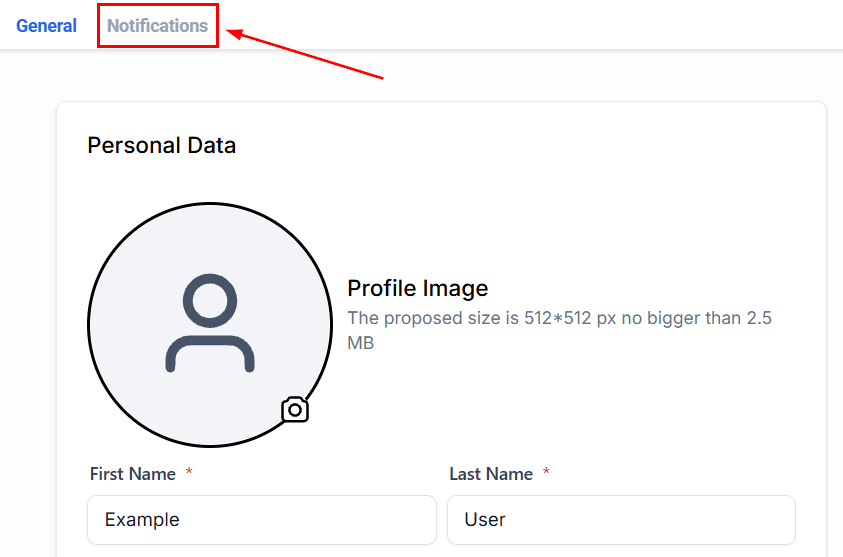 Here you can adjust your notification settings to manage conversations, tasks, or social media updates.
## Notification channels
You can control notifications across three channels for most notification types:
Here you can adjust your notification settings to manage conversations, tasks, or social media updates.
## Notification channels
You can control notifications across three channels for most notification types:
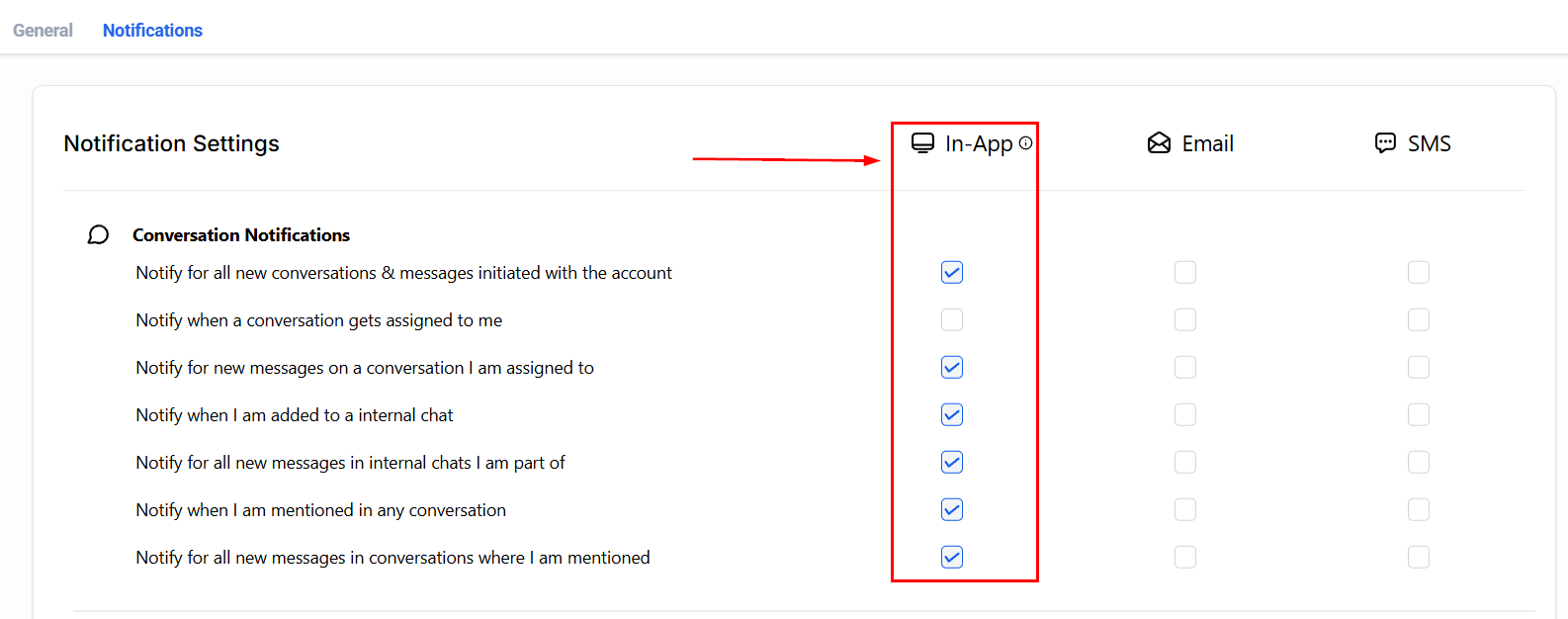 * **In-app** — notifications within the platform and the mobile app. Checking in-app notifications enables them within the mobile app as well.
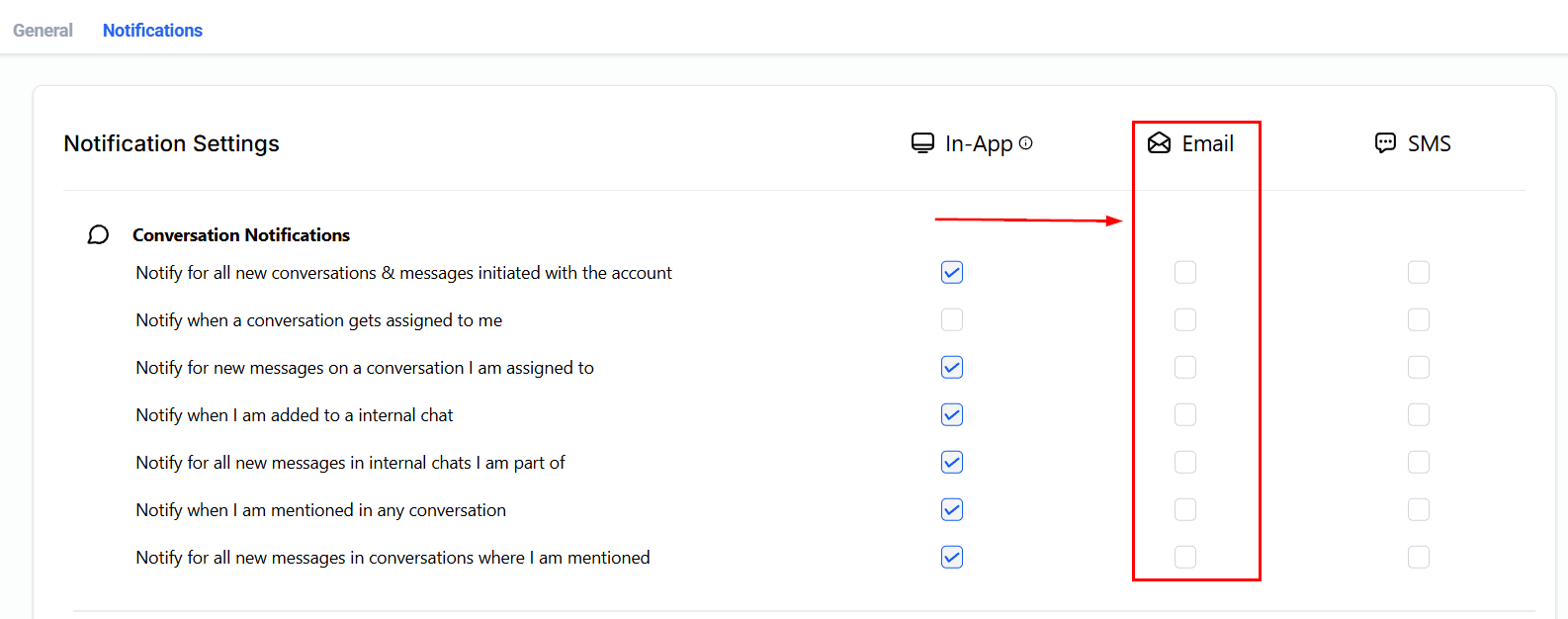 * **Email** — notifications delivered to your registered email address. Check or uncheck boxes to create a personalized notification system.
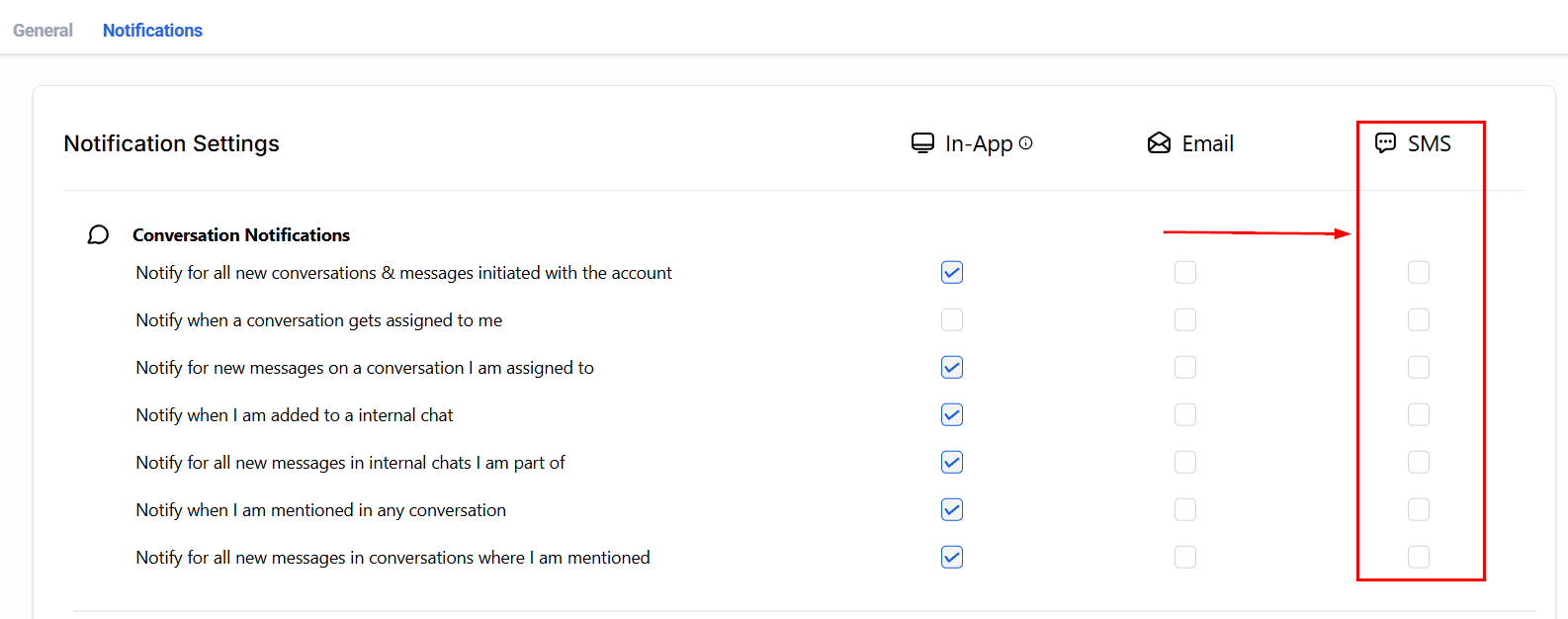 * **SMS** — notifications delivered to your mobile device. Configure your preferences in the SMS column to receive only messages most relevant to your immediate needs.
***
## Conversation notifications
Stay informed of how your clients are communicating with Conversation Notifications. You can take control of the notifications you receive when it comes to email and text message conversations.
* **SMS** — notifications delivered to your mobile device. Configure your preferences in the SMS column to receive only messages most relevant to your immediate needs.
***
## Conversation notifications
Stay informed of how your clients are communicating with Conversation Notifications. You can take control of the notifications you receive when it comes to email and text message conversations.
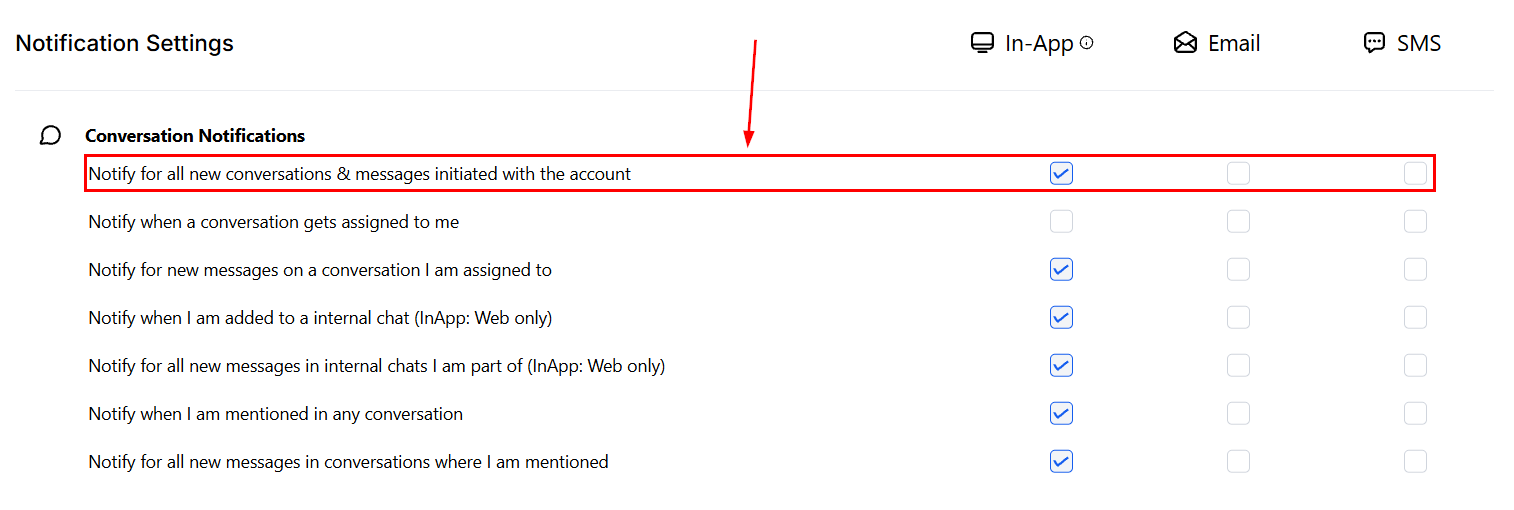
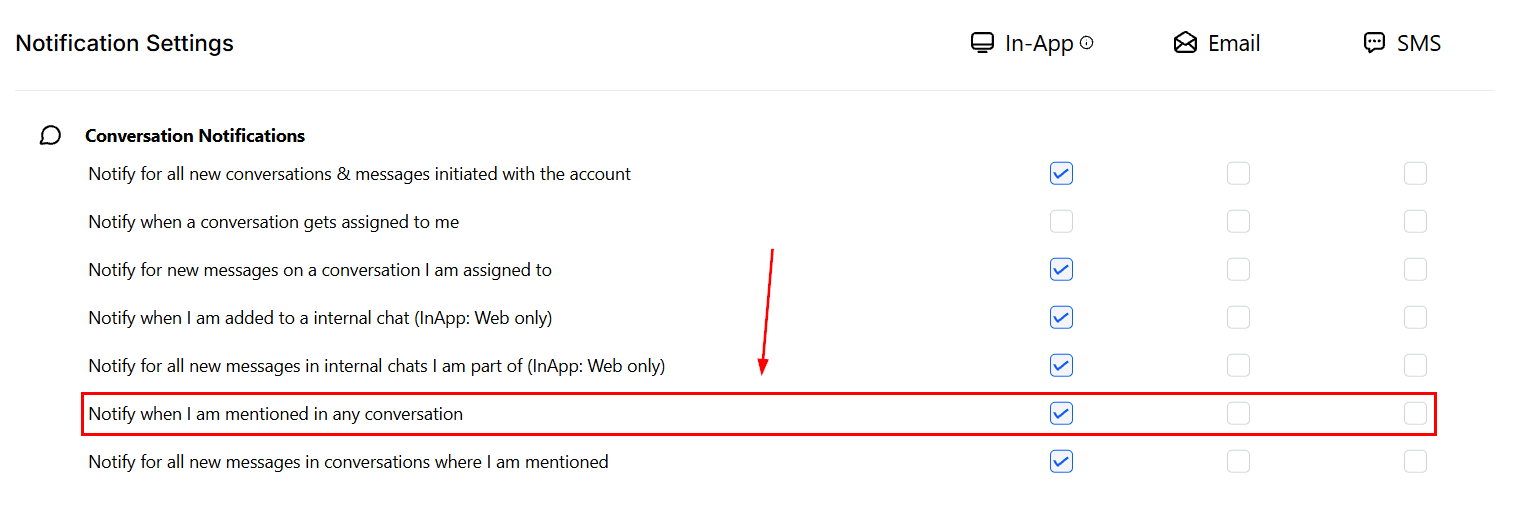
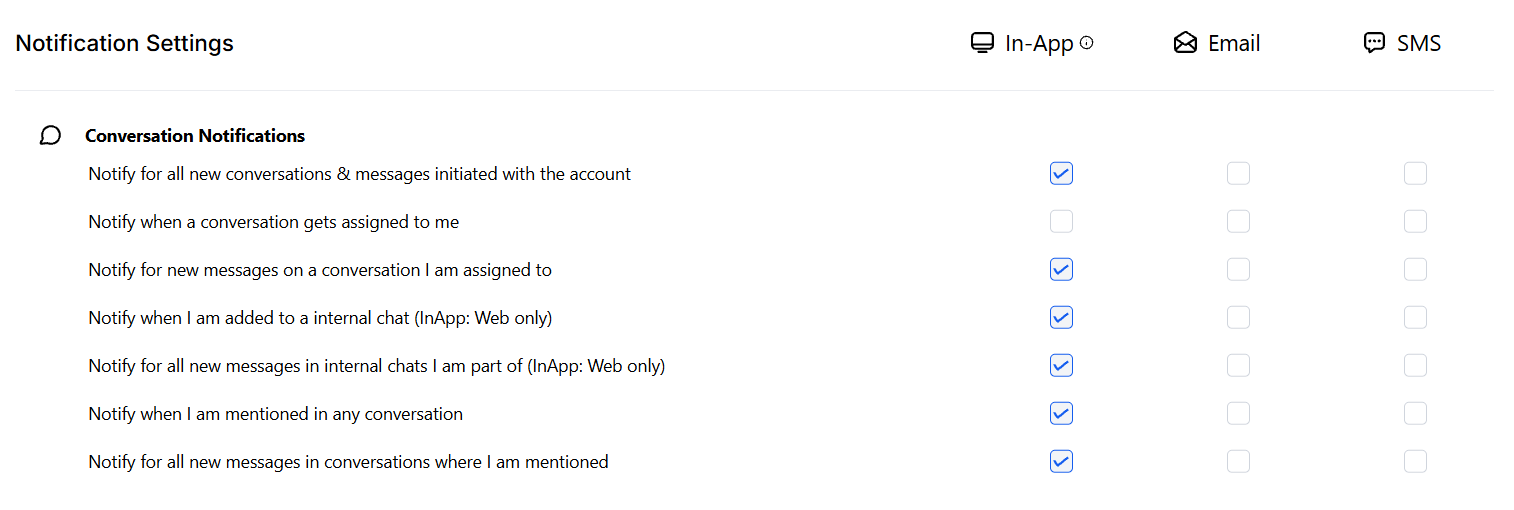 Opt to receive notifications for all new messages received for your account so you never have to manually check conversations.
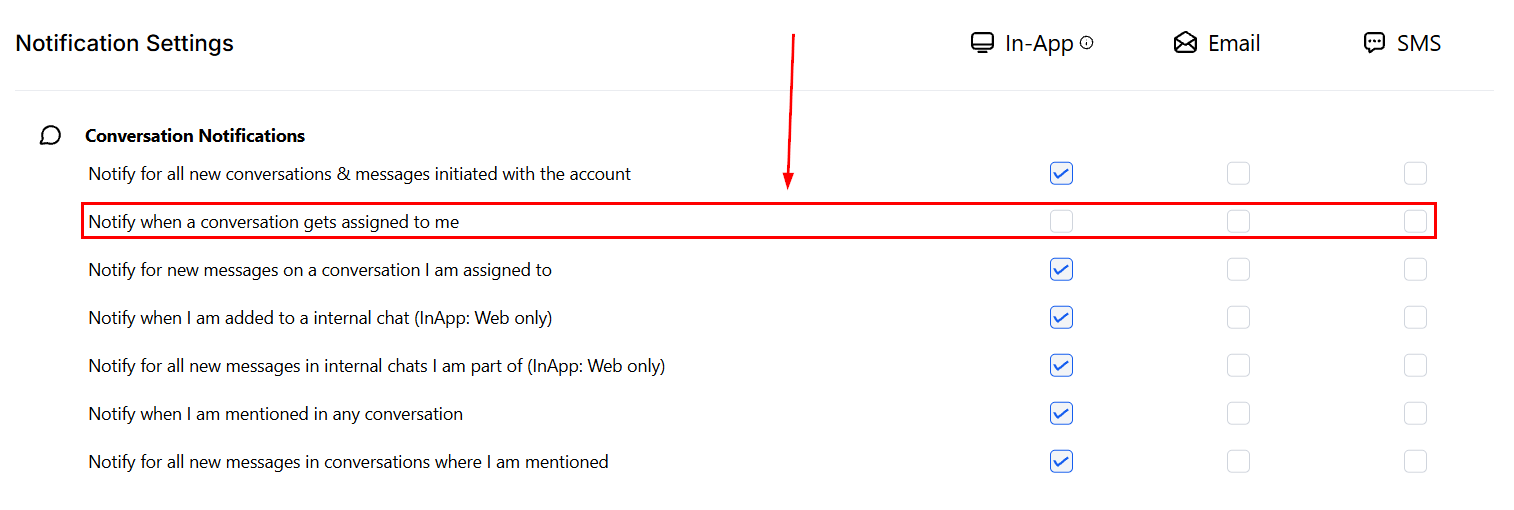
 When enabled, notifies you when a conversation is assigned to you, keeping you up to date with your tasks.
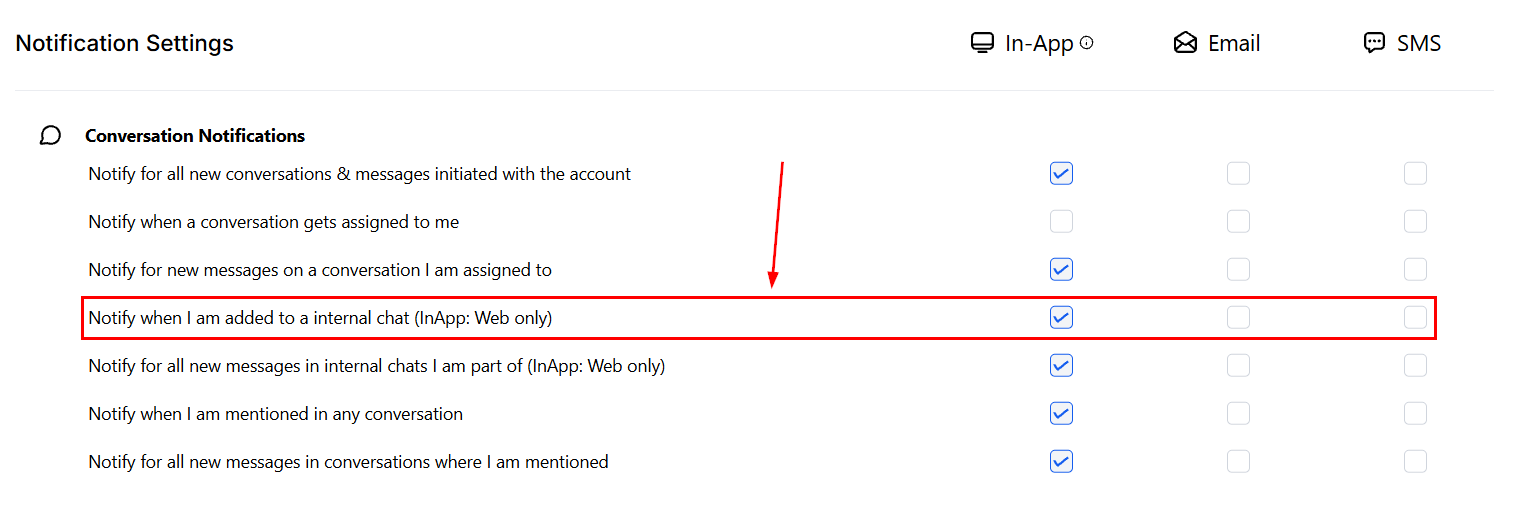
 Notifies you when you are added to an internal conversation by a teammate. This notification, along with ones for new internal messages, is displayed in the web version of the platform.
 Notifies you every time you are mentioned in a conversation — applies to both internal and customer chats.
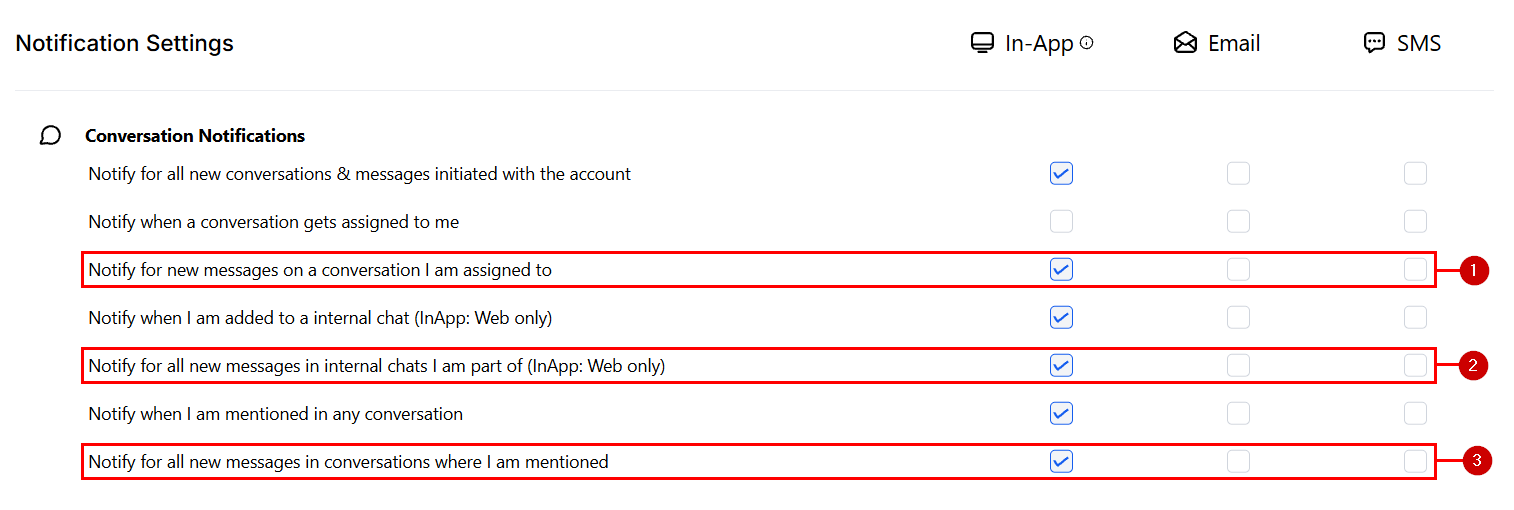
 Notifies you of new message arrivals from:
1. Conversations you are assigned to
2. Internal chats you are included in
3. Conversations where you are mentioned
Notifies you of new message arrivals from:
1. Conversations you are assigned to
2. Internal chats you are included in
3. Conversations where you are mentioned
 ***
## Task notifications
Task notifications give you ultimate control over your to-do list.
***
## Task notifications
Task notifications give you ultimate control over your to-do list.
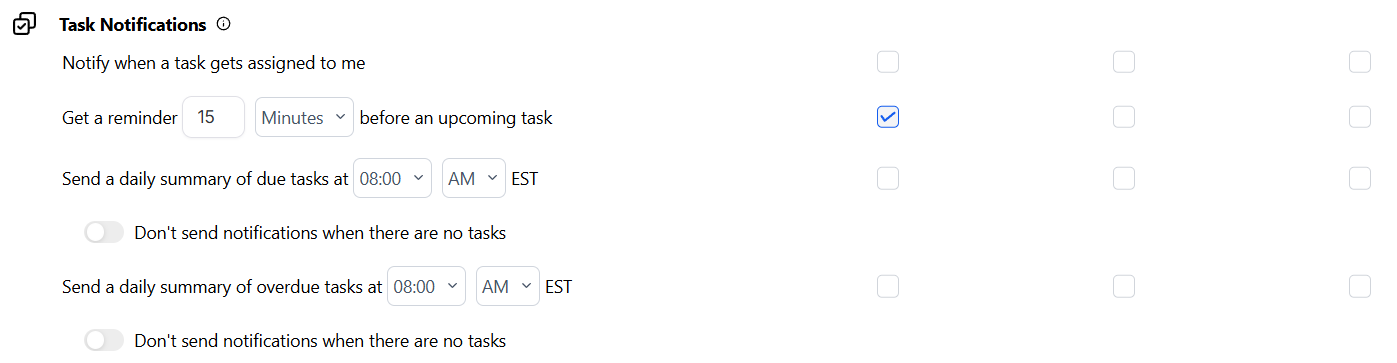 Choose to be notified when a task is assigned. Extremely useful when you have multiple users managing many tasks.
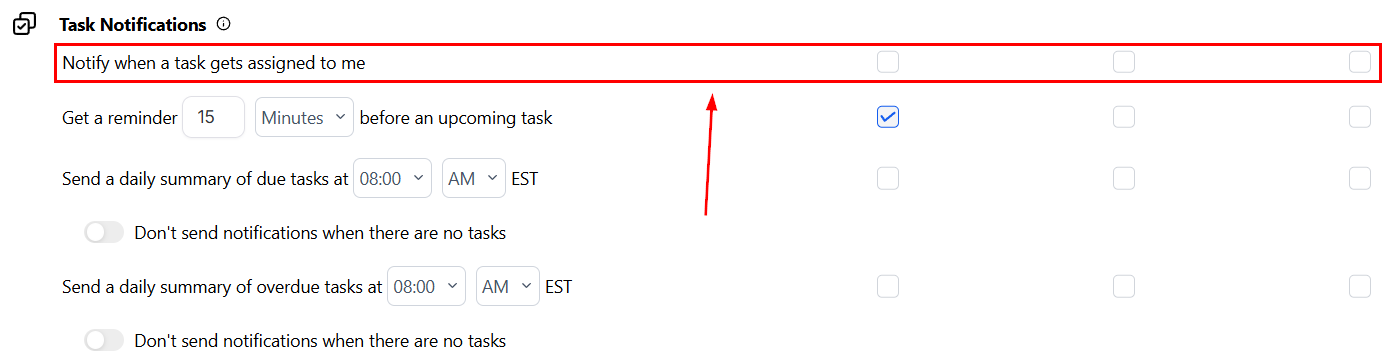 Set an alert through the app, email, or SMS to be reminded 15, 30, 45, or 60 minutes before an upcoming task.
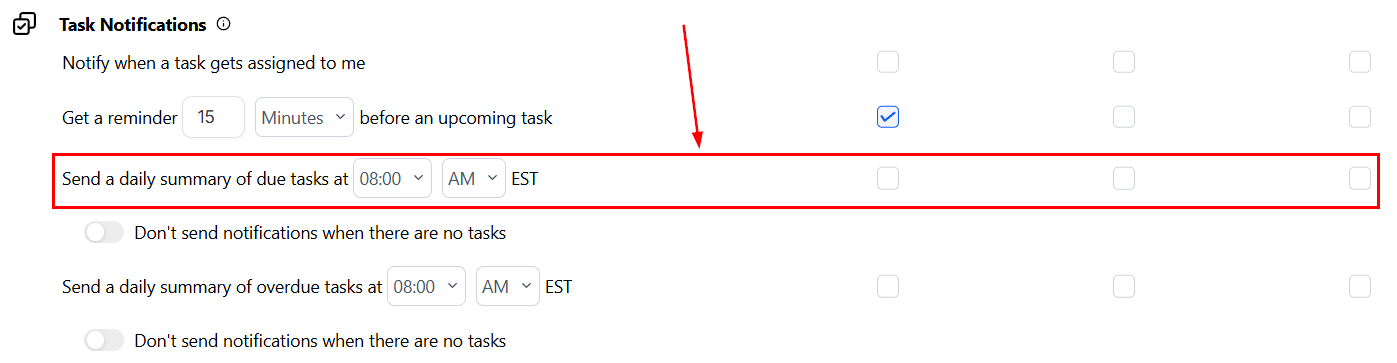
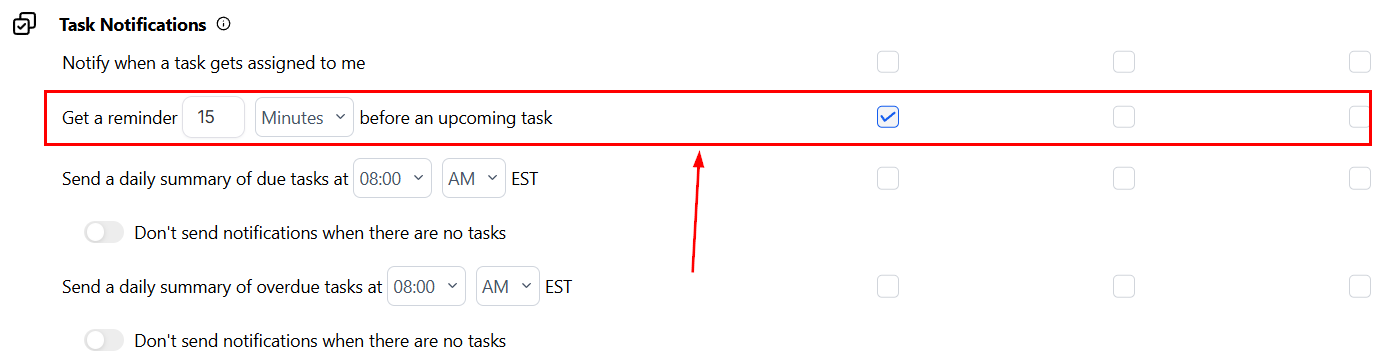 Schedule daily reminders of incomplete tasks via push notifications, SMS, and/or email at your preferred times.
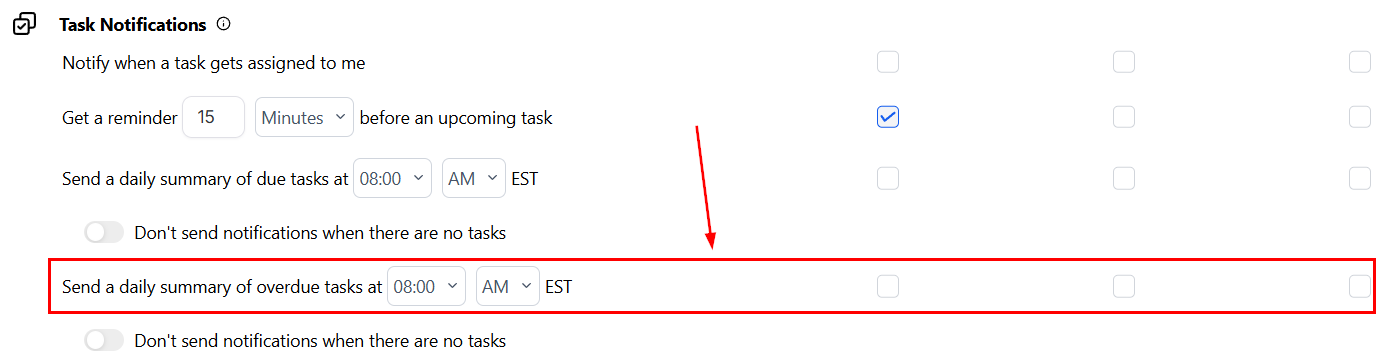
 Schedule daily reminders of overdue tasks via push notifications, SMS, and/or email at your preferred times.
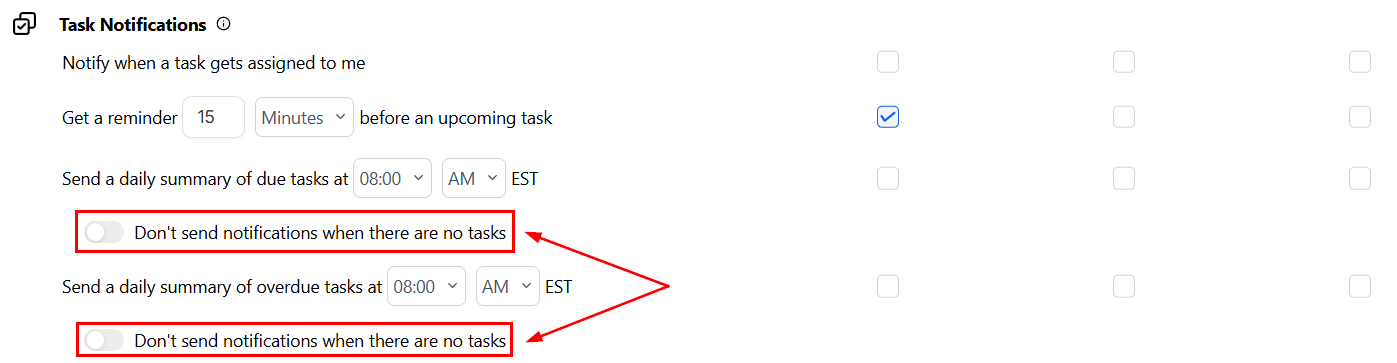
 Toggle this option to avoid being notified when your due or overdue task list is empty.
 ***
## WordPress notifications
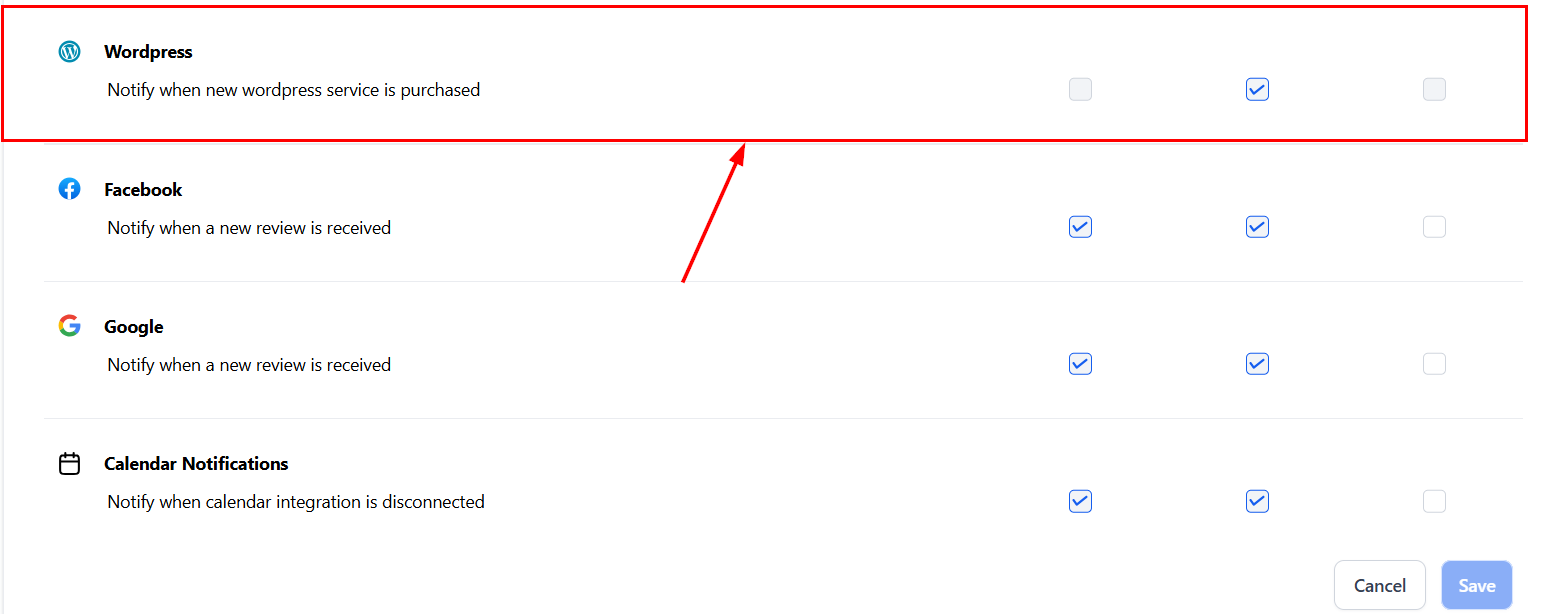
When a customer makes a purchase through your connected WordPress site, you can be informed via in-app notification, SMS, or email. Ensure the website URL is connected with the platform before configuring these preferences.
***
## WordPress notifications
When a customer makes a purchase through your connected WordPress site, you can be informed via in-app notification, SMS, or email. Ensure the website URL is connected with the platform before configuring these preferences.
 ***
## Facebook notifications
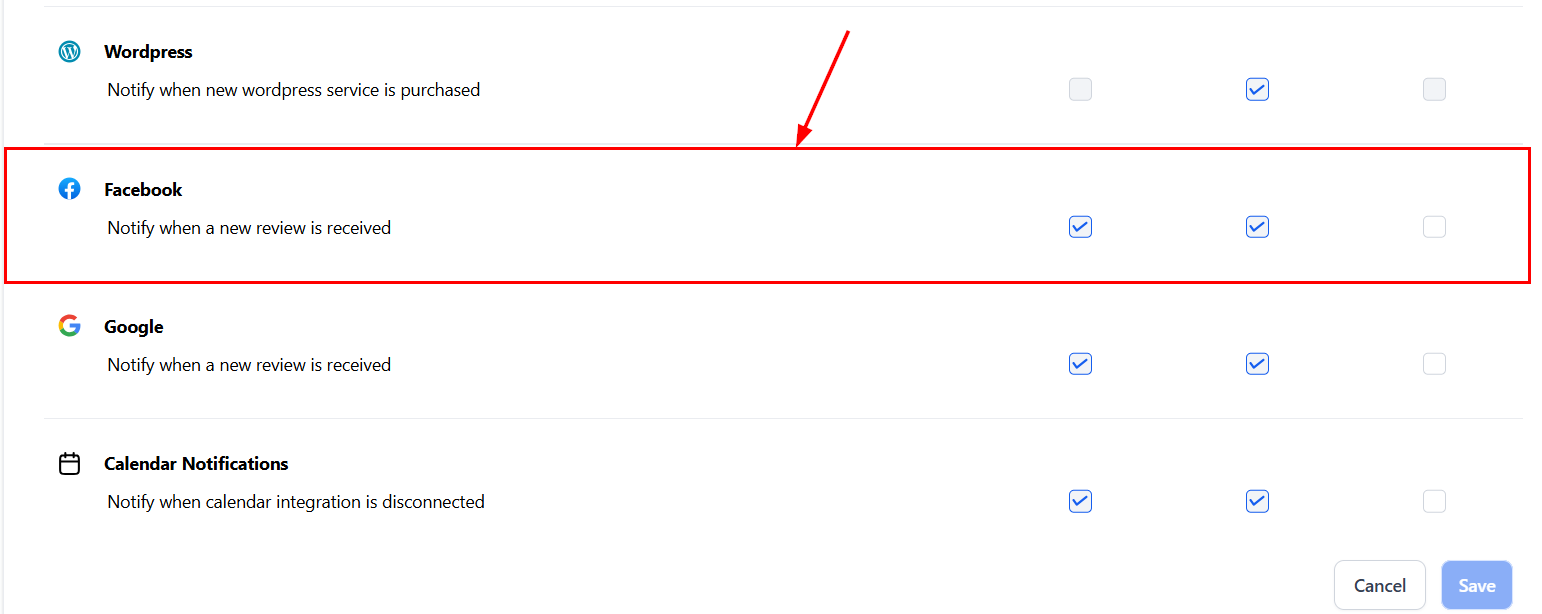
Control how you view updates related to your Facebook page — such as new messages, comments, and lead activity. Your Facebook page must be integrated with your account before you can receive these notifications.
***
## Facebook notifications
Control how you view updates related to your Facebook page — such as new messages, comments, and lead activity. Your Facebook page must be integrated with your account before you can receive these notifications.
 ***
## Google notifications
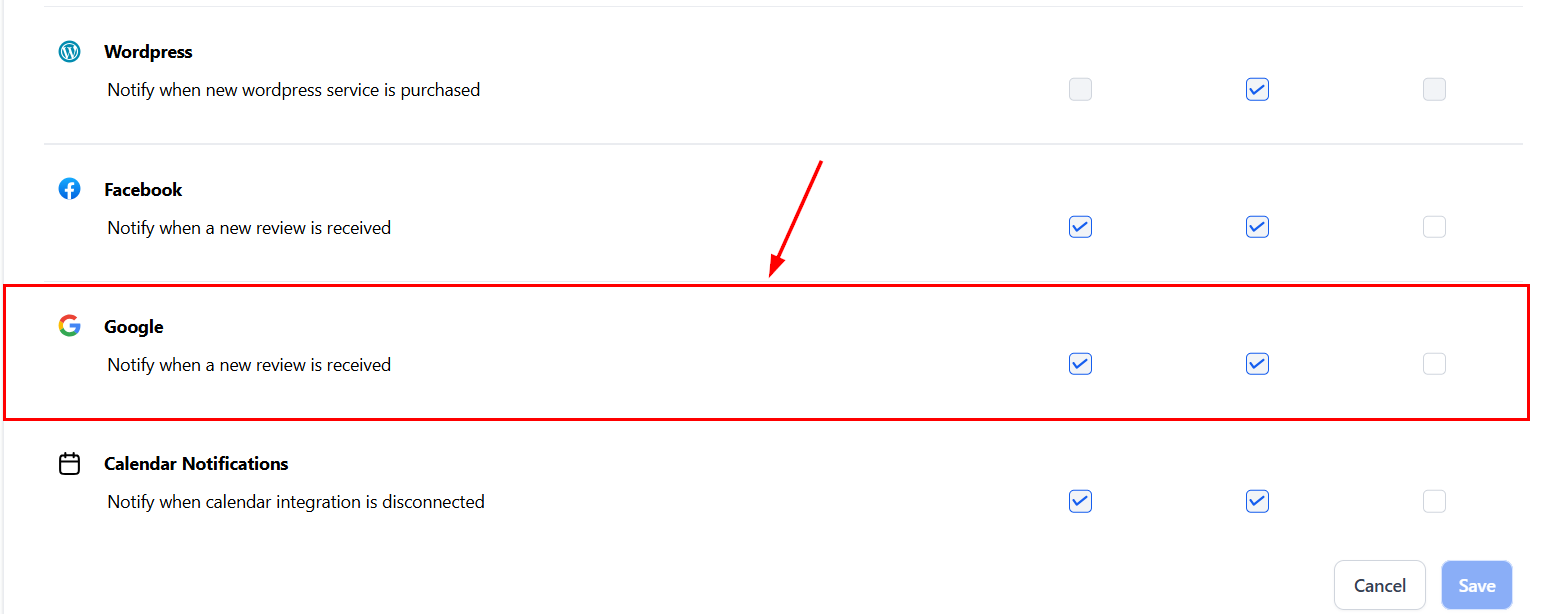
Manage notifications related to your Google My Business page, including new review alerts. If enabled, notifications help you decide the next action based on reviews received on your Google Business Profile.
***
## Google notifications
Manage notifications related to your Google My Business page, including new review alerts. If enabled, notifications help you decide the next action based on reviews received on your Google Business Profile.
 ***
## Calendar notifications
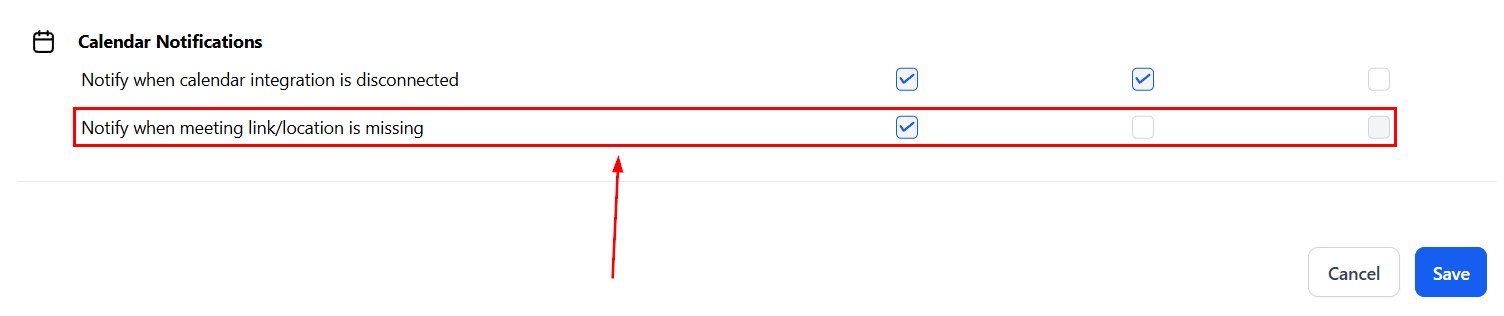
Account users can stay informed with disconnection alerts for calendar and video conferencing integrations. Alerts are sent on Days 1, 3, 7, and 14 via your configured channels. After Day 14, notifications stop automatically. Once you reconnect an integration — such as Google, Outlook, iCloud, Zoom, or Microsoft Teams — no further reminders are sent.
***
## Calendar notifications
Account users can stay informed with disconnection alerts for calendar and video conferencing integrations. Alerts are sent on Days 1, 3, 7, and 14 via your configured channels. After Day 14, notifications stop automatically. Once you reconnect an integration — such as Google, Outlook, iCloud, Zoom, or Microsoft Teams — no further reminders are sent.
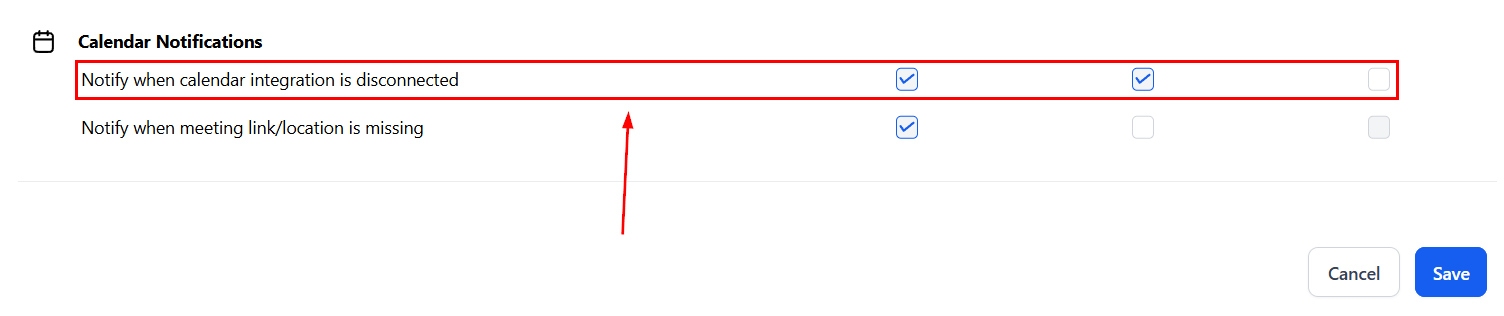 The second option in this section notifies you if any issues arise with the link or location for your connected meetings.
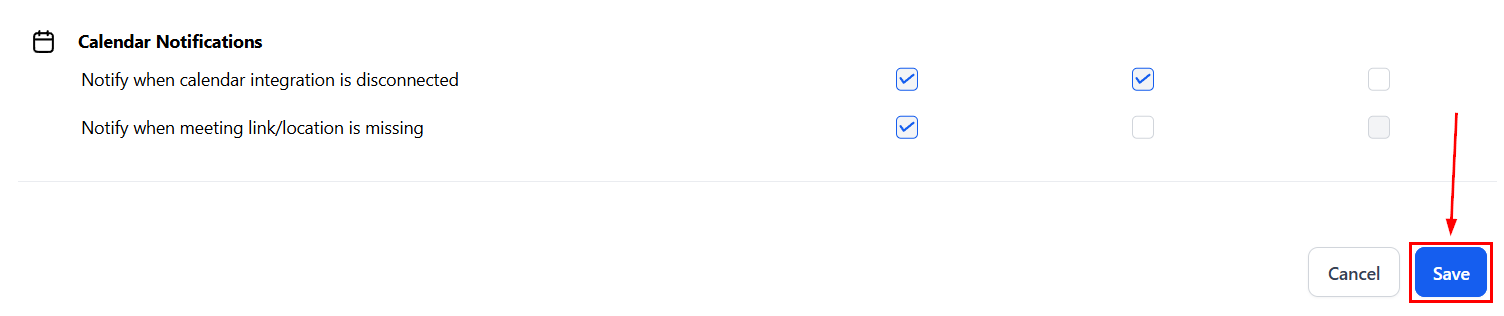
 After configuring your preferences, click **Save** to apply the changes.
 ***
## Custom notifications per user
Each user can configure their own notification preferences independently. Changes made by one user do not affect other team members. This allows:
* Sales reps to receive all conversation and opportunity notifications
* Support agents to receive only assigned conversation alerts
* Managers to receive task summaries and high-priority alerts without individual message notifications
To configure per-user notifications, each team member navigates to **Settings > My Profile > Notifications** from their own login.
## In-app vs. email vs. SMS notification options
For most notification types, you can enable any combination of three delivery channels:
| Channel | Best for | Notes |
| ---------- | ------------------------------------------------------------ | --------------------------------------------- |
| **In-app** | Real-time alerts while working in the platform or mobile app | Lowest friction; no external delivery needed |
| **Email** | Persistent alerts that can be reviewed later | Useful for daily summaries and task reminders |
| **SMS** | Urgent alerts when you are away from the platform | Use sparingly to avoid notification fatigue |
Toggle each channel independently per notification type. For example, you might enable in-app and email for new conversations but only SMS for high-priority task reminders.
## Notification preferences for specific events
Beyond the standard categories (conversations, tasks, calendar), you can fine-tune notifications for specific events:
* **Opportunity stage changes** — get notified when a deal moves to a specific stage
* **Form submissions** — receive alerts when a specific form is submitted
* **Payment received** — get notified when a payment is processed
* **Review received** — receive alerts for new Google or Facebook reviews
* **Workflow errors** — get notified when a workflow encounters an error
Configure these in the corresponding section of the Notifications settings page. Not all event-specific notifications are available on all channels.
***
## Related articles
* [My profile](/settings/my-profile)
* [My staff](/settings/my-staff)
* [Integrations](/settings/integrations)
* [Conversations overview](/conversations/overview)
***
## Custom notifications per user
Each user can configure their own notification preferences independently. Changes made by one user do not affect other team members. This allows:
* Sales reps to receive all conversation and opportunity notifications
* Support agents to receive only assigned conversation alerts
* Managers to receive task summaries and high-priority alerts without individual message notifications
To configure per-user notifications, each team member navigates to **Settings > My Profile > Notifications** from their own login.
## In-app vs. email vs. SMS notification options
For most notification types, you can enable any combination of three delivery channels:
| Channel | Best for | Notes |
| ---------- | ------------------------------------------------------------ | --------------------------------------------- |
| **In-app** | Real-time alerts while working in the platform or mobile app | Lowest friction; no external delivery needed |
| **Email** | Persistent alerts that can be reviewed later | Useful for daily summaries and task reminders |
| **SMS** | Urgent alerts when you are away from the platform | Use sparingly to avoid notification fatigue |
Toggle each channel independently per notification type. For example, you might enable in-app and email for new conversations but only SMS for high-priority task reminders.
## Notification preferences for specific events
Beyond the standard categories (conversations, tasks, calendar), you can fine-tune notifications for specific events:
* **Opportunity stage changes** — get notified when a deal moves to a specific stage
* **Form submissions** — receive alerts when a specific form is submitted
* **Payment received** — get notified when a payment is processed
* **Review received** — receive alerts for new Google or Facebook reviews
* **Workflow errors** — get notified when a workflow encounters an error
Configure these in the corresponding section of the Notifications settings page. Not all event-specific notifications are available on all channels.
***
## Related articles
* [My profile](/settings/my-profile)
* [My staff](/settings/my-staff)
* [Integrations](/settings/integrations)
* [Conversations overview](/conversations/overview)