> ## Documentation Index
> Fetch the complete documentation index at: https://help.hoopai.com/llms.txt
> Use this file to discover all available pages before exploring further.
# My Profile
> Update your personal account details, email signature, password, 2FA, Gmail sync, notification preferences, and availability in the HoopAI Platform.
The My Profile section allows you to customize and manage your personal account settings. Here you can update your profile information, create an email signature, change your password, manage email two-way sync, designate your primary calendar, and set your availability status.
Navigate to **Settings > My Profile** to get started.
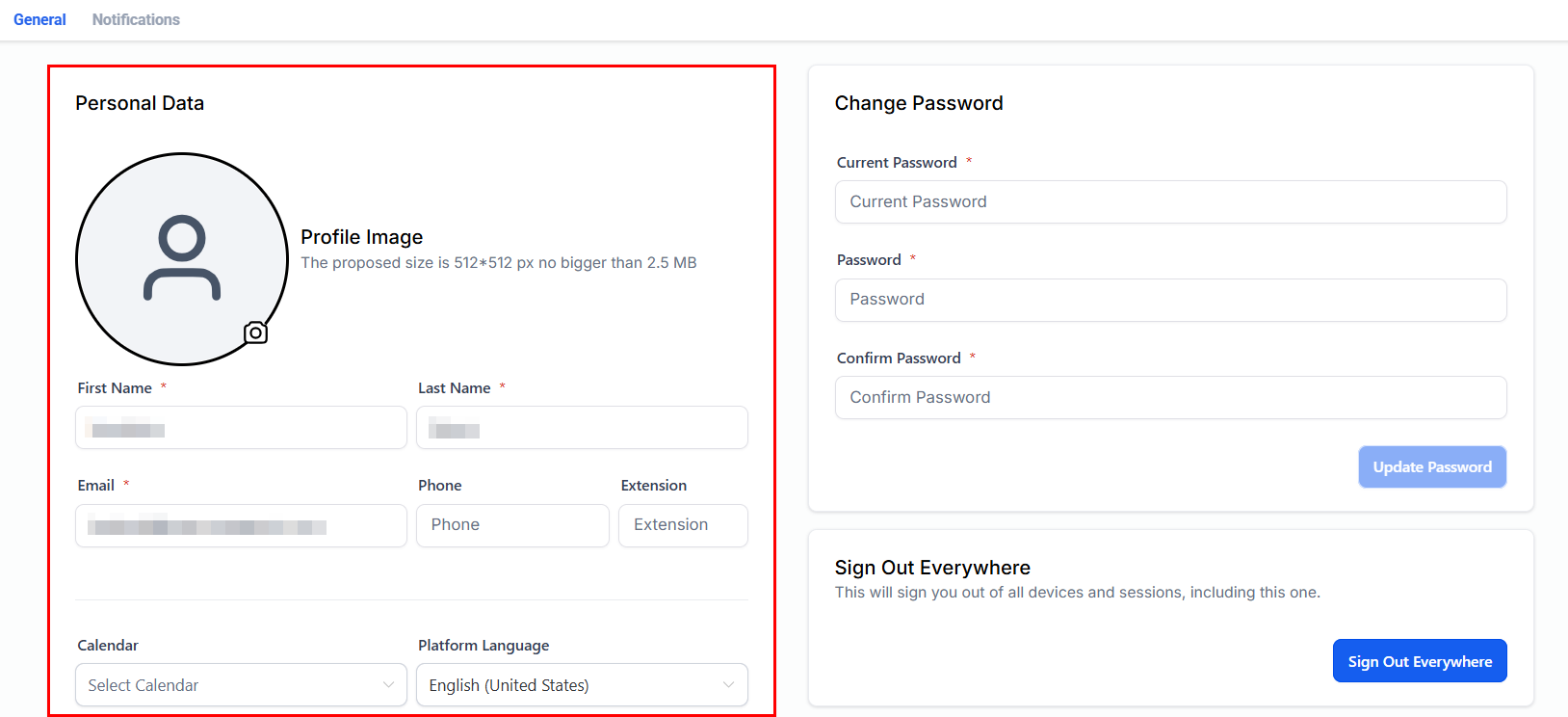 ## Personal information
Update your personal details including:
* **First and last name** — how your name appears in the platform and in outgoing communications
* **Email address** — your login email and the address used for internal notifications
* **Phone number** — your direct contact number
* **Profile photo** — upload a photo that appears in conversations and the staff directory
***
## Email signature
Create a professional email signature that automatically appears at the bottom of emails you send from the platform.
## Personal information
Update your personal details including:
* **First and last name** — how your name appears in the platform and in outgoing communications
* **Email address** — your login email and the address used for internal notifications
* **Phone number** — your direct contact number
* **Profile photo** — upload a photo that appears in conversations and the staff directory
***
## Email signature
Create a professional email signature that automatically appears at the bottom of emails you send from the platform.
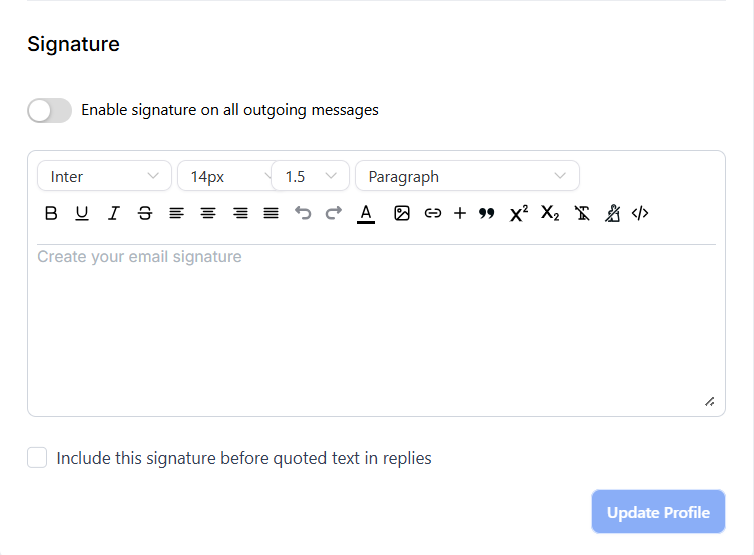 The signature editor supports rich text formatting, links, and images. You can use custom values (e.g., `{{user.full_name}}`) to make your signature dynamic.
***
## Password and security
To update your password:
1. Navigate to **Settings > My Profile**.
2. Scroll to the **Change Password** section.
3. Enter your current password, then your new password, and confirm.
4. Click **Save**.
Two-factor authentication adds an extra layer of security to your account login.
1. Navigate to **Settings > My Profile**.
2. Scroll to the **Two-Factor Authentication** section.
3. Follow the on-screen setup steps to link an authenticator app.
4. Save your configuration.
The signature editor supports rich text formatting, links, and images. You can use custom values (e.g., `{{user.full_name}}`) to make your signature dynamic.
***
## Password and security
To update your password:
1. Navigate to **Settings > My Profile**.
2. Scroll to the **Change Password** section.
3. Enter your current password, then your new password, and confirm.
4. Click **Save**.
Two-factor authentication adds an extra layer of security to your account login.
1. Navigate to **Settings > My Profile**.
2. Scroll to the **Two-Factor Authentication** section.
3. Follow the on-screen setup steps to link an authenticator app.
4. Save your configuration.
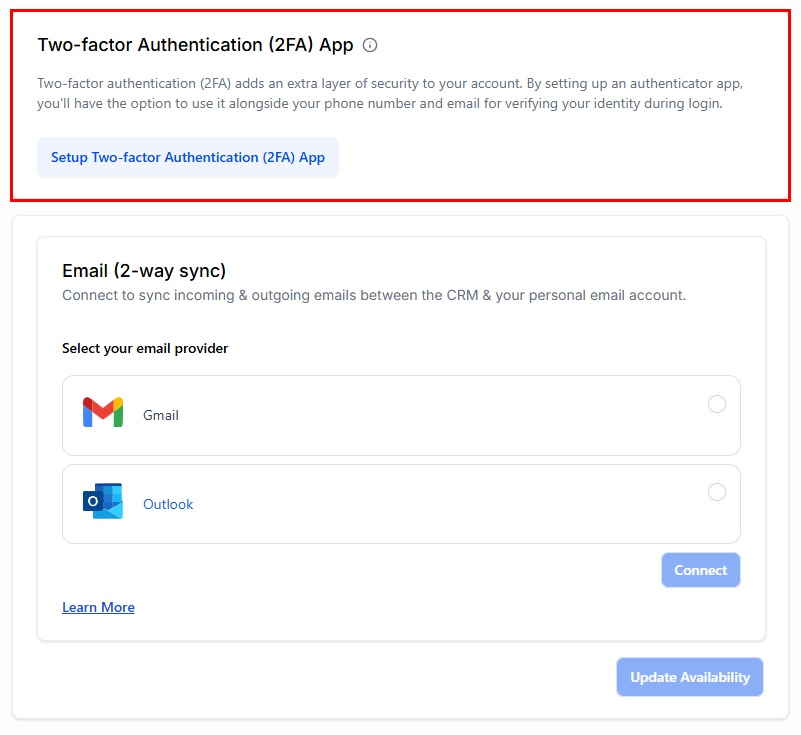 You can also change your password and enable 2FA from the Mobile App. See [Mobile App — Getting Started](/mobile-app/getting-started) for details.
***
## Email two-way sync
Connecting your Gmail or Outlook account enables two-way email synchronization — emails sent from the platform appear in your external inbox, and replies sync back into the platform automatically.
### Gmail two-way sync
In **My Profile**, scroll to the **Email Sync** section and click **Connect Gmail**.
Sign in to your Google account and grant the requested permissions.
Once connected, all emails in existing and new threads are automatically synced between the platform and your Gmail inbox.
Key features:
* Emails sent from the platform appear in your Gmail **Sent** folder
* Replies from contacts in Gmail are synced back to the platform conversation
* The sync is contact-level — emails are matched to existing contact records
### Microsoft Outlook sync
Connect your Outlook account using the same process via the **Email Sync** section in My Profile.
***
## Daily summary reminders
Enable daily summary emails to receive a morning digest of your scheduled activities for the day.
1. Go to **Settings > My Profile**.
2. Scroll to **Daily Summary Reminders**.
3. Toggle it on and select the delivery time.
4. Save your preference.
***
## User notifications
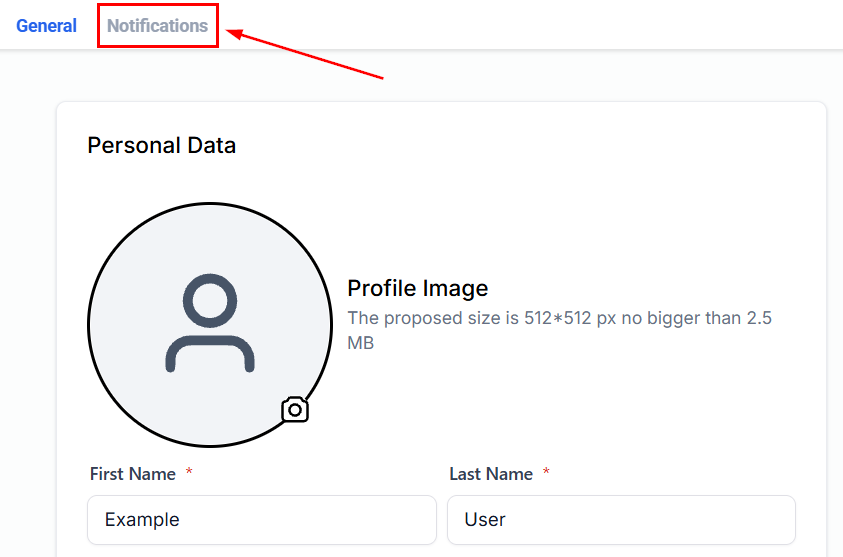
Manage which events trigger notifications for your account — controlling in-app alerts, email notifications, and desktop/push notifications.
You can also change your password and enable 2FA from the Mobile App. See [Mobile App — Getting Started](/mobile-app/getting-started) for details.
***
## Email two-way sync
Connecting your Gmail or Outlook account enables two-way email synchronization — emails sent from the platform appear in your external inbox, and replies sync back into the platform automatically.
### Gmail two-way sync
In **My Profile**, scroll to the **Email Sync** section and click **Connect Gmail**.
Sign in to your Google account and grant the requested permissions.
Once connected, all emails in existing and new threads are automatically synced between the platform and your Gmail inbox.
Key features:
* Emails sent from the platform appear in your Gmail **Sent** folder
* Replies from contacts in Gmail are synced back to the platform conversation
* The sync is contact-level — emails are matched to existing contact records
### Microsoft Outlook sync
Connect your Outlook account using the same process via the **Email Sync** section in My Profile.
***
## Daily summary reminders
Enable daily summary emails to receive a morning digest of your scheduled activities for the day.
1. Go to **Settings > My Profile**.
2. Scroll to **Daily Summary Reminders**.
3. Toggle it on and select the delivery time.
4. Save your preference.
***
## User notifications
Manage which events trigger notifications for your account — controlling in-app alerts, email notifications, and desktop/push notifications.
 ### Notification categories
Configure alerts for new incoming messages, mentions, and conversation assignments. Options include in-app notifications, email notifications, and desktop push notifications for each event type.
Receive reminders for upcoming tasks and when tasks are assigned to you or completed by others.
Get notified when appointments are booked, rescheduled, or cancelled for calendars assigned to you.
Set alerts for when opportunities are moved, won, or lost in pipelines you own or follow.
Control notifications for account-level events such as workflow completions, campaign results, and billing updates.
To reduce notification noise, disable email notifications for high-volume events (like every new conversation message) and rely on in-app or desktop notifications instead.
***
## Related articles
* [My staff](/settings/my-staff)
* [Business profile](/settings/business-profile)
* [Mobile app — getting started](/mobile-app/getting-started)
### Notification categories
Configure alerts for new incoming messages, mentions, and conversation assignments. Options include in-app notifications, email notifications, and desktop push notifications for each event type.
Receive reminders for upcoming tasks and when tasks are assigned to you or completed by others.
Get notified when appointments are booked, rescheduled, or cancelled for calendars assigned to you.
Set alerts for when opportunities are moved, won, or lost in pipelines you own or follow.
Control notifications for account-level events such as workflow completions, campaign results, and billing updates.
To reduce notification noise, disable email notifications for high-volume events (like every new conversation message) and rely on in-app or desktop notifications instead.
***
## Related articles
* [My staff](/settings/my-staff)
* [Business profile](/settings/business-profile)
* [Mobile app — getting started](/mobile-app/getting-started)