> ## Documentation Index
> Fetch the complete documentation index at: https://help.hoopai.com/llms.txt
> Use this file to discover all available pages before exploring further.
# Integrations
> Connect Google, Facebook, Instagram, Shopify, TikTok, and other third-party platforms to the HoopAI Platform.
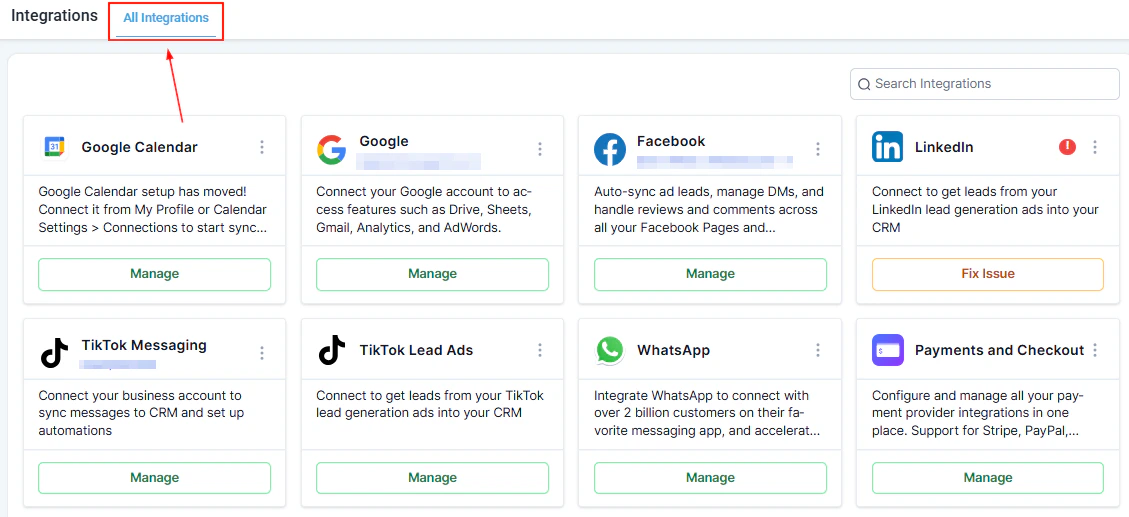
Integrating various platforms and tools with your account enhances its functionality and streamlines your workflow. By connecting accounts like Google, Facebook, and Shopify, you can efficiently manage and track your business activities directly from your account — responding to customer messages, tracking ad performance, managing your calendar, and more.
Navigate to **Settings > Integrations** to get started.
 ## Google integrations
Connecting your Google account grants access to:
* **Gmail SMTP** — send emails using your Google Workspace address
* **Google Drive** — access and attach files from Drive
* **Google Ads** — import campaign data for reporting
* **Google Analytics** — track website traffic and conversions
* **Google Calendar** — sync appointments bidirectionally
**Steps:**
1. Go to **Settings > Integrations**.
2. Click **Connect** next to Google.
3. Sign in with your Google account and grant the requested permissions.
4. Select which Google services to enable.
## Google integrations
Connecting your Google account grants access to:
* **Gmail SMTP** — send emails using your Google Workspace address
* **Google Drive** — access and attach files from Drive
* **Google Ads** — import campaign data for reporting
* **Google Analytics** — track website traffic and conversions
* **Google Calendar** — sync appointments bidirectionally
**Steps:**
1. Go to **Settings > Integrations**.
2. Click **Connect** next to Google.
3. Sign in with your Google account and grant the requested permissions.
4. Select which Google services to enable.
 If the connection expires or disconnects, click **Reconnect** to re-authorize.
Connect Google My Business to manage your Google Business Profile listing, respond to reviews, and sync business information directly from your account.
1. Go to **Settings > Integrations > Google My Business**.
2. Click **Connect** and sign in with the Google account that manages your Business Profile.
3. Select the business location to connect.
After connecting Google, verify that your calendar is syncing correctly:
1. Create a test appointment in the platform.
2. Check your Google Calendar to confirm the event appears.
3. Create a test event in Google Calendar and verify it appears in the platform.
If sync is not working, disconnect and reconnect the Google integration.
If the connection expires or disconnects, click **Reconnect** to re-authorize.
Connect Google My Business to manage your Google Business Profile listing, respond to reviews, and sync business information directly from your account.
1. Go to **Settings > Integrations > Google My Business**.
2. Click **Connect** and sign in with the Google account that manages your Business Profile.
3. Select the business location to connect.
After connecting Google, verify that your calendar is syncing correctly:
1. Create a test appointment in the platform.
2. Check your Google Calendar to confirm the event appears.
3. Create a test event in Google Calendar and verify it appears in the platform.
If sync is not working, disconnect and reconnect the Google integration.
 ***
## Facebook and Instagram integrations
Connect your Facebook and Instagram accounts to enable:
* Facebook Lead Ads — automatically import leads from Facebook form campaigns
* Instagram Direct Messaging — manage Instagram DMs in the Conversations inbox
* Facebook Messenger — handle Messenger conversations from your account
* Facebook Ads reporting — view campaign performance in Reporting
**Steps:**
1. Go to **Settings > Integrations**.
2. Click **Connect** next to Facebook.
***
## Facebook and Instagram integrations
Connect your Facebook and Instagram accounts to enable:
* Facebook Lead Ads — automatically import leads from Facebook form campaigns
* Instagram Direct Messaging — manage Instagram DMs in the Conversations inbox
* Facebook Messenger — handle Messenger conversations from your account
* Facebook Ads reporting — view campaign performance in Reporting
**Steps:**
1. Go to **Settings > Integrations**.
2. Click **Connect** next to Facebook.
 3. Log in to Facebook and grant the requested page permissions.
4. Select which Facebook Pages and Instagram accounts to connect.
5. Save.
When using Facebook Lead Ads, map the form fields from your Facebook forms to contact fields in your account:
1. Go to **Settings > Integrations > Facebook**.
2. Click **Form Field Mapping** for the connected page.
3. Map each Facebook form field to the corresponding contact field.
4. Save.
Add your Facebook Pixel to track website visitor behavior and create retargeting audiences:
1. Go to **Settings > Integrations > Facebook Pixel**.
2. Enter your Pixel ID.
3. Enable the pixel on your funnels and websites.
Connect your product catalog to your Facebook Shop for social commerce:
1. Go to **Settings > Integrations > Facebook**.
2. Click **Sync Products**.
3. Select the products or catalog to sync.
Common issues and fixes:
* **Leads not importing** — verify the form field mapping is complete and the correct Facebook Page is connected
* **Messages not appearing** — ensure the Facebook Page is connected and Messenger permissions are granted
* **Integration expired** — re-authenticate by disconnecting and reconnecting the Facebook integration
* **Multiple Facebook Pages** — if you manage multiple pages, connect and configure each page separately
***
## E-commerce integrations
Connect Shopify to sync orders, customers, and products between your Shopify store and your account.
1. Go to **Settings > Integrations > Shopify**.
2. Enter your Shopify store URL.
3. Follow the guided setup to install the integration on your Shopify store.
4. Configure which data to sync (orders, customers, products).
Connect a WooCommerce store to sync order data and customer records:
1. Go to **Settings > Integrations > WooCommerce**.
2. Enter your WooCommerce store URL and API credentials.
3. Save and test the connection.
Connect Printify for print-on-demand product fulfillment integrated with your store:
1. Go to **Settings > Integrations > Printify**.
2. Enter your Printify API key.
3. Select which products to sync.
***
## Other platform integrations
Connect your TikTok Ads account to import campaign performance data and track TikTok ad leads.
1. Go to **Settings > Integrations > TikTok Ads**.
2. Log in to your TikTok Business account.
3. Select your ad account and grant permissions.
Connect LinkedIn for Lead Gen Forms to automatically import leads captured through LinkedIn advertising campaigns.
Connect Outlook for email two-way sync and calendar integration. Works similarly to the Gmail integration — sent emails sync to Outlook and replies sync back.
Connect Zapier to build automated workflows between your account and thousands of other apps not natively supported.
1. Go to **Settings > Integrations > Zapier**.
2. Copy your Zapier API key.
3. Use it in Zapier to set up Zaps connecting your account to other tools.
Connect your accounting software to sync payment and invoice data.
* **Xero** — Go to **Settings > Integrations > Xero**, sign in, and authorize the connection.
* **QuickBooks** — available via the Integrations menu, requires QuickBooks Online account.
* **Shippo** — connect for multi-carrier shipping rate calculations and label printing
* **ShipStation** — connect for order fulfillment and tracking in high-volume operations
* **Notion** — connect to sync data or create Notion pages from platform triggers
* **ClickUp** — connect to create tasks in ClickUp from your platform workflows
* **Airtable** — connect to sync records with Airtable bases
* **Google Contacts** — sync contacts bidirectionally with Google Contacts
***
## Related articles
* [Private integrations](/settings/private-integrations)
* [External tracking](/settings/external-tracking)
* [WhatsApp](/settings/whatsapp)
* [Ads reporting](/reporting/ads-reporting)
3. Log in to Facebook and grant the requested page permissions.
4. Select which Facebook Pages and Instagram accounts to connect.
5. Save.
When using Facebook Lead Ads, map the form fields from your Facebook forms to contact fields in your account:
1. Go to **Settings > Integrations > Facebook**.
2. Click **Form Field Mapping** for the connected page.
3. Map each Facebook form field to the corresponding contact field.
4. Save.
Add your Facebook Pixel to track website visitor behavior and create retargeting audiences:
1. Go to **Settings > Integrations > Facebook Pixel**.
2. Enter your Pixel ID.
3. Enable the pixel on your funnels and websites.
Connect your product catalog to your Facebook Shop for social commerce:
1. Go to **Settings > Integrations > Facebook**.
2. Click **Sync Products**.
3. Select the products or catalog to sync.
Common issues and fixes:
* **Leads not importing** — verify the form field mapping is complete and the correct Facebook Page is connected
* **Messages not appearing** — ensure the Facebook Page is connected and Messenger permissions are granted
* **Integration expired** — re-authenticate by disconnecting and reconnecting the Facebook integration
* **Multiple Facebook Pages** — if you manage multiple pages, connect and configure each page separately
***
## E-commerce integrations
Connect Shopify to sync orders, customers, and products between your Shopify store and your account.
1. Go to **Settings > Integrations > Shopify**.
2. Enter your Shopify store URL.
3. Follow the guided setup to install the integration on your Shopify store.
4. Configure which data to sync (orders, customers, products).
Connect a WooCommerce store to sync order data and customer records:
1. Go to **Settings > Integrations > WooCommerce**.
2. Enter your WooCommerce store URL and API credentials.
3. Save and test the connection.
Connect Printify for print-on-demand product fulfillment integrated with your store:
1. Go to **Settings > Integrations > Printify**.
2. Enter your Printify API key.
3. Select which products to sync.
***
## Other platform integrations
Connect your TikTok Ads account to import campaign performance data and track TikTok ad leads.
1. Go to **Settings > Integrations > TikTok Ads**.
2. Log in to your TikTok Business account.
3. Select your ad account and grant permissions.
Connect LinkedIn for Lead Gen Forms to automatically import leads captured through LinkedIn advertising campaigns.
Connect Outlook for email two-way sync and calendar integration. Works similarly to the Gmail integration — sent emails sync to Outlook and replies sync back.
Connect Zapier to build automated workflows between your account and thousands of other apps not natively supported.
1. Go to **Settings > Integrations > Zapier**.
2. Copy your Zapier API key.
3. Use it in Zapier to set up Zaps connecting your account to other tools.
Connect your accounting software to sync payment and invoice data.
* **Xero** — Go to **Settings > Integrations > Xero**, sign in, and authorize the connection.
* **QuickBooks** — available via the Integrations menu, requires QuickBooks Online account.
* **Shippo** — connect for multi-carrier shipping rate calculations and label printing
* **ShipStation** — connect for order fulfillment and tracking in high-volume operations
* **Notion** — connect to sync data or create Notion pages from platform triggers
* **ClickUp** — connect to create tasks in ClickUp from your platform workflows
* **Airtable** — connect to sync records with Airtable bases
* **Google Contacts** — sync contacts bidirectionally with Google Contacts
***
## Related articles
* [Private integrations](/settings/private-integrations)
* [External tracking](/settings/external-tracking)
* [WhatsApp](/settings/whatsapp)
* [Ads reporting](/reporting/ads-reporting)