> ## Documentation Index
> Fetch the complete documentation index at: https://help.hoopai.com/llms.txt
> Use this file to discover all available pages before exploring further.
# Custom Fields
> Create custom fields to capture unique data for contacts, opportunities, and other objects in the HoopAI Platform.
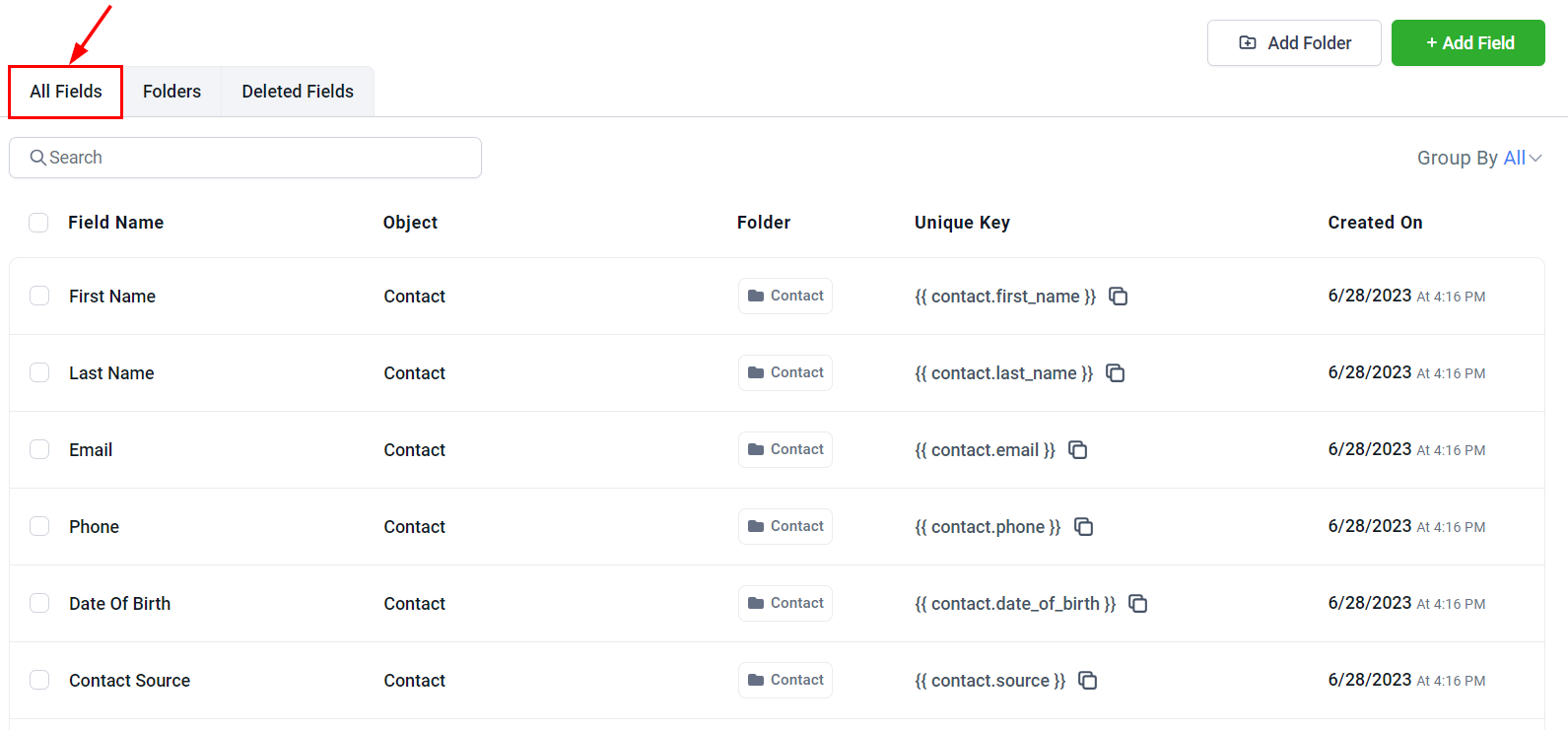
Custom fields are an essential tool for gathering specific customer information that goes beyond standard data points. They allow you to capture unique details that are important to your business — such as customer preferences, service history, referral sources, or any other relevant data that supports your marketing, sales, or customer service efforts.
Navigate to **Settings > Custom Fields** to get started.
 ## Custom field types
The platform supports a wide range of field types to capture different kinds of data:
| Field type | Use case |
| --------------------- | --------------------------------------------------- |
| **Text** | Single-line text (e.g., job title, company name) |
| **Large text** | Multi-line text for longer notes or descriptions |
| **Numerical** | Numbers only (e.g., employee count, order quantity) |
| **Phone** | Phone number with formatting |
| **Monetary** | Currency values (e.g., deal size, budget) |
| **Checkbox** | Boolean yes/no value |
| **Single dropdown** | Choose one option from a predefined list |
| **Multiple dropdown** | Select multiple options from a list |
| **Radio** | Single-choice from displayed radio buttons |
| **Date** | Date picker |
| **Date & time** | Date and time picker |
| **File upload** | Allow file attachments |
***
## Creating a custom field
Go to **Settings > Custom Fields**.
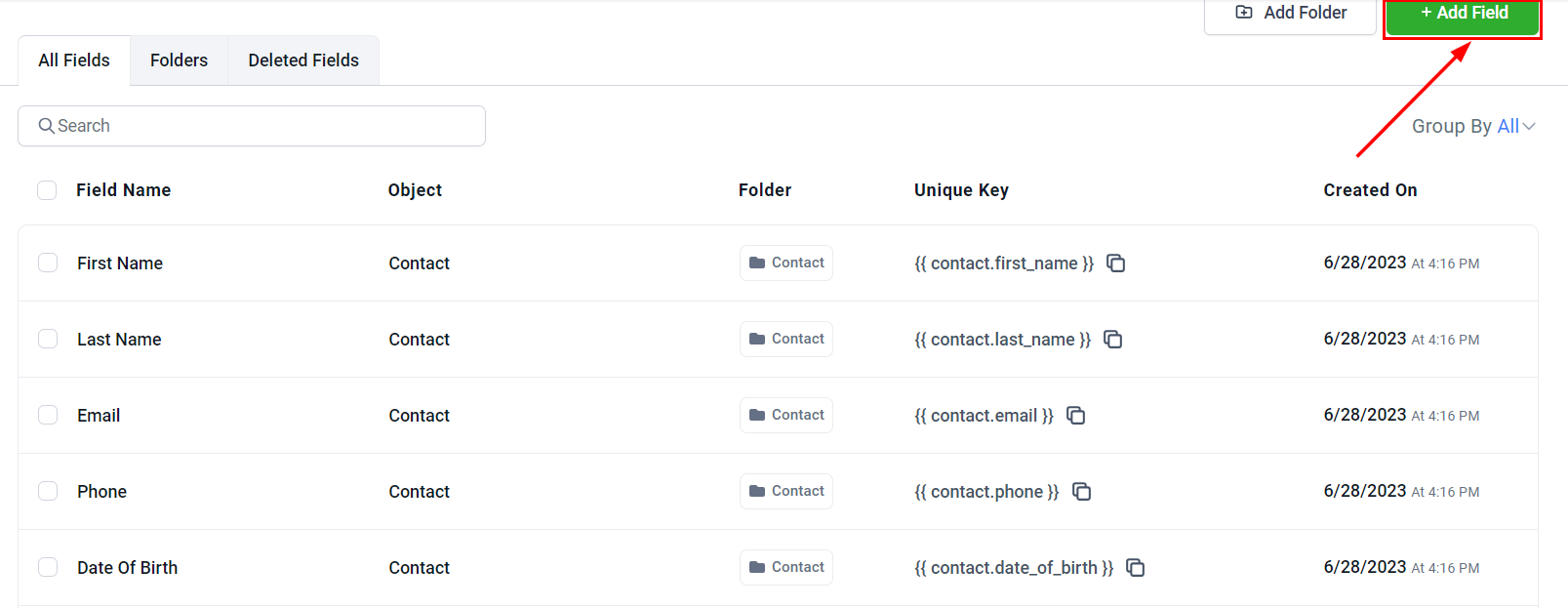
Click the **Add Field** button.
## Custom field types
The platform supports a wide range of field types to capture different kinds of data:
| Field type | Use case |
| --------------------- | --------------------------------------------------- |
| **Text** | Single-line text (e.g., job title, company name) |
| **Large text** | Multi-line text for longer notes or descriptions |
| **Numerical** | Numbers only (e.g., employee count, order quantity) |
| **Phone** | Phone number with formatting |
| **Monetary** | Currency values (e.g., deal size, budget) |
| **Checkbox** | Boolean yes/no value |
| **Single dropdown** | Choose one option from a predefined list |
| **Multiple dropdown** | Select multiple options from a list |
| **Radio** | Single-choice from displayed radio buttons |
| **Date** | Date picker |
| **Date & time** | Date and time picker |
| **File upload** | Allow file attachments |
***
## Creating a custom field
Go to **Settings > Custom Fields**.
Click the **Add Field** button.
 Select which object the field belongs to — **Contact**, **Opportunity**, or a custom object you have created.
Choose the field type that matches the data you want to capture.
* **Field name** — the label users see (e.g., "Budget Range")
* **Field key** — auto-generated identifier used in automations and custom values
* **Placeholder text** — hint text shown inside the field
* **Default value** — pre-filled value when creating new records
* **Required** — make the field mandatory when creating records
* **Options** (for dropdowns/radio) — add your list options
Click **Save**. The field is now available across the platform wherever that object type appears.
***
## Managing custom fields
### Search and filter
Use the search bar at the top of the Custom Fields page to quickly find specific fields by name. Filter by object type (Contact, Opportunity, etc.) to see only relevant fields.
### Field actions
Each field has action options:
* **Edit** — modify the field name, options, or settings
* **Delete** — permanently remove the field (this also removes all stored data for that field)
* **Reorder** — drag fields to change the display order on forms and record pages
Deleting a custom field permanently removes all data stored in that field across all contacts or records. This action cannot be undone.
### Grouping fields
Organize fields into groups for cleaner presentation on contact and opportunity detail pages. Create a group, then assign fields to it.
***
## Using custom fields
Once created, custom fields appear in:
* **Contact detail pages** — visible and editable in the contact record
* **Opportunity records** — visible on pipeline cards and opportunity detail views
* **Forms and surveys** — add them as fields on any form or survey
* **Automations and workflows** — use field values as trigger conditions or in dynamic message content
* **Filters and smart lists** — filter contacts by custom field values to build targeted lists
* **Custom reports** — include custom field data in report columns
### Searchable fields for objects
You can configure which custom fields are searchable for custom objects, making it easier to look up records by specific field values. Go to **Settings > Custom Fields** and configure **Searchable Fields** for the relevant object.
***
## Related articles
* [Custom values](/settings/custom-values)
* [Contacts overview](/contacts/overview)
* [Opportunities overview](/opportunities/overview)
* [Objects](/settings/objects)
Select which object the field belongs to — **Contact**, **Opportunity**, or a custom object you have created.
Choose the field type that matches the data you want to capture.
* **Field name** — the label users see (e.g., "Budget Range")
* **Field key** — auto-generated identifier used in automations and custom values
* **Placeholder text** — hint text shown inside the field
* **Default value** — pre-filled value when creating new records
* **Required** — make the field mandatory when creating records
* **Options** (for dropdowns/radio) — add your list options
Click **Save**. The field is now available across the platform wherever that object type appears.
***
## Managing custom fields
### Search and filter
Use the search bar at the top of the Custom Fields page to quickly find specific fields by name. Filter by object type (Contact, Opportunity, etc.) to see only relevant fields.
### Field actions
Each field has action options:
* **Edit** — modify the field name, options, or settings
* **Delete** — permanently remove the field (this also removes all stored data for that field)
* **Reorder** — drag fields to change the display order on forms and record pages
Deleting a custom field permanently removes all data stored in that field across all contacts or records. This action cannot be undone.
### Grouping fields
Organize fields into groups for cleaner presentation on contact and opportunity detail pages. Create a group, then assign fields to it.
***
## Using custom fields
Once created, custom fields appear in:
* **Contact detail pages** — visible and editable in the contact record
* **Opportunity records** — visible on pipeline cards and opportunity detail views
* **Forms and surveys** — add them as fields on any form or survey
* **Automations and workflows** — use field values as trigger conditions or in dynamic message content
* **Filters and smart lists** — filter contacts by custom field values to build targeted lists
* **Custom reports** — include custom field data in report columns
### Searchable fields for objects
You can configure which custom fields are searchable for custom objects, making it easier to look up records by specific field values. Go to **Settings > Custom Fields** and configure **Searchable Fields** for the relevant object.
***
## Related articles
* [Custom values](/settings/custom-values)
* [Contacts overview](/contacts/overview)
* [Opportunities overview](/opportunities/overview)
* [Objects](/settings/objects)