> ## Documentation Index
> Fetch the complete documentation index at: https://help.hoopai.com/llms.txt
> Use this file to discover all available pages before exploring further.
# Business Profile
> Configure your company name, address, logo, timezone, currency, compliance settings, and core business details in the HoopAI Platform.
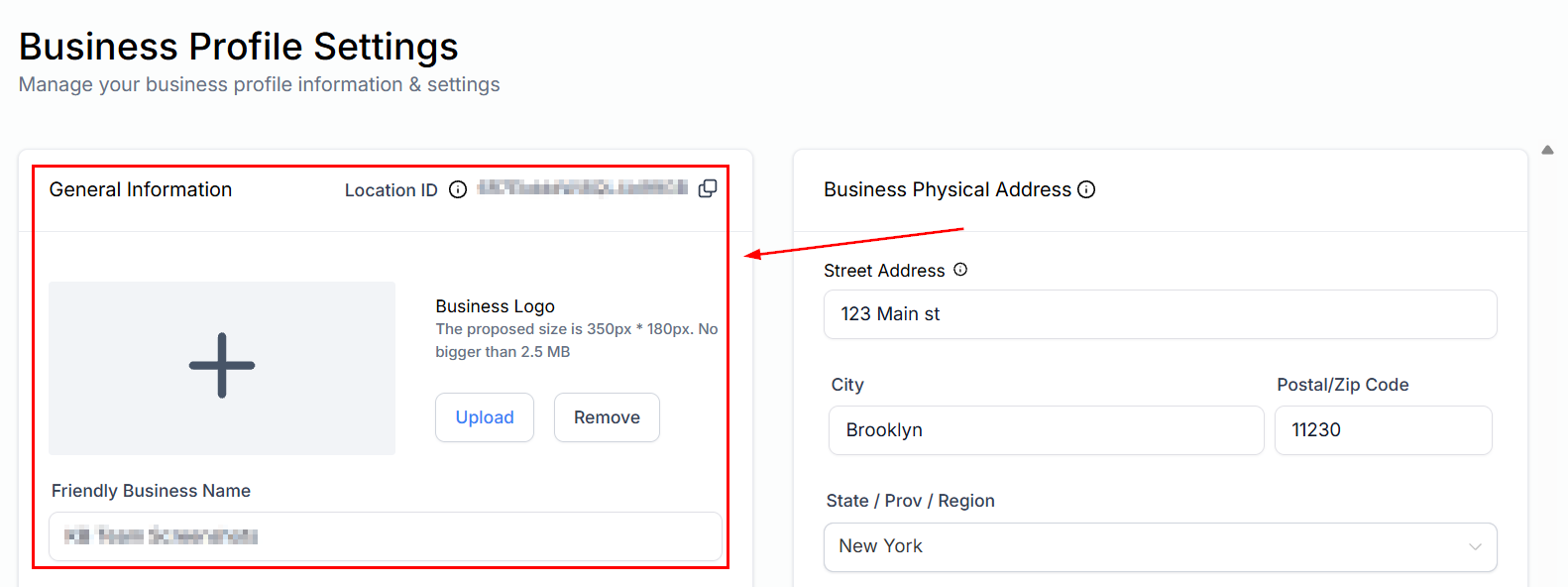
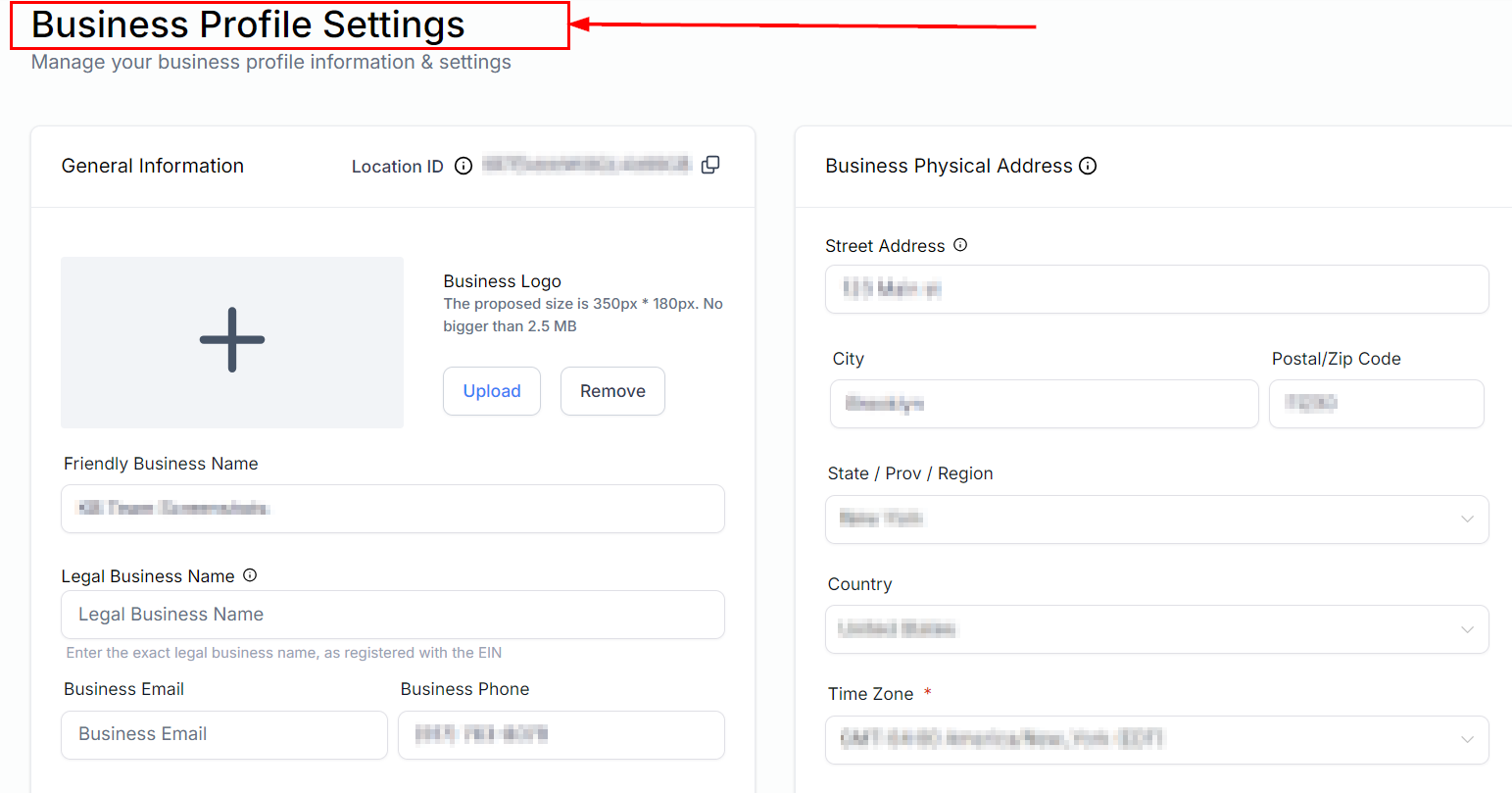
Effective management of your Business Profile is crucial for ensuring that your account operates smoothly and aligns with your business requirements. The Business Profile is the initial page displayed when you access the Settings section.
Navigate to **Settings** in the left sidebar — the Business Profile page opens by default.
 ## Business information
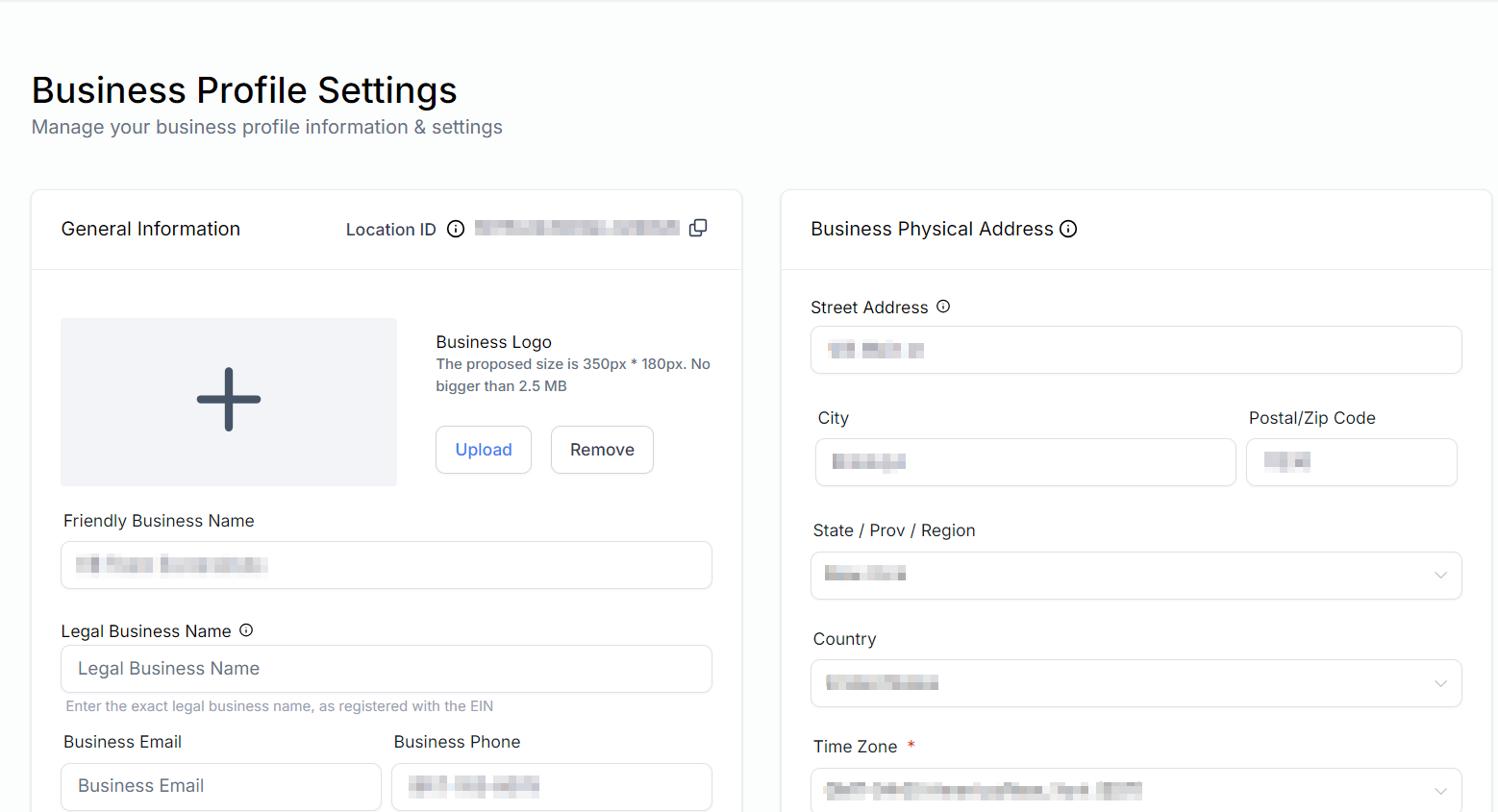
Update your core business details in the **Business Info** section:
* **Business name** — the name displayed across your account and communications
* **Address** — your business address, used for location-based features and compliance
* **Phone number** — your primary business contact number
* **Website** — your company website URL
* **Business logo** — upload your logo for use in emails, invoices, and pages
## Business information
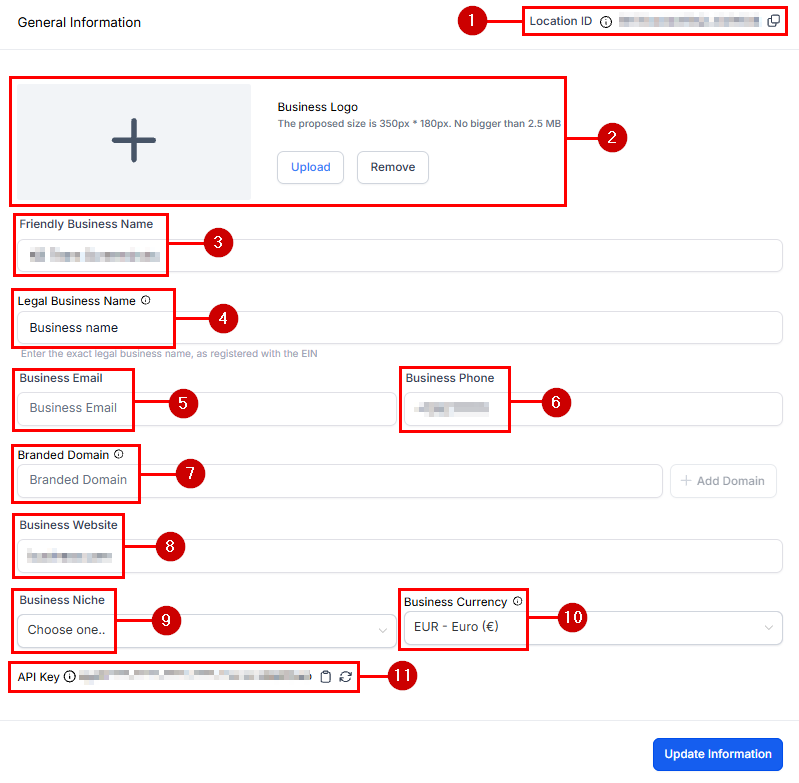
Update your core business details in the **Business Info** section:
* **Business name** — the name displayed across your account and communications
* **Address** — your business address, used for location-based features and compliance
* **Phone number** — your primary business contact number
* **Website** — your company website URL
* **Business logo** — upload your logo for use in emails, invoices, and pages
 ***
## General settings
Set the timezone for your account. All appointments, automations, and timestamps will reference this timezone. You can also enable the **Alternate Timezone** feature to allow contacts to book appointments in their own timezone.
**Steps to toggle Alternate Timezone:**
1. In Business Profile, scroll to the General section.
2. Locate the **Alternate Timezone** toggle.
3. Enable or disable it as needed and save your changes.
Your account automatically sets the default currency based on your business location. For example, businesses in the United States default to USD.
**Steps to change the default currency:**
1. Navigate to **Settings > Business Profile**.
2. Scroll to the **General** section.
3. Click the **Currency** dropdown and select your preferred currency.
4. Save your changes.
***
## General settings
Set the timezone for your account. All appointments, automations, and timestamps will reference this timezone. You can also enable the **Alternate Timezone** feature to allow contacts to book appointments in their own timezone.
**Steps to toggle Alternate Timezone:**
1. In Business Profile, scroll to the General section.
2. Locate the **Alternate Timezone** toggle.
3. Enable or disable it as needed and save your changes.
Your account automatically sets the default currency based on your business location. For example, businesses in the United States default to USD.
**Steps to change the default currency:**
1. Navigate to **Settings > Business Profile**.
2. Scroll to the **General** section.
3. Click the **Currency** dropdown and select your preferred currency.
4. Save your changes.
 By default, a contact can only exist once in any given pipeline. Enable **Allow Duplicate Opportunity** to add the same contact to a pipeline more than once — useful for managing repeat business or multiple service lines.
1. In Business Profile, scroll to the **General** section.
2. Enable the **Allow Duplicate Opportunity** toggle.
3. Save your changes.
***
## Branded domain
A branded domain replaces the default system domain with one that represents your brand in communications and landing pages. Only subdomains are allowed as branded domains.
**Steps to set up a branded domain:**
1. Navigate to **Settings > Business Profile**.
2. Scroll to the **Branded Domain** section.
3. Click **Add Branded Domain**.
4. Enter your subdomain (e.g., `go.yourbusiness.com`).
5. Follow the DNS setup instructions for your domain provider.
6. Save and verify.
***
## SMS phone number validation
Validating phone numbers improves SMS delivery rates and helps avoid unnecessary costs for contacts who cannot receive messages.
**Steps to validate phone numbers:**
1. Navigate to **Settings > Business Profile**.
2. Scroll to the **Phone Number Validation** section.
3. Click **Validate Numbers** to run bulk validation against your contact list.
By default, a contact can only exist once in any given pipeline. Enable **Allow Duplicate Opportunity** to add the same contact to a pipeline more than once — useful for managing repeat business or multiple service lines.
1. In Business Profile, scroll to the **General** section.
2. Enable the **Allow Duplicate Opportunity** toggle.
3. Save your changes.
***
## Branded domain
A branded domain replaces the default system domain with one that represents your brand in communications and landing pages. Only subdomains are allowed as branded domains.
**Steps to set up a branded domain:**
1. Navigate to **Settings > Business Profile**.
2. Scroll to the **Branded Domain** section.
3. Click **Add Branded Domain**.
4. Enter your subdomain (e.g., `go.yourbusiness.com`).
5. Follow the DNS setup instructions for your domain provider.
6. Save and verify.
***
## SMS phone number validation
Validating phone numbers improves SMS delivery rates and helps avoid unnecessary costs for contacts who cannot receive messages.
**Steps to validate phone numbers:**
1. Navigate to **Settings > Business Profile**.
2. Scroll to the **Phone Number Validation** section.
3. Click **Validate Numbers** to run bulk validation against your contact list.
 ***
## Email and SMS compliance
Maintaining compliance lowers the risk of your communications being marked as spam and ensures you meet provider requirements.
The SMS compliance section lets you set opt-out keywords (e.g., STOP, UNSUBSCRIBE) and configure how the platform handles opt-out requests from contacts.
***
## Email and SMS compliance
Maintaining compliance lowers the risk of your communications being marked as spam and ensures you meet provider requirements.
The SMS compliance section lets you set opt-out keywords (e.g., STOP, UNSUBSCRIBE) and configure how the platform handles opt-out requests from contacts.
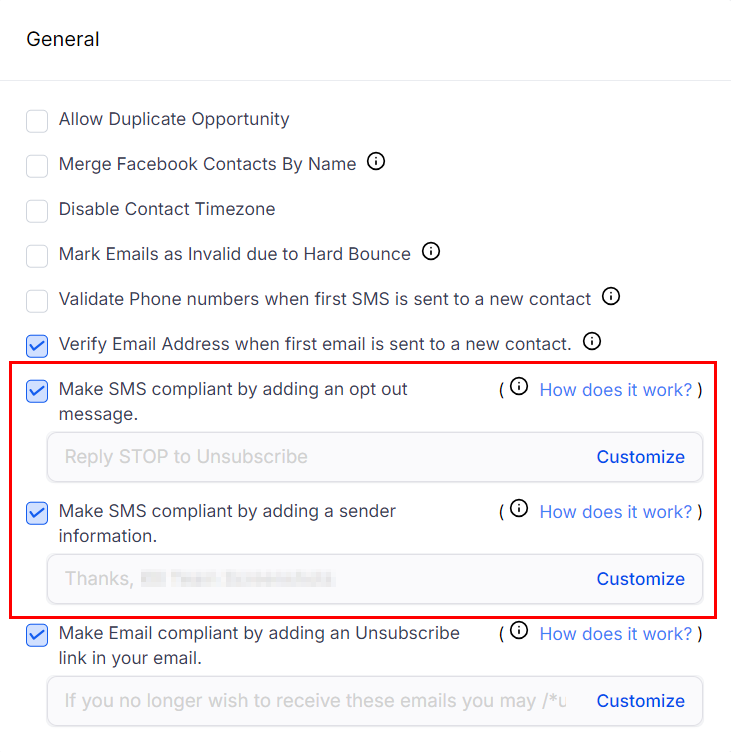 Configure email compliance settings including unsubscribe handling, bounce management, and invalid email filtering to maintain a healthy sender reputation.
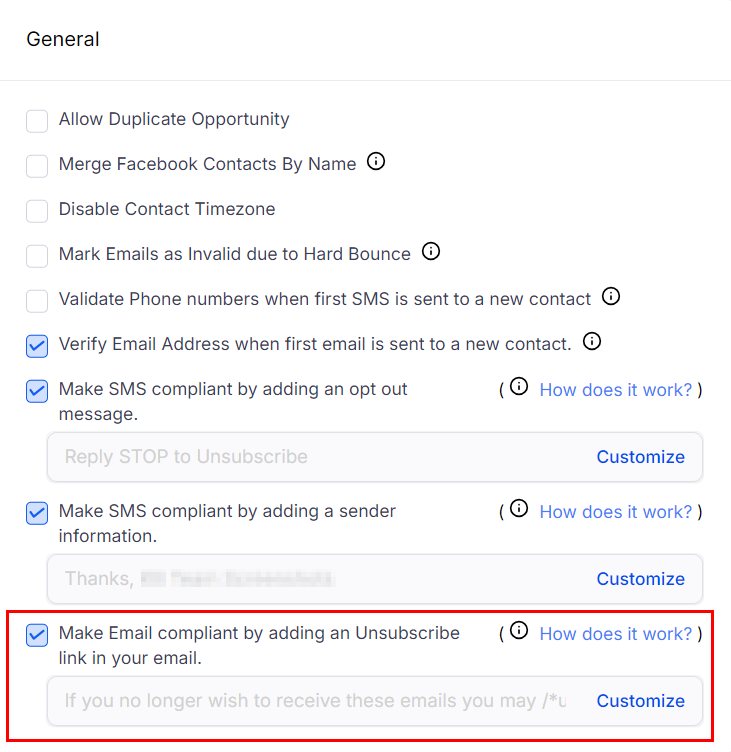 Keeping your compliance settings configured properly reduces bounce rates and improves email and SMS deliverability across your account.
***
## Related articles
* [Email services](/settings/email-services)
* [Phone system](/settings/phone-system)
* [Trust center](/settings/trust-center)
* [Domains and URL redirects](/settings/domains-url-redirects)
Keeping your compliance settings configured properly reduces bounce rates and improves email and SMS deliverability across your account.
***
## Related articles
* [Email services](/settings/email-services)
* [Phone system](/settings/phone-system)
* [Trust center](/settings/trust-center)
* [Domains and URL redirects](/settings/domains-url-redirects)