> ## Documentation Index
> Fetch the complete documentation index at: https://help.hoopai.com/llms.txt
> Use this file to discover all available pages before exploring further.
# Audit Logs
> View a full history of account-level changes, user actions, and system events — and restore deleted pipelines — in the HoopAI Platform.
Audit Logs are a vital component of your account that provides a detailed record of all activities and changes made within various modules such as contacts, calendars, opportunities, and communications. These logs are instrumental in tracking the source of changes, ensuring data integrity, and facilitating troubleshooting.
Navigate to **Settings > Audit Logs** to get started.
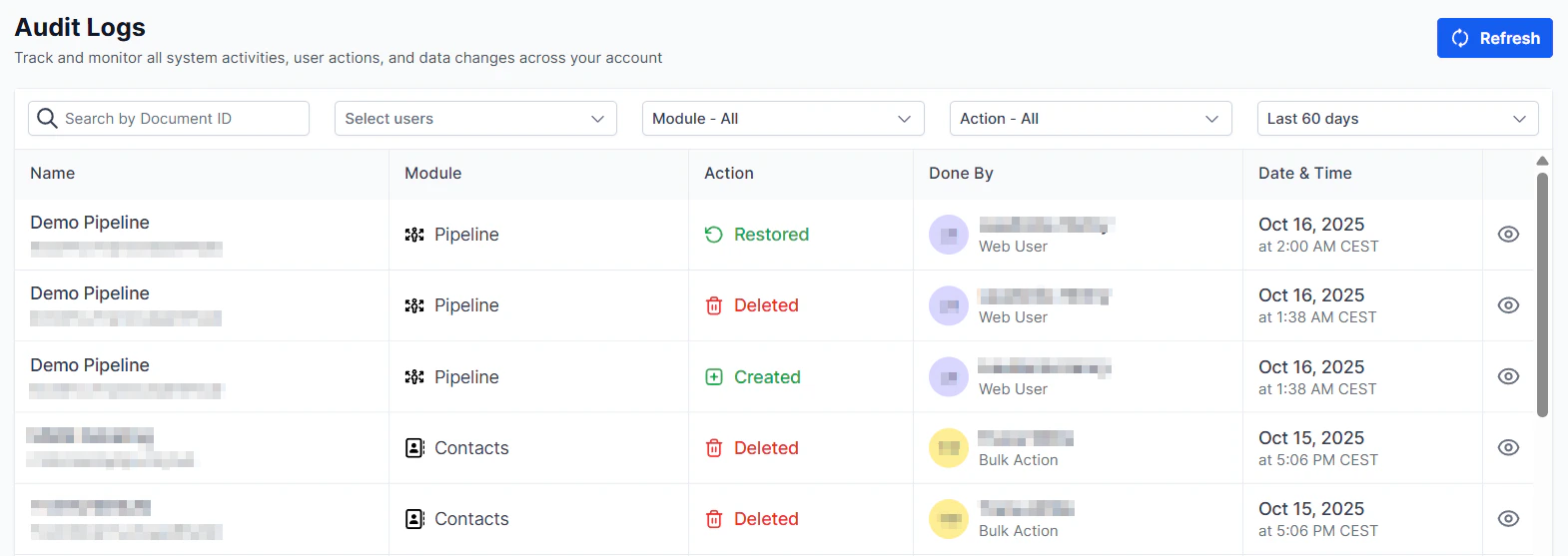 Audit log access is typically restricted to account administrators. Contact your administrator if this section is not visible.
## What is logged
The audit log captures a wide range of events including:
* **User access** — logins, logouts, and password changes
* **Contact changes** — field edits, tag additions and removals, contact deletions
* **Opportunity updates** — stage changes, value edits, owner reassignments
* **Calendar changes** — appointment creation, edits, cancellations
* **Settings changes** — updates to business profile, phone numbers, integrations, and user permissions
* **Automation activity** — workflow creation, edits, enable/disable toggles
* **Payment events** — invoice creation, payment status changes
* **Staff management** — user additions, role changes, deactivations
***
## Reading the log
Each log entry shows:
| Column | Description |
| --------------- | --------------------------------------------------------------- |
| **Timestamp** | Date and time the action occurred |
| **User** | The team member who performed the action |
| **Event type** | The category of action (contact edit, login, etc.) |
| **Description** | A summary of what changed |
| **Record** | The specific contact, opportunity, or setting that was affected |
Audit log access is typically restricted to account administrators. Contact your administrator if this section is not visible.
## What is logged
The audit log captures a wide range of events including:
* **User access** — logins, logouts, and password changes
* **Contact changes** — field edits, tag additions and removals, contact deletions
* **Opportunity updates** — stage changes, value edits, owner reassignments
* **Calendar changes** — appointment creation, edits, cancellations
* **Settings changes** — updates to business profile, phone numbers, integrations, and user permissions
* **Automation activity** — workflow creation, edits, enable/disable toggles
* **Payment events** — invoice creation, payment status changes
* **Staff management** — user additions, role changes, deactivations
***
## Reading the log
Each log entry shows:
| Column | Description |
| --------------- | --------------------------------------------------------------- |
| **Timestamp** | Date and time the action occurred |
| **User** | The team member who performed the action |
| **Event type** | The category of action (contact edit, login, etc.) |
| **Description** | A summary of what changed |
| **Record** | The specific contact, opportunity, or setting that was affected |
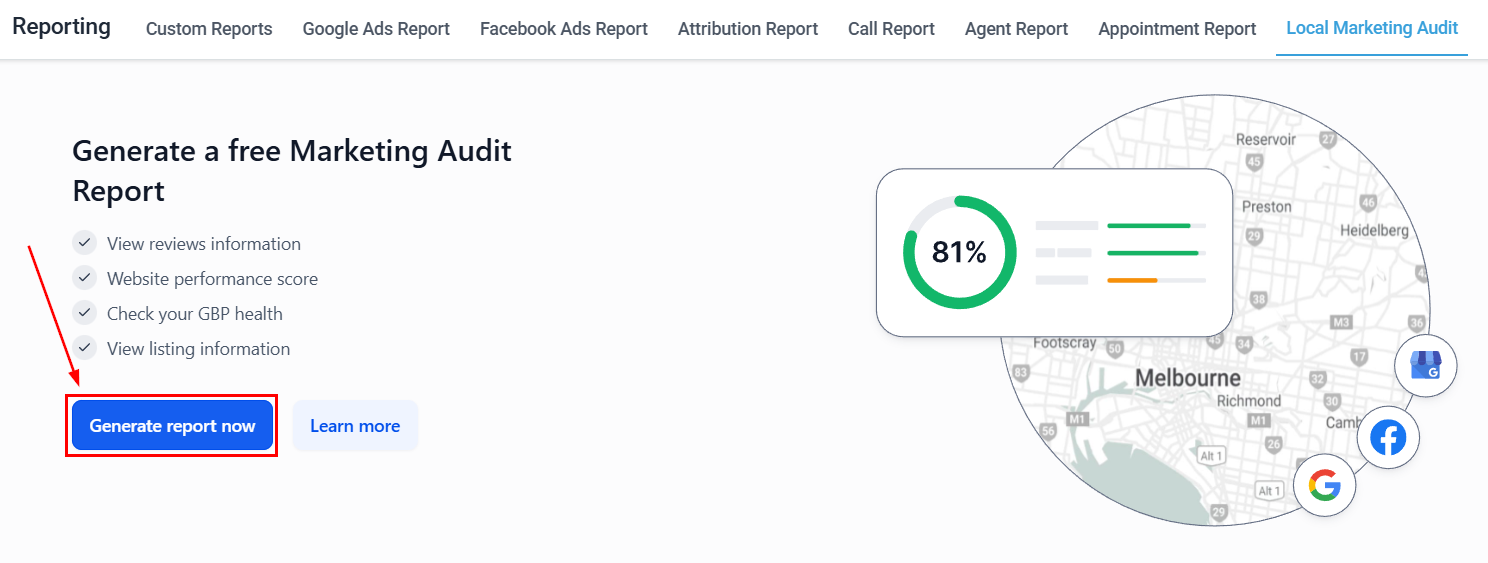 ***
## Filtering the log
Use the filter controls to narrow the audit log view:
* **Date range** — view events from a specific period
* **User** — see only actions from a specific team member
* **Event type** — focus on a particular category (e.g., only contact changes, only settings changes)
* **Module** — filter by specific modules (contacts, opportunities, calendars, etc.)
***
## Exporting audit logs
Click **Export** to download the filtered log as a CSV file. This is useful for compliance reporting, incident investigations, or sharing with external auditors.
***
## Filtering the log
Use the filter controls to narrow the audit log view:
* **Date range** — view events from a specific period
* **User** — see only actions from a specific team member
* **Event type** — focus on a particular category (e.g., only contact changes, only settings changes)
* **Module** — filter by specific modules (contacts, opportunities, calendars, etc.)
***
## Exporting audit logs
Click **Export** to download the filtered log as a CSV file. This is useful for compliance reporting, incident investigations, or sharing with external auditors.
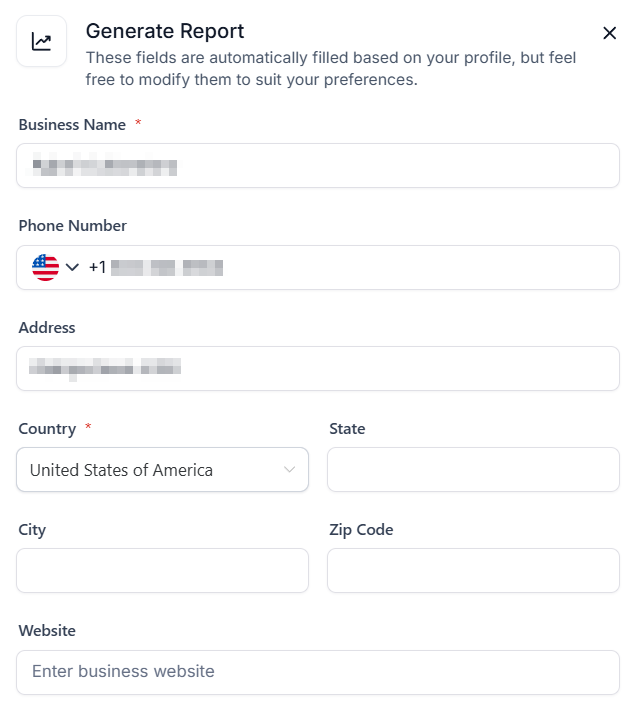 ***
## Restoring a deleted pipeline
If a pipeline is accidentally deleted, you can restore it from the Audit Logs:
Navigate to **Settings > Audit Logs**.
Filter the log by **Event Type: Deleted** and look for the pipeline deletion event.
Click on the pipeline deletion log entry to expand its details.
Click the **Restore** action associated with the deletion event to recover the pipeline and its associated opportunities.
Pipeline restoration is available for a limited time after deletion. Contact Hoop support if the restore option is no longer available for an older deletion.
***
## Audit logs for custom objects
Custom objects also have their own audit trail. Navigate to **Settings > Objects** and open a custom object to view its specific audit log for changes made to records within that object.
***
## Related articles
* [My staff](/settings/my-staff)
* [Audit reports](/reporting/audit-reports)
* [Objects](/settings/objects)
* [Private integrations](/settings/private-integrations)
***
## Restoring a deleted pipeline
If a pipeline is accidentally deleted, you can restore it from the Audit Logs:
Navigate to **Settings > Audit Logs**.
Filter the log by **Event Type: Deleted** and look for the pipeline deletion event.
Click on the pipeline deletion log entry to expand its details.
Click the **Restore** action associated with the deletion event to recover the pipeline and its associated opportunities.
Pipeline restoration is available for a limited time after deletion. Contact Hoop support if the restore option is no longer available for an older deletion.
***
## Audit logs for custom objects
Custom objects also have their own audit trail. Navigate to **Settings > Objects** and open a custom object to view its specific audit log for changes made to records within that object.
***
## Related articles
* [My staff](/settings/my-staff)
* [Audit reports](/reporting/audit-reports)
* [Objects](/settings/objects)
* [Private integrations](/settings/private-integrations)