> ## Documentation Index
> Fetch the complete documentation index at: https://help.hoopai.com/llms.txt
> Use this file to discover all available pages before exploring further.
# Reviews
> View and manage Google and Facebook reviews, use AI summaries, detect spam, respond to feedback, and add reviews manually — all from the HoopAI Platform.
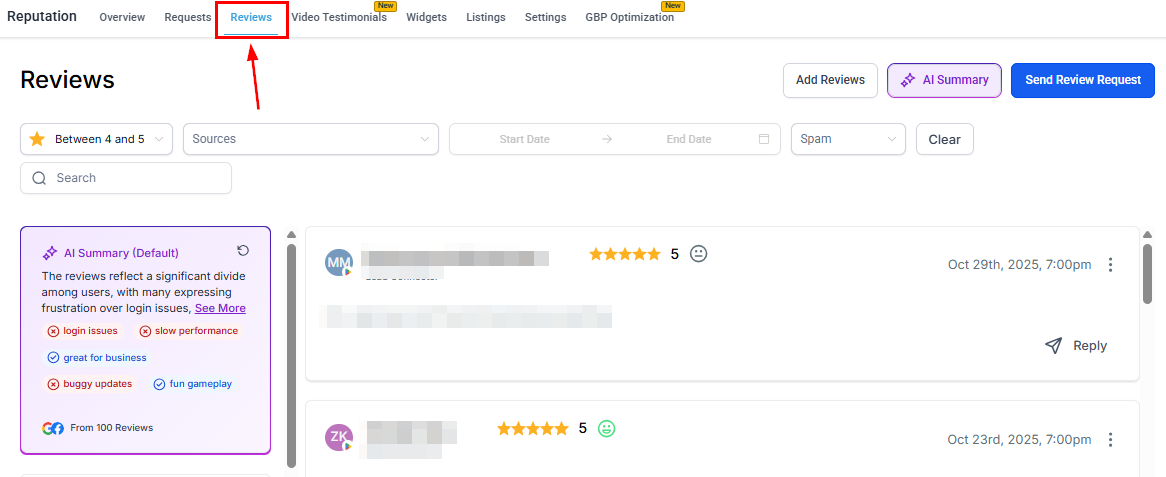
In the Reviews section, you will find an organized collection of Google and Facebook reviews relevant to your business. Once your Google and Facebook accounts are connected, all customer feedback is available in a centralized location, simplifying the process of monitoring and managing your online reputation.
Access the Reviews tab within the Reputation section to begin.
 ## Getting started
If you encounter the "No Reviews Yet" message, it indicates that your business has not gathered any reviews or that no review platform is connected yet. Connect your Google Business Profile and Facebook page in **Reputation > Settings** to start pulling in reviews automatically.
***
## Key features
### Add reviews
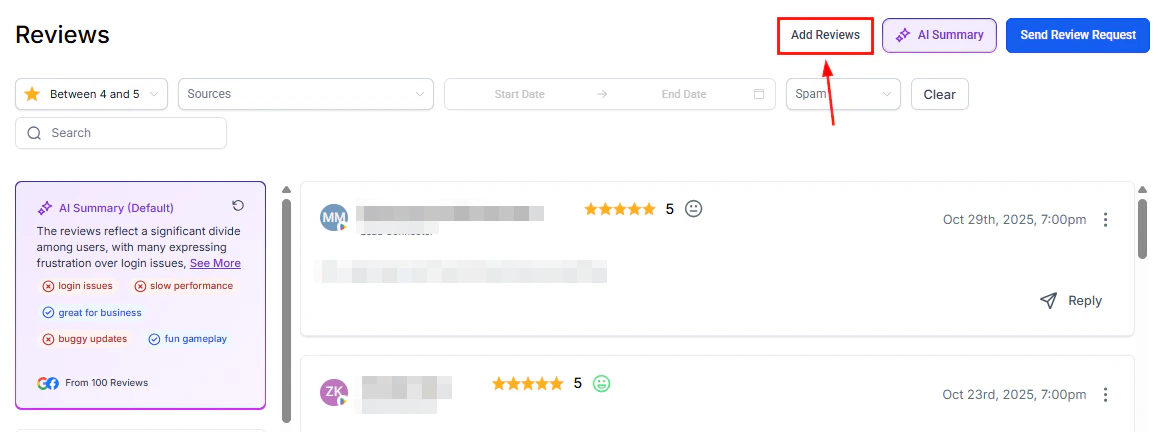
The **Add Reviews** button allows you to upload a CSV file containing customer testimonials collected offline or from platforms without a direct integration. You may also manually enter a review if it was previously documented elsewhere.
## Getting started
If you encounter the "No Reviews Yet" message, it indicates that your business has not gathered any reviews or that no review platform is connected yet. Connect your Google Business Profile and Facebook page in **Reputation > Settings** to start pulling in reviews automatically.
***
## Key features
### Add reviews
The **Add Reviews** button allows you to upload a CSV file containing customer testimonials collected offline or from platforms without a direct integration. You may also manually enter a review if it was previously documented elsewhere.
 See [Add reviews manually](/reputation/add-reviews-manually) for full instructions.
### AI summary
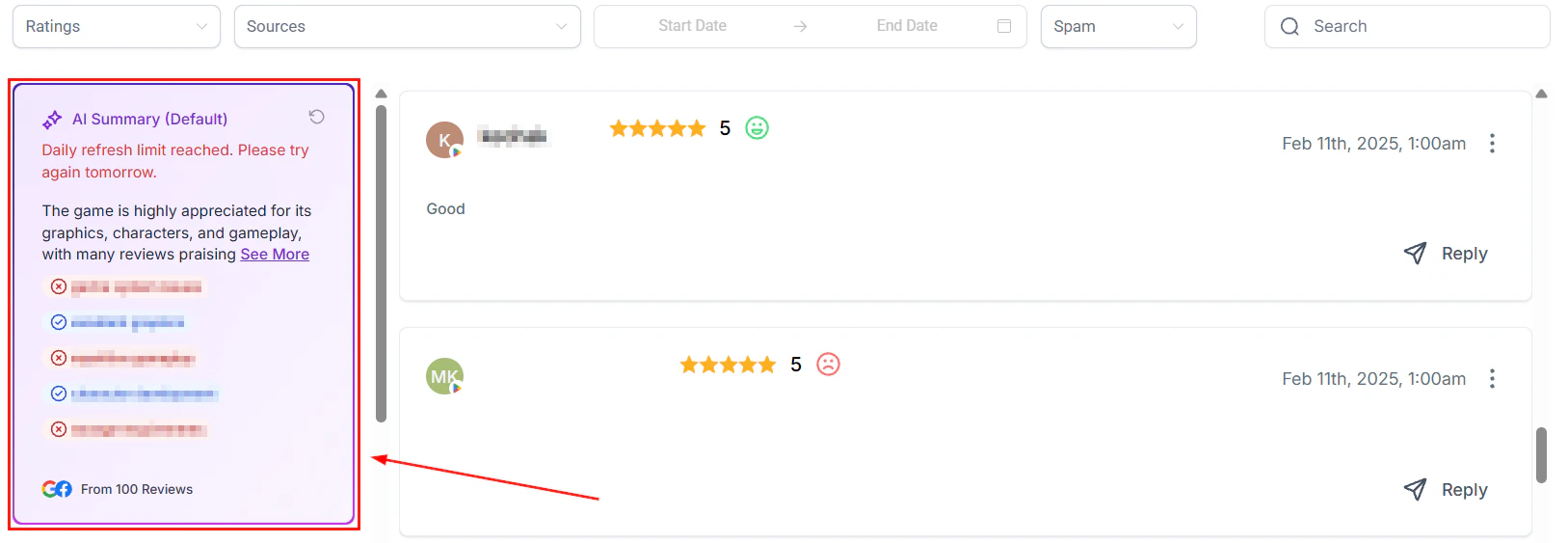
Click **AI Summary** to narrow down the summary using filters for specific review pages and custom date ranges for more focused insights. The system provides a combined AI-generated summary of reviews from all connected pages, automatically pointing out recurring themes and popular topics with highlight tags.
See [Add reviews manually](/reputation/add-reviews-manually) for full instructions.
### AI summary
Click **AI Summary** to narrow down the summary using filters for specific review pages and custom date ranges for more focused insights. The system provides a combined AI-generated summary of reviews from all connected pages, automatically pointing out recurring themes and popular topics with highlight tags.
 ### Sending review requests
In addition to automatic review requests through workflows and manual requests from the Contacts tab, you can also send requests directly from the Reviews section. Click the **Send Review Request** button and enter the necessary contact details.
Ensure that SMS and email review requests are enabled and configured in your Reputation Management Settings before sending from this section.
***
## Filtering reviews
Use the filter options to view reviews based on star ratings or other categories.
Filter reviews by star rating to quickly focus on feedback with high or low ratings. Useful for identifying both satisfied customers and those whose concerns need to be addressed.
Filter reviews based on their origin — Google or Facebook. This lets you analyze customer feedback from each platform separately.
Narrow your review list to show feedback within a specific date range to track customer sentiment over time.
Choose between reviews that are marked as **Spam** or **Not Spam**. The system uses an advanced algorithm that flags potentially fraudulent or irrelevant reviews to protect your online presence.
Quickly locate specific feedback by entering the customer's name in the search bar.
***
## Managing reviews
### Review cards
Customer feedback is presented in a visually organized card format. Each card includes:
* Reviewer name
* Star rating
* Submission date
* Review platform
* Any additional comments
### Responding to reviews
Click the reply button on the review card you want to respond to.
Type your reply in the designated field. Engaging with both positive and negative reviews demonstrates your commitment to customer satisfaction. See [Review response templates](/reputation/review-response-templates) for ready-to-use replies for every scenario.
Click **Send** to post your response publicly on the review platform.
### Delete or mark as spam
Hover on the three-dot icon on any review card to:
* **Delete** a review from your display
* **Mark as spam** to flag a suspicious review
***
## Smart spam detection
The HoopAI Platform uses an advanced algorithm to automatically identify and flag suspicious or irrelevant reviews.
Smart spam detection uses an advanced algorithm to identify and flag suspicious or irrelevant reviews, keeping your online reputation protected from fraudulent feedback.
Flagged reviews are held in the system for you to review. You can mark them as "Not Spam" if you determine they are genuine, giving you full control over what remains visible.
No — AI-generated replies are disabled for flagged reviews to prevent unnecessary engagement with spam.
Yes. You can unflag genuine feedback by marking it as "Not Spam" at any time, maintaining accurate and trustworthy review records.
AI-generated replies are disabled for reviews flagged as spam.
***
## Handling negative reviews
Negative reviews are an opportunity to demonstrate responsiveness and build trust. Addressing them professionally often matters more to potential customers than the negative review itself.
Aim to respond to negative reviews within 24–48 hours. Acknowledge the customer's experience, apologize where appropriate, and avoid defensive language. Keep the response concise and invite the customer to continue the conversation privately.
Include a direct contact method (phone number or email) in your response and invite the customer to reach out to resolve their concern. This shows other readers you are committed to resolution without airing details publicly.
Configure a dedicated [Reviews AI agent](/reputation/reviews-ai-agent) for 1–3 star reviews to ensure every negative review receives a timely, empathetic response even outside business hours.
If you believe a review is fraudulent or from someone who was never a customer, use the **Mark as spam** option. The HoopAI Platform's spam detection algorithm will evaluate it, and flagged reviews will not receive automated AI responses.
***
## FAQs
The HoopAI Platform aggregates reviews from Google and Facebook when those accounts are connected in **Reputation > Settings**. Manually added reviews from other platforms (Yelp, Amazon, Airbnb, etc.) also appear in the Reviews section and widgets.
This message appears when no review platform is connected or when no reviews have been collected yet. Connect your Google Business Profile and Facebook Page in **Reputation > Settings** to start pulling in reviews automatically.
Yes. Click the reply button on any review card, type your response, and click **Send** to post the reply publicly on the connected platform (Google or Facebook).
Yes. Click the **Send Review Request** button within the Reviews section. Ensure that SMS and email review requests are enabled and configured in Reputation Settings first.
### Sending review requests
In addition to automatic review requests through workflows and manual requests from the Contacts tab, you can also send requests directly from the Reviews section. Click the **Send Review Request** button and enter the necessary contact details.
Ensure that SMS and email review requests are enabled and configured in your Reputation Management Settings before sending from this section.
***
## Filtering reviews
Use the filter options to view reviews based on star ratings or other categories.
Filter reviews by star rating to quickly focus on feedback with high or low ratings. Useful for identifying both satisfied customers and those whose concerns need to be addressed.
Filter reviews based on their origin — Google or Facebook. This lets you analyze customer feedback from each platform separately.
Narrow your review list to show feedback within a specific date range to track customer sentiment over time.
Choose between reviews that are marked as **Spam** or **Not Spam**. The system uses an advanced algorithm that flags potentially fraudulent or irrelevant reviews to protect your online presence.
Quickly locate specific feedback by entering the customer's name in the search bar.
***
## Managing reviews
### Review cards
Customer feedback is presented in a visually organized card format. Each card includes:
* Reviewer name
* Star rating
* Submission date
* Review platform
* Any additional comments
### Responding to reviews
Click the reply button on the review card you want to respond to.
Type your reply in the designated field. Engaging with both positive and negative reviews demonstrates your commitment to customer satisfaction. See [Review response templates](/reputation/review-response-templates) for ready-to-use replies for every scenario.
Click **Send** to post your response publicly on the review platform.
### Delete or mark as spam
Hover on the three-dot icon on any review card to:
* **Delete** a review from your display
* **Mark as spam** to flag a suspicious review
***
## Smart spam detection
The HoopAI Platform uses an advanced algorithm to automatically identify and flag suspicious or irrelevant reviews.
Smart spam detection uses an advanced algorithm to identify and flag suspicious or irrelevant reviews, keeping your online reputation protected from fraudulent feedback.
Flagged reviews are held in the system for you to review. You can mark them as "Not Spam" if you determine they are genuine, giving you full control over what remains visible.
No — AI-generated replies are disabled for flagged reviews to prevent unnecessary engagement with spam.
Yes. You can unflag genuine feedback by marking it as "Not Spam" at any time, maintaining accurate and trustworthy review records.
AI-generated replies are disabled for reviews flagged as spam.
***
## Handling negative reviews
Negative reviews are an opportunity to demonstrate responsiveness and build trust. Addressing them professionally often matters more to potential customers than the negative review itself.
Aim to respond to negative reviews within 24–48 hours. Acknowledge the customer's experience, apologize where appropriate, and avoid defensive language. Keep the response concise and invite the customer to continue the conversation privately.
Include a direct contact method (phone number or email) in your response and invite the customer to reach out to resolve their concern. This shows other readers you are committed to resolution without airing details publicly.
Configure a dedicated [Reviews AI agent](/reputation/reviews-ai-agent) for 1–3 star reviews to ensure every negative review receives a timely, empathetic response even outside business hours.
If you believe a review is fraudulent or from someone who was never a customer, use the **Mark as spam** option. The HoopAI Platform's spam detection algorithm will evaluate it, and flagged reviews will not receive automated AI responses.
***
## FAQs
The HoopAI Platform aggregates reviews from Google and Facebook when those accounts are connected in **Reputation > Settings**. Manually added reviews from other platforms (Yelp, Amazon, Airbnb, etc.) also appear in the Reviews section and widgets.
This message appears when no review platform is connected or when no reviews have been collected yet. Connect your Google Business Profile and Facebook Page in **Reputation > Settings** to start pulling in reviews automatically.
Yes. Click the reply button on any review card, type your response, and click **Send** to post the reply publicly on the connected platform (Google or Facebook).
Yes. Click the **Send Review Request** button within the Reviews section. Ensure that SMS and email review requests are enabled and configured in Reputation Settings first.