> ## Documentation Index
> Fetch the complete documentation index at: https://help.hoopai.com/llms.txt
> Use this file to discover all available pages before exploring further.
# Reviews AI agent
> Set up an AI agent to automatically respond to customer reviews with a consistent tone and style.
The Reviews AI Agent feature automates your review responses using AI, freeing up your time while keeping your replies consistent and on-brand. You can create multiple agents with different tones and assign them to specific review sources or rating ranges.
 ## Creating a reviews AI agent
Go to **Reputation > Settings > Reviews AI**. The Reviews AI Agents table shows all existing agents in your account.
Click **+ Create Agent** to begin the setup.
Select either a pre-built template or configure from scratch. Building from scratch gives you full control over tone and style.
* Assign a descriptive name for easy identification
* Provide an overview of the response style, objective, and desired length
* Select up to two tones to guide the AI responses (e.g., Professional + Friendly)
Choose the agent's primary language. You can also enable **dynamic language matching**, which makes the agent adapt its reply language to match the language of the review.
Choose which review sources and review types (e.g., 1–3 star, 4–5 star) this agent will handle.
Include a footer message that will be appended to every automated reply.
Generate a response preview to evaluate the agent's output before saving.
Click **Save** to activate your Reviews AI Agent.
## Creating a reviews AI agent
Go to **Reputation > Settings > Reviews AI**. The Reviews AI Agents table shows all existing agents in your account.
Click **+ Create Agent** to begin the setup.
Select either a pre-built template or configure from scratch. Building from scratch gives you full control over tone and style.
* Assign a descriptive name for easy identification
* Provide an overview of the response style, objective, and desired length
* Select up to two tones to guide the AI responses (e.g., Professional + Friendly)
Choose the agent's primary language. You can also enable **dynamic language matching**, which makes the agent adapt its reply language to match the language of the review.
Choose which review sources and review types (e.g., 1–3 star, 4–5 star) this agent will handle.
Include a footer message that will be appended to every automated reply.
Generate a response preview to evaluate the agent's output before saving.
Click **Save** to activate your Reviews AI Agent.
 ## How automated responses work
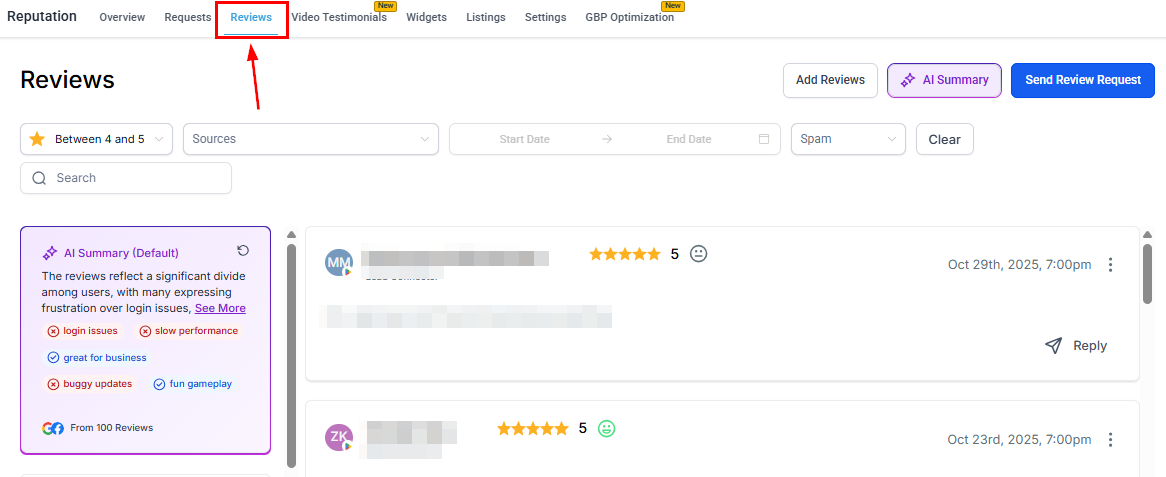
Once activated, the agent automatically responds to reviews matching your selected criteria, applying the configured style and tone throughout. Responses are posted on the connected review platform (Google or Facebook).
AI-generated replies are disabled for reviews flagged as spam. Always review your spam queue to ensure genuine reviews are not being suppressed.
## Tips for best results
* Create separate agents for positive and negative reviews so you can tailor the tone appropriately
* Use the footer to add a consistent sign-off or contact information
* Enable dynamic language matching if you serve customers who speak multiple languages
* Preview the agent's responses and refine the instructions until you're satisfied with the output
## FAQs
Yes. You can create multiple agents and assign each to different review sources (Google or Facebook), different star rating ranges (e.g., 1–3 stars vs. 4–5 stars), or different business locations. This lets you tailor the tone and content for each scenario.
The agent responds to reviews that match its configured criteria — review source and star rating range. Reviews that do not match any agent's criteria, or reviews flagged as spam, will not receive an automated reply.
Yes. In **Reputation > Settings > Reviews AI**, set the response delay so the AI waits a configured amount of time after a review is received before posting a reply. This makes responses feel more natural.
The agent can reply in any language you select as its primary language. Enable **dynamic language matching** to have the agent automatically reply in the same language as the reviewer's original text.
Yes. All agents appear in the Reviews AI Agents table in **Reputation > Settings > Reviews AI**. Use the actions menu on any agent to edit its configuration or delete it.
Yes. Once activated, the agent posts replies directly to the connected Google Business Profile or Facebook Page on your behalf. Ensure those integrations are connected in Reputation Settings.
## How automated responses work
Once activated, the agent automatically responds to reviews matching your selected criteria, applying the configured style and tone throughout. Responses are posted on the connected review platform (Google or Facebook).
AI-generated replies are disabled for reviews flagged as spam. Always review your spam queue to ensure genuine reviews are not being suppressed.
## Tips for best results
* Create separate agents for positive and negative reviews so you can tailor the tone appropriately
* Use the footer to add a consistent sign-off or contact information
* Enable dynamic language matching if you serve customers who speak multiple languages
* Preview the agent's responses and refine the instructions until you're satisfied with the output
## FAQs
Yes. You can create multiple agents and assign each to different review sources (Google or Facebook), different star rating ranges (e.g., 1–3 stars vs. 4–5 stars), or different business locations. This lets you tailor the tone and content for each scenario.
The agent responds to reviews that match its configured criteria — review source and star rating range. Reviews that do not match any agent's criteria, or reviews flagged as spam, will not receive an automated reply.
Yes. In **Reputation > Settings > Reviews AI**, set the response delay so the AI waits a configured amount of time after a review is received before posting a reply. This makes responses feel more natural.
The agent can reply in any language you select as its primary language. Enable **dynamic language matching** to have the agent automatically reply in the same language as the reviewer's original text.
Yes. All agents appear in the Reviews AI Agents table in **Reputation > Settings > Reviews AI**. Use the actions menu on any agent to edit its configuration or delete it.
Yes. Once activated, the agent posts replies directly to the connected Google Business Profile or Facebook Page on your behalf. Ensure those integrations are connected in Reputation Settings.