> ## Documentation Index
> Fetch the complete documentation index at: https://help.hoopai.com/llms.txt
> Use this file to discover all available pages before exploring further.
# Review widget customization
> Build and embed fully branded review widgets on your website to showcase customer feedback from Google and Facebook.
Customizing review widgets is a valuable strategy for leveraging customer feedback to improve your brand's online image and boost trust. The Review Widget Customization feature lets you tailor your review widgets to match your brand's style and cater to your audience's preferences.
## Accessing the widget builder
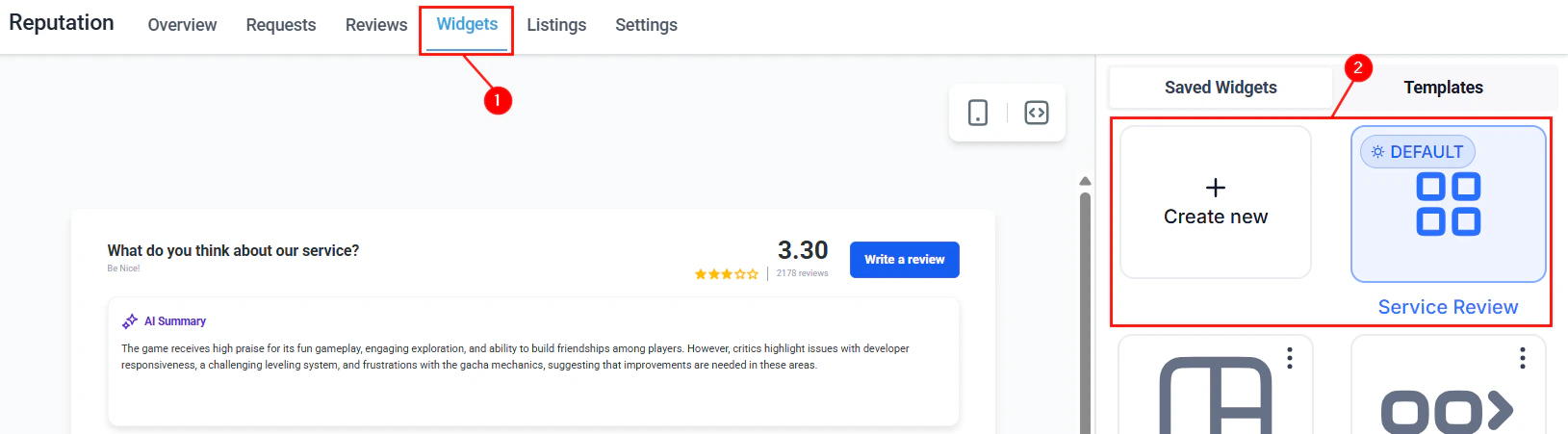
Navigate to **Reputation > Widgets**, then click **Create Widget** to start crafting your custom widget. You can also edit an existing widget or select a template from the **Templates** tab.
 ***
## Layout tab
The Layout tab determines the basic structure of your widget.
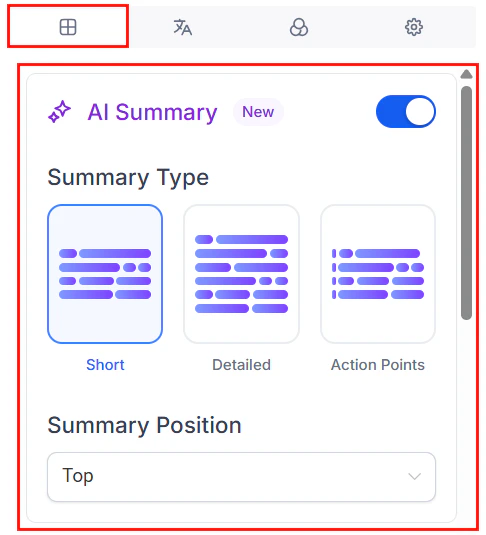
Enable the AI summary to display a brief overview of your products or services based on customer reviews. Choose from **Short**, **Detailed**, or **Action-Oriented** formats, and decide whether to display it at the top of the widget or inline with individual reviews.
***
## Layout tab
The Layout tab determines the basic structure of your widget.
Enable the AI summary to display a brief overview of your products or services based on customer reviews. Choose from **Short**, **Detailed**, or **Action-Oriented** formats, and decide whether to display it at the top of the widget or inline with individual reviews.
 Choose where your reviews come from: Google My Business (GMB) or Facebook (FB).
Choose from: **List**, **Masonry**, **Grid**, **Carousel**, **Slider**, **Flash**, or **Legacy**.
Choose where your reviews come from: Google My Business (GMB) or Facebook (FB).
Choose from: **List**, **Masonry**, **Grid**, **Carousel**, **Slider**, **Flash**, or **Legacy**.
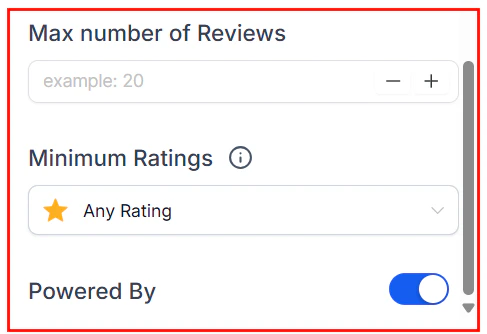 Specify the maximum number of reviews to show, and optionally filter by rating.
Do not use review rating filtering if you reside in a jurisdiction where it is prohibited (such as the United States).
Toggle the "Powered by" attribution shown at the end of the widget.
***
## Content tab
In the Content tab, you can fine-tune how your widget looks:
* Enable the widget title and enter an engaging heading and description to encourage user interaction.
* Customize the header section to include or exclude the rating, total review count, and "Write a review" button.
***
## Appearance tab
The Appearance tab controls the visual style of your widget:
* Pick from ready-made themes (**Light** or **Dark**) or create a **Custom** theme.
* With a custom theme, adjust individual component colors: widget heading, review text, star ratings, background, and borders.
* Select fonts and accent colors that match your branding.
***
## Settings tab
The Settings tab lets you refine widget behavior:
* Toggle display of review dates and reviewer profile icons.
* Choose whether to exclude reviews that do not have written descriptions.
* Copy the embed code for your website directly from this tab.
***
## Saving and managing widgets
Give your widget a meaningful name for easy identification.
Choose to save the widget for future use or make it live on your website immediately.
View all saved widgets in the **Saved Widgets** tab. Use the three-dot actions menu to edit, duplicate, or delete any widget.
Default widgets cannot be deleted. You must first create a new widget and assign it as the default before deleting the original.
Create multiple widgets with different layouts for different pages — for example, a Carousel for your homepage and a Grid for your dedicated reviews page.
***
## FAQs
Widgets can display reviews from Google My Business (GMB) or Facebook. Select the source in the **Layout** tab when building your widget. You cannot mix sources in a single widget — create separate widgets for each platform if needed.
Yes. In the **Layout** tab, set a minimum star rating filter under **Maximum reviews displayed**. Note that rating filters may be prohibited in some jurisdictions (including the United States) — check your local regulations before enabling this option.
Go to the **Settings** tab within the widget builder and copy the embed code. Paste it into the HTML of your website where you want the widget to appear.
Yes. Create as many widgets as needed and embed each one separately. Use different layouts (Carousel, Grid, List) for different pages to optimize engagement in each context.
The default widget is protected to ensure your site always has a fallback. Create a new widget, set it as default, and then you can delete the previous default.
Yes. Reviews added via CSV upload or manual entry appear in your review widgets alongside organic reviews from connected platforms like Google and Facebook.
Specify the maximum number of reviews to show, and optionally filter by rating.
Do not use review rating filtering if you reside in a jurisdiction where it is prohibited (such as the United States).
Toggle the "Powered by" attribution shown at the end of the widget.
***
## Content tab
In the Content tab, you can fine-tune how your widget looks:
* Enable the widget title and enter an engaging heading and description to encourage user interaction.
* Customize the header section to include or exclude the rating, total review count, and "Write a review" button.
***
## Appearance tab
The Appearance tab controls the visual style of your widget:
* Pick from ready-made themes (**Light** or **Dark**) or create a **Custom** theme.
* With a custom theme, adjust individual component colors: widget heading, review text, star ratings, background, and borders.
* Select fonts and accent colors that match your branding.
***
## Settings tab
The Settings tab lets you refine widget behavior:
* Toggle display of review dates and reviewer profile icons.
* Choose whether to exclude reviews that do not have written descriptions.
* Copy the embed code for your website directly from this tab.
***
## Saving and managing widgets
Give your widget a meaningful name for easy identification.
Choose to save the widget for future use or make it live on your website immediately.
View all saved widgets in the **Saved Widgets** tab. Use the three-dot actions menu to edit, duplicate, or delete any widget.
Default widgets cannot be deleted. You must first create a new widget and assign it as the default before deleting the original.
Create multiple widgets with different layouts for different pages — for example, a Carousel for your homepage and a Grid for your dedicated reviews page.
***
## FAQs
Widgets can display reviews from Google My Business (GMB) or Facebook. Select the source in the **Layout** tab when building your widget. You cannot mix sources in a single widget — create separate widgets for each platform if needed.
Yes. In the **Layout** tab, set a minimum star rating filter under **Maximum reviews displayed**. Note that rating filters may be prohibited in some jurisdictions (including the United States) — check your local regulations before enabling this option.
Go to the **Settings** tab within the widget builder and copy the embed code. Paste it into the HTML of your website where you want the widget to appear.
Yes. Create as many widgets as needed and embed each one separately. Use different layouts (Carousel, Grid, List) for different pages to optimize engagement in each context.
The default widget is protected to ensure your site always has a fallback. Create a new widget, set it as default, and then you can delete the previous default.
Yes. Reviews added via CSV upload or manual entry appear in your review widgets alongside organic reviews from connected platforms like Google and Facebook.