> ## Documentation Index
> Fetch the complete documentation index at: https://help.hoopai.com/llms.txt
> Use this file to discover all available pages before exploring further.
# Review QR codes
> Generate branded QR codes that link customers directly to your review page for easy feedback collection.
QR codes bridge the physical and digital worlds — perfect for distributing via emails, SMS, flyers, receipts, and more. Customers can scan them instantly with their phone or tablet camera.
 ## Creating a review QR code
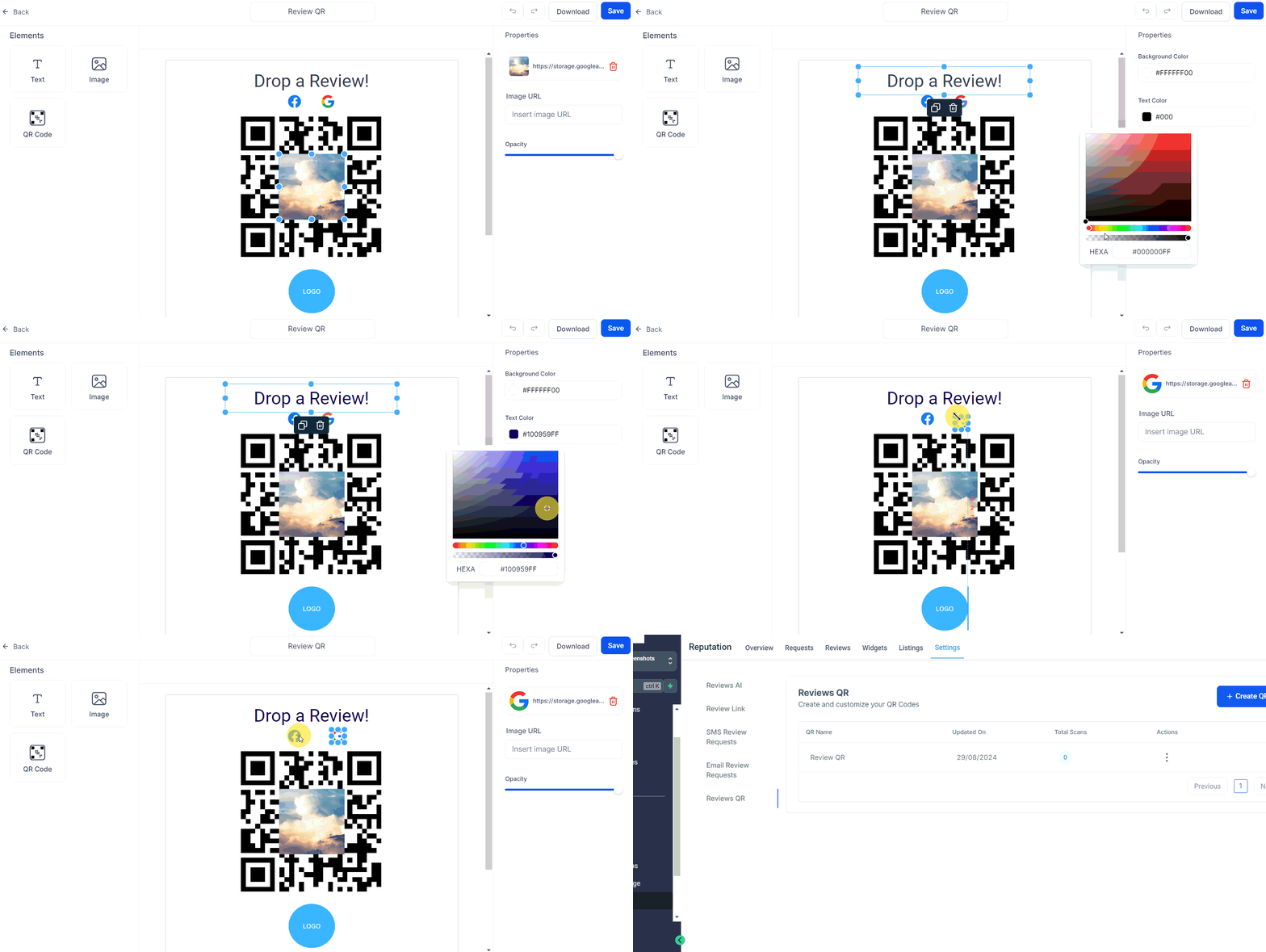
Go to **Reputation > Settings** and select the **Review QR** tab.
Click **+ Create a QR Code** to generate your code.
Adjust the appearance — add your logo, colors, text, and other branding elements. Save your changes.
Click the three-dot icon and select **Download as PDF** to get a print-ready version of your QR code.
Once you start distributing the QR code, track scan metrics in real time from the same settings panel.
## Creating a review QR code
Go to **Reputation > Settings** and select the **Review QR** tab.
Click **+ Create a QR Code** to generate your code.
Adjust the appearance — add your logo, colors, text, and other branding elements. Save your changes.
Click the three-dot icon and select **Download as PDF** to get a print-ready version of your QR code.
Once you start distributing the QR code, track scan metrics in real time from the same settings panel.

 ## Benefits
* **Marketing flexibility** — embed QR codes in printed materials, storefronts, invoices, or email signatures
* **Frictionless reviews** — customers scan and land directly on your review page with no searching required
* **Trackable** — real-time scan metrics let you measure the effectiveness of each distribution channel
* **Branded** — customize colors and add your logo for a professional look
Create separate QR codes for different locations or campaigns so you can track which ones drive the most reviews.
## FAQs
The QR code links directly to the review page you configured in Reputation Settings — typically your Google or Facebook review page. Customers who scan it are taken straight there with no additional steps.
Yes. Scan metrics are tracked in real time within **Reputation > Settings > Review QR**. You can see total scans per code, making it easy to compare performance across locations or campaigns.
Yes. Click **+ Create a QR Code** as many times as needed. Creating separate codes for different locations, events, or print runs lets you attribute scan volume to each source independently.
QR codes are downloaded as a PDF, which is print-ready and works at any size without quality loss.
Yes. Click the three-dot icon next to any existing QR code and select **Edit** to update the logo, colors, or text. The underlying review link remains the same.
## Benefits
* **Marketing flexibility** — embed QR codes in printed materials, storefronts, invoices, or email signatures
* **Frictionless reviews** — customers scan and land directly on your review page with no searching required
* **Trackable** — real-time scan metrics let you measure the effectiveness of each distribution channel
* **Branded** — customize colors and add your logo for a professional look
Create separate QR codes for different locations or campaigns so you can track which ones drive the most reviews.
## FAQs
The QR code links directly to the review page you configured in Reputation Settings — typically your Google or Facebook review page. Customers who scan it are taken straight there with no additional steps.
Yes. Scan metrics are tracked in real time within **Reputation > Settings > Review QR**. You can see total scans per code, making it easy to compare performance across locations or campaigns.
Yes. Click **+ Create a QR Code** as many times as needed. Creating separate codes for different locations, events, or print runs lets you attribute scan volume to each source independently.
QR codes are downloaded as a PDF, which is print-ready and works at any size without quality loss.
Yes. Click the three-dot icon next to any existing QR code and select **Edit** to update the logo, colors, or text. The underlying review link remains the same.