> ## Documentation Index
> Fetch the complete documentation index at: https://help.hoopai.com/llms.txt
> Use this file to discover all available pages before exploring further.
# Email templates for review requests
> Customize recurring email templates for automated review follow-ups to improve engagement and conversion rates.
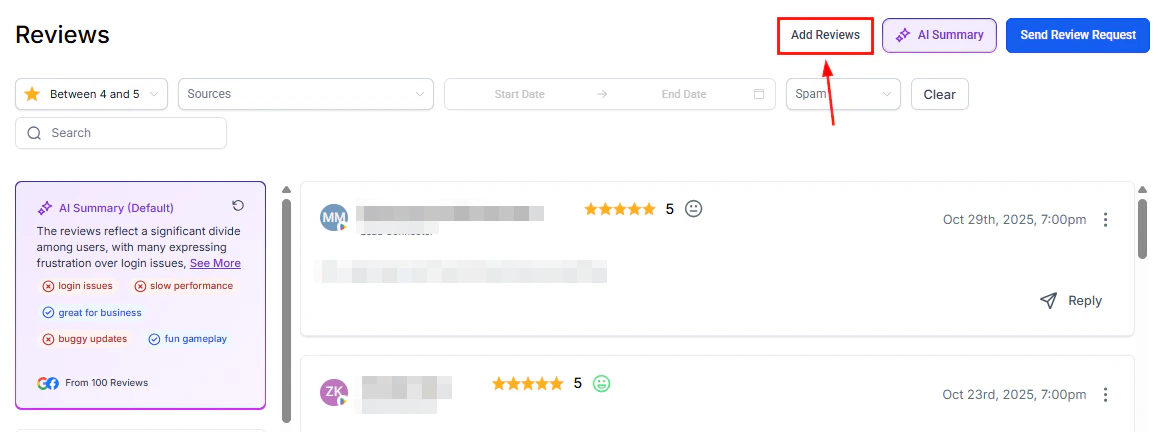
Customizing your email templates for review requests helps maintain brand consistency and improves the likelihood that contacts will leave a review. The HoopAI Platform supports multiple recurring emails with custom templates for each send.
 ## Benefits of custom templates
* **Efficiency** — leverage pre-designed templates, eliminating the need to craft emails from scratch
* **Brand consistency** — ensure every message aligns with your organization's tone and identity
* **Higher engagement** — well-crafted emails with clear CTAs increase review submission rates
## Setting up email templates
Navigate to **Reputation > Settings > Email Review Requests**.
Ensure the Email Review Requests toggle is turned on.
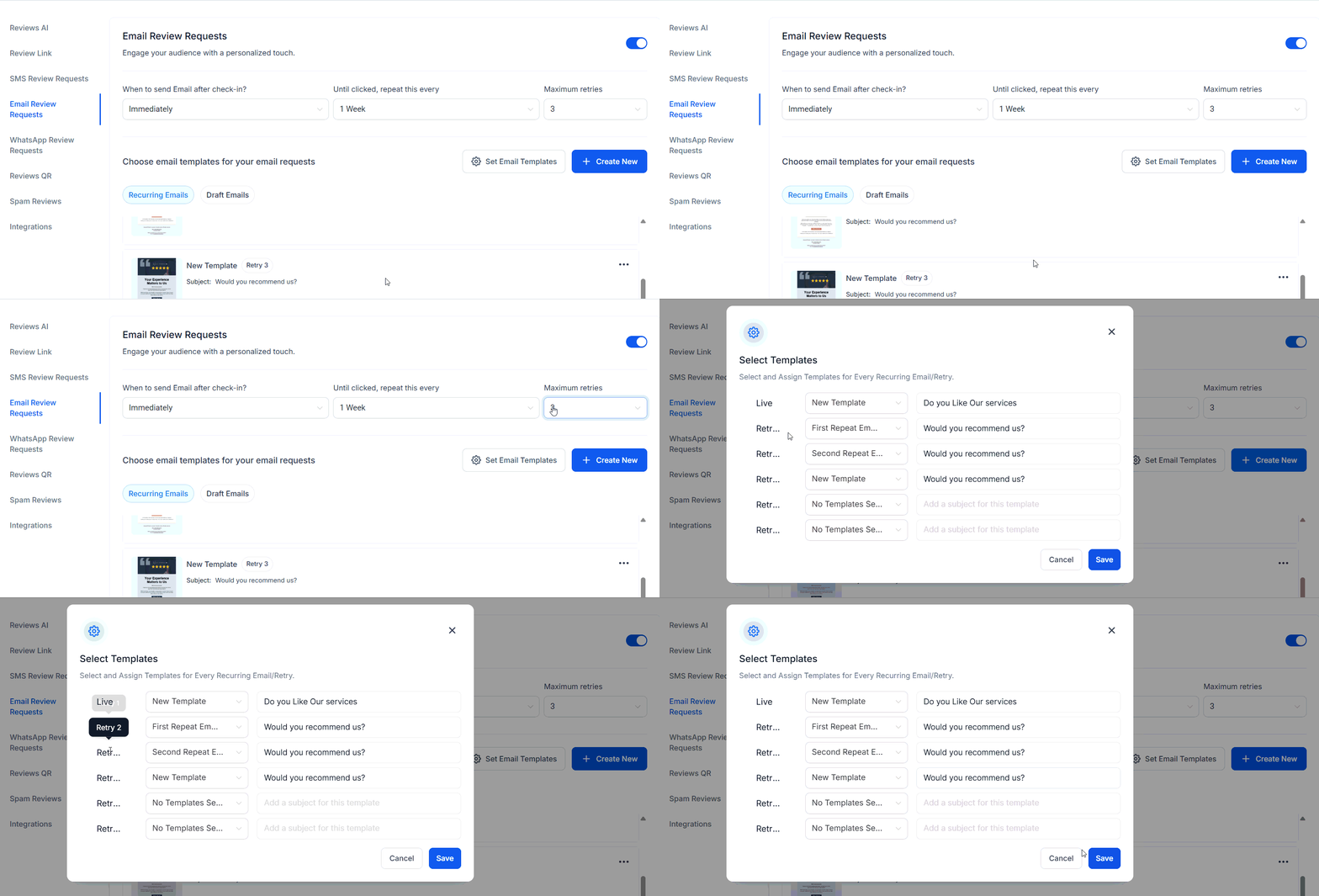
Set **Maximum retries** to a value greater than 1 to allow multiple follow-up emails. A preview of the template sequence appears in the "Choose email templates for your email requests" section.
You have three options:
* Click **Set Email Templates** to choose from existing templates
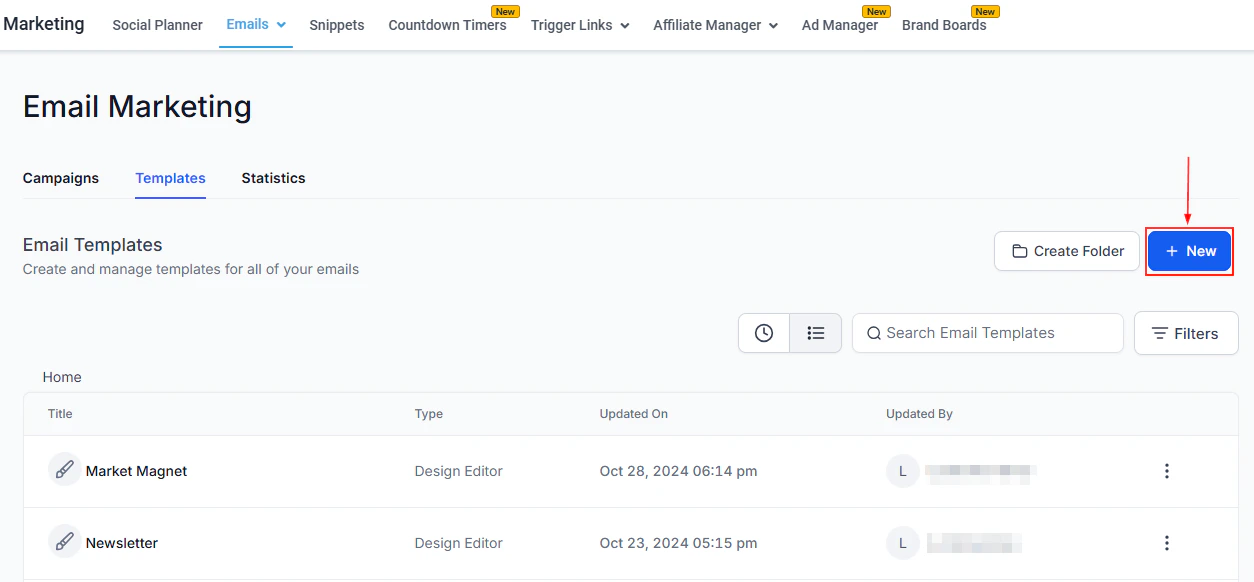
* Click **Create New** to build a custom template from scratch
* Import a template from the Template Library
Drag and drop email elements into the builder to customize the design and content, ensuring it aligns with your brand. Rename your template and preview it before publishing.
Set a subject line for each recurring email in the sequence to ensure clarity and relevance for each follow-up.
Save and activate your settings. Emails will be sent automatically according to your configured schedule.
## Benefits of custom templates
* **Efficiency** — leverage pre-designed templates, eliminating the need to craft emails from scratch
* **Brand consistency** — ensure every message aligns with your organization's tone and identity
* **Higher engagement** — well-crafted emails with clear CTAs increase review submission rates
## Setting up email templates
Navigate to **Reputation > Settings > Email Review Requests**.
Ensure the Email Review Requests toggle is turned on.
Set **Maximum retries** to a value greater than 1 to allow multiple follow-up emails. A preview of the template sequence appears in the "Choose email templates for your email requests" section.
You have three options:
* Click **Set Email Templates** to choose from existing templates
* Click **Create New** to build a custom template from scratch
* Import a template from the Template Library
Drag and drop email elements into the builder to customize the design and content, ensuring it aligns with your brand. Rename your template and preview it before publishing.
Set a subject line for each recurring email in the sequence to ensure clarity and relevance for each follow-up.
Save and activate your settings. Emails will be sent automatically according to your configured schedule.
 ## Managing templates
After creation, use the three-dot actions menu on any template to:
* **Preview** the template
* **Edit** the design or content
* **Duplicate** for use as a base for another template
* **Refresh** to update the template data
The live template that is currently active cannot be deleted. To delete it, you must first reassign another template as the active one.
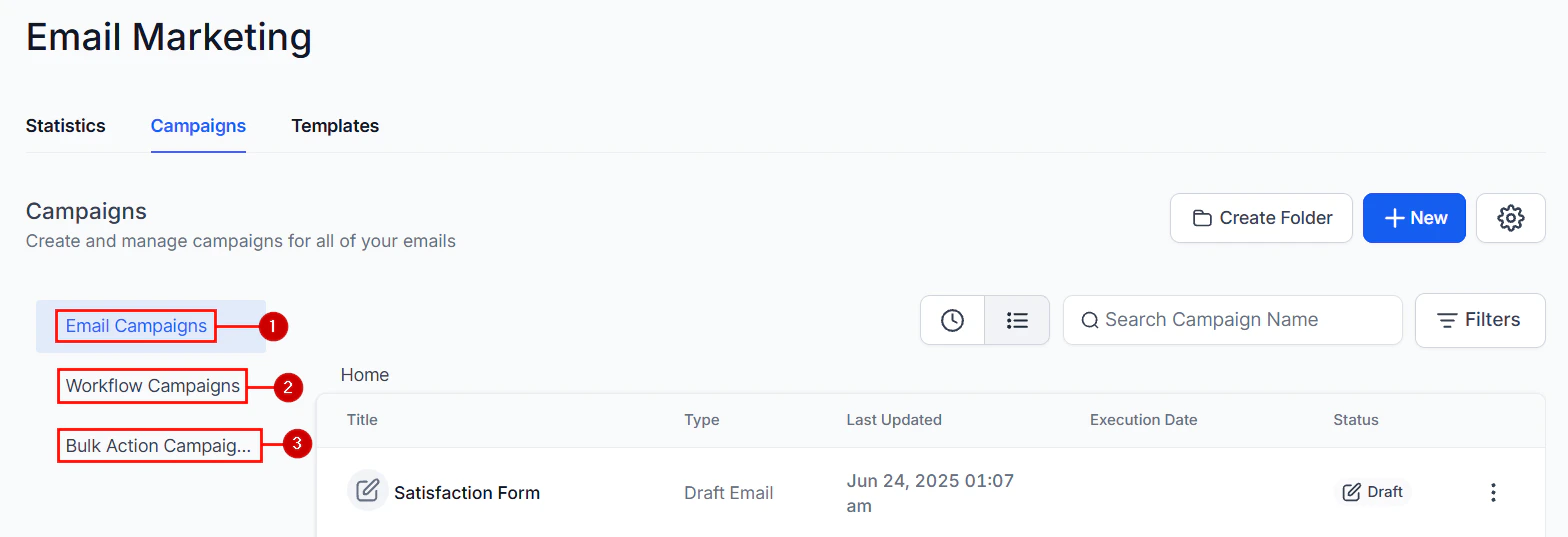
Create a sequence of 2–3 emails spaced a few days apart. The first email is a warm introduction, and follow-ups serve as gentle reminders for contacts who haven't responded yet.
## FAQs
You can configure up to the number of retries set in **Maximum retries** under Email Review Requests settings. Each retry sends the next template in your sequence, so set a different template for each send to keep messaging fresh.
Yes. When Maximum retries is greater than 1, the template sequence area displays one slot per send. Assign a distinct template to each slot to vary the subject line and content across follow-ups.
Yes. Once a contact submits a review, the system stops sending further follow-ups to that contact automatically.
Yes. Use the three-dot actions menu on any template and select **Preview** to see exactly how the email will appear to recipients before making it active.
The currently active template is locked to prevent accidental disruption of live review requests. Create or assign a different template as active first, then delete the old one.
## Managing templates
After creation, use the three-dot actions menu on any template to:
* **Preview** the template
* **Edit** the design or content
* **Duplicate** for use as a base for another template
* **Refresh** to update the template data
The live template that is currently active cannot be deleted. To delete it, you must first reassign another template as the active one.
Create a sequence of 2–3 emails spaced a few days apart. The first email is a warm introduction, and follow-ups serve as gentle reminders for contacts who haven't responded yet.
## FAQs
You can configure up to the number of retries set in **Maximum retries** under Email Review Requests settings. Each retry sends the next template in your sequence, so set a different template for each send to keep messaging fresh.
Yes. When Maximum retries is greater than 1, the template sequence area displays one slot per send. Assign a distinct template to each slot to vary the subject line and content across follow-ups.
Yes. Once a contact submits a review, the system stops sending further follow-ups to that contact automatically.
Yes. Use the three-dot actions menu on any template and select **Preview** to see exactly how the email will appear to recipients before making it active.
The currently active template is locked to prevent accidental disruption of live review requests. Create or assign a different template as active first, then delete the old one.