> ## Documentation Index
> Fetch the complete documentation index at: https://help.hoopai.com/llms.txt
> Use this file to discover all available pages before exploring further.
# Review requests
> Send review requests to contacts via SMS, email, and WhatsApp — manually or automatically — from the HoopAI Platform.
The Requests section provides a comprehensive overview of all review requests you have sent, whether completed or still pending. It also displays essential customer details, enabling you to closely track engagement with your review outreach.
## Requests overview
Access the Requests tab within the Reputation section of your account.
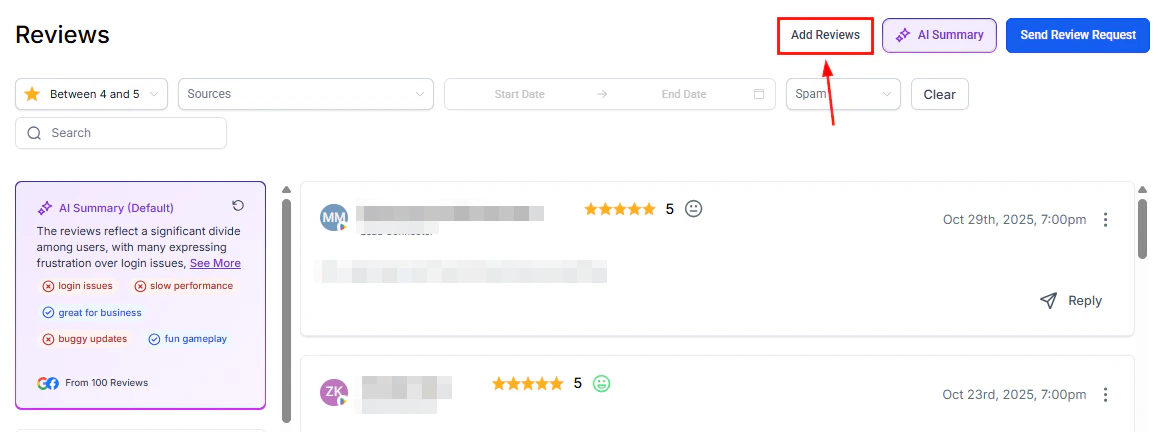 ### Send review request
Click this button to issue a review request to a contact. You will be prompted to enter the contact's name, provide their contact details, and select the preferred delivery channel.
***
## Review request list
The Review Request List displays all your requests and their related data.
| Column | Description |
| ------------------------- | --------------------------------------------------------- |
| **Invite sent to** | The name of the recipient targeted for the review request |
| **Email or phone number** | The contact method used (email or SMS) |
| **Sent by** | The team member who sent the request |
| **Date sent** | The exact date the request was issued |
| **Status** | Current state: Queued, Sent, Delivered, or Failed |
| **Retries** | Number of follow-up requests sent to the same customer |
| **Action** | Option to pause or resume queued requests |
### Status definitions
* **Queued** — The request is waiting to be dispatched. This can happen if other requests are ahead in the queue or if a delay is configured.
* **Sent** — The system has successfully sent the review request.
* **Delivered** — For SMS, Twilio confirms delivery once the message is received. Email requests via Mailgun do not provide delivery confirmation.
* **Failed** — The request failed to deliver due to an invalid phone number or other issue.
***
## Sending manual review requests
Navigate to **Reputation > Settings** and ensure that review requests are enabled for each desired channel. Click **Save** to apply your settings.
Go to the Requests tab within the Reputation section.
Click the **Send Review Request** button to initiate the process.
Enter the required information:
* Contact name
* Valid phone number
* Valid email address
* Preferred channel (SMS, Email, WhatsApp, or all three)
* Template selection
You may include up to 5 visual attachments — such as before-and-after photos or service snapshots — in SMS or email requests.
Click **Send Review Request**. The request will be added to the queue and sent based on your configured settings.
### Send review request
Click this button to issue a review request to a contact. You will be prompted to enter the contact's name, provide their contact details, and select the preferred delivery channel.
***
## Review request list
The Review Request List displays all your requests and their related data.
| Column | Description |
| ------------------------- | --------------------------------------------------------- |
| **Invite sent to** | The name of the recipient targeted for the review request |
| **Email or phone number** | The contact method used (email or SMS) |
| **Sent by** | The team member who sent the request |
| **Date sent** | The exact date the request was issued |
| **Status** | Current state: Queued, Sent, Delivered, or Failed |
| **Retries** | Number of follow-up requests sent to the same customer |
| **Action** | Option to pause or resume queued requests |
### Status definitions
* **Queued** — The request is waiting to be dispatched. This can happen if other requests are ahead in the queue or if a delay is configured.
* **Sent** — The system has successfully sent the review request.
* **Delivered** — For SMS, Twilio confirms delivery once the message is received. Email requests via Mailgun do not provide delivery confirmation.
* **Failed** — The request failed to deliver due to an invalid phone number or other issue.
***
## Sending manual review requests
Navigate to **Reputation > Settings** and ensure that review requests are enabled for each desired channel. Click **Save** to apply your settings.
Go to the Requests tab within the Reputation section.
Click the **Send Review Request** button to initiate the process.
Enter the required information:
* Contact name
* Valid phone number
* Valid email address
* Preferred channel (SMS, Email, WhatsApp, or all three)
* Template selection
You may include up to 5 visual attachments — such as before-and-after photos or service snapshots — in SMS or email requests.
Click **Send Review Request**. The request will be added to the queue and sent based on your configured settings.
 ***
## Sending via WhatsApp
WhatsApp review requests reach contacts on their preferred messaging app.
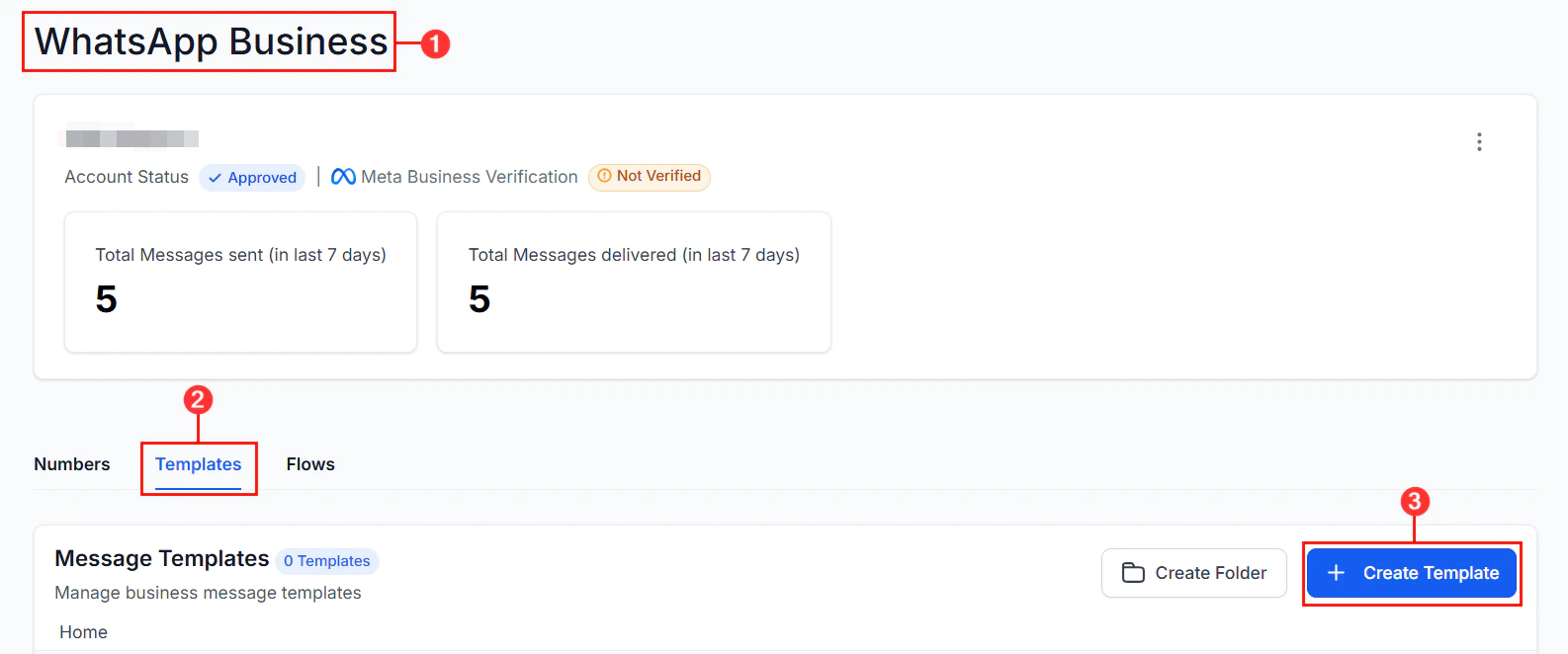
WhatsApp requests require a WhatsApp-enabled phone number and a Meta-approved message template. Template approval typically takes 1–2 minutes.
Navigate to **Reputation > Settings** and enable the WhatsApp Review Requests feature. Customize your message template with dynamic placeholders and a call-to-action link, then submit for Meta approval.
Go to the Requests tab, click **Send Review Request**, fill in the contact details, and select WhatsApp as the delivery channel.
Track each request's delivery status in the Requests tab.
WhatsApp review requests can also be sent via Automation workflows or directly from the Contacts tab, once the WhatsApp option is enabled in Reputation Settings.
***
## Sending via WhatsApp
WhatsApp review requests reach contacts on their preferred messaging app.
WhatsApp requests require a WhatsApp-enabled phone number and a Meta-approved message template. Template approval typically takes 1–2 minutes.
Navigate to **Reputation > Settings** and enable the WhatsApp Review Requests feature. Customize your message template with dynamic placeholders and a call-to-action link, then submit for Meta approval.
Go to the Requests tab, click **Send Review Request**, fill in the contact details, and select WhatsApp as the delivery channel.
Track each request's delivery status in the Requests tab.
WhatsApp review requests can also be sent via Automation workflows or directly from the Contacts tab, once the WhatsApp option is enabled in Reputation Settings.
 ***
## Sending review requests via automation
Review requests can be triggered automatically through the Automation module — no manual action required after the workflow is configured.
Create or edit a workflow in **Automation > Workflows**. Common triggers for review requests include appointment status changes (Showed Up), invoice payments, or form submissions.
Add a **Send Review Request** action to the workflow. Select the delivery channel (SMS, email, or WhatsApp) and confirm the template.
Add a **Wait** step before the review request to send it a few hours or days after the triggering event — giving the customer time to experience your service before being asked for feedback.
Enable the workflow. Review requests will now be sent automatically to contacts who meet the trigger criteria.
Automating review requests after appointments or completed jobs is one of the most effective ways to grow your review volume consistently without manual effort.
***
## Channels available
Send a short text message with a review link directly to the contact's phone
Send a customizable email template with your review link
Reach contacts on WhatsApp with a Meta-approved review request message
***
## FAQs
A Failed status typically means the phone number was invalid, the contact opted out, or a carrier-level block was applied. Verify the contact's phone number and ensure it is a valid mobile number before retrying.
**Sent** means the platform dispatched the request successfully. **Delivered** means Twilio confirmed the SMS was received on the contact's device. Email requests via Mailgun do not provide delivery confirmation, so email requests remain at Sent.
Yes. Click the **Pause** action next to any request with a Queued status. You can also resume it later by clicking **Resume**.
Yes. Review requests can be triggered through Automation workflows, allowing you to send them automatically based on events like job completion, appointment status changes, or invoice payments.
You can attach up to 5 images per SMS or email review request. Use before-and-after photos or service snapshots to give context and increase the likelihood of a response.
Yes. You need a WhatsApp-enabled phone number and a Meta-approved message template. Enable WhatsApp Review Requests in **Reputation > Settings**, build your template, and submit it for Meta approval — which typically takes 1–2 minutes.
***
## Sending review requests via automation
Review requests can be triggered automatically through the Automation module — no manual action required after the workflow is configured.
Create or edit a workflow in **Automation > Workflows**. Common triggers for review requests include appointment status changes (Showed Up), invoice payments, or form submissions.
Add a **Send Review Request** action to the workflow. Select the delivery channel (SMS, email, or WhatsApp) and confirm the template.
Add a **Wait** step before the review request to send it a few hours or days after the triggering event — giving the customer time to experience your service before being asked for feedback.
Enable the workflow. Review requests will now be sent automatically to contacts who meet the trigger criteria.
Automating review requests after appointments or completed jobs is one of the most effective ways to grow your review volume consistently without manual effort.
***
## Channels available
Send a short text message with a review link directly to the contact's phone
Send a customizable email template with your review link
Reach contacts on WhatsApp with a Meta-approved review request message
***
## FAQs
A Failed status typically means the phone number was invalid, the contact opted out, or a carrier-level block was applied. Verify the contact's phone number and ensure it is a valid mobile number before retrying.
**Sent** means the platform dispatched the request successfully. **Delivered** means Twilio confirmed the SMS was received on the contact's device. Email requests via Mailgun do not provide delivery confirmation, so email requests remain at Sent.
Yes. Click the **Pause** action next to any request with a Queued status. You can also resume it later by clicking **Resume**.
Yes. Review requests can be triggered through Automation workflows, allowing you to send them automatically based on events like job completion, appointment status changes, or invoice payments.
You can attach up to 5 images per SMS or email review request. Use before-and-after photos or service snapshots to give context and increase the likelihood of a response.
Yes. You need a WhatsApp-enabled phone number and a Meta-approved message template. Enable WhatsApp Review Requests in **Reputation > Settings**, build your template, and submit it for Meta approval — which typically takes 1–2 minutes.