> ## Documentation Index
> Fetch the complete documentation index at: https://help.hoopai.com/llms.txt
> Use this file to discover all available pages before exploring further.
# Reputation settings
> Configure AI review responses, review links, SMS/email/WhatsApp templates, QR codes, spam detection, and platform integrations for your reputation management.
The Reputation Settings section is where you configure every aspect of how the HoopAI Platform handles review requests and automated responses. Navigate to **Reputation > Settings** to access these options.
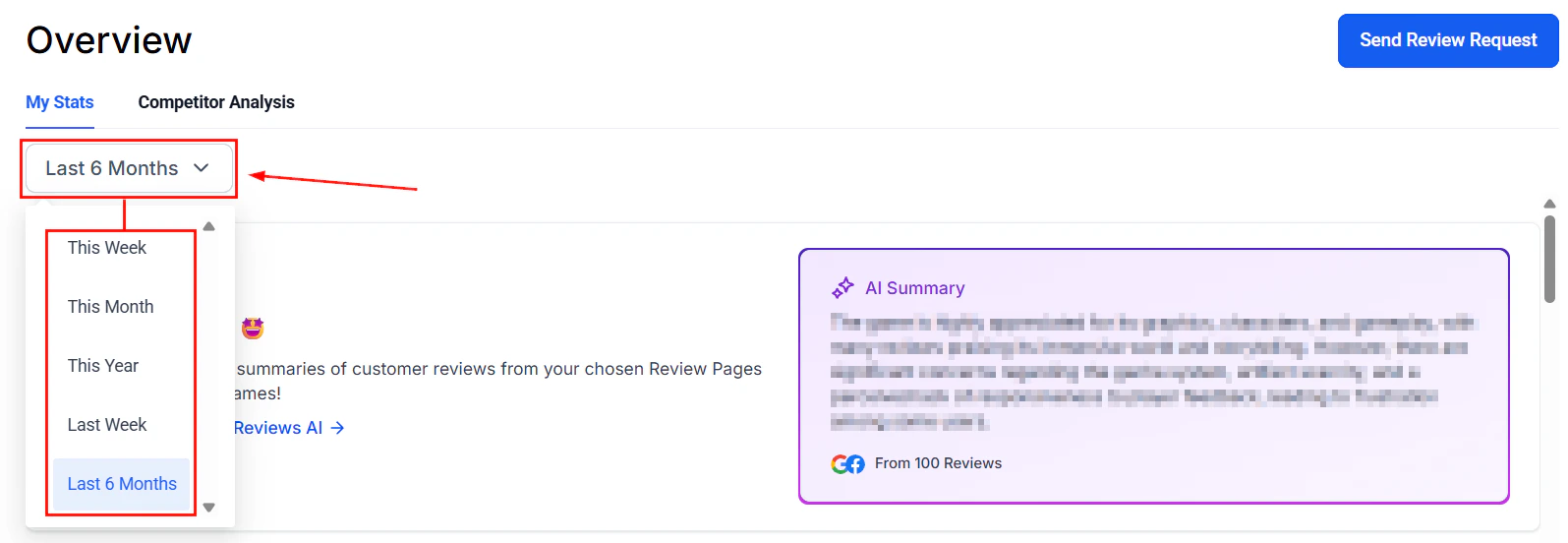 ## Reviews AI
Control AI behavior for automated review responses:
* Create custom AI agents with unique personalities and response styles
* Set a delay before the AI automatically responds after a review is received
* Assign different agents to different review sources or rating ranges
See [Reviews AI agent](/reputation/reviews-ai-agent) for full setup instructions.
***
## Review link management
Configure how your review links are distributed:
* Set a balance ratio across multiple review platforms
* Choose from Google, Facebook, or custom links
* Add links for multiple locations or platforms simultaneously
Use the balance ratio to rotate review requests evenly across platforms, boosting your presence on each one.
***
## SMS review requests
Toggle SMS review requests on or off. When enabled, an SMS is sent to contacts after a configurable delay.
Edit the SMS template with your review link. A real-time preview updates as you type.
Optionally attach an image to your SMS review request for higher engagement.
Choose between **Instant** (send immediately) or **Scheduled** (send after a set delay).
***
## Email review requests
Ensure Email Review Requests is enabled. Set the timing for when the first email is sent after a contact's check-in.
Set a **Maximum retries** value greater than 1 to enable multiple follow-up attempts until the contact leaves a review or opts out.
Select from existing templates or create new ones in the email builder. See [Email templates for review requests](/reputation/review-email-templates) for details.
***
## WhatsApp review requests
* Connect your WhatsApp Business account to send review requests via WhatsApp
* Build templates using the template builder
* Configure send timing and retry parameters similar to SMS and email
## Reviews AI
Control AI behavior for automated review responses:
* Create custom AI agents with unique personalities and response styles
* Set a delay before the AI automatically responds after a review is received
* Assign different agents to different review sources or rating ranges
See [Reviews AI agent](/reputation/reviews-ai-agent) for full setup instructions.
***
## Review link management
Configure how your review links are distributed:
* Set a balance ratio across multiple review platforms
* Choose from Google, Facebook, or custom links
* Add links for multiple locations or platforms simultaneously
Use the balance ratio to rotate review requests evenly across platforms, boosting your presence on each one.
***
## SMS review requests
Toggle SMS review requests on or off. When enabled, an SMS is sent to contacts after a configurable delay.
Edit the SMS template with your review link. A real-time preview updates as you type.
Optionally attach an image to your SMS review request for higher engagement.
Choose between **Instant** (send immediately) or **Scheduled** (send after a set delay).
***
## Email review requests
Ensure Email Review Requests is enabled. Set the timing for when the first email is sent after a contact's check-in.
Set a **Maximum retries** value greater than 1 to enable multiple follow-up attempts until the contact leaves a review or opts out.
Select from existing templates or create new ones in the email builder. See [Email templates for review requests](/reputation/review-email-templates) for details.
***
## WhatsApp review requests
* Connect your WhatsApp Business account to send review requests via WhatsApp
* Build templates using the template builder
* Configure send timing and retry parameters similar to SMS and email
 ***
## Reviews QR codes
Create personalized QR codes that link directly to your review page:
* Add your logo, custom colors, text, and images
* Edit, delete, or download the QR code as a PDF
* Track scan metrics after distribution
See [Review QR codes](/reputation/review-qr-code) for full instructions.
***
## Spam detection
Smart spam detection automatically identifies and flags potential spam reviews. AI-generated replies are withheld for flagged reviews until you review them manually.
* Toggle spam detection on or off
* Manually review flagged items and unmark false positives
***
## Reviews QR codes
Create personalized QR codes that link directly to your review page:
* Add your logo, custom colors, text, and images
* Edit, delete, or download the QR code as a PDF
* Track scan metrics after distribution
See [Review QR codes](/reputation/review-qr-code) for full instructions.
***
## Spam detection
Smart spam detection automatically identifies and flags potential spam reviews. AI-generated replies are withheld for flagged reviews until you review them manually.
* Toggle spam detection on or off
* Manually review flagged items and unmark false positives
 ***
## Platform integrations
The HoopAI Platform supports review aggregation from the following platforms:
| Platform | Notes |
| ----------- | ------------------------------------------- |
| Google | Requires Google Business Profile connection |
| Facebook | Requires Facebook Page connection |
| Yelp | Integration available |
| TrustPilot | Integration available |
| TripAdvisor | Integration available |
| Airbnb | Integration available |
| Amazon | Integration available |
| And more | Additional platforms supported |
Platform integrations are managed in **Reputation > Settings > Integrations**. Connect each platform to start pulling reviews automatically.
***
## Review reporting
Track the performance of your reputation management efforts using the built-in reporting views available in the Reputation section:
| Metric | Where to find it |
| ------------------------------ | ------------------------------------------------- |
| Total reviews received | **Reputation > Overview > Reviews Received** |
| Average star rating over time | **Reputation > Overview > Average Review Rating** |
| Invite trends | **Reputation > Overview > Invite Trends** |
| Review trends | **Reputation > Overview > Review Trends** |
| Platform-by-platform breakdown | **Reputation > Overview > Rating by Source** |
| Competitor comparison | **Reputation > Overview > Competitor Analysis** |
For deeper analytics across all channels, see the [Reporting](/reporting/overview) section.
***
## Branded review pages
Review request links sent to contacts can point to a custom branded review landing page rather than a generic platform URL. Configure your custom review link under **Review link management** — you can add a custom URL as one of the review destinations alongside Google and Facebook.
Branded review pages require a custom domain configured in your account settings. Contact your platform administrator to enable this feature.
***
## FAQs
Go to **Reputation > Settings > Integrations** and click the Google integration tile. Sign in with the Google account that owns your Business Profile and grant the required permissions.
Yes. Under **Review link management**, you can add review links for multiple locations or pages simultaneously and configure a balance ratio to distribute requests across them.
The balance ratio determines how review request traffic is distributed across your configured platforms. For example, a 50/50 ratio between Google and Facebook sends half of all requests to each platform, helping you grow reviews evenly.
Yes. Toggle spam detection on or off in **Reputation > Settings**. When disabled, all reviews will appear without automatic flagging, and the spam filter queue will not be populated.
***
## Platform integrations
The HoopAI Platform supports review aggregation from the following platforms:
| Platform | Notes |
| ----------- | ------------------------------------------- |
| Google | Requires Google Business Profile connection |
| Facebook | Requires Facebook Page connection |
| Yelp | Integration available |
| TrustPilot | Integration available |
| TripAdvisor | Integration available |
| Airbnb | Integration available |
| Amazon | Integration available |
| And more | Additional platforms supported |
Platform integrations are managed in **Reputation > Settings > Integrations**. Connect each platform to start pulling reviews automatically.
***
## Review reporting
Track the performance of your reputation management efforts using the built-in reporting views available in the Reputation section:
| Metric | Where to find it |
| ------------------------------ | ------------------------------------------------- |
| Total reviews received | **Reputation > Overview > Reviews Received** |
| Average star rating over time | **Reputation > Overview > Average Review Rating** |
| Invite trends | **Reputation > Overview > Invite Trends** |
| Review trends | **Reputation > Overview > Review Trends** |
| Platform-by-platform breakdown | **Reputation > Overview > Rating by Source** |
| Competitor comparison | **Reputation > Overview > Competitor Analysis** |
For deeper analytics across all channels, see the [Reporting](/reporting/overview) section.
***
## Branded review pages
Review request links sent to contacts can point to a custom branded review landing page rather than a generic platform URL. Configure your custom review link under **Review link management** — you can add a custom URL as one of the review destinations alongside Google and Facebook.
Branded review pages require a custom domain configured in your account settings. Contact your platform administrator to enable this feature.
***
## FAQs
Go to **Reputation > Settings > Integrations** and click the Google integration tile. Sign in with the Google account that owns your Business Profile and grant the required permissions.
Yes. Under **Review link management**, you can add review links for multiple locations or pages simultaneously and configure a balance ratio to distribute requests across them.
The balance ratio determines how review request traffic is distributed across your configured platforms. For example, a 50/50 ratio between Google and Facebook sends half of all requests to each platform, helping you grow reviews evenly.
Yes. Toggle spam detection on or off in **Reputation > Settings**. When disabled, all reviews will appear without automatic flagging, and the spam filter queue will not be populated.