> ## Documentation Index
> Fetch the complete documentation index at: https://help.hoopai.com/llms.txt
> Use this file to discover all available pages before exploring further.
# Reputation
> Review requests, review management, listings sync, GBP optimization, video testimonials, Reviews AI agent, negative review handling, and competitor tracking.
The Reputation section helps you collect customer reviews, respond to feedback, manage your online listings, and track your brand's digital presence across every major review platform.
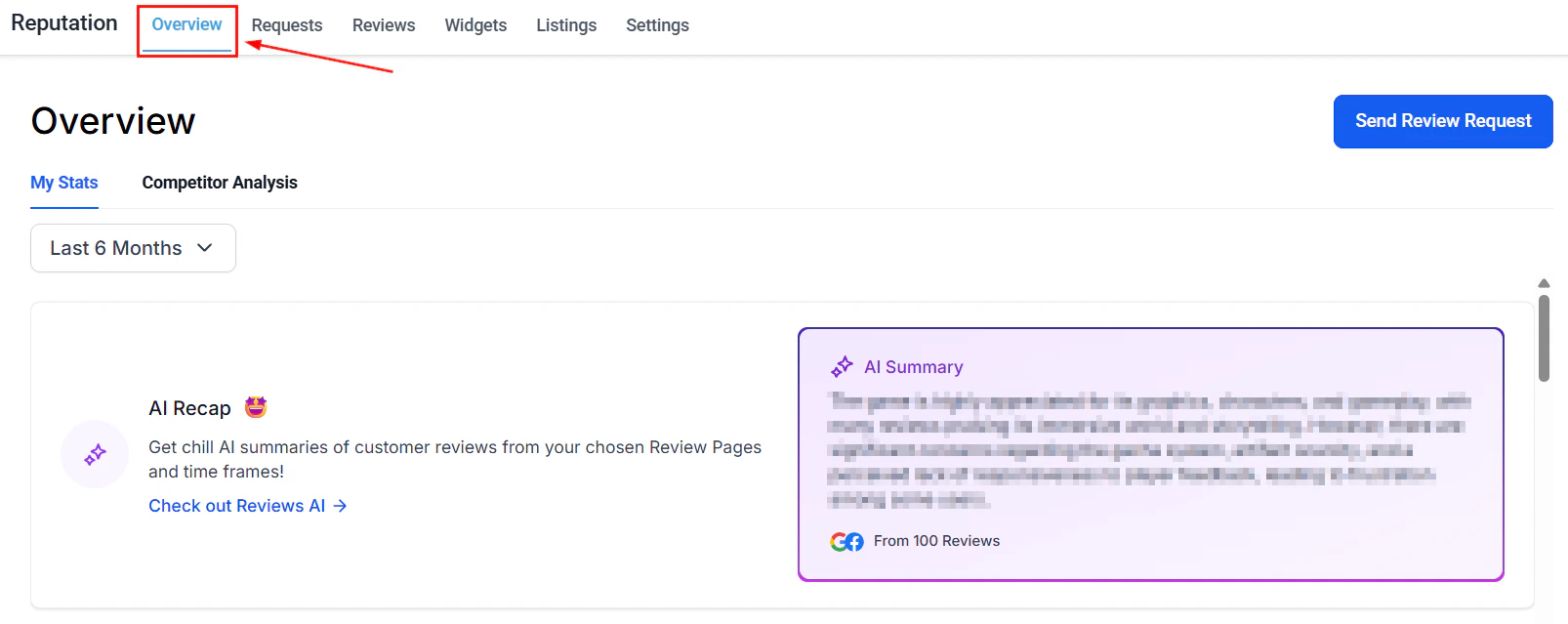 Stats, invite trends, review trends, and competitor analysis in one dashboard
Send review requests via SMS, email, and WhatsApp
Manage Google and Facebook reviews with AI summaries and spam detection
Embed and style review widgets on your website
Configure AI responses, review links, SMS/email templates, and integrations
Generate branded QR codes that link customers directly to your review page
Sync and manage your business info across online directories
Update and improve your Google Business Profile score
Schedule and publish Google Business Profile posts directly from HoopAI
Collect and display video reviews from satisfied customers
Automate review responses with a configurable AI agent
Import offline reviews via CSV or manual entry
Strategies and tools for addressing low-star reviews
Track review volume, average rating trends, and response metrics over time
Customize email templates for automated review follow-ups
Build a library of reusable response templates for common review scenarios
Connect your Google Business Profile to sync and manage Google reviews
Connect your Facebook Page to sync and manage Facebook reviews
Trigger review requests automatically from workflows after appointments, payments, and form submissions
Automatically push business info updates to all connected directories at once
Embed a live review feed widget on your website to showcase ratings
Highlight selected reviews in a curated display for marketing use
Monitor competitor review ratings and volumes alongside your own
## Getting started
Go to **Reputation > Settings > Integrations** and connect your Google Business Profile and Facebook Page. This enables two-way review sync so incoming reviews appear in the platform automatically.
Open **Reputation > Requests** and send a review request to a recent customer via SMS, email, or WhatsApp. Include a direct link to your Google or Facebook review page.
Go to **Automation > Workflows** and add a **Send Review Request** action. Trigger it after an appointment is marked completed, an invoice is paid, or a form is submitted. Add a short delay (1–2 days) for best results.
Open **Reputation > Reviews AI Agent** and set the tone, response guidelines, and which star ratings trigger an automatic response. Enable auto-pilot or approval mode based on your preference.
Go to **Reputation > Listings** to connect your business information to online directories. Enable Listing Sync so any name, address, or phone number update automatically propagates to all connected directories.
## Frequently asked questions
HoopAI aggregates reviews from Google and Facebook when those accounts are connected in Reputation Settings. You can also manually add reviews from Yelp, Amazon, Airbnb, TripAdvisor, Zillow, Goodreads, and more via CSV upload or manual entry.
Yes. Use the Automation module to trigger review requests automatically — for example, after an appointment is marked completed, after an invoice is paid, or after a form is submitted. Add a **Send Review Request** action to any workflow and optionally include a delay before it fires.
The Reputation tab overview is a dashboard showing trends, invite goals, AI summaries, and competitor analysis. The Reviews tab is where you manage individual reviews — respond to them, flag spam, filter by rating, and view review cards from all connected platforms.
Yes. The Listings feature — including directory sync, duplicate suppression, and analytics — requires an active Yext entity. Contact your platform administrator to enable Listings for your account.
The Reviews AI agent automatically posts responses to reviews that match its configured criteria (source and star rating range) without any manual action. Manual responses require you to open each review card and type a reply. You can run both simultaneously — for example, use the AI agent for 4–5 star reviews and respond manually to 1–3 star reviews for a more personal touch.
Open **Reputation > Negative Review Handling** for platform guidance and best practices. You can respond directly from the Reviews tab, flag suspected spam for Google review, or use response templates to reply consistently and professionally to low-star feedback.
Stats, invite trends, review trends, and competitor analysis in one dashboard
Send review requests via SMS, email, and WhatsApp
Manage Google and Facebook reviews with AI summaries and spam detection
Embed and style review widgets on your website
Configure AI responses, review links, SMS/email templates, and integrations
Generate branded QR codes that link customers directly to your review page
Sync and manage your business info across online directories
Update and improve your Google Business Profile score
Schedule and publish Google Business Profile posts directly from HoopAI
Collect and display video reviews from satisfied customers
Automate review responses with a configurable AI agent
Import offline reviews via CSV or manual entry
Strategies and tools for addressing low-star reviews
Track review volume, average rating trends, and response metrics over time
Customize email templates for automated review follow-ups
Build a library of reusable response templates for common review scenarios
Connect your Google Business Profile to sync and manage Google reviews
Connect your Facebook Page to sync and manage Facebook reviews
Trigger review requests automatically from workflows after appointments, payments, and form submissions
Automatically push business info updates to all connected directories at once
Embed a live review feed widget on your website to showcase ratings
Highlight selected reviews in a curated display for marketing use
Monitor competitor review ratings and volumes alongside your own
## Getting started
Go to **Reputation > Settings > Integrations** and connect your Google Business Profile and Facebook Page. This enables two-way review sync so incoming reviews appear in the platform automatically.
Open **Reputation > Requests** and send a review request to a recent customer via SMS, email, or WhatsApp. Include a direct link to your Google or Facebook review page.
Go to **Automation > Workflows** and add a **Send Review Request** action. Trigger it after an appointment is marked completed, an invoice is paid, or a form is submitted. Add a short delay (1–2 days) for best results.
Open **Reputation > Reviews AI Agent** and set the tone, response guidelines, and which star ratings trigger an automatic response. Enable auto-pilot or approval mode based on your preference.
Go to **Reputation > Listings** to connect your business information to online directories. Enable Listing Sync so any name, address, or phone number update automatically propagates to all connected directories.
## Frequently asked questions
HoopAI aggregates reviews from Google and Facebook when those accounts are connected in Reputation Settings. You can also manually add reviews from Yelp, Amazon, Airbnb, TripAdvisor, Zillow, Goodreads, and more via CSV upload or manual entry.
Yes. Use the Automation module to trigger review requests automatically — for example, after an appointment is marked completed, after an invoice is paid, or after a form is submitted. Add a **Send Review Request** action to any workflow and optionally include a delay before it fires.
The Reputation tab overview is a dashboard showing trends, invite goals, AI summaries, and competitor analysis. The Reviews tab is where you manage individual reviews — respond to them, flag spam, filter by rating, and view review cards from all connected platforms.
Yes. The Listings feature — including directory sync, duplicate suppression, and analytics — requires an active Yext entity. Contact your platform administrator to enable Listings for your account.
The Reviews AI agent automatically posts responses to reviews that match its configured criteria (source and star rating range) without any manual action. Manual responses require you to open each review card and type a reply. You can run both simultaneously — for example, use the AI agent for 4–5 star reviews and respond manually to 1–3 star reviews for a more personal touch.
Open **Reputation > Negative Review Handling** for platform guidance and best practices. You can respond directly from the Reviews tab, flag suspected spam for Google review, or use response templates to reply consistently and professionally to low-star feedback.