> ## Documentation Index
> Fetch the complete documentation index at: https://help.hoopai.com/llms.txt
> Use this file to discover all available pages before exploring further.
# Google review integration
> Connect your Google Business Profile to the HoopAI platform to sync reviews, respond publicly, manage GBP data, and route Google messages to your inbox.
Connecting your Google Business Profile (GBP) to the HoopAI platform brings all your Google reviews into a single management interface. Once connected, reviews sync automatically, you can respond directly from the platform, and your GBP profile data can be managed without leaving HoopAI.
***
## Connecting your Google Business Profile
Go to **Reputation > Settings** and scroll to the **Platform integrations** section.
Click the Google tile to begin the connection process.
A Google sign-in window will appear. Sign in with the Google account that owns or manages your Google Business Profile. Grant the requested permissions — these allow the platform to read reviews and post responses on your behalf.
If your Google account manages multiple GBP locations, select the location you want to connect. You can connect additional locations by repeating this process.
Once connected, your Google Business Profile name will appear in the integrations list with an active status. Review data will begin syncing immediately.
Google permissions include the ability to read and respond to reviews. HoopAI does not have the ability to delete reviews on your behalf — review removal must be requested through Google's own reporting tools.
***
## How Google reviews sync
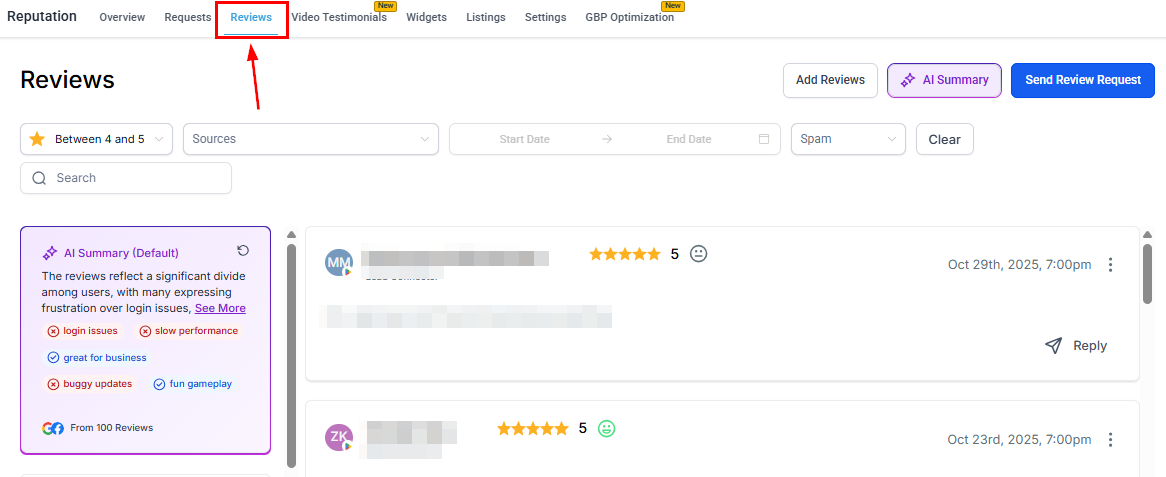
After connection, the platform continuously syncs your Google reviews. New reviews posted to your GBP listing appear in **Reputation > Reviews** within a short time of being submitted by the customer.
Each synced Google review includes:
* Reviewer name and Google profile photo (when available)
* Star rating (1–5)
* Review text (if the reviewer wrote a comment)
* Review submission date
* Reply status (whether a response has been posted)
Historical reviews are also pulled in when you first connect, giving you a complete view of your review history — not just new submissions going forward.
***
## Responding to Google reviews from HoopAI
You can respond to Google reviews directly from **Reputation > Reviews** without opening Google Business Profile separately.
In **Reputation > Reviews**, filter by source (Google) to see only Google reviews. Use the star rating filter to prioritize specific rating ranges.
Click the reply button on the review card.
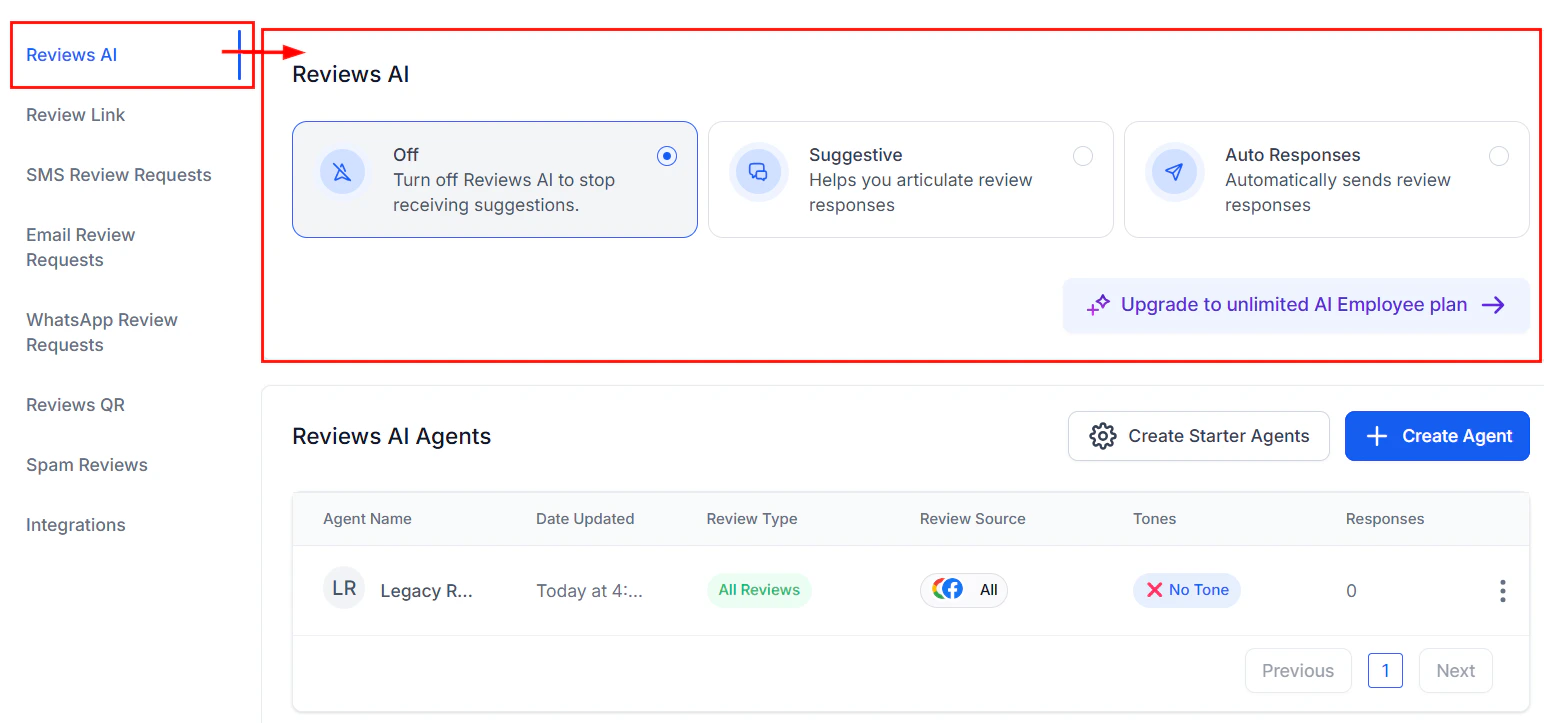
Type your response directly, or use a [review response template](/reputation/review-response-templates) as a starting point. Personalize with the reviewer's name and a specific detail from their review.
Click **Send**. The response is posted publicly to your Google Business Profile listing immediately.
 Responses posted from HoopAI appear on Google Search and Google Maps exactly as they would if you responded directly in Google Business Profile. There is no visual difference to the reviewer or potential customers.
***
## Automated responses with the AI agent
The [Reviews AI agent](/reputation/reviews-ai-agent) can be configured to respond automatically to Google reviews based on star rating. For example:
* One agent set to handle 4–5 star Google reviews with a grateful, professional tone
* A separate agent set to handle 1–3 star Google reviews with an empathetic, service-recovery tone
This ensures every Google review receives a timely response even when your team is offline, without requiring manual action for each review.
***
## Google Business Profile management
Beyond review management, the HoopAI platform lets you update your GBP listing data, track your profile completeness score, and schedule Google Posts — all from **Reputation > GBP Optimization**.
See the following guides for full details:
* [GBP optimization](/reputation/gbp-optimization) — profile data, hours, photos, categories, and profile score
* [GBP posts](/reputation/gbp-posts) — creating and scheduling What's New, Event, and Offer posts
***
## Google review request links
When configuring review request messages (SMS, email, or WhatsApp), you select a review destination link. The Google review link directs customers to the "Write a review" dialog for your specific GBP listing.
Configure your Google review link under **Reputation > Settings > Review link management**.
Responses posted from HoopAI appear on Google Search and Google Maps exactly as they would if you responded directly in Google Business Profile. There is no visual difference to the reviewer or potential customers.
***
## Automated responses with the AI agent
The [Reviews AI agent](/reputation/reviews-ai-agent) can be configured to respond automatically to Google reviews based on star rating. For example:
* One agent set to handle 4–5 star Google reviews with a grateful, professional tone
* A separate agent set to handle 1–3 star Google reviews with an empathetic, service-recovery tone
This ensures every Google review receives a timely response even when your team is offline, without requiring manual action for each review.
***
## Google Business Profile management
Beyond review management, the HoopAI platform lets you update your GBP listing data, track your profile completeness score, and schedule Google Posts — all from **Reputation > GBP Optimization**.
See the following guides for full details:
* [GBP optimization](/reputation/gbp-optimization) — profile data, hours, photos, categories, and profile score
* [GBP posts](/reputation/gbp-posts) — creating and scheduling What's New, Event, and Offer posts
***
## Google review request links
When configuring review request messages (SMS, email, or WhatsApp), you select a review destination link. The Google review link directs customers to the "Write a review" dialog for your specific GBP listing.
Configure your Google review link under **Reputation > Settings > Review link management**.
 You can set a balance ratio to distribute requests between Google and Facebook — for example, sending 70% of requests to Google and 30% to Facebook.
***
## Google Business Profile chat
When GBP messaging is enabled on your profile, customers can send direct messages to your business via Google Search and Google Maps. The HoopAI platform routes these incoming messages to your **Conversations** inbox automatically, so you can reply without switching tools.
Enable GBP messaging in **Reputation > GBP Optimization** by toggling the messaging option within your profile settings.
***
## Disconnecting Google
To remove the Google integration:
1. Go to **Reputation > Settings > Platform integrations**.
2. Click the Google tile and select the option to disconnect.
3. Confirm disconnection.
After disconnection, existing reviews remain in your Reviews tab but will no longer sync new reviews or allow you to post responses through the platform.
***
## FAQs
Yes. Connect each location separately by repeating the integration process in **Reputation > Settings**. Once connected, use the location filter in the Reviews tab or the GBP Optimization dropdown to switch between locations.
New Google reviews typically appear in the platform within a few minutes of being posted. Sync timing depends on Google's API availability, but delays beyond 15–30 minutes are uncommon.
Yes. Responses posted from the HoopAI platform are published directly to your Google Business Profile listing and are publicly visible on Google Search and Google Maps.
When you first connect, the platform imports your existing review history — not just future reviews. This gives you a complete historical record inside HoopAI from day one.
No. The platform can flag a review as spam within your internal system and prevent automated responses from being posted to it, but the formal Google review dispute process must be completed directly through Google Business Profile. See [Negative review handling](/reputation/negative-review-handling) for the dispute workflow.
No. You can still collect manually added reviews, send review requests, and use widgets without a connected GBP. However, automatic review syncing, direct response posting, and GBP optimization features all require a connected Google Business Profile.
You can set a balance ratio to distribute requests between Google and Facebook — for example, sending 70% of requests to Google and 30% to Facebook.
***
## Google Business Profile chat
When GBP messaging is enabled on your profile, customers can send direct messages to your business via Google Search and Google Maps. The HoopAI platform routes these incoming messages to your **Conversations** inbox automatically, so you can reply without switching tools.
Enable GBP messaging in **Reputation > GBP Optimization** by toggling the messaging option within your profile settings.
***
## Disconnecting Google
To remove the Google integration:
1. Go to **Reputation > Settings > Platform integrations**.
2. Click the Google tile and select the option to disconnect.
3. Confirm disconnection.
After disconnection, existing reviews remain in your Reviews tab but will no longer sync new reviews or allow you to post responses through the platform.
***
## FAQs
Yes. Connect each location separately by repeating the integration process in **Reputation > Settings**. Once connected, use the location filter in the Reviews tab or the GBP Optimization dropdown to switch between locations.
New Google reviews typically appear in the platform within a few minutes of being posted. Sync timing depends on Google's API availability, but delays beyond 15–30 minutes are uncommon.
Yes. Responses posted from the HoopAI platform are published directly to your Google Business Profile listing and are publicly visible on Google Search and Google Maps.
When you first connect, the platform imports your existing review history — not just future reviews. This gives you a complete historical record inside HoopAI from day one.
No. The platform can flag a review as spam within your internal system and prevent automated responses from being posted to it, but the formal Google review dispute process must be completed directly through Google Business Profile. See [Negative review handling](/reputation/negative-review-handling) for the dispute workflow.
No. You can still collect manually added reviews, send review requests, and use widgets without a connected GBP. However, automatic review syncing, direct response posting, and GBP optimization features all require a connected Google Business Profile.