> ## Documentation Index
> Fetch the complete documentation index at: https://help.hoopai.com/llms.txt
> Use this file to discover all available pages before exploring further.
# GBP posts
> Schedule and publish Google Business Profile posts directly from HoopAI to promote offers, events, and updates on Google Search and Maps.
Google Business Profile (GBP) posts appear on your business listing in Google Search and Google Maps. They are an effective way to highlight promotions, share news, announce events, and keep customers engaged directly from search results.
HoopAI lets you create and schedule GBP posts without leaving the platform. Posts are managed through the Social Planner integration.
GBP posts require your Google Business Profile to be connected in **Reputation > Settings > Integrations**. Posts created through HoopAI are published directly to your connected GBP listing.
## Types of GBP posts
General updates about your business — new products, service announcements, or noteworthy news. These are the most common post type and appear immediately on your listing.
Promote a specific event with a title, start and end date/time, and an optional description and call-to-action button. Event posts are displayed with the event dates prominently shown.
Highlight a promotion or discount. Include a title, offer details, valid dates, a coupon code (optional), and a link to redeem. Offer posts display a "View offer" label on your GBP listing.
***
## Creating a GBP post
You can create a GBP post from two places:
* **Marketing > Social Planner** — create and schedule posts alongside your other social content
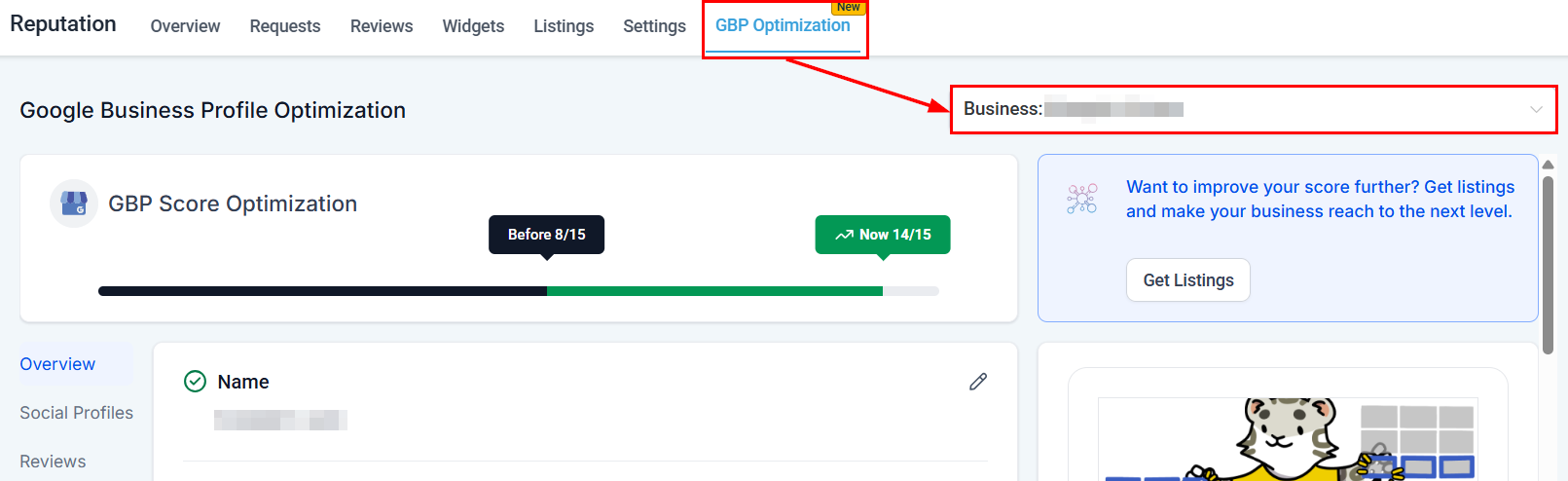
* **Reputation > GBP Optimization > Scheduled Posts** — click **Go to Social Planner** to open the planner with GBP pre-selected
Click **New Post** and select your connected Google Business Profile as the destination.
Choose **What's New**, **Event**, or **Offer** depending on your content.
Write your post text (up to 1,500 characters for What's New posts). Add:
* A photo or image (recommended — posts with images attract more engagement)
* A call-to-action button (Book, Order online, Buy, Learn more, Sign up, or Call now)
* For Events: title, start/end date and time
* For Offers: title, coupon code, redemption link, and offer validity dates
Choose to **Publish Now** or **Schedule** the post for a specific date and time. Scheduled posts appear in the Social Planner calendar.
 ***
## Viewing and managing GBP posts
From **Reputation > GBP Optimization**, scroll to the **Scheduled Posts** section to see all upcoming GBP posts. Published posts appear under **Preview > Updates** on your live GBP listing preview.
From the Scheduled Posts panel you can:
* **Edit** a scheduled post before it publishes
* **Reschedule** to change the publish date and time
* **Delete** a post that is no longer needed
Post at least once per week to keep your listing active. Google favors listings with fresh content, and regular posts can improve your visibility in local search results.
***
## GBP post best practices
* Keep text concise — the first 100 characters are shown in the snippet before customers expand the post
* Always include a high-quality image — posts with photos consistently outperform text-only posts
* Use a clear call-to-action button matched to your goal (Book for appointments, Buy for products, Learn more for information)
* For offers, always set an expiry date to create urgency
* Avoid keyword stuffing — write naturally for the customer, not for the algorithm
***
## FAQs
What's New and Offer posts expire after 7 days by default. Event posts remain visible until the event end date passes. Google may remove expired posts automatically. For ongoing promotions, recreate or reschedule the post regularly.
Published GBP posts appear on your Google Business Profile listing in Google Search results and on Google Maps, visible to anyone who views your listing.
When managing multiple locations, select the specific GBP location in the Social Planner or switch locations using the dropdown in **Reputation > GBP Optimization** before creating a post. Bulk posting to multiple locations simultaneously depends on your Social Planner configuration.
Google recommends images at 720×540px or larger, with a minimum of 250×250px. Use landscape-oriented images for best display. JPEG and PNG formats are supported; file size should be under 10MB.
Yes. Having recent posts is one of the factors that contributes to your GBP profile completeness score shown in **Reputation > GBP Optimization**. Regularly publishing posts helps raise your score.
Yes. Use the **Schedule** option when creating a post to set a future publish date and time. All scheduled posts appear in the Social Planner calendar for easy management.
***
## Viewing and managing GBP posts
From **Reputation > GBP Optimization**, scroll to the **Scheduled Posts** section to see all upcoming GBP posts. Published posts appear under **Preview > Updates** on your live GBP listing preview.
From the Scheduled Posts panel you can:
* **Edit** a scheduled post before it publishes
* **Reschedule** to change the publish date and time
* **Delete** a post that is no longer needed
Post at least once per week to keep your listing active. Google favors listings with fresh content, and regular posts can improve your visibility in local search results.
***
## GBP post best practices
* Keep text concise — the first 100 characters are shown in the snippet before customers expand the post
* Always include a high-quality image — posts with photos consistently outperform text-only posts
* Use a clear call-to-action button matched to your goal (Book for appointments, Buy for products, Learn more for information)
* For offers, always set an expiry date to create urgency
* Avoid keyword stuffing — write naturally for the customer, not for the algorithm
***
## FAQs
What's New and Offer posts expire after 7 days by default. Event posts remain visible until the event end date passes. Google may remove expired posts automatically. For ongoing promotions, recreate or reschedule the post regularly.
Published GBP posts appear on your Google Business Profile listing in Google Search results and on Google Maps, visible to anyone who views your listing.
When managing multiple locations, select the specific GBP location in the Social Planner or switch locations using the dropdown in **Reputation > GBP Optimization** before creating a post. Bulk posting to multiple locations simultaneously depends on your Social Planner configuration.
Google recommends images at 720×540px or larger, with a minimum of 250×250px. Use landscape-oriented images for best display. JPEG and PNG formats are supported; file size should be under 10MB.
Yes. Having recent posts is one of the factors that contributes to your GBP profile completeness score shown in **Reputation > GBP Optimization**. Regularly publishing posts helps raise your score.
Yes. Use the **Schedule** option when creating a post to set a future publish date and time. All scheduled posts appear in the Social Planner calendar for easy management.