> ## Documentation Index
> Fetch the complete documentation index at: https://help.hoopai.com/llms.txt
> Use this file to discover all available pages before exploring further.
# Facebook review integration
> Connect your Facebook Page to the HoopAI platform to sync Facebook recommendations, respond to customer feedback, and include Facebook in your review request campaigns.
Facebook uses a recommendations system rather than a traditional star rating — customers can recommend or not recommend a business and optionally leave a written comment. The HoopAI platform integrates with your Facebook Page to pull these recommendations into your central review management interface, alongside your Google reviews.
***
## Connecting your Facebook Page
Go to **Reputation > Settings** and scroll to the **Platform integrations** section.
Click the Facebook tile to begin the connection process.
A Facebook login window will appear. Sign in with the Facebook account that owns or has admin access to your Facebook Business Page. Grant the requested permissions — these allow the platform to read recommendations and post responses on your behalf.
If your account manages multiple Facebook Pages, select the Page you want to connect. If you manage multiple business locations, you can connect additional Pages by repeating the process.
Once connected, your Page name will appear in the integrations list with an active status. Recommendations will begin syncing shortly.
You must be an admin of the Facebook Page you are connecting. Editor or Moderator roles do not have sufficient permissions to authorize the integration.
***
## How Facebook recommendations sync
Facebook recommendations work differently from Google reviews:
* Customers choose to **Recommend** or **Not Recommend** your business
* A written comment is optional — some recommendations have no text
* There is no numeric star rating on Facebook; the HoopAI platform maps recommendations to a display rating for consistency (Recommend = positive, Not Recommend = negative)
Once your Facebook Page is connected, the platform syncs:
* Existing recommendations from your Page history
* New recommendations as they are posted
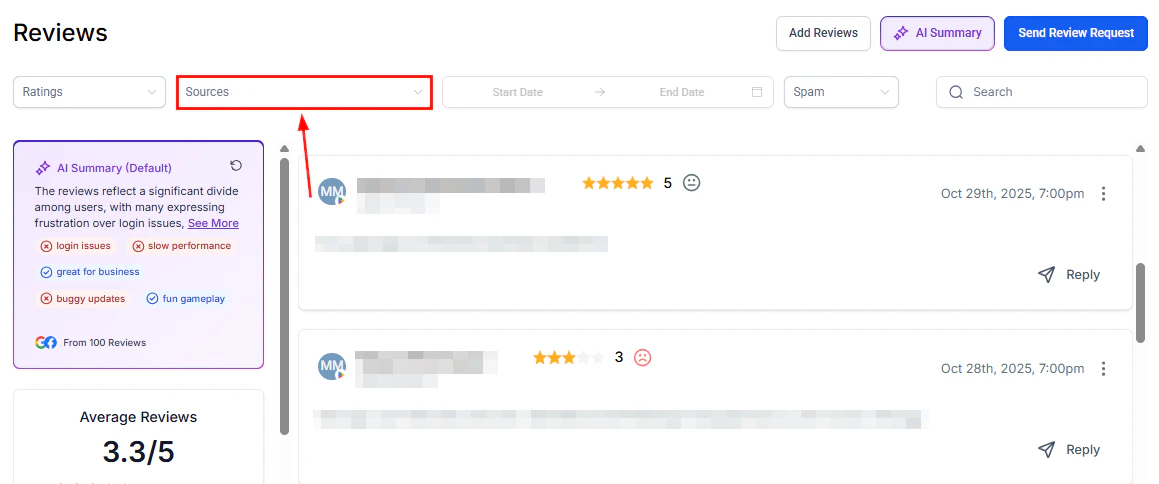 Each recommendation appears in **Reputation > Reviews** with a Facebook source indicator, the recommendation type (Recommend or Not Recommend), any written comment, and the date posted.
***
## Responding to Facebook recommendations from HoopAI
In **Reputation > Reviews**, use the Sources filter to display only Facebook recommendations.
Click the reply button on the recommendation card.
Type your response. For Recommend posts, thank the customer warmly and encourage them to return. For Not Recommend posts, acknowledge their experience and invite them to contact you privately to resolve the matter.
Click **Send** to post your response directly to the Facebook recommendation thread.
Because Facebook recommendations are public and appear on your Page, responses are visible to everyone who views your business — not just the original commenter. Keep responses professional and avoid addressing specific grievances in detail publicly.
***
## Facebook in review request campaigns
After connecting your Facebook Page, you can include a Facebook review link as a destination in your review request messages.
Configure this in **Reputation > Settings > Review link management**:
* Add your Facebook Page review link alongside your Google review link
* Set a balance ratio to distribute requests between platforms (for example, 60% Google / 40% Facebook)
* Contacts who receive a request will be directed to whichever platform the balance ratio determines for that outreach
Directing some of your review request traffic to Facebook builds your recommendations on that platform, which can be important for customers who discover your business through Facebook searches or your Facebook Page directly.
***
## Automated responses with the AI agent
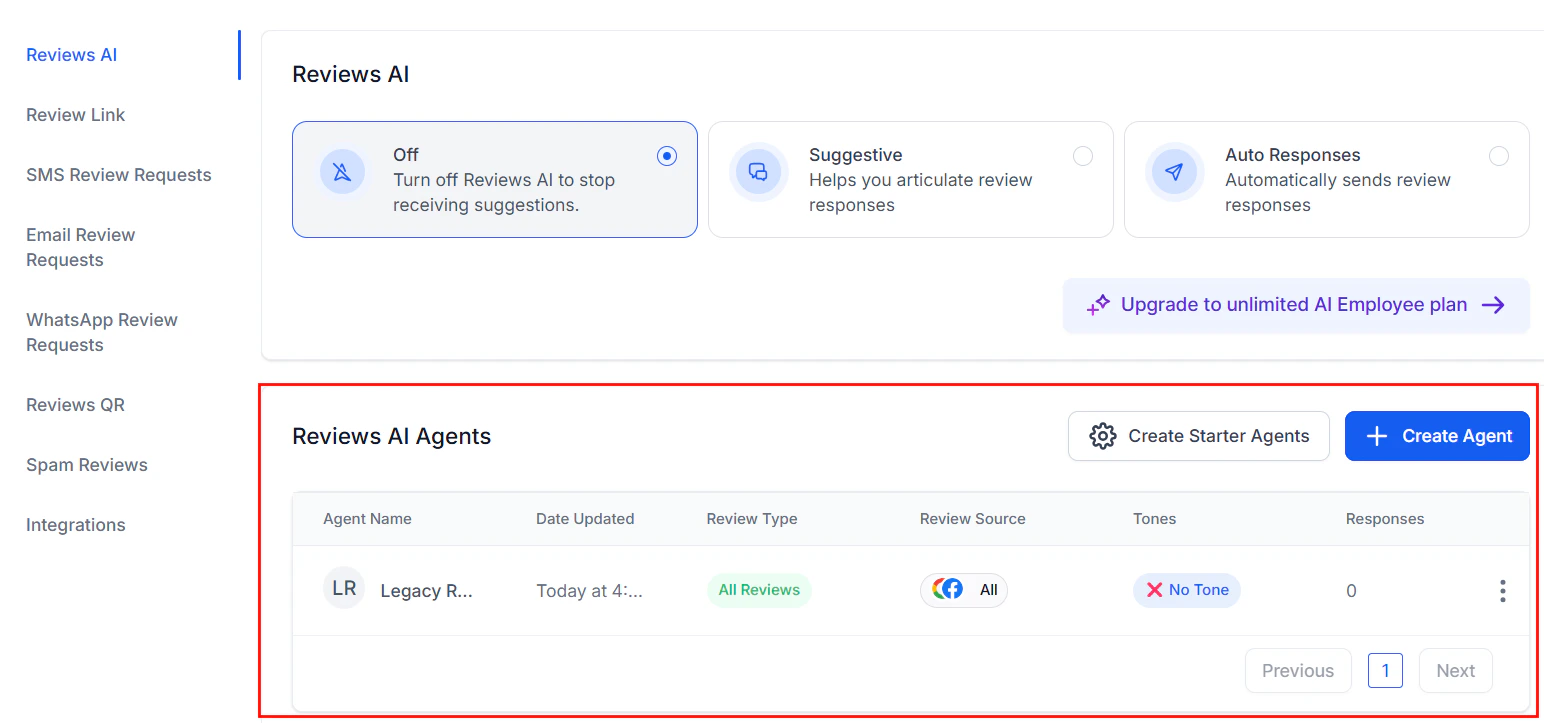
The [Reviews AI agent](/reputation/reviews-ai-agent) supports Facebook as a review source alongside Google. You can create:
* A shared agent that handles both Google and Facebook recommendations
* Separate agents for each platform to apply different tones or response styles
To configure Facebook-specific responses:
1. Navigate to **Reputation > Settings > Reviews AI** and create or edit an agent.
2. Under **Select review criteria**, choose Facebook as the review source.
3. Configure the star rating range and tone, then save.
The agent will automatically respond to qualifying Facebook recommendations once activated.
Each recommendation appears in **Reputation > Reviews** with a Facebook source indicator, the recommendation type (Recommend or Not Recommend), any written comment, and the date posted.
***
## Responding to Facebook recommendations from HoopAI
In **Reputation > Reviews**, use the Sources filter to display only Facebook recommendations.
Click the reply button on the recommendation card.
Type your response. For Recommend posts, thank the customer warmly and encourage them to return. For Not Recommend posts, acknowledge their experience and invite them to contact you privately to resolve the matter.
Click **Send** to post your response directly to the Facebook recommendation thread.
Because Facebook recommendations are public and appear on your Page, responses are visible to everyone who views your business — not just the original commenter. Keep responses professional and avoid addressing specific grievances in detail publicly.
***
## Facebook in review request campaigns
After connecting your Facebook Page, you can include a Facebook review link as a destination in your review request messages.
Configure this in **Reputation > Settings > Review link management**:
* Add your Facebook Page review link alongside your Google review link
* Set a balance ratio to distribute requests between platforms (for example, 60% Google / 40% Facebook)
* Contacts who receive a request will be directed to whichever platform the balance ratio determines for that outreach
Directing some of your review request traffic to Facebook builds your recommendations on that platform, which can be important for customers who discover your business through Facebook searches or your Facebook Page directly.
***
## Automated responses with the AI agent
The [Reviews AI agent](/reputation/reviews-ai-agent) supports Facebook as a review source alongside Google. You can create:
* A shared agent that handles both Google and Facebook recommendations
* Separate agents for each platform to apply different tones or response styles
To configure Facebook-specific responses:
1. Navigate to **Reputation > Settings > Reviews AI** and create or edit an agent.
2. Under **Select review criteria**, choose Facebook as the review source.
3. Configure the star rating range and tone, then save.
The agent will automatically respond to qualifying Facebook recommendations once activated.
 ***
## Facebook recommendations vs. Google reviews: key differences
| Feature | Google reviews | Facebook recommendations |
| ---------------- | -------------------------- | ------------------------- |
| Rating format | 1–5 stars | Recommend / Not Recommend |
| Written comment | Optional | Optional |
| Publicly visible | Yes (Google Search & Maps) | Yes (Facebook Page) |
| Owner response | Yes | Yes |
| Review removal | Report to Google | Report to Facebook |
| Integration type | OAuth (Google account) | OAuth (Facebook account) |
Understanding these differences is important when crafting response templates. A Facebook response doesn't need to address a star rating; it should acknowledge the recommendation or the concern raised in the comment.
***
## Disconnecting Facebook
To remove the Facebook integration:
1. Go to **Reputation > Settings > Platform integrations**.
2. Click the Facebook tile and select the option to disconnect.
3. Confirm disconnection.
Existing synced recommendations remain in your Reviews tab but will no longer sync new content or allow you to post responses from the platform.
***
## FAQs
Yes. Repeat the integration process for each Facebook Page you manage. Switch between Pages using the source filter in the Reviews tab.
Yes. Recommendations with no written text appear in your Reviews tab showing the recommendation type (Recommend or Not Recommend) and the date posted, even without a comment. You can still respond to these.
Facebook's API may not surface all recommendations depending on the privacy settings of the person who posted it. If a customer's profile is set to restrict visibility, their recommendation may not be accessible through the integration.
No. The platform can flag a recommendation as spam in your internal system, but removal requests must be submitted directly through Facebook by reporting the recommendation for violating Facebook's content policies. See [Negative review handling](/reputation/negative-review-handling) for more information on the dispute process.
Yes, as long as the recommendation matches the agent's configured criteria (source and sentiment type). The agent will post a response acknowledging the recommendation even when no comment was left.
***
## Facebook recommendations vs. Google reviews: key differences
| Feature | Google reviews | Facebook recommendations |
| ---------------- | -------------------------- | ------------------------- |
| Rating format | 1–5 stars | Recommend / Not Recommend |
| Written comment | Optional | Optional |
| Publicly visible | Yes (Google Search & Maps) | Yes (Facebook Page) |
| Owner response | Yes | Yes |
| Review removal | Report to Google | Report to Facebook |
| Integration type | OAuth (Google account) | OAuth (Facebook account) |
Understanding these differences is important when crafting response templates. A Facebook response doesn't need to address a star rating; it should acknowledge the recommendation or the concern raised in the comment.
***
## Disconnecting Facebook
To remove the Facebook integration:
1. Go to **Reputation > Settings > Platform integrations**.
2. Click the Facebook tile and select the option to disconnect.
3. Confirm disconnection.
Existing synced recommendations remain in your Reviews tab but will no longer sync new content or allow you to post responses from the platform.
***
## FAQs
Yes. Repeat the integration process for each Facebook Page you manage. Switch between Pages using the source filter in the Reviews tab.
Yes. Recommendations with no written text appear in your Reviews tab showing the recommendation type (Recommend or Not Recommend) and the date posted, even without a comment. You can still respond to these.
Facebook's API may not surface all recommendations depending on the privacy settings of the person who posted it. If a customer's profile is set to restrict visibility, their recommendation may not be accessible through the integration.
No. The platform can flag a recommendation as spam in your internal system, but removal requests must be submitted directly through Facebook by reporting the recommendation for violating Facebook's content policies. See [Negative review handling](/reputation/negative-review-handling) for more information on the dispute process.
Yes, as long as the recommendation matches the agent's configured criteria (source and sentiment type). The agent will post a response acknowledging the recommendation even when no comment was left.