> ## Documentation Index
> Fetch the complete documentation index at: https://help.hoopai.com/llms.txt
> Use this file to discover all available pages before exploring further.
# Workflow Reporting
> Monitor automation performance with workflow execution stats, trigger analytics, step-by-step metrics, and enrollment history in the HoopAI Platform.
Workflow reporting gives you visibility into how your automations are performing — how many contacts are enrolling, how each step is executing, and where contacts are exiting before completing the intended journey. Use this data to validate that your automations are working as designed and to find opportunities to improve engagement or fix broken logic.
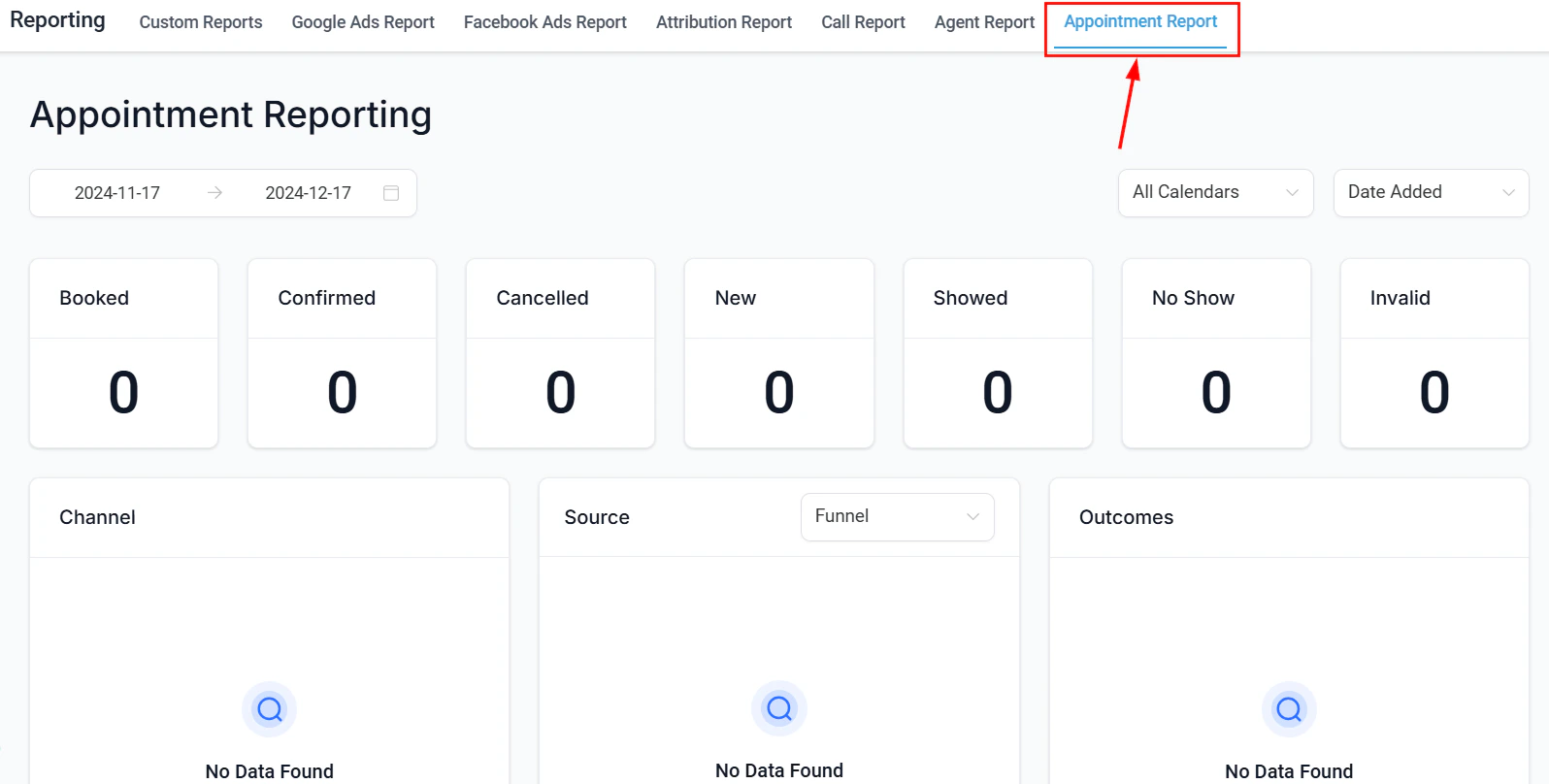 ## Accessing workflow statistics
There are two primary ways to view workflow performance data in HoopAI:
1. **Automations list view** — click the accordion arrow next to any workflow name and select **Stats** to see a high-level performance summary without opening the workflow.
2. **Workflow builder → Stats view** — inside the workflow editor, toggle **Stats View** on to see per-action metrics embedded directly in the workflow diagram.
Stats data is available for workflows with activity from January 1, 2023 onward. Deleted actions within a workflow continue to appear in historical stats.
***
## Workflow overview dashboard
The Workflow Overview Dashboard provides a summary of all automation activity across your account in one place. Navigate to **Automations → Overview** to see:
* **Total active workflows** — count of workflows currently enabled and accepting enrollments
* **Total enrollments** — how many contact enrollments have occurred across all workflows in the selected period
* **Trigger insights** — a breakdown of which triggers are firing most frequently and which are producing mismatches
This view is useful for identifying whether a sudden spike in workflow activity is expected (such as from a campaign launch) or anomalous.
***
## Per-workflow metrics
For each individual workflow, the stats view exposes performance at both the workflow level and the step level.
### Workflow-level metrics
| Metric | Description |
| ------------- | ------------------------------------------------------------------- |
| **Enrolled** | Total contacts that entered the workflow in the selected date range |
| **Active** | Contacts currently in progress through the workflow |
| **Completed** | Contacts that reached the final step without being removed |
| **Removed** | Contacts that exited before completion, with the reason logged |
| **Errored** | Contacts that hit an action error and could not proceed |
### Step-level metrics (email and SMS actions)
For communication actions within a workflow, HoopAI tracks:
* **Sent** — number of contacts who reached this step and triggered the message
* **Delivered** — messages successfully received by the carrier or mail server
* **Opened** (email) — recipients who opened the email
* **Clicked** (email) — recipients who clicked a link in the email
* **Replied** — contacts who replied to the message
* **Bounced** (email) — messages that could not be delivered
Step-level stats are currently available for email and SMS actions. WhatsApp and IVR (phone call) actions do not yet display per-step metrics in the stats view.
***
## Trigger statistics
Trigger Stats gives you a real-time view of how each workflow trigger is performing. Access it by opening a workflow and navigating to the **Trigger Stats** tab.
For each trigger you will see:
* **Attempted** — total number of times the trigger condition was evaluated
* **Matched** — attempts that met all conditions and resulted in a workflow enrollment
* **Unmatched** — attempts where the contact did not meet one or more trigger conditions
Clicking into unmatched attempts shows you the specific condition that was not met for each contact. This is the fastest way to debug a workflow that is not enrolling the contacts you expect.
## Accessing workflow statistics
There are two primary ways to view workflow performance data in HoopAI:
1. **Automations list view** — click the accordion arrow next to any workflow name and select **Stats** to see a high-level performance summary without opening the workflow.
2. **Workflow builder → Stats view** — inside the workflow editor, toggle **Stats View** on to see per-action metrics embedded directly in the workflow diagram.
Stats data is available for workflows with activity from January 1, 2023 onward. Deleted actions within a workflow continue to appear in historical stats.
***
## Workflow overview dashboard
The Workflow Overview Dashboard provides a summary of all automation activity across your account in one place. Navigate to **Automations → Overview** to see:
* **Total active workflows** — count of workflows currently enabled and accepting enrollments
* **Total enrollments** — how many contact enrollments have occurred across all workflows in the selected period
* **Trigger insights** — a breakdown of which triggers are firing most frequently and which are producing mismatches
This view is useful for identifying whether a sudden spike in workflow activity is expected (such as from a campaign launch) or anomalous.
***
## Per-workflow metrics
For each individual workflow, the stats view exposes performance at both the workflow level and the step level.
### Workflow-level metrics
| Metric | Description |
| ------------- | ------------------------------------------------------------------- |
| **Enrolled** | Total contacts that entered the workflow in the selected date range |
| **Active** | Contacts currently in progress through the workflow |
| **Completed** | Contacts that reached the final step without being removed |
| **Removed** | Contacts that exited before completion, with the reason logged |
| **Errored** | Contacts that hit an action error and could not proceed |
### Step-level metrics (email and SMS actions)
For communication actions within a workflow, HoopAI tracks:
* **Sent** — number of contacts who reached this step and triggered the message
* **Delivered** — messages successfully received by the carrier or mail server
* **Opened** (email) — recipients who opened the email
* **Clicked** (email) — recipients who clicked a link in the email
* **Replied** — contacts who replied to the message
* **Bounced** (email) — messages that could not be delivered
Step-level stats are currently available for email and SMS actions. WhatsApp and IVR (phone call) actions do not yet display per-step metrics in the stats view.
***
## Trigger statistics
Trigger Stats gives you a real-time view of how each workflow trigger is performing. Access it by opening a workflow and navigating to the **Trigger Stats** tab.
For each trigger you will see:
* **Attempted** — total number of times the trigger condition was evaluated
* **Matched** — attempts that met all conditions and resulted in a workflow enrollment
* **Unmatched** — attempts where the contact did not meet one or more trigger conditions
Clicking into unmatched attempts shows you the specific condition that was not met for each contact. This is the fastest way to debug a workflow that is not enrolling the contacts you expect.
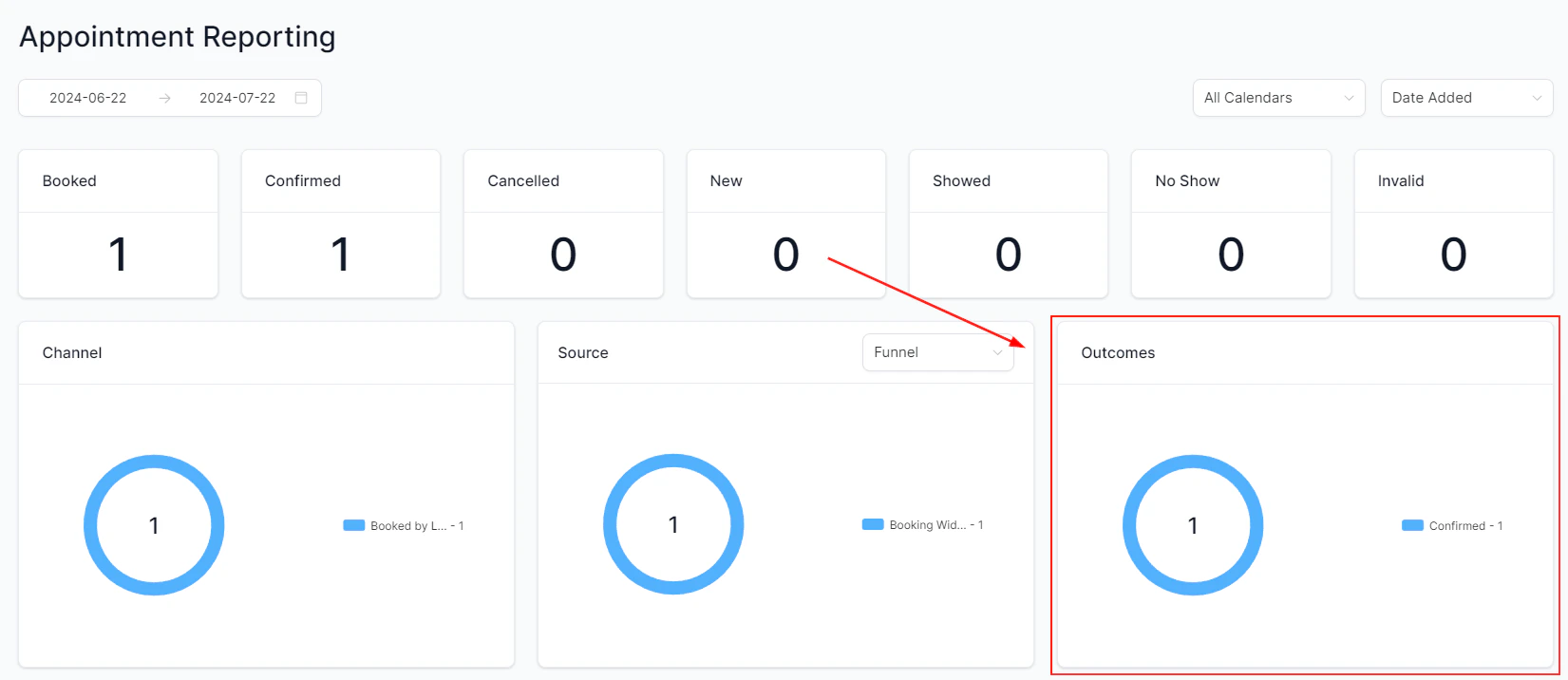 If your Attempted count is high but Matched is low, review your trigger conditions. A common cause is a mismatch between tag names, pipeline stage names, or date-based conditions that are more restrictive than intended.
***
## Execution logs and enrollment history
For granular contact-level tracing, use the **Execution Logs** and **Enrollment History** tabs in the workflow editor.
### Execution logs
Execution logs show a timestamped record of every action taken for every contact in the workflow:
* Action name and type
* Execution timestamp (with timezone)
* Status — success or error
* Error details when applicable, with a link to the specific action in the workflow builder
When an error occurs, the row is highlighted in red and the **View Details** link opens a panel with the full error message. Use the **Go To Action** button to jump directly to the problematic step and make edits.
If your Attempted count is high but Matched is low, review your trigger conditions. A common cause is a mismatch between tag names, pipeline stage names, or date-based conditions that are more restrictive than intended.
***
## Execution logs and enrollment history
For granular contact-level tracing, use the **Execution Logs** and **Enrollment History** tabs in the workflow editor.
### Execution logs
Execution logs show a timestamped record of every action taken for every contact in the workflow:
* Action name and type
* Execution timestamp (with timezone)
* Status — success or error
* Error details when applicable, with a link to the specific action in the workflow builder
When an error occurs, the row is highlighted in red and the **View Details** link opens a panel with the full error message. Use the **Go To Action** button to jump directly to the problematic step and make edits.
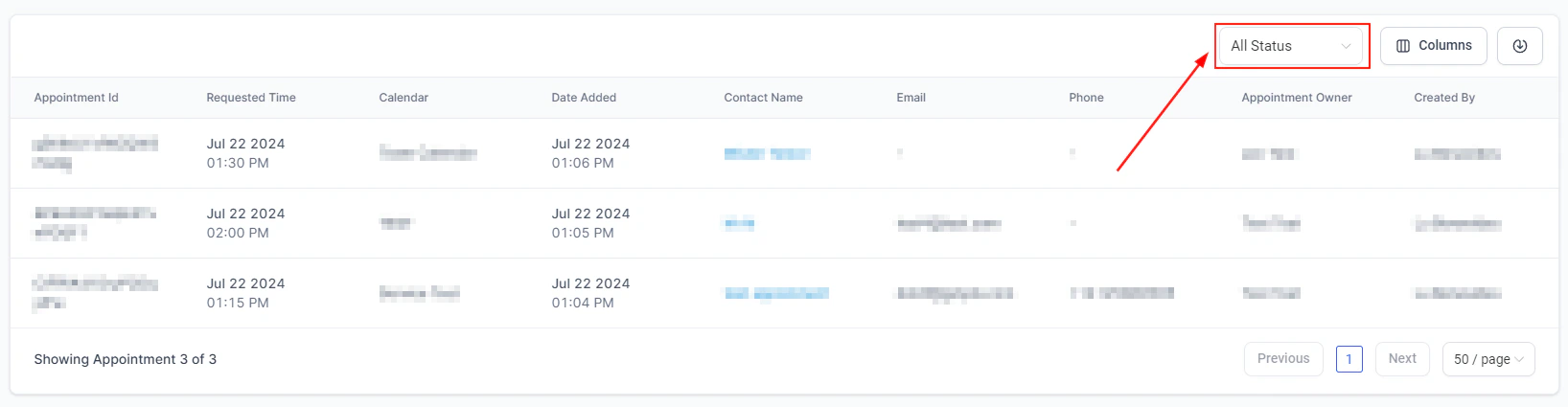 ### Enrollment history
Enrollment history shows when each contact entered and exited the workflow and the reason for their exit:
* **Workflow completed** — contact finished all steps
* **Removed by workflow action** — a "Remove from workflow" action triggered exit
* **Removed manually** — a team member removed the contact
* **Exited due to goal** — a goal trigger fired and moved the contact to a different path
Use the **Highlight Contact Path** feature to visualize exactly which steps a specific contact took through a branching workflow. This is invaluable for debugging conditional logic.
***
## Comparing workflows
To compare performance across multiple workflows without opening each one:
1. Go to **Automations** and look at the workflow list.
2. Use the accordion button next to each workflow to expand the stats summary row.
3. Compare enrollments, completion rates, and error counts side by side.
This view is particularly useful for identifying which workflows in a series (for example, a lead nurture sequence) are performing well versus which are losing contacts unexpectedly.
***
## Frequently asked questions
Check the execution logs for those contacts. Common causes include: wait steps holding contacts, filter conditions at intermediate steps removing contacts, or action errors stopping the journey. Use the Highlight Contact Path feature to trace the exact path a contact took.
Yes. Stats are stored for all workflows regardless of their current status. Historical data from paused or archived workflows remains accessible from the stats view.
Open the workflow, navigate to Trigger Stats, filter by the contact name, and review the Unmatched records. The detail view will show which trigger condition was not satisfied for that contact.
Execution log data can be exported for individual contacts by downloading their contact activity history. For bulk exports of workflow performance data, use the Custom Reports feature and filter by workflow activity type.
***
## Related articles
* [Custom reports](/reporting/custom-reports)
* [Email reporting](/reporting/email-reporting)
* [SMS reporting](/reporting/sms-reporting)
* [Audit reports](/reporting/audit-reports)
### Enrollment history
Enrollment history shows when each contact entered and exited the workflow and the reason for their exit:
* **Workflow completed** — contact finished all steps
* **Removed by workflow action** — a "Remove from workflow" action triggered exit
* **Removed manually** — a team member removed the contact
* **Exited due to goal** — a goal trigger fired and moved the contact to a different path
Use the **Highlight Contact Path** feature to visualize exactly which steps a specific contact took through a branching workflow. This is invaluable for debugging conditional logic.
***
## Comparing workflows
To compare performance across multiple workflows without opening each one:
1. Go to **Automations** and look at the workflow list.
2. Use the accordion button next to each workflow to expand the stats summary row.
3. Compare enrollments, completion rates, and error counts side by side.
This view is particularly useful for identifying which workflows in a series (for example, a lead nurture sequence) are performing well versus which are losing contacts unexpectedly.
***
## Frequently asked questions
Check the execution logs for those contacts. Common causes include: wait steps holding contacts, filter conditions at intermediate steps removing contacts, or action errors stopping the journey. Use the Highlight Contact Path feature to trace the exact path a contact took.
Yes. Stats are stored for all workflows regardless of their current status. Historical data from paused or archived workflows remains accessible from the stats view.
Open the workflow, navigate to Trigger Stats, filter by the contact name, and review the Unmatched records. The detail view will show which trigger condition was not satisfied for that contact.
Execution log data can be exported for individual contacts by downloading their contact activity history. For bulk exports of workflow performance data, use the Custom Reports feature and filter by workflow activity type.
***
## Related articles
* [Custom reports](/reporting/custom-reports)
* [Email reporting](/reporting/email-reporting)
* [SMS reporting](/reporting/sms-reporting)
* [Audit reports](/reporting/audit-reports)