> ## Documentation Index
> Fetch the complete documentation index at: https://help.hoopai.com/llms.txt
> Use this file to discover all available pages before exploring further.
# Call Reporting
> View and analyze inbound and outbound call metrics, recordings, and advanced filters inside the HoopAI Platform.
The Call Reporting section is a powerful tool designed to give you comprehensive insights into your inbound and outbound call data associated with the phone numbers integrated with your account. Use it to evaluate your team's performance, track call volume, and access call recordings.
Depending on your user permissions, you may not have access to all components within this section.
## Accessing call reporting
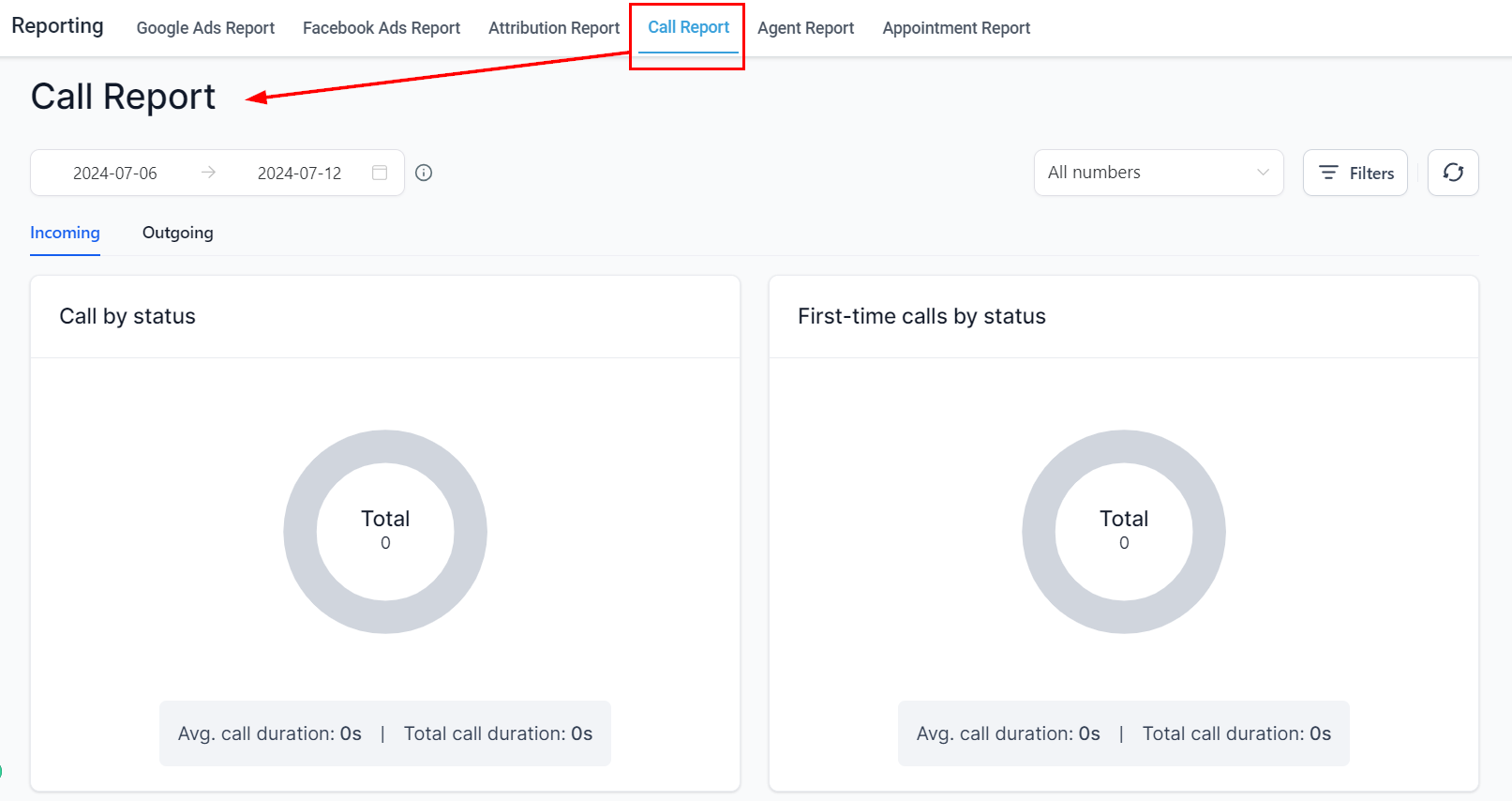
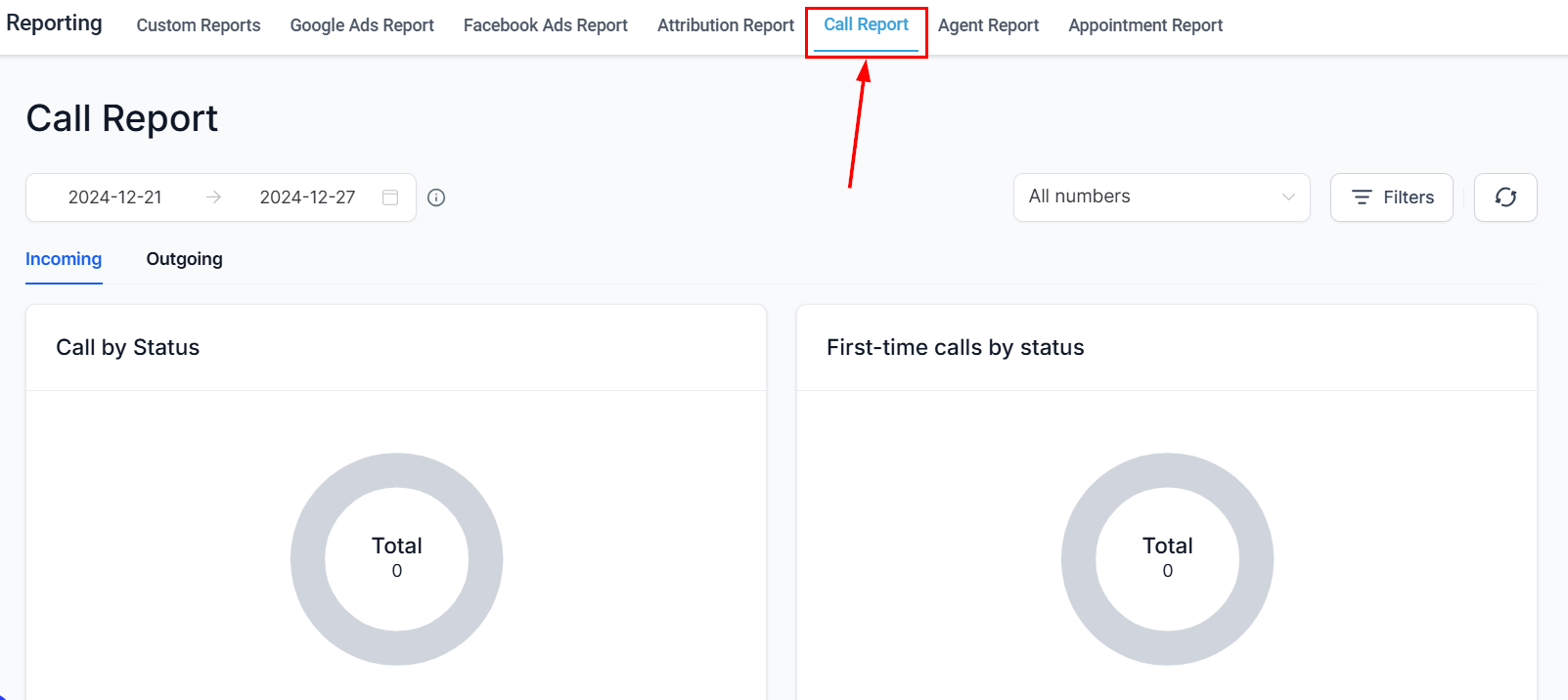
Navigate to **Reporting** in the left sidebar, then select the **Call Reporting** tab.
 ## Overview controls
### Select date range
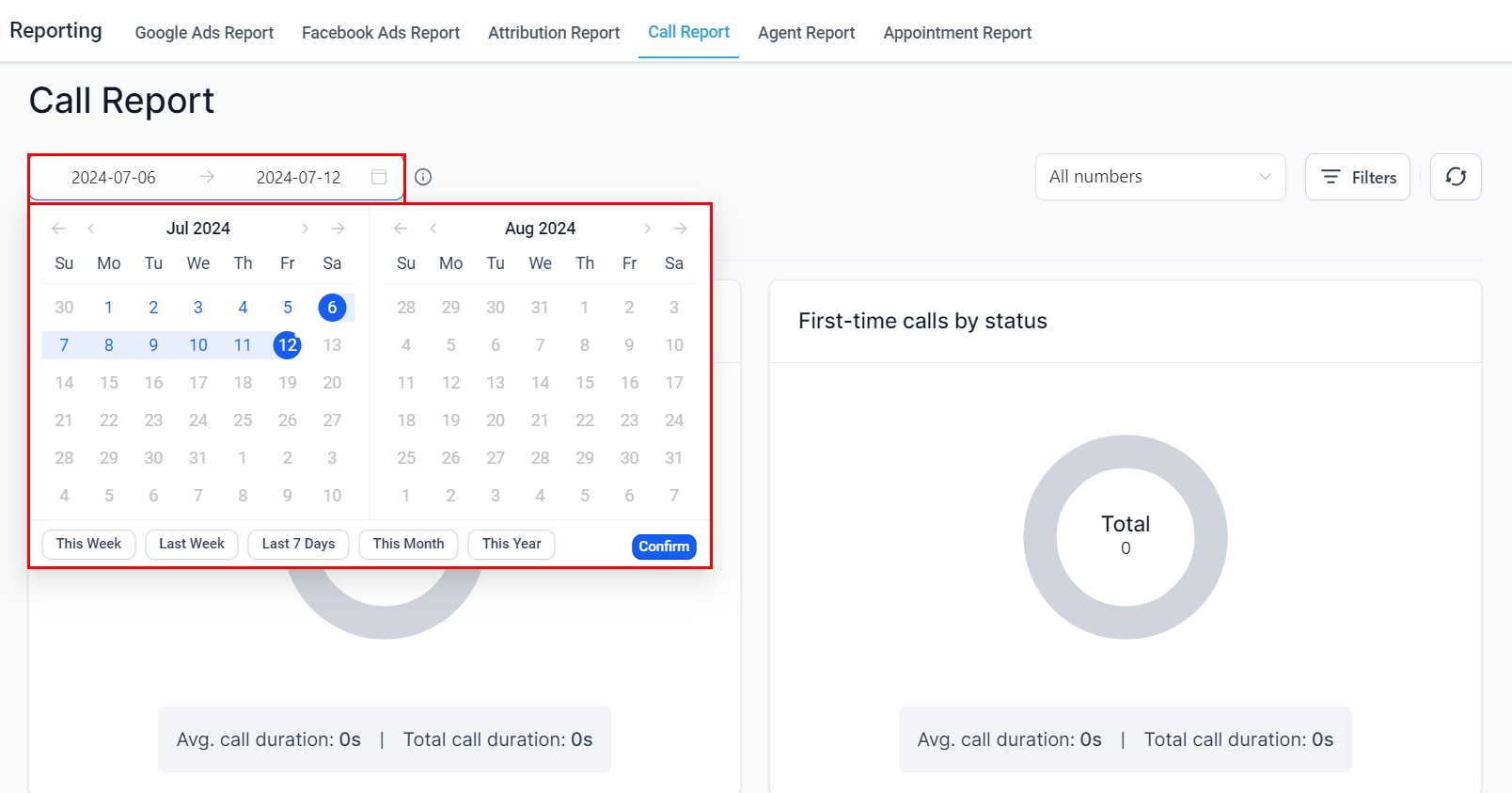
To accurately examine call data, setting specific date ranges is essential. Click on the date range selector to choose the desired date range (up to 180 days).
## Overview controls
### Select date range
To accurately examine call data, setting specific date ranges is essential. Click on the date range selector to choose the desired date range (up to 180 days).
 ### All numbers
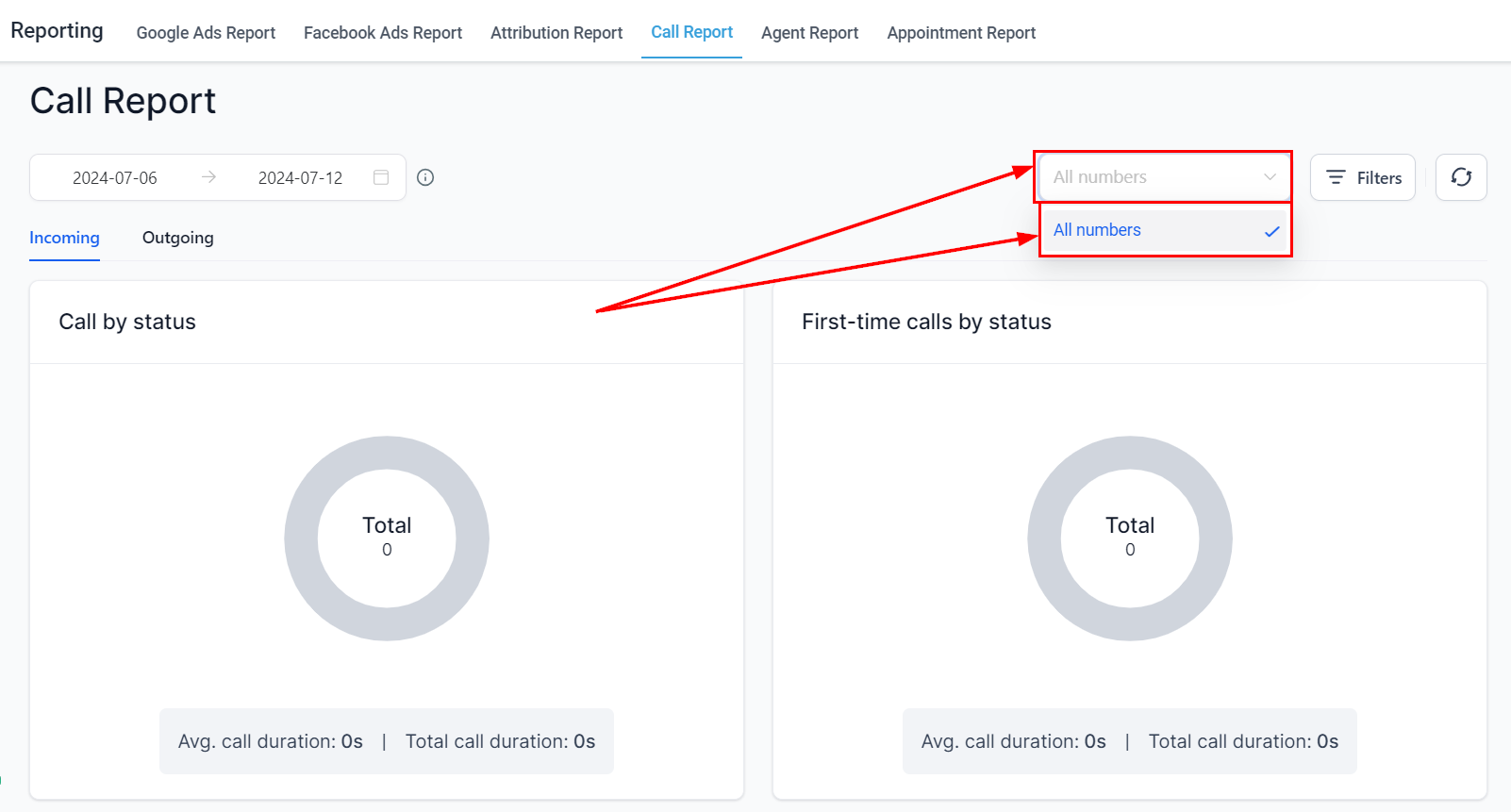
Click the **All Numbers** dropdown to select a specific phone number or analyze multiple numbers simultaneously if your business has more than one phone number integrated.
### All numbers
Click the **All Numbers** dropdown to select a specific phone number or analyze multiple numbers simultaneously if your business has more than one phone number integrated.
 ### Filter call data
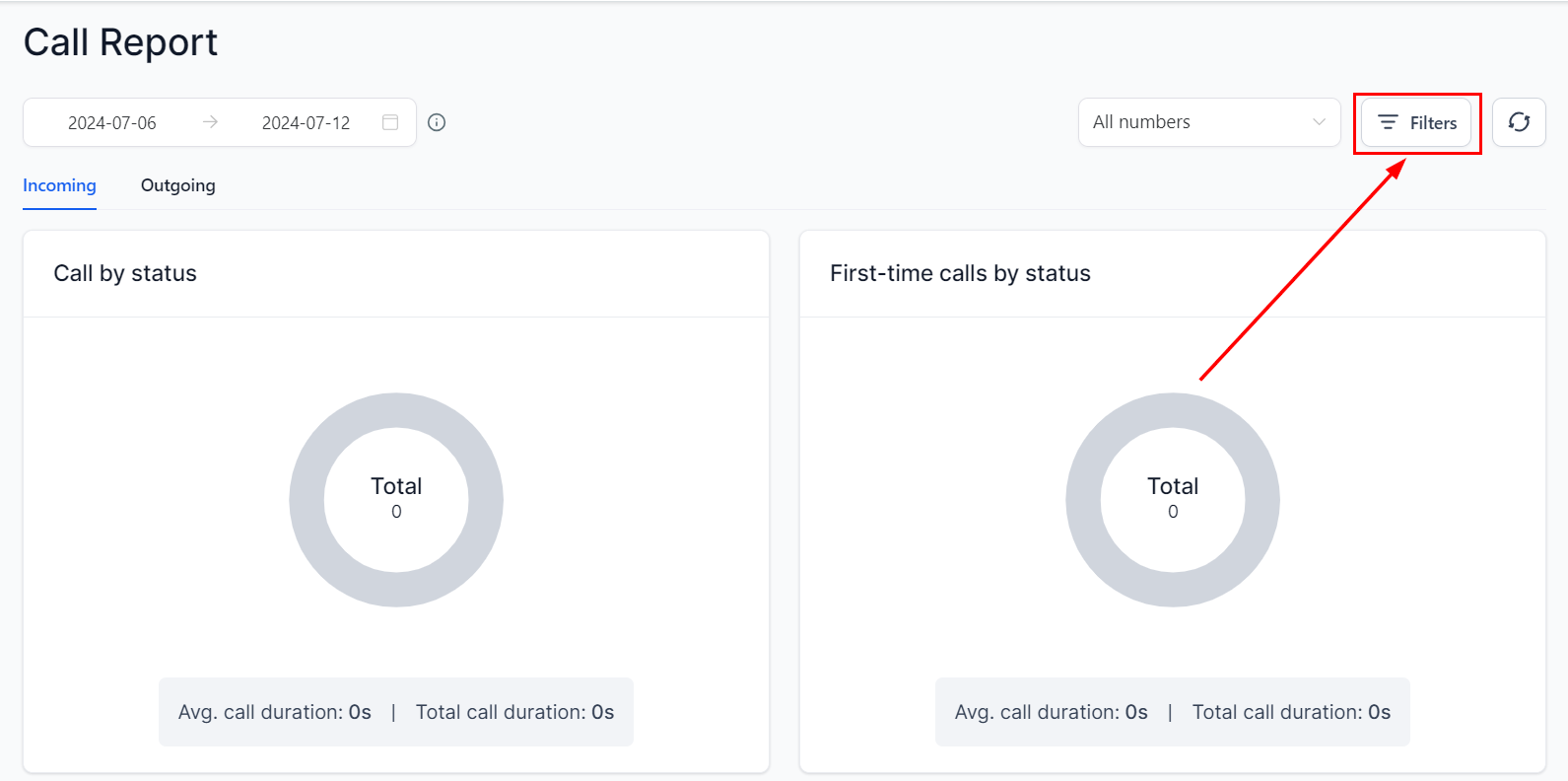
Click the **Filter Call Data** button to refine your results for more precise reporting.
### Filter call data
Click the **Filter Call Data** button to refine your results for more precise reporting.
 ## Incoming calls
### Call by status
View calls categorized by their status — answered, failed, busy, or missed. The total percentage of each status is displayed in a chart, with average call duration and total duration listed below.
### First-time call by status
View the status of first-time callers, broken down by answered, failed, busy, and missed categories, including average and total call duration.
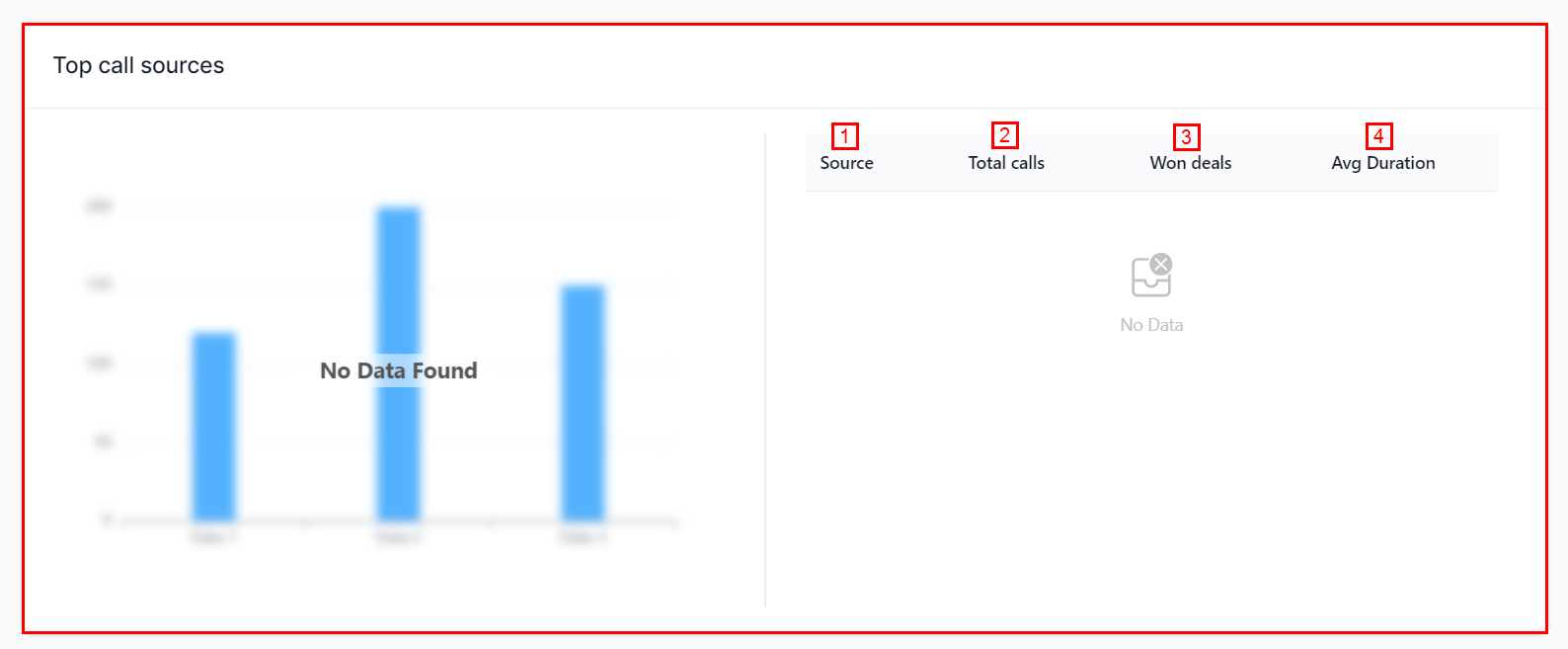
### Top call source
View the sources of all calls within the selected date range. The table shows:
* **Source** — origin of incoming/outgoing calls (Unknown, Direct, Paid Search, etc.)
* **Total calls** — total inbound calls per source
* **Won deals** — deals won through each call source
* **Avg duration** — average call duration per source
## Incoming calls
### Call by status
View calls categorized by their status — answered, failed, busy, or missed. The total percentage of each status is displayed in a chart, with average call duration and total duration listed below.
### First-time call by status
View the status of first-time callers, broken down by answered, failed, busy, and missed categories, including average and total call duration.
### Top call source
View the sources of all calls within the selected date range. The table shows:
* **Source** — origin of incoming/outgoing calls (Unknown, Direct, Paid Search, etc.)
* **Total calls** — total inbound calls per source
* **Won deals** — deals won through each call source
* **Avg duration** — average call duration per source
 ### Call reporting table
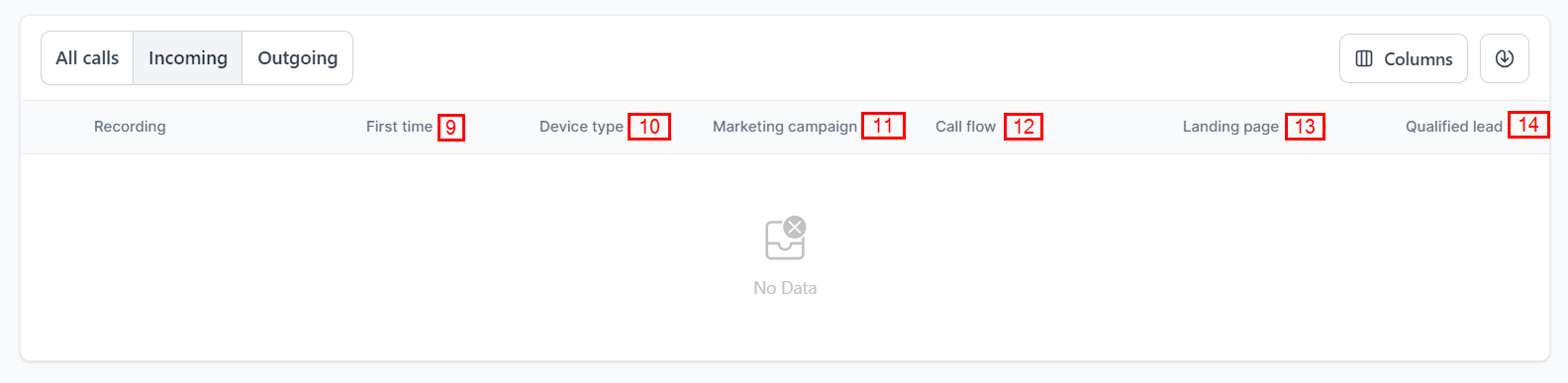
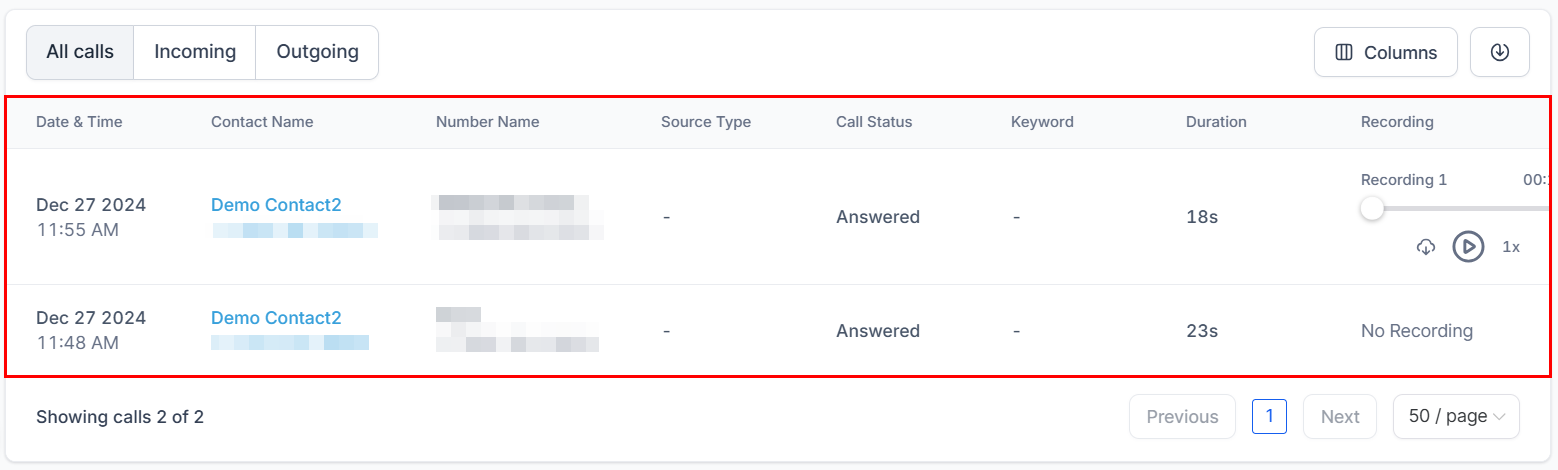
The Call Reporting Table presents recent phone calls with associated data. You can filter the view by **Incoming**, **Outgoing**, or **All** calls. Columns include:
| Column | Description |
| ------------------ | ----------------------------------------------- |
| Date & Time | When the call was made |
| Contact Name | Client name and phone number |
| Number Name | Recipient and the number they called |
| Source Type | Origin of the call |
| Call Status | Answered, failed, busy, or missed |
| Keyword | Terms or phrases that triggered inbound calls |
| Duration | Length of the call |
| Recording | Listen or download call recordings |
| First Time | Whether the caller was a first-time caller |
| Device Type | Device used by the caller |
| Marketing Campaign | Marketing initiatives that generated the call |
| Call Flow | Phone number that initiated the call |
| Landing Page | Landing page that generated the inbound call |
| Qualified Lead | Mark contacts as qualified or unqualified leads |
### Call reporting table
The Call Reporting Table presents recent phone calls with associated data. You can filter the view by **Incoming**, **Outgoing**, or **All** calls. Columns include:
| Column | Description |
| ------------------ | ----------------------------------------------- |
| Date & Time | When the call was made |
| Contact Name | Client name and phone number |
| Number Name | Recipient and the number they called |
| Source Type | Origin of the call |
| Call Status | Answered, failed, busy, or missed |
| Keyword | Terms or phrases that triggered inbound calls |
| Duration | Length of the call |
| Recording | Listen or download call recordings |
| First Time | Whether the caller was a first-time caller |
| Device Type | Device used by the caller |
| Marketing Campaign | Marketing initiatives that generated the call |
| Call Flow | Phone number that initiated the call |
| Landing Page | Landing page that generated the inbound call |
| Qualified Lead | Mark contacts as qualified or unqualified leads |
 ### Customize columns
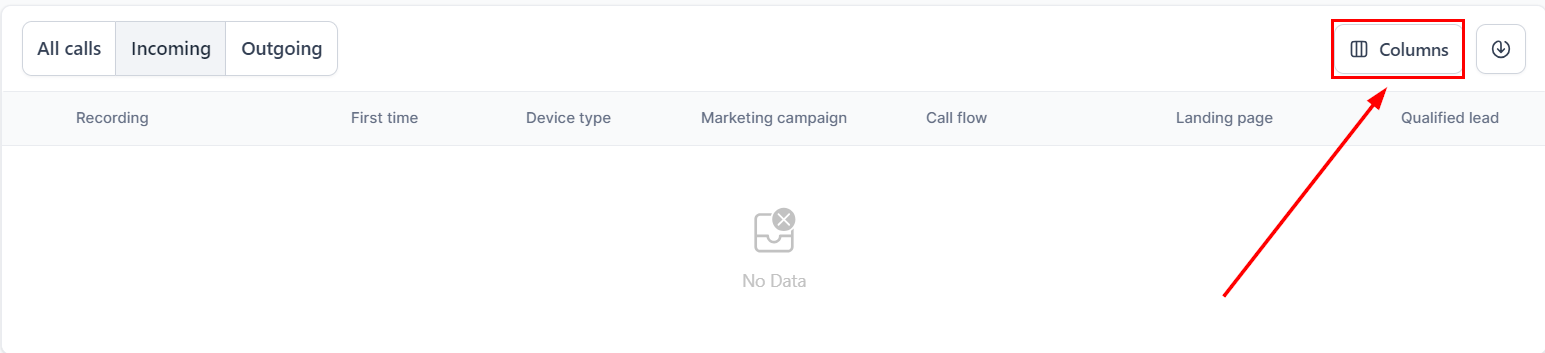
Click **Columns** to choose which data columns to display. Select or deselect columns and click **Apply Columns** to update your view.
### Customize columns
Click **Columns** to choose which data columns to display. Select or deselect columns and click **Apply Columns** to update your view.
 ### Export data
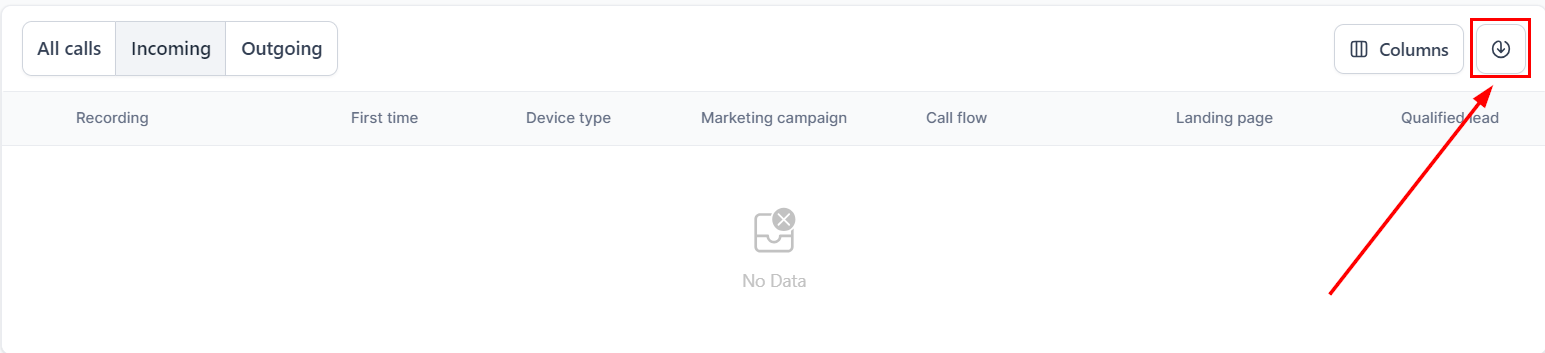
Click **Download Call Reporting Data** to export all call data to an Excel spreadsheet.
### Export data
Click **Download Call Reporting Data** to export all call data to an Excel spreadsheet.
 ## Outgoing calls
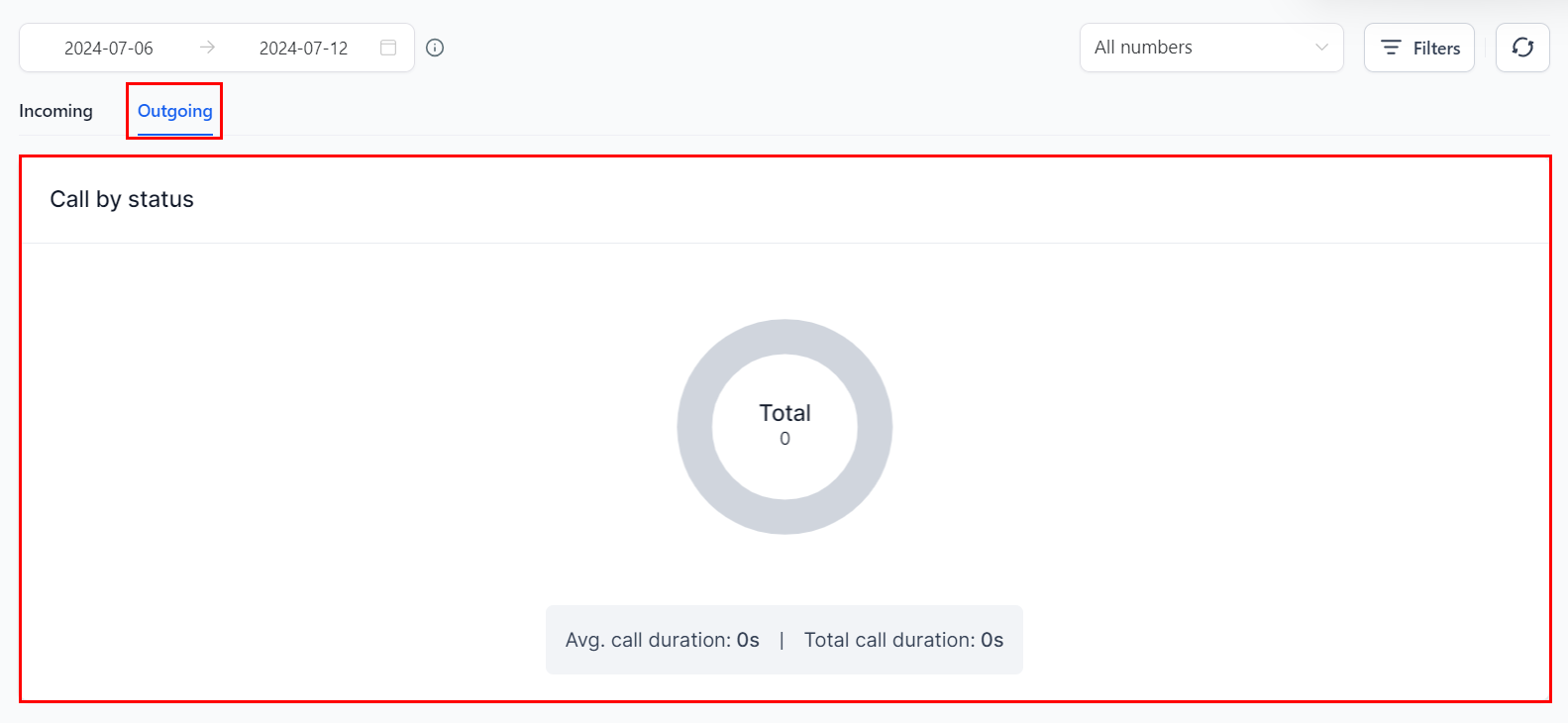
### Call by status
View the status of outgoing calls categorized as Answered, Failed, Busy, or Missed.
## Outgoing calls
### Call by status
View the status of outgoing calls categorized as Answered, Failed, Busy, or Missed.
 ### Top call agents
View the most prominent agents by call volume. Metrics include:
* **Agents** — agents who made/received calls
* **Total calls** — total calls made
* **Avg duration** — average call duration
* **Unique leads** — qualified leads generated from all calls
***
## Accessing and using call recordings
Call recordings provide valuable insights into customer interactions and support quality assurance and training.
To access call recordings, ensure the Call Recording feature is enabled for all applicable numbers. See [Phone System](/settings/phone-system) for setup instructions.
### Finding recordings under Contacts
Navigate to **Contacts > Smart Lists** and select the desired contact.
### Top call agents
View the most prominent agents by call volume. Metrics include:
* **Agents** — agents who made/received calls
* **Total calls** — total calls made
* **Avg duration** — average call duration
* **Unique leads** — qualified leads generated from all calls
***
## Accessing and using call recordings
Call recordings provide valuable insights into customer interactions and support quality assurance and training.
To access call recordings, ensure the Call Recording feature is enabled for all applicable numbers. See [Phone System](/settings/phone-system) for setup instructions.
### Finding recordings under Contacts
Navigate to **Contacts > Smart Lists** and select the desired contact.
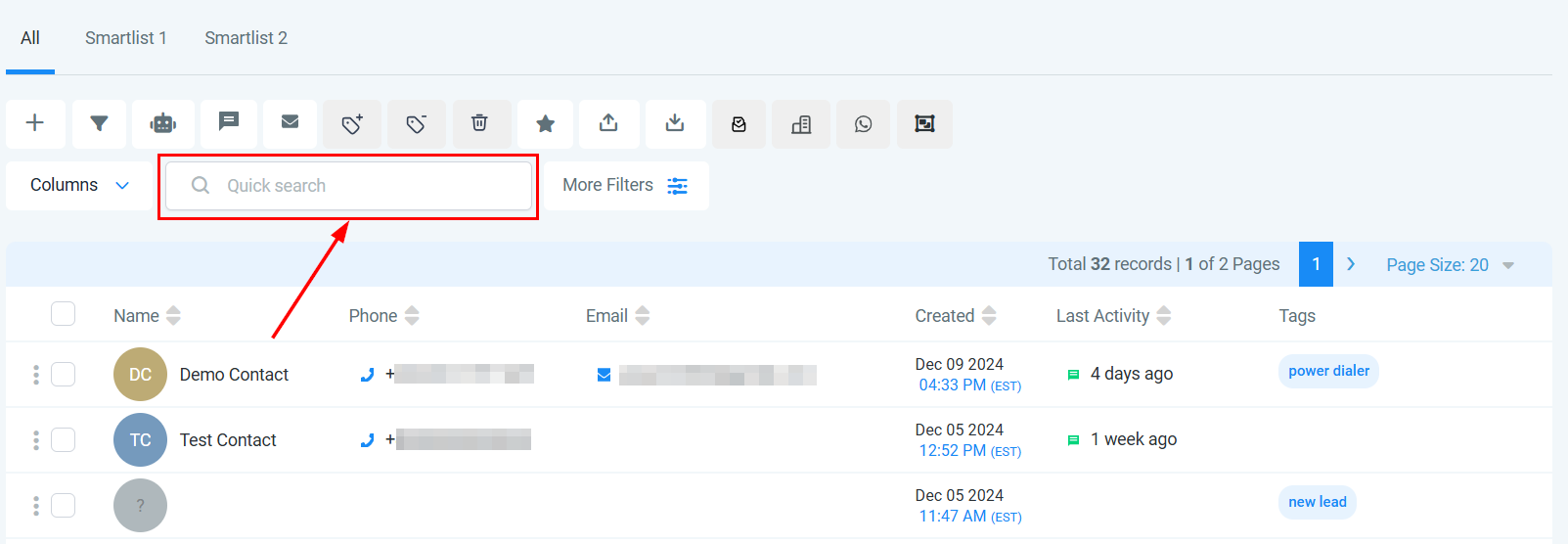
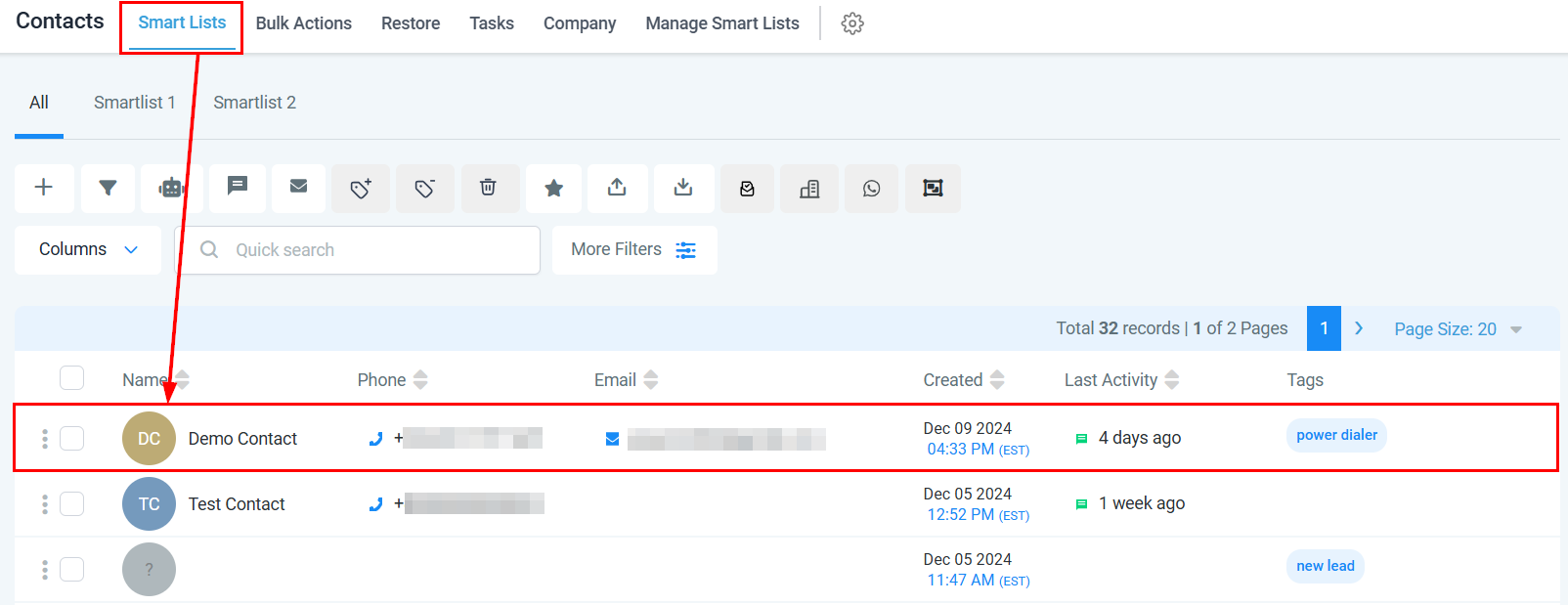 Use the search bar to locate a contact by name, email, or phone number if they are not immediately visible.
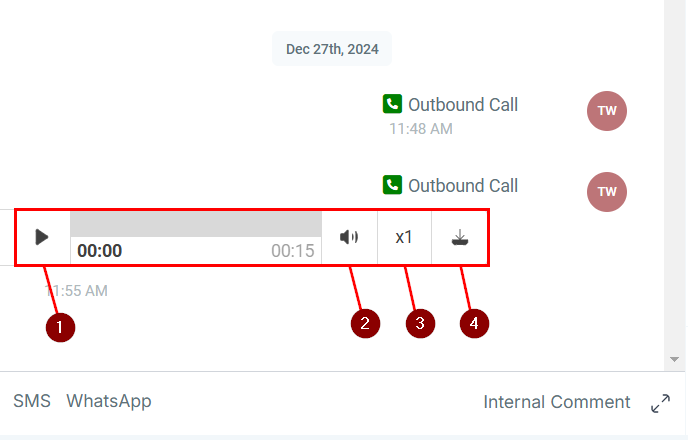
 Click the contact's name to open their conversation timeline. Scroll to locate any call recordings — they are marked for easy identification.
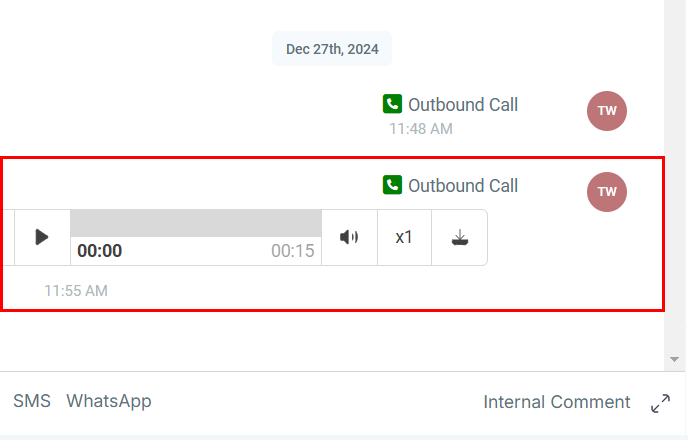 Use the player controls:
* **Play** — listen directly in the platform
* **Audio** — mute/unmute
* **Playback Speed** — adjust listening speed
* **Download** — save the recording externally
Use the player controls:
* **Play** — listen directly in the platform
* **Audio** — mute/unmute
* **Playback Speed** — adjust listening speed
* **Download** — save the recording externally
 ### Finding recordings under Call Reporting
Navigate to the **Call Report** tab within Reporting to view multiple recordings in one place.
### Finding recordings under Call Reporting
Navigate to the **Call Report** tab within Reporting to view multiple recordings in one place.
 ***
## Advanced call reporting filters
Advanced filters let you refine call data by source type, keywords, campaigns, landing pages, referrers, and more.
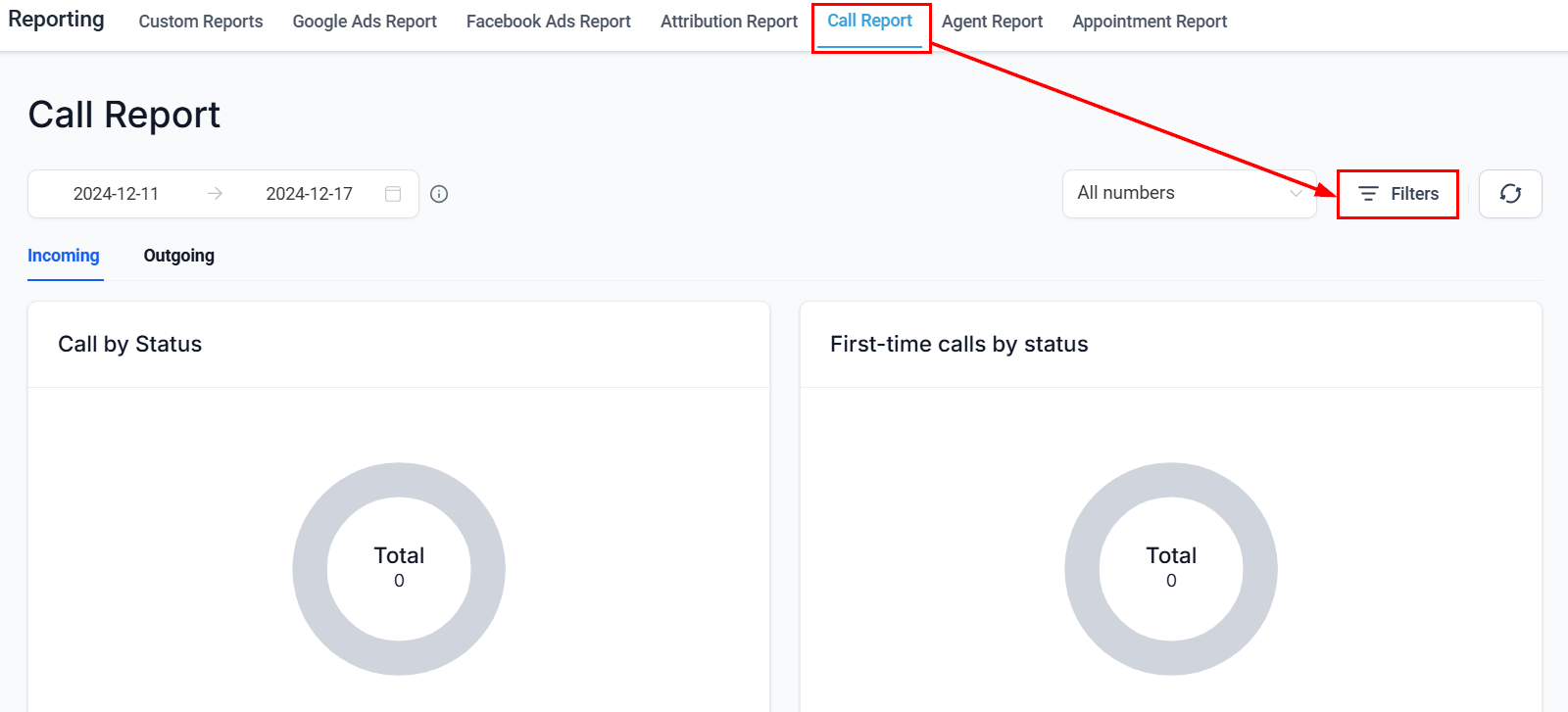
Click the **Filters** button at the upper right of the Call Report tab to open the filters panel.
***
## Advanced call reporting filters
Advanced filters let you refine call data by source type, keywords, campaigns, landing pages, referrers, and more.
Click the **Filters** button at the upper right of the Call Report tab to open the filters panel.
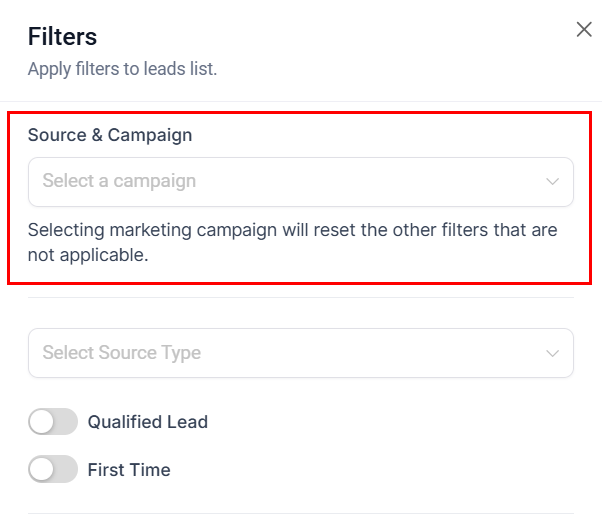
 Identify the origin of your calls by defining the source or campaign. This tells you which marketing channels are driving call traffic.
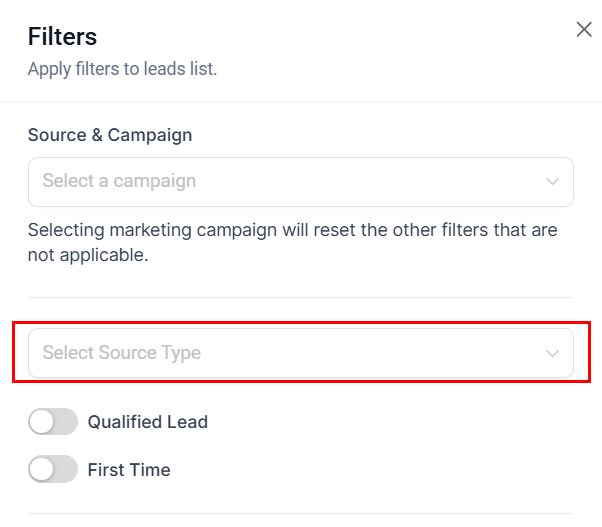
 Filter calls by the medium or platform where they originated. Understanding source types helps identify high-performing channels and allocate resources to maximize ROI.
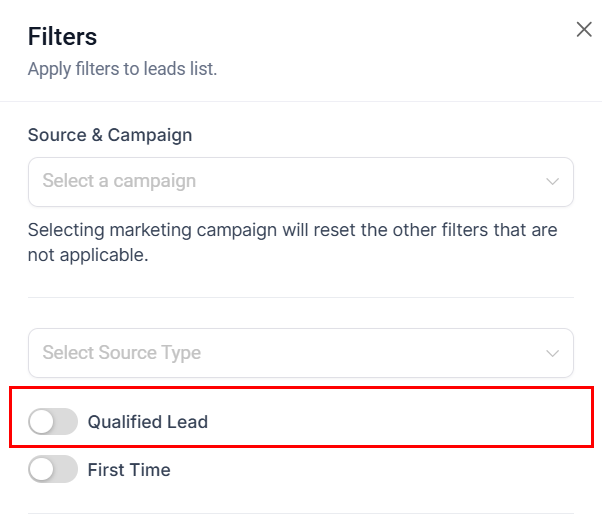
 Enable the **Qualified Lead** toggle to filter to only qualified or only unqualified callers, supporting focused analysis of your lead pipeline.
 Enable the **First Timer** filter to analyze the effectiveness of initial engagement efforts and track responses from new leads.
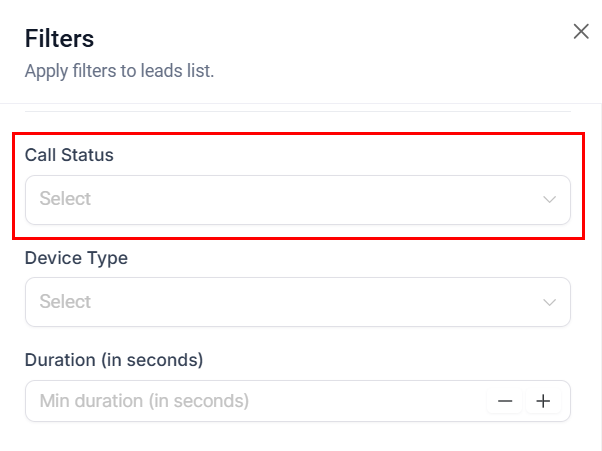
Filter calls by status — answered, missed, failed, or busy — to pinpoint areas for improvement in call handling.
Enable the **First Timer** filter to analyze the effectiveness of initial engagement efforts and track responses from new leads.
Filter calls by status — answered, missed, failed, or busy — to pinpoint areas for improvement in call handling.
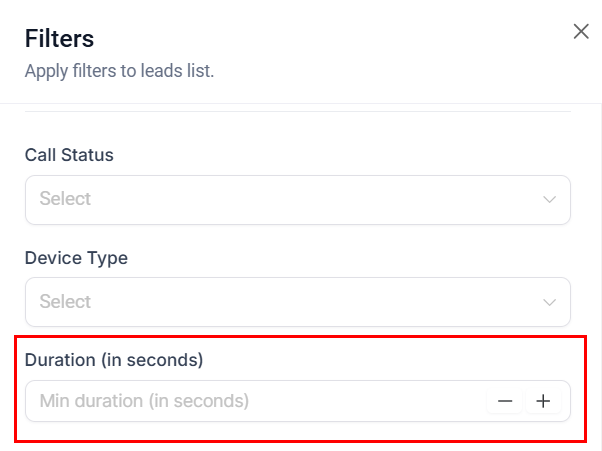
 Specify a minimum call duration (e.g., "90 seconds") to filter results. Useful for assessing the depth of customer interactions.
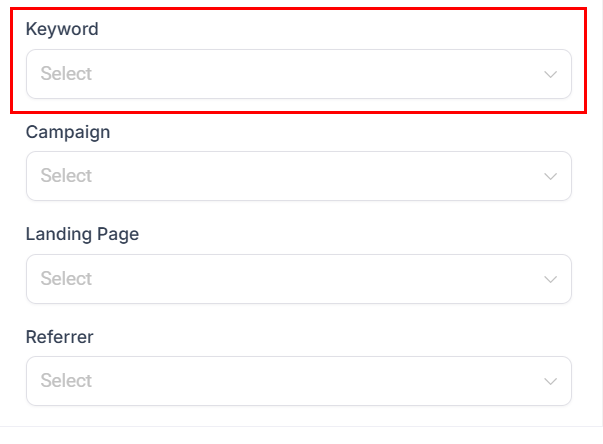
 Filter by keywords assigned to contacts to group contacts sharing a specific attribute and target communication more precisely.
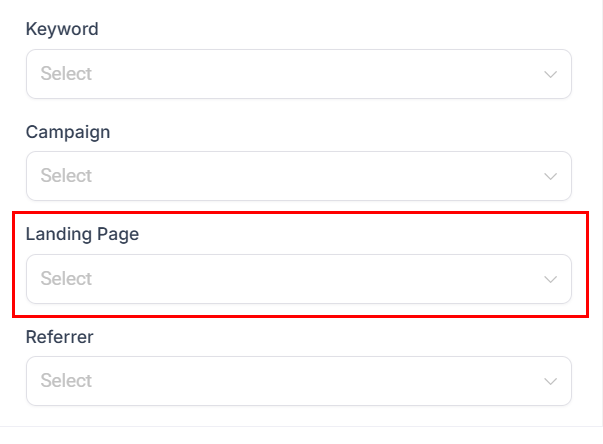
 Filter calls by the originating landing page to determine which pages drive the most calls and conversions.
 ***
## Frequently asked questions
Use the date range selector at the top of the Call Report tab. You can select up to 180 days.
Yes. Click the **All Numbers** dropdown to select and analyze multiple phone numbers simultaneously.
Yes. Click **Download Call Reporting Data** to export to an Excel spreadsheet.
Ensure you have the correct date range or contact name. If the recording is still missing, verify that call recording is enabled for your account in [Phone System settings](/settings/phone-system).
Yes. Recordings can be downloaded and shared. Ensure you comply with your organization's privacy policies and applicable laws regarding call recording.
## Related articles
* [Phone system settings](/settings/phone-system)
* [Agent reporting](/reporting/agent-reporting)
* [Appointment report](/reporting/appointment-report)
***
## Frequently asked questions
Use the date range selector at the top of the Call Report tab. You can select up to 180 days.
Yes. Click the **All Numbers** dropdown to select and analyze multiple phone numbers simultaneously.
Yes. Click **Download Call Reporting Data** to export to an Excel spreadsheet.
Ensure you have the correct date range or contact name. If the recording is still missing, verify that call recording is enabled for your account in [Phone System settings](/settings/phone-system).
Yes. Recordings can be downloaded and shared. Ensure you comply with your organization's privacy policies and applicable laws regarding call recording.
## Related articles
* [Phone system settings](/settings/phone-system)
* [Agent reporting](/reporting/agent-reporting)
* [Appointment report](/reporting/appointment-report)