> ## Documentation Index
> Fetch the complete documentation index at: https://help.hoopai.com/llms.txt
> Use this file to discover all available pages before exploring further.
# Audit Reports
> Generate local marketing audits and compare performance reports to track your online presence in the HoopAI Platform.
The Audit Reports section provides tools for generating Local Marketing Audits and comparing your online presence against competitors. Use these reports to uncover gaps, identify strengths, and take targeted action to improve your digital footprint.
Audit report access may be restricted based on your user permissions. Contact your account administrator if this section is unavailable.
## Local marketing audit
Your online presence is composed of many pieces that need to stay updated and consistent. With Local Marketing Audits, you can get a comprehensive snapshot of how your business appears online — and where to improve.
### Why use the local marketing audit?
* Identify missing or inconsistent business listings across the web
* See how your online presence compares to local competitors
* Get actionable recommendations for improving local SEO
* Track progress over time by generating repeat audits
### Generating a local marketing audit
Go to **Reporting** in the left sidebar, then select **Audit Reports**.
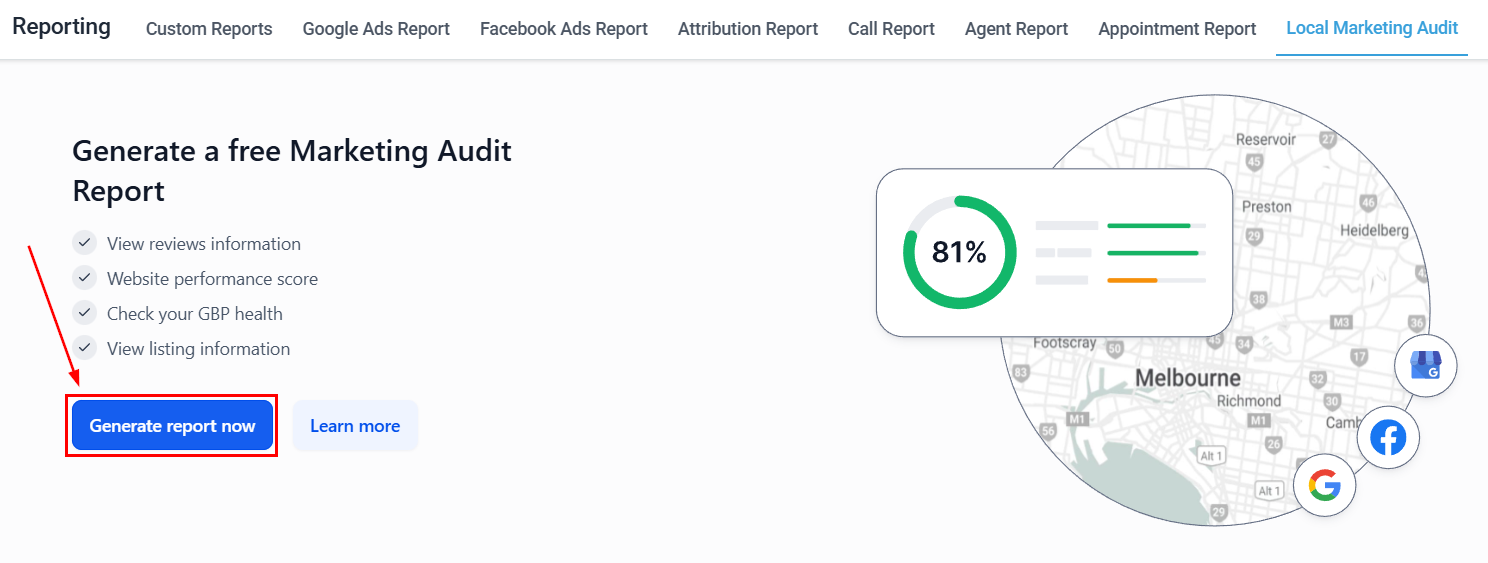 Enter your business name, address, and any other required information to run the audit against your local listings.
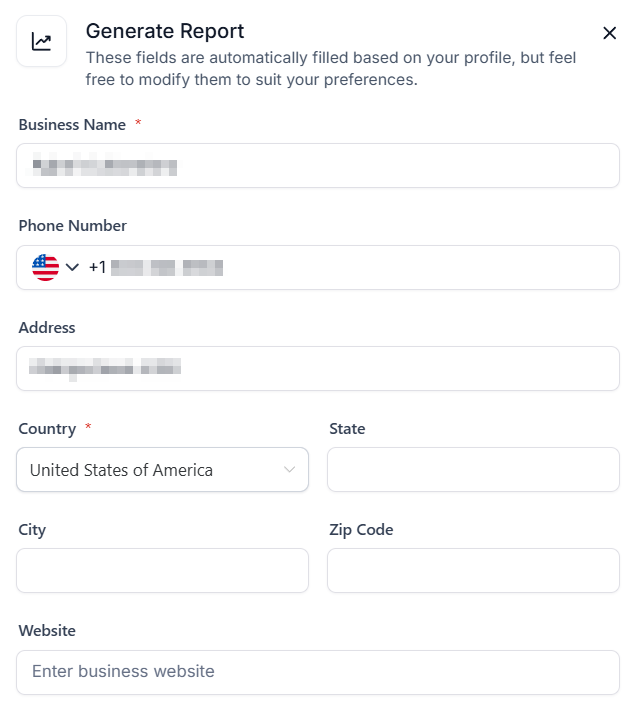 Click **Generate Audit** to scan your business's online presence across directories, search engines, and review platforms.
The audit results show your business listing accuracy, review counts, and visibility scores across major platforms. Each section includes a status indicator and recommended actions.
***
## Comparing reports
Your marketing efforts exist alongside your competition. Use the Compare Reports feature to benchmark your online presence against competitor data for actionable insights.
### How to generate comparative reports
From the Audit Reports section, select the **Compare Reports** option.
Click **Generate Audit** to scan your business's online presence across directories, search engines, and review platforms.
The audit results show your business listing accuracy, review counts, and visibility scores across major platforms. Each section includes a status indicator and recommended actions.
***
## Comparing reports
Your marketing efforts exist alongside your competition. Use the Compare Reports feature to benchmark your online presence against competitor data for actionable insights.
### How to generate comparative reports
From the Audit Reports section, select the **Compare Reports** option.
 Choose two or more previously generated audits to compare side-by-side, or enter competitor business information to generate a competitor comparison.
The comparison highlights differences in listing completeness, review volume, star ratings, and visibility scores between your business and the comparison targets.
Download the comparison as a report to share with stakeholders or use as a baseline for future audits.
***
## Account-level audit logs
For a detailed record of user actions and system changes within your account, see the [Audit Logs](/settings/audit-logs) section under Settings. Audit logs track:
* User logins and account changes
* Workflow creation and edits
* Contact and opportunity updates
* Settings and configuration changes
## Frequently asked questions
Run a new audit whenever you update your business information (address, phone, hours) or launch a new marketing initiative. For ongoing monitoring, a monthly audit is a reasonable cadence.
The audit scans major directories, search engines, and review platforms including Google, Yelp, Bing, Facebook, and other local listing sites relevant to your business category.
Yes. In the Compare Reports section, you can enter a competitor's business information to generate a side-by-side comparison of listing completeness, review volume, and visibility scores.
User action and system change logs are in **Settings → Audit Logs**, not in this Reporting section. Audit Logs track logins, workflow edits, contact changes, and configuration updates.
Yes. Use the Export or share option after generating a comparison report to download it and share with stakeholders or clients.
## Related articles
* [Audit logs (settings)](/settings/audit-logs)
* [Custom reports](/reporting/custom-reports)
* [Reputation management](/reputation/overview)
Choose two or more previously generated audits to compare side-by-side, or enter competitor business information to generate a competitor comparison.
The comparison highlights differences in listing completeness, review volume, star ratings, and visibility scores between your business and the comparison targets.
Download the comparison as a report to share with stakeholders or use as a baseline for future audits.
***
## Account-level audit logs
For a detailed record of user actions and system changes within your account, see the [Audit Logs](/settings/audit-logs) section under Settings. Audit logs track:
* User logins and account changes
* Workflow creation and edits
* Contact and opportunity updates
* Settings and configuration changes
## Frequently asked questions
Run a new audit whenever you update your business information (address, phone, hours) or launch a new marketing initiative. For ongoing monitoring, a monthly audit is a reasonable cadence.
The audit scans major directories, search engines, and review platforms including Google, Yelp, Bing, Facebook, and other local listing sites relevant to your business category.
Yes. In the Compare Reports section, you can enter a competitor's business information to generate a side-by-side comparison of listing completeness, review volume, and visibility scores.
User action and system change logs are in **Settings → Audit Logs**, not in this Reporting section. Audit Logs track logins, workflow edits, contact changes, and configuration updates.
Yes. Use the Export or share option after generating a comparison report to download it and share with stakeholders or clients.
## Related articles
* [Audit logs (settings)](/settings/audit-logs)
* [Custom reports](/reporting/custom-reports)
* [Reputation management](/reputation/overview)