> ## Documentation Index
> Fetch the complete documentation index at: https://help.hoopai.com/llms.txt
> Use this file to discover all available pages before exploring further.
# Attribution Reporting
> Understand where your leads come from using first touch and last touch attribution, UTM parameter tracking, and traffic source breakdowns in the HoopAI Platform.
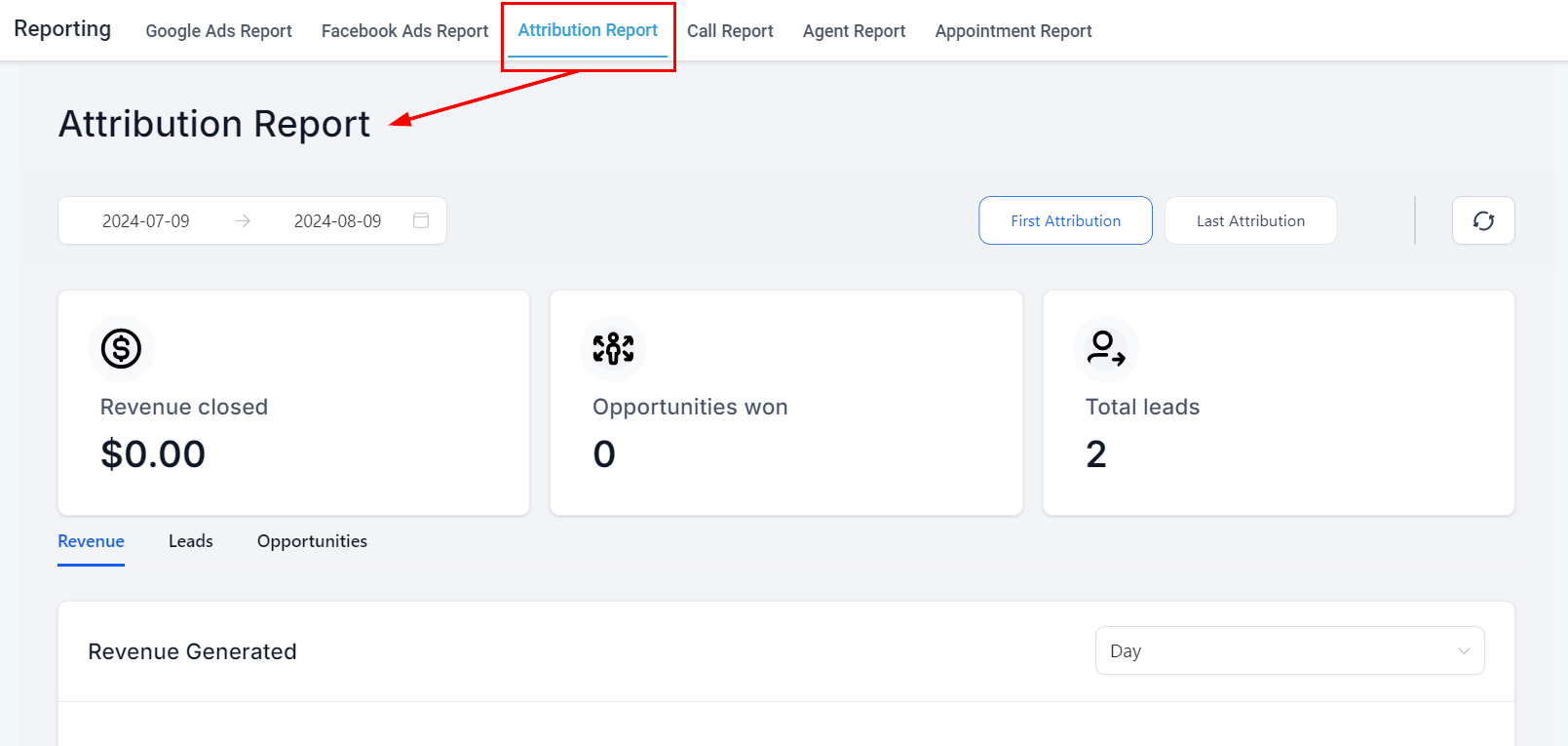
Attribution reporting answers the most important question in marketing: which channels are actually driving conversions? The HoopAI Platform records attribution data at every contact touchpoint so you can trace leads from their first interaction all the way through to a closed deal.
 ## How attribution works
Every contact in HoopAI carries two attribution records:
* **First attribution** — the channel, source, or campaign that brought the contact into your system for the very first time. This is set when the contact completes their first tracked action (form submission, calendar booking, chat widget interaction, or order form) and never changes.
* **Latest attribution** — the most recent channel or campaign associated with the contact. This updates each time the contact completes another tracked conversion action, giving you a view of the last touchpoint before a deal closes.
Both records are stored on every contact and are available as filters in custom widgets and reports.
Attribution data is only captured when a contact completes an action through a native HoopAI tool — forms, surveys, calendars, chat widgets, or order forms. Actions taken on third-party tools that are not connected to HoopAI will not record attribution data.
***
## Traffic source categories
HoopAI classifies every attributed contact into one of nine source categories:
| Source | How it is identified |
| --------------------------- | -------------------------------------------------------------------------------------- |
| **Paid search** | UTM parameters where `utm_source=adwords` |
| **Paid social** | UTM parameters where `utm_source=fb_ad` (case-sensitive) |
| **Organic search** | Referrer domain matches Google, Bing, Yahoo, or DuckDuckGo with no paid UTM parameters |
| **Social media** | Direct traffic from a social platform without paid UTM tags |
| **Direct traffic** | No referrer data present; URL typed or bookmarked |
| **Referral** | Link from an external website other than a search engine or social platform |
| **Other** | Contacts sourced through calls, SMS, emails, WhatsApp, or Facebook messages |
| **CRM UI** | Contacts created manually inside the HoopAI platform |
| **Third-party integration** | Contacts added via integrations such as Zapier or API |
***
## UTM parameter tracking
UTM parameters pass campaign metadata from your ads directly into contact records and attribution reports. HoopAI reads five standard UTM parameters:
* `utm_source` — the traffic origin (e.g., `adwords`, `fb_ad`, `newsletter`)
* `utm_medium` — the marketing medium (e.g., `cpc`, `email`, `social`)
* `utm_campaign` — the campaign name
* `utm_content` — the specific ad creative or link variant
* `utm_term` — the keyword that triggered a paid search ad
### UTM requirements
For UTM data to be captured correctly:
1. The contact must complete a conversion action on the same page where they arrived — moving to a different page before converting breaks the session and loses UTM data.
2. Parameter names are case-sensitive. Use `utm_source=adwords` exactly, not `Adwords` or `ADWORDS`.
3. Use the HoopAI-provided UTM templates for Google Ads and Facebook Ads rather than custom parameter names, as the platform uses specific source values to classify traffic correctly.
For Google Ads, use the template: `utm_source=adwords&utm_medium={adname}&utm_campaign={campaignname}`. For Facebook Ads, use: `utm_source=fb_ad&utm_medium={{adset.name}}&utm_campaign={{campaign.name}}`.
***
## Viewing attribution data
### On a contact record
Open any contact and scroll to the **Attribution** section. You will see both the first and latest attribution records, including the source, medium, campaign, and any UTM parameters captured at the time of conversion.
## How attribution works
Every contact in HoopAI carries two attribution records:
* **First attribution** — the channel, source, or campaign that brought the contact into your system for the very first time. This is set when the contact completes their first tracked action (form submission, calendar booking, chat widget interaction, or order form) and never changes.
* **Latest attribution** — the most recent channel or campaign associated with the contact. This updates each time the contact completes another tracked conversion action, giving you a view of the last touchpoint before a deal closes.
Both records are stored on every contact and are available as filters in custom widgets and reports.
Attribution data is only captured when a contact completes an action through a native HoopAI tool — forms, surveys, calendars, chat widgets, or order forms. Actions taken on third-party tools that are not connected to HoopAI will not record attribution data.
***
## Traffic source categories
HoopAI classifies every attributed contact into one of nine source categories:
| Source | How it is identified |
| --------------------------- | -------------------------------------------------------------------------------------- |
| **Paid search** | UTM parameters where `utm_source=adwords` |
| **Paid social** | UTM parameters where `utm_source=fb_ad` (case-sensitive) |
| **Organic search** | Referrer domain matches Google, Bing, Yahoo, or DuckDuckGo with no paid UTM parameters |
| **Social media** | Direct traffic from a social platform without paid UTM tags |
| **Direct traffic** | No referrer data present; URL typed or bookmarked |
| **Referral** | Link from an external website other than a search engine or social platform |
| **Other** | Contacts sourced through calls, SMS, emails, WhatsApp, or Facebook messages |
| **CRM UI** | Contacts created manually inside the HoopAI platform |
| **Third-party integration** | Contacts added via integrations such as Zapier or API |
***
## UTM parameter tracking
UTM parameters pass campaign metadata from your ads directly into contact records and attribution reports. HoopAI reads five standard UTM parameters:
* `utm_source` — the traffic origin (e.g., `adwords`, `fb_ad`, `newsletter`)
* `utm_medium` — the marketing medium (e.g., `cpc`, `email`, `social`)
* `utm_campaign` — the campaign name
* `utm_content` — the specific ad creative or link variant
* `utm_term` — the keyword that triggered a paid search ad
### UTM requirements
For UTM data to be captured correctly:
1. The contact must complete a conversion action on the same page where they arrived — moving to a different page before converting breaks the session and loses UTM data.
2. Parameter names are case-sensitive. Use `utm_source=adwords` exactly, not `Adwords` or `ADWORDS`.
3. Use the HoopAI-provided UTM templates for Google Ads and Facebook Ads rather than custom parameter names, as the platform uses specific source values to classify traffic correctly.
For Google Ads, use the template: `utm_source=adwords&utm_medium={adname}&utm_campaign={campaignname}`. For Facebook Ads, use: `utm_source=fb_ad&utm_medium={{adset.name}}&utm_campaign={{campaign.name}}`.
***
## Viewing attribution data
### On a contact record
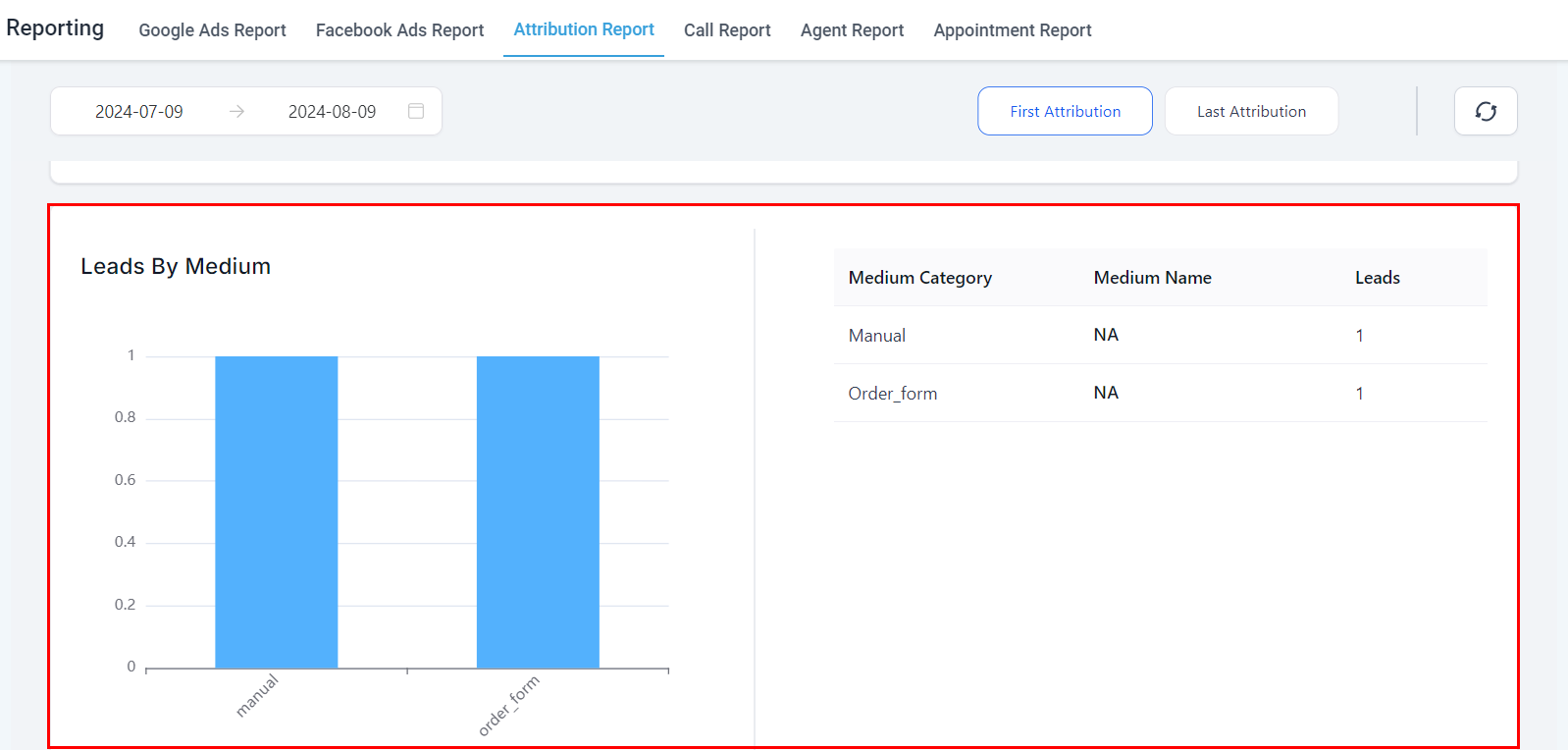
Open any contact and scroll to the **Attribution** section. You will see both the first and latest attribution records, including the source, medium, campaign, and any UTM parameters captured at the time of conversion.
 ### In custom dashboard widgets
Attribution filters can be added to any contact or opportunity widget on your dashboard:
1. Edit your dashboard and add or open a widget from the **Contacts** or **Opportunities** category.
2. Click the **Conditions** tab and select **Add Condition**.
3. Choose **Attribution** and select either **First Attribution** or **Latest Attribution**.
4. Add attribution fields such as UTM Campaign, UTM Source, UTM Medium, or Session Source.
5. Save the widget.
Once configured, widgets can display attribution data as donut charts grouped by source, line graphs tracking trends over time, or table views with exportable columns including UTM details.
### In custom dashboard widgets
Attribution filters can be added to any contact or opportunity widget on your dashboard:
1. Edit your dashboard and add or open a widget from the **Contacts** or **Opportunities** category.
2. Click the **Conditions** tab and select **Add Condition**.
3. Choose **Attribution** and select either **First Attribution** or **Latest Attribution**.
4. Add attribution fields such as UTM Campaign, UTM Source, UTM Medium, or Session Source.
5. Save the widget.
Once configured, widgets can display attribution data as donut charts grouped by source, line graphs tracking trends over time, or table views with exportable columns including UTM details.
 ### CSV export
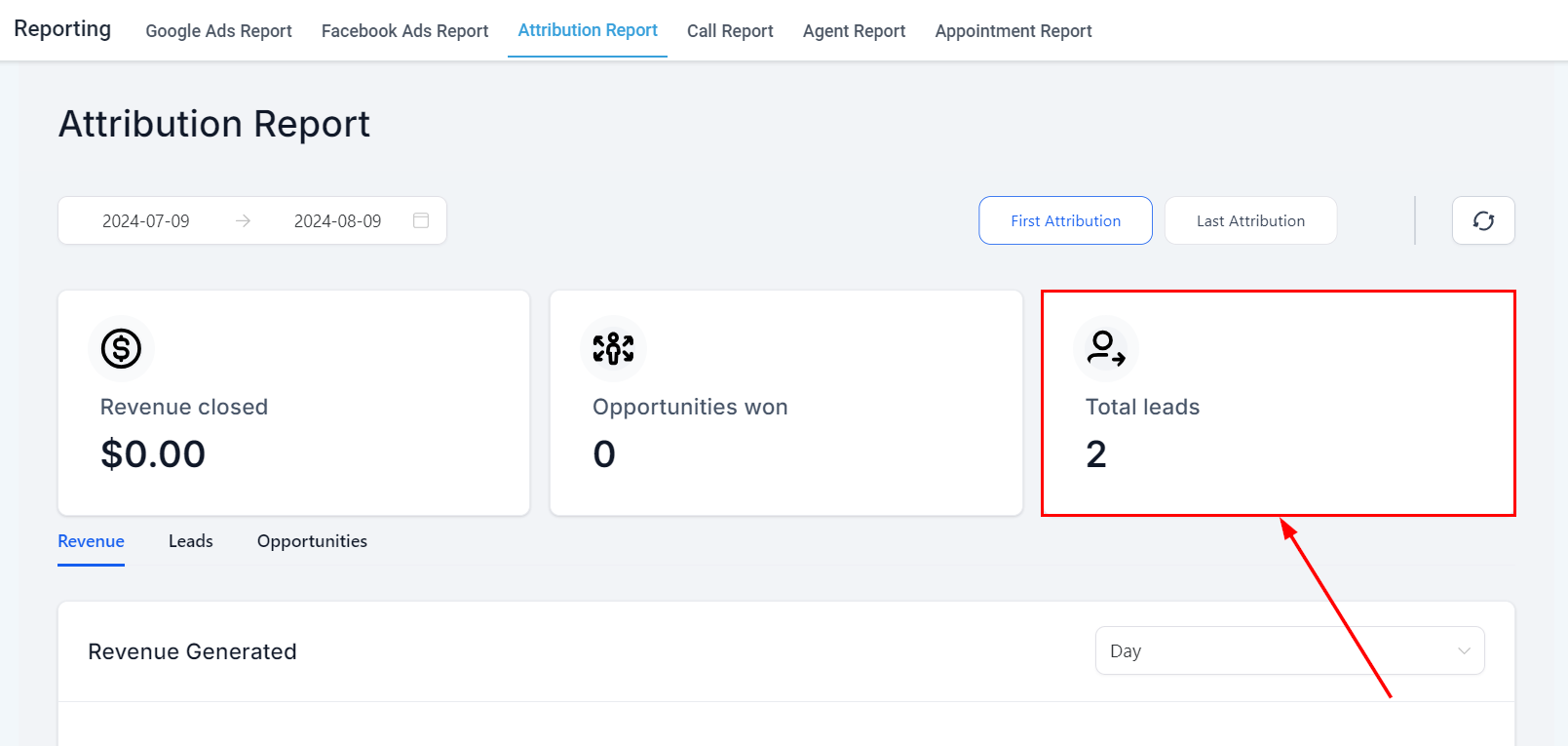
All attribution fields — including UTM parameters — are available in the granular insights table and can be exported as a CSV file. Add the attribution condition to a table widget and use the export option to download the data.
***
## Interpreting first touch vs. last touch
Neither attribution model is universally correct. Use them together to get a complete picture:
* **First touch** tells you which channels are best at generating new awareness and bringing in fresh contacts. Use it to evaluate top-of-funnel investments.
* **Last touch** tells you which channels are closing deals. Use it to understand what finally converted a lead who may have interacted with your brand multiple times.
Comparing the two models on the same audience often reveals that some channels excel at awareness but rarely close, while others convert well but only reach contacts who already know you.
***
## Chat widget attribution
When a contact initiates a conversation through your website's chat widget, HoopAI captures attribution data from the page where the chat started. This includes:
* **Page URL** — the specific page the visitor was on when they opened the chat
* **Referrer** — how the visitor arrived at that page (organic, paid, direct, referral)
* **UTM parameters** — if the visitor arrived via a link with UTM tags, those parameters are captured
* **Session source** — classified into the standard traffic source categories (organic search, paid search, direct, etc.)
Chat widget attribution is stored on the contact record alongside form-based and calendar-based attribution, giving you a complete picture of which channels drive conversations.
### Viewing chat widget attribution
1. Open the contact record and navigate to the **Attribution** section
2. Look for entries where the source action is **Chat Widget**
3. The associated page URL, referrer, and UTM data are displayed
### Using chat attribution in reports
Add a condition to any Contact or Opportunity widget filtering by **Source Action = Chat Widget** to isolate leads that originated from live chat conversations.
***
## Frequently asked questions
This typically happens when the contact navigated away from the landing page before completing a form or booking. UTM parameters are read at the moment of conversion on the same session. If the contact revisited the page later without clicking the ad link again, the UTM data would be absent.
Yes. Add a Table widget to your dashboard, apply a First or Latest Attribution condition, and include UTM Campaign as a column. This gives you a row-by-row breakdown of contacts by campaign, which you can also export as a CSV.
Contacts imported via CSV are classified as CRM UI or third-party integration sources. UTM parameters and session-based attribution do not apply to bulk imports since there is no live browsing session to capture.
Add UTM parameters to all links in your newsletter, for example: `utm_source=newsletter&utm_medium=email&utm_campaign=march-promo`. When a subscriber clicks through and completes a form or booking, that attribution will be recorded on the contact.
***
## Related articles
* [Ads reporting](/reporting/ads-reporting)
* [Custom reports](/reporting/custom-reports)
* [Contact growth report](/reporting/contact-growth-report)
* [Conversion reporting](/reporting/conversion-reporting)
### CSV export
All attribution fields — including UTM parameters — are available in the granular insights table and can be exported as a CSV file. Add the attribution condition to a table widget and use the export option to download the data.
***
## Interpreting first touch vs. last touch
Neither attribution model is universally correct. Use them together to get a complete picture:
* **First touch** tells you which channels are best at generating new awareness and bringing in fresh contacts. Use it to evaluate top-of-funnel investments.
* **Last touch** tells you which channels are closing deals. Use it to understand what finally converted a lead who may have interacted with your brand multiple times.
Comparing the two models on the same audience often reveals that some channels excel at awareness but rarely close, while others convert well but only reach contacts who already know you.
***
## Chat widget attribution
When a contact initiates a conversation through your website's chat widget, HoopAI captures attribution data from the page where the chat started. This includes:
* **Page URL** — the specific page the visitor was on when they opened the chat
* **Referrer** — how the visitor arrived at that page (organic, paid, direct, referral)
* **UTM parameters** — if the visitor arrived via a link with UTM tags, those parameters are captured
* **Session source** — classified into the standard traffic source categories (organic search, paid search, direct, etc.)
Chat widget attribution is stored on the contact record alongside form-based and calendar-based attribution, giving you a complete picture of which channels drive conversations.
### Viewing chat widget attribution
1. Open the contact record and navigate to the **Attribution** section
2. Look for entries where the source action is **Chat Widget**
3. The associated page URL, referrer, and UTM data are displayed
### Using chat attribution in reports
Add a condition to any Contact or Opportunity widget filtering by **Source Action = Chat Widget** to isolate leads that originated from live chat conversations.
***
## Frequently asked questions
This typically happens when the contact navigated away from the landing page before completing a form or booking. UTM parameters are read at the moment of conversion on the same session. If the contact revisited the page later without clicking the ad link again, the UTM data would be absent.
Yes. Add a Table widget to your dashboard, apply a First or Latest Attribution condition, and include UTM Campaign as a column. This gives you a row-by-row breakdown of contacts by campaign, which you can also export as a CSV.
Contacts imported via CSV are classified as CRM UI or third-party integration sources. UTM parameters and session-based attribution do not apply to bulk imports since there is no live browsing session to capture.
Add UTM parameters to all links in your newsletter, for example: `utm_source=newsletter&utm_medium=email&utm_campaign=march-promo`. When a subscriber clicks through and completes a form or booking, that attribution will be recorded on the contact.
***
## Related articles
* [Ads reporting](/reporting/ads-reporting)
* [Custom reports](/reporting/custom-reports)
* [Contact growth report](/reporting/contact-growth-report)
* [Conversion reporting](/reporting/conversion-reporting)