> ## Documentation Index
> Fetch the complete documentation index at: https://help.hoopai.com/llms.txt
> Use this file to discover all available pages before exploring further.
# Appointment Report
> Analyze appointment bookings, outcomes, calendar performance, and booking channels in the HoopAI Platform.
The Appointment Report gives you detailed insights into the appointments booked and managed through your calendars. Understanding your appointment data helps you assess team performance, identify top booking channels, and optimize your scheduling strategy.
## Accessing the appointment report
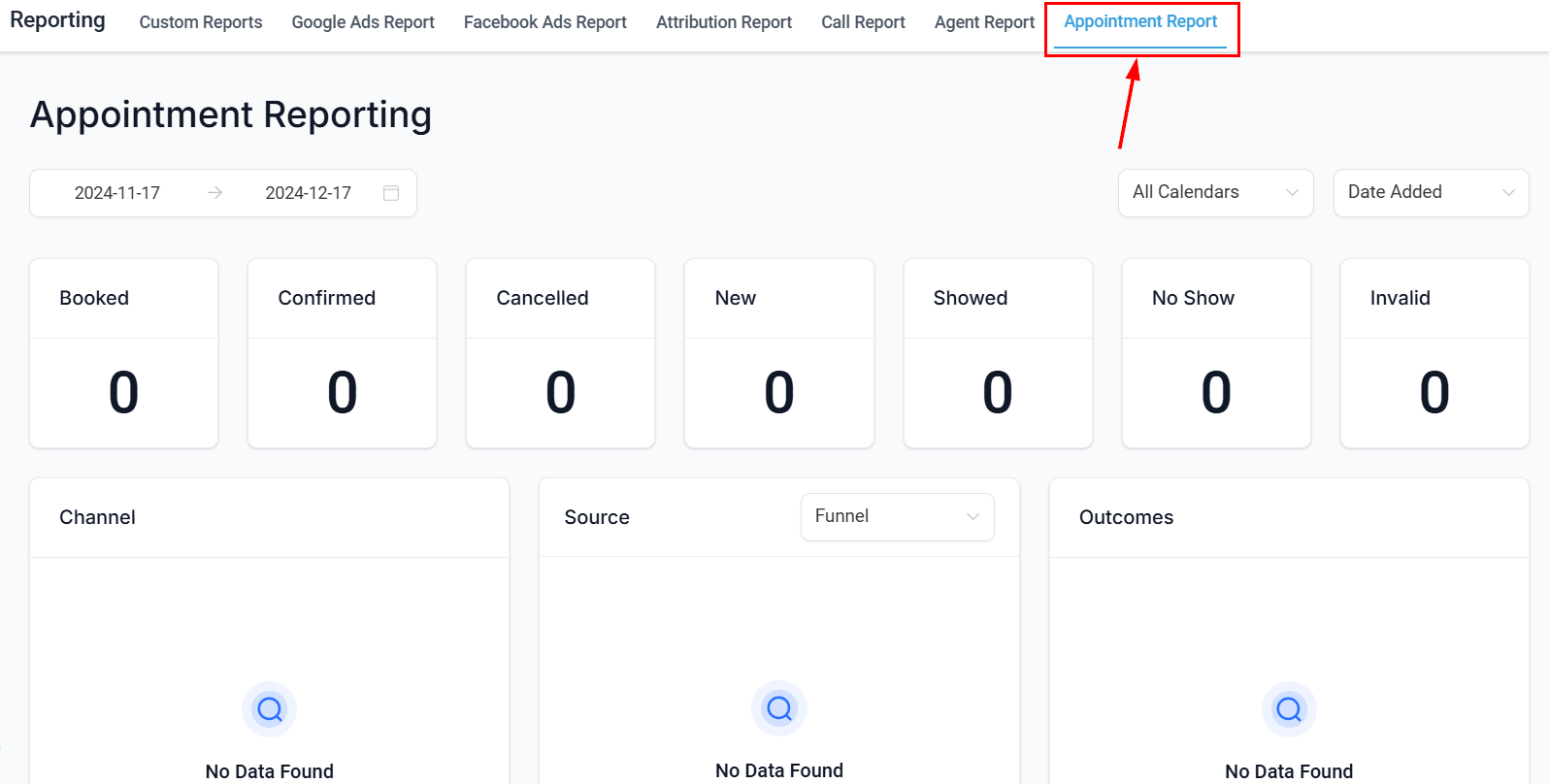
Navigate to **Reporting** in the left sidebar, then select the **Appointment Report** tab.
 ***
## Filtering appointments
Click the **Filter** button at the top of the report to narrow your appointment data.
***
## Filtering appointments
Click the **Filter** button at the top of the report to narrow your appointment data.
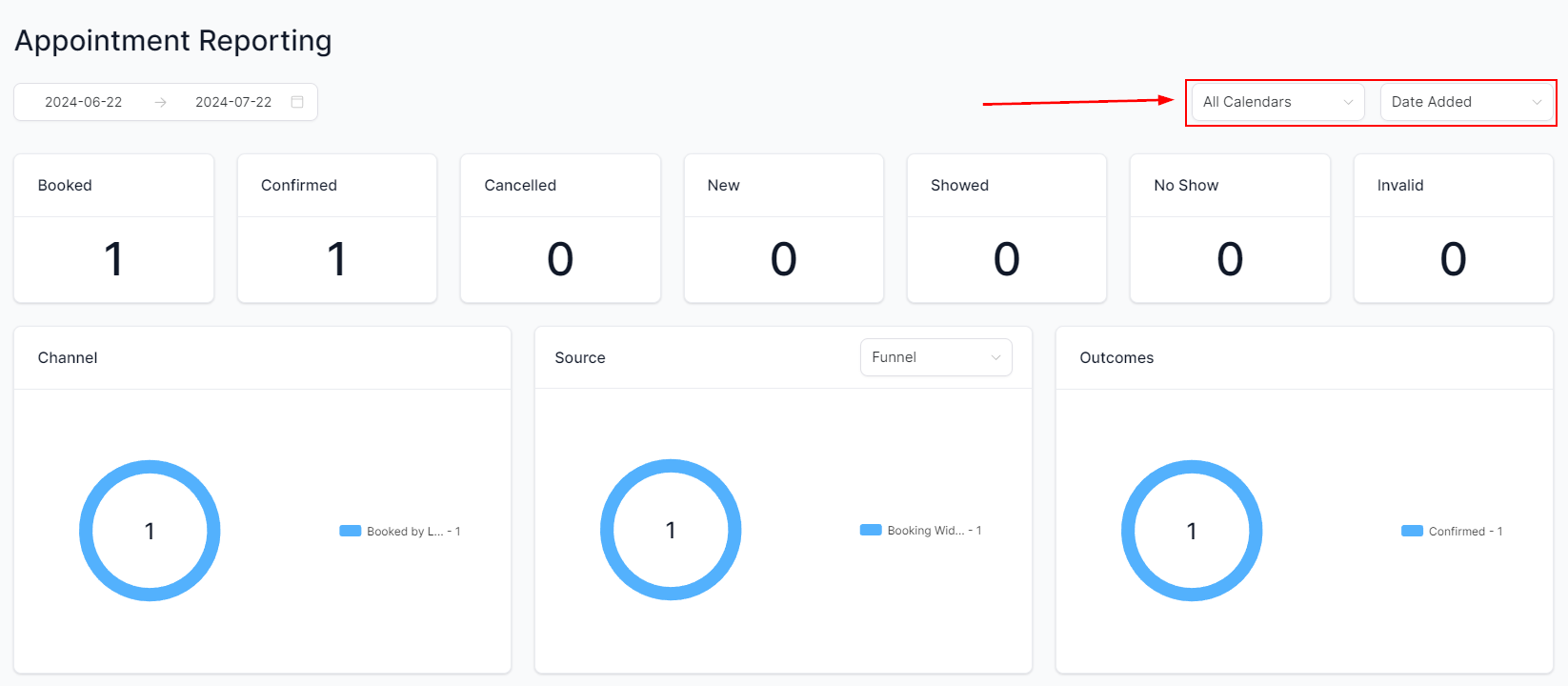 Available filter options include:
* **Calendar** — select one or more specific calendars
* **Date filter type** — filter by date the appointment was added or by appointment start date
* **Date range** — set a custom time frame
* **Status** — filter by booked, confirmed, cancelled, showed, or no-show
* **Assigned user** — isolate appointments by team member
***
## Report sections
### Overview metrics
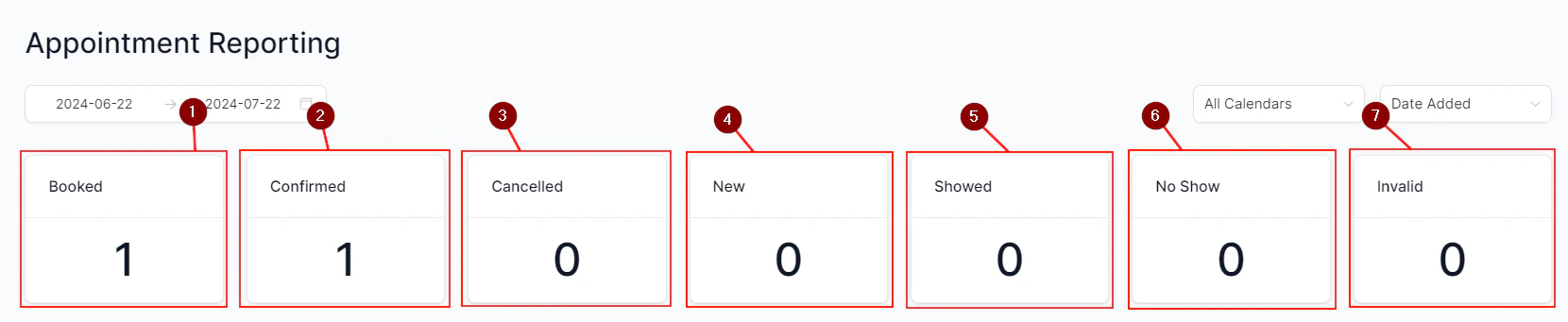
The Overview section displays top-level metrics for the selected period:
| Status | Description |
| ------------- | --------------------------------------------------- |
| **Booked** | Total appointments scheduled, including rescheduled |
| **Confirmed** | Appointments confirmed (includes completed) |
| **Cancelled** | Appointments cancelled by user or contact |
| **New** | Appointments booked for the first time |
| **Showed** | Completed appointments where the contact attended |
| **No show** | Appointments the contact missed without notice |
| **Invalid** | Appointments that don't meet validity conditions |
Available filter options include:
* **Calendar** — select one or more specific calendars
* **Date filter type** — filter by date the appointment was added or by appointment start date
* **Date range** — set a custom time frame
* **Status** — filter by booked, confirmed, cancelled, showed, or no-show
* **Assigned user** — isolate appointments by team member
***
## Report sections
### Overview metrics
The Overview section displays top-level metrics for the selected period:
| Status | Description |
| ------------- | --------------------------------------------------- |
| **Booked** | Total appointments scheduled, including rescheduled |
| **Confirmed** | Appointments confirmed (includes completed) |
| **Cancelled** | Appointments cancelled by user or contact |
| **New** | Appointments booked for the first time |
| **Showed** | Completed appointments where the contact attended |
| **No show** | Appointments the contact missed without notice |
| **Invalid** | Appointments that don't meet validity conditions |
 ### Booking channel breakdown
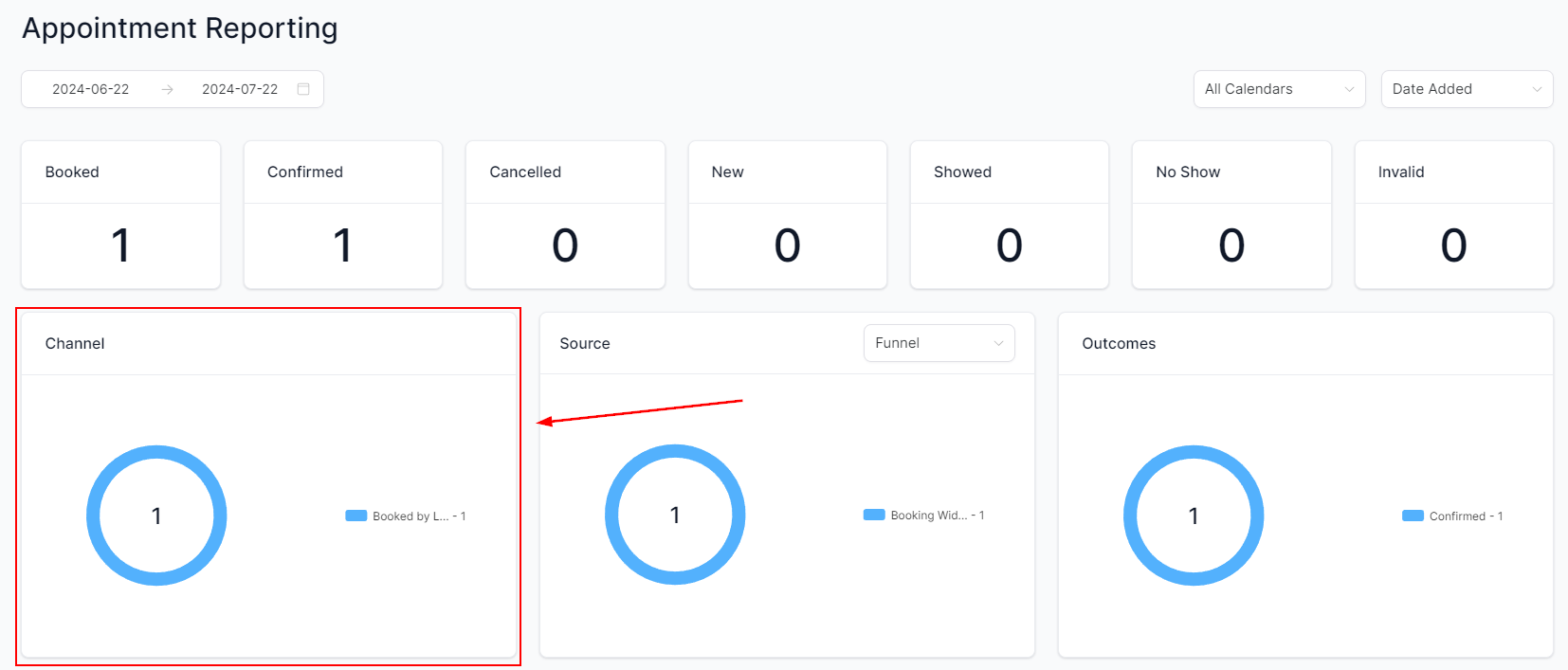
The Channel section shows which booking channels are driving appointments — for example, direct booking, website widget, or manual entry.
### Booking channel breakdown
The Channel section shows which booking channels are driving appointments — for example, direct booking, website widget, or manual entry.
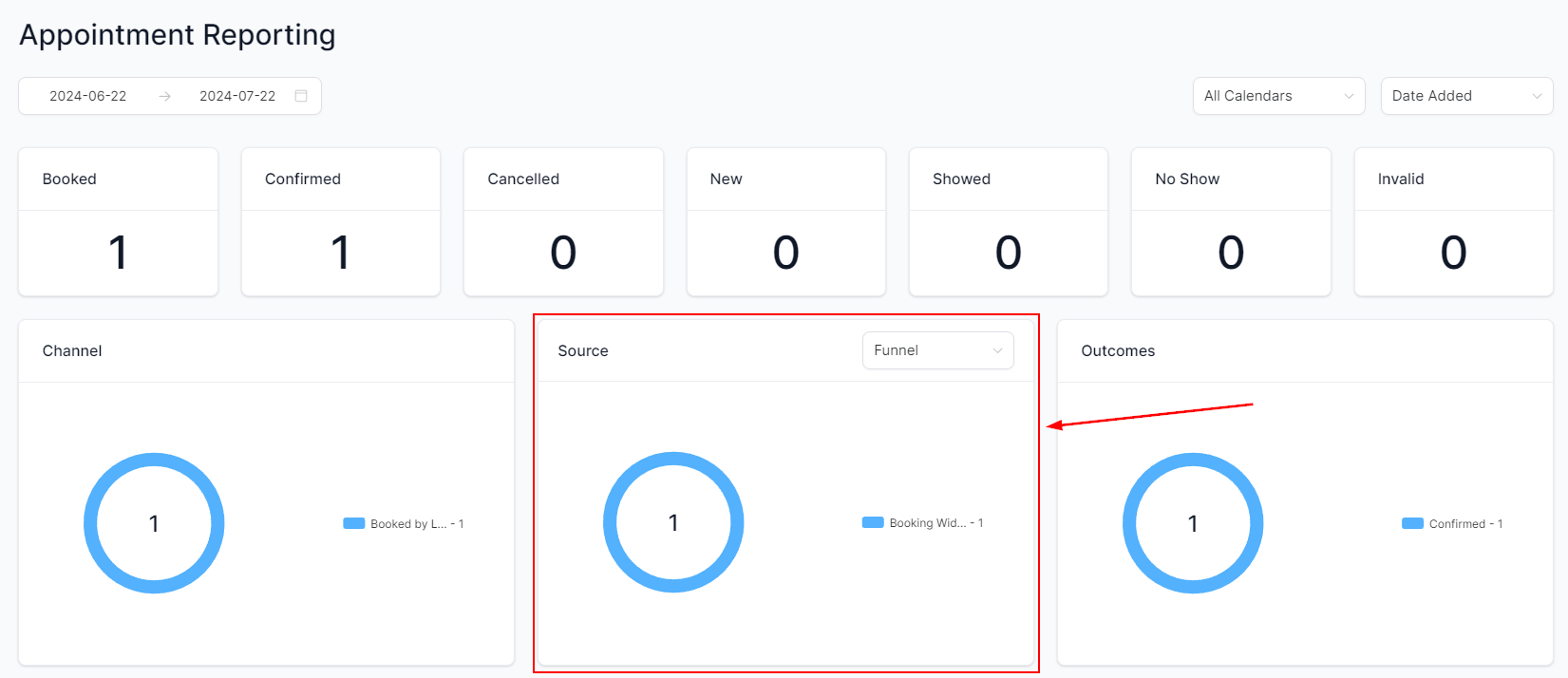
 ### Appointment source
The Source section identifies where appointments originated, helping you understand which marketing or outreach activities are generating calendar bookings.
### Appointment source
The Source section identifies where appointments originated, helping you understand which marketing or outreach activities are generating calendar bookings.
 ### Appointment outcome
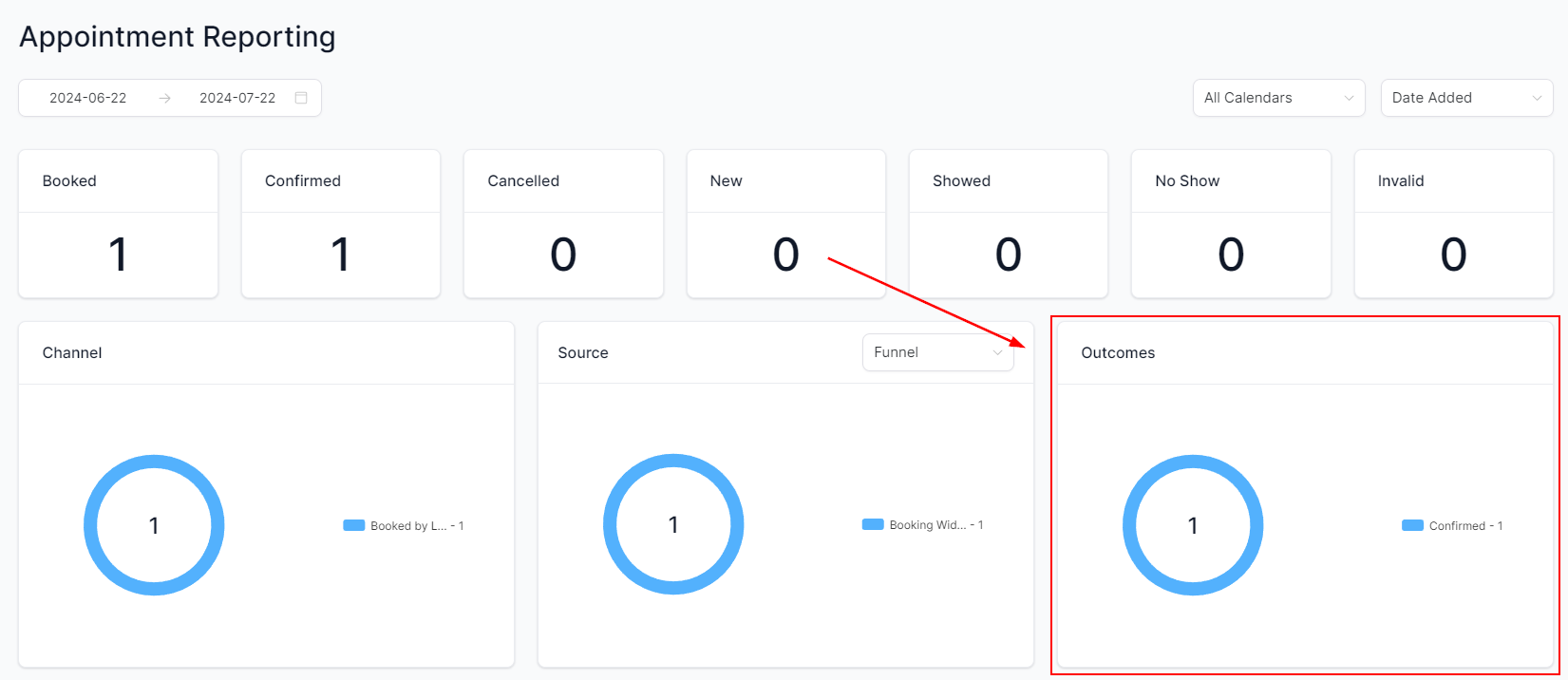
The Outcome section breaks down how appointments concluded — showed, cancelled, no-show, or rescheduled.
### Appointment outcome
The Outcome section breaks down how appointments concluded — showed, cancelled, no-show, or rescheduled.
 ### Top graphs
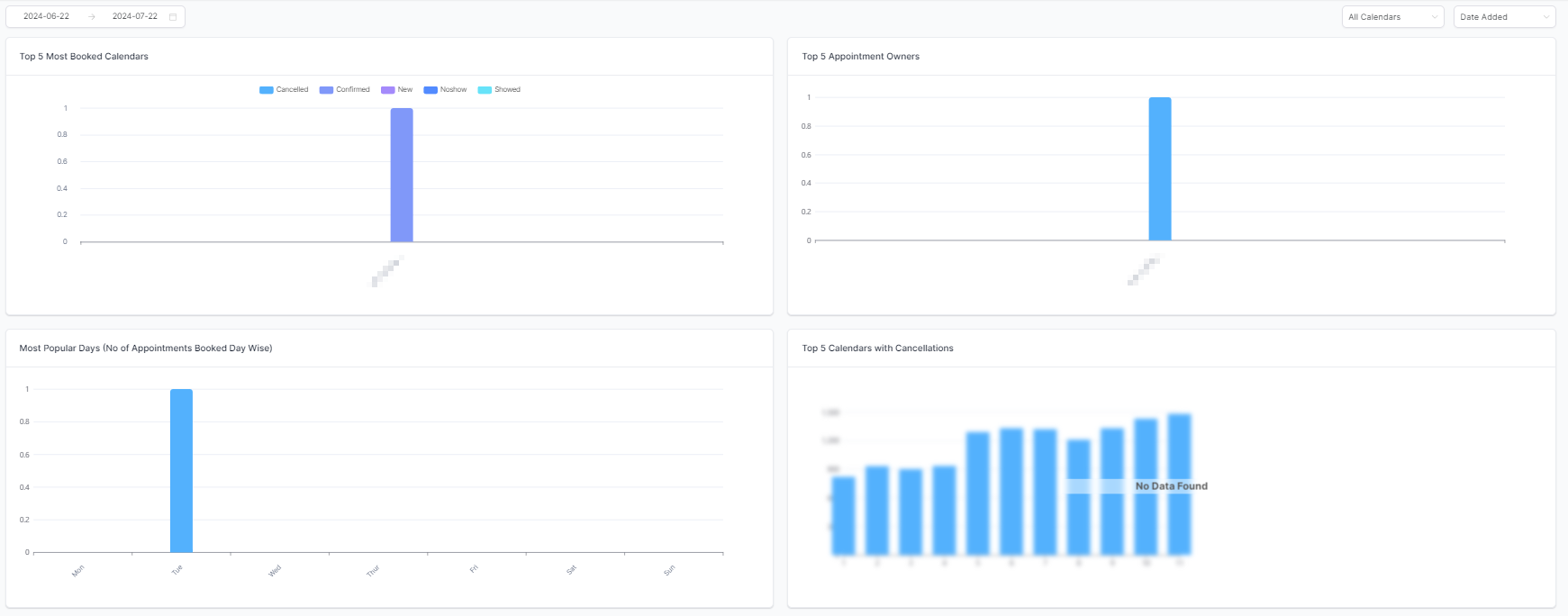
Summary graphs at the top of the report provide a visual overview of appointment trends, highlighting:
* **Most booked calendar**
* **Top appointment owners** (by team member)
* **Calendars with most cancellations**
* **Most popular booking days** of the week
### Top graphs
Summary graphs at the top of the report provide a visual overview of appointment trends, highlighting:
* **Most booked calendar**
* **Top appointment owners** (by team member)
* **Calendars with most cancellations**
* **Most popular booking days** of the week
 ***
## Appointment data table
The full data table lists every individual appointment with columns including:
* Calendar used
* Requested appointment time
* Booking time
* Booking party (who made the booking)
* Source
* Outcome
### Filtering by outcome
Use the **Appointment Outcome Filter** above the table to show only contacts with a specific result — for example, all no-shows or all cancellations.
### Customizing columns
Click the column selector to toggle which fields appear in the table. Available columns include: Appointment ID, Calendar, Requested Time, Date Added, Contact Name, Email, Phone, Appointment Owner, Created By, Mode, Source, and Outcome.
***
## Exporting appointment data
Click the **Export** button to download the table as an Excel spreadsheet for further analysis or record-keeping.
Access to specific reporting components may vary depending on your user permissions. Contact your account administrator if a section appears unavailable.
Use the appointment source and channel breakdowns to identify which marketing campaigns are driving the most bookings, then allocate budget toward those high-performing channels.
***
## Frequently asked questions
**Booked** counts all appointments scheduled within the period, including rescheduled ones. **New** counts only appointments being scheduled for the first time, excluding reschedules.
Use the **Assigned User** filter in the Filter panel at the top of the report. Select the team member's name to see only their appointments.
Yes. The **Channel** and **Source** sections break down bookings by booking method and originating marketing source respectively.
Click the **Export** button at the top of the data table to download all visible appointment records as an Excel file.
Only calendars connected to your account appear in the filter. If a calendar is missing, ensure it has been created and that you have permission to view it. Contact your administrator if needed.
Invalid appointments are those that do not meet the validity conditions configured for your calendar — for example, appointments booked outside allowed time windows or with missing required information.
***
## Related articles
* [Calendars overview](/calendars/overview)
* [Creating calendars](/calendars/creating-calendars)
* [Agent reporting](/reporting/agent-reporting)
***
## Appointment data table
The full data table lists every individual appointment with columns including:
* Calendar used
* Requested appointment time
* Booking time
* Booking party (who made the booking)
* Source
* Outcome
### Filtering by outcome
Use the **Appointment Outcome Filter** above the table to show only contacts with a specific result — for example, all no-shows or all cancellations.
### Customizing columns
Click the column selector to toggle which fields appear in the table. Available columns include: Appointment ID, Calendar, Requested Time, Date Added, Contact Name, Email, Phone, Appointment Owner, Created By, Mode, Source, and Outcome.
***
## Exporting appointment data
Click the **Export** button to download the table as an Excel spreadsheet for further analysis or record-keeping.
Access to specific reporting components may vary depending on your user permissions. Contact your account administrator if a section appears unavailable.
Use the appointment source and channel breakdowns to identify which marketing campaigns are driving the most bookings, then allocate budget toward those high-performing channels.
***
## Frequently asked questions
**Booked** counts all appointments scheduled within the period, including rescheduled ones. **New** counts only appointments being scheduled for the first time, excluding reschedules.
Use the **Assigned User** filter in the Filter panel at the top of the report. Select the team member's name to see only their appointments.
Yes. The **Channel** and **Source** sections break down bookings by booking method and originating marketing source respectively.
Click the **Export** button at the top of the data table to download all visible appointment records as an Excel file.
Only calendars connected to your account appear in the filter. If a calendar is missing, ensure it has been created and that you have permission to view it. Contact your administrator if needed.
Invalid appointments are those that do not meet the validity conditions configured for your calendar — for example, appointments booked outside allowed time windows or with missing required information.
***
## Related articles
* [Calendars overview](/calendars/overview)
* [Creating calendars](/calendars/creating-calendars)
* [Agent reporting](/reporting/agent-reporting)