> ## Documentation Index
> Fetch the complete documentation index at: https://help.hoopai.com/llms.txt
> Use this file to discover all available pages before exploring further.
# Transactions
> View, filter, and manage all payment transactions in the HoopAI Platform — including refunds, membership payments, and imported transaction history.
The Transactions tab gives you a complete record of every payment that flows through the HoopAI Platform — from order form payments and invoice collections to subscription charges and membership purchases. You can process refunds, filter by date or type, and import historical data.
Navigate to **Payments → Transactions** to get started.
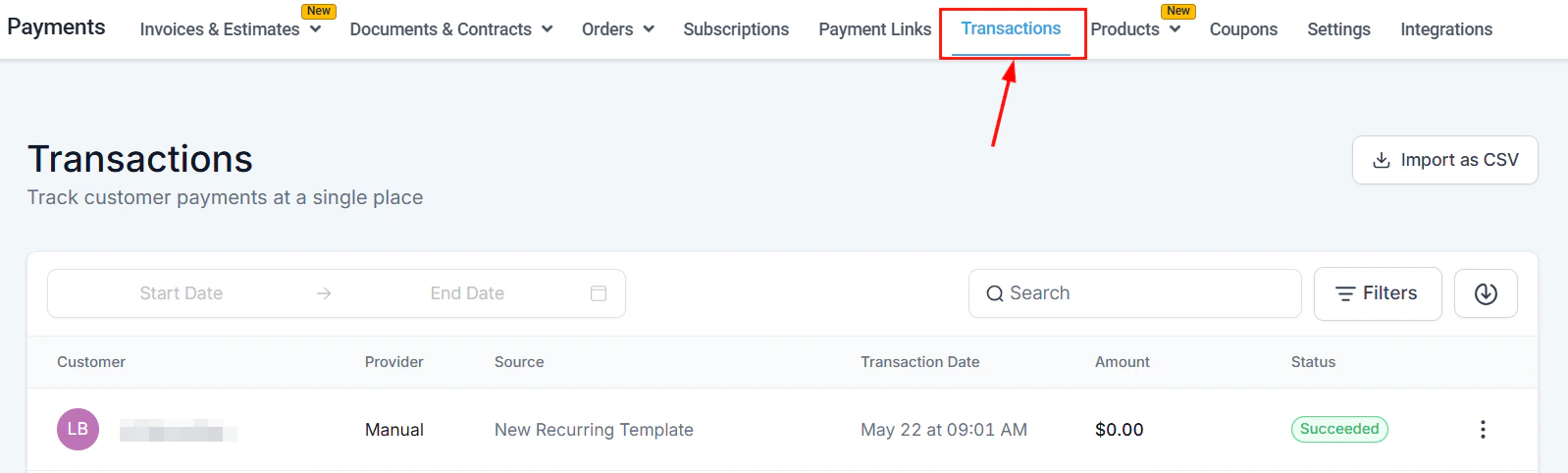 ## Transactions overview
The Transactions tab consolidates all sales processed through the HoopAI Platform — including invoices, payment links, order forms, stores, Apple Pay, Google Pay, and Stripe integrations.
| Column | Description |
| -------------------- | -------------------------------------------------------------------------- |
| **Customer** | The contact associated with the transaction |
| **Provider** | The payment integration used (Stripe, PayPal, Square, etc.) |
| **Source** | The funnel, store, calendar, or tool from which the transaction originated |
| **Transaction date** | Date and time the status was last updated (account timezone) |
| **Amount** | Cost of the products purchased |
| **Status** | Succeeded, failed, refunded, partially refunded, or pending |
### Filters and tools
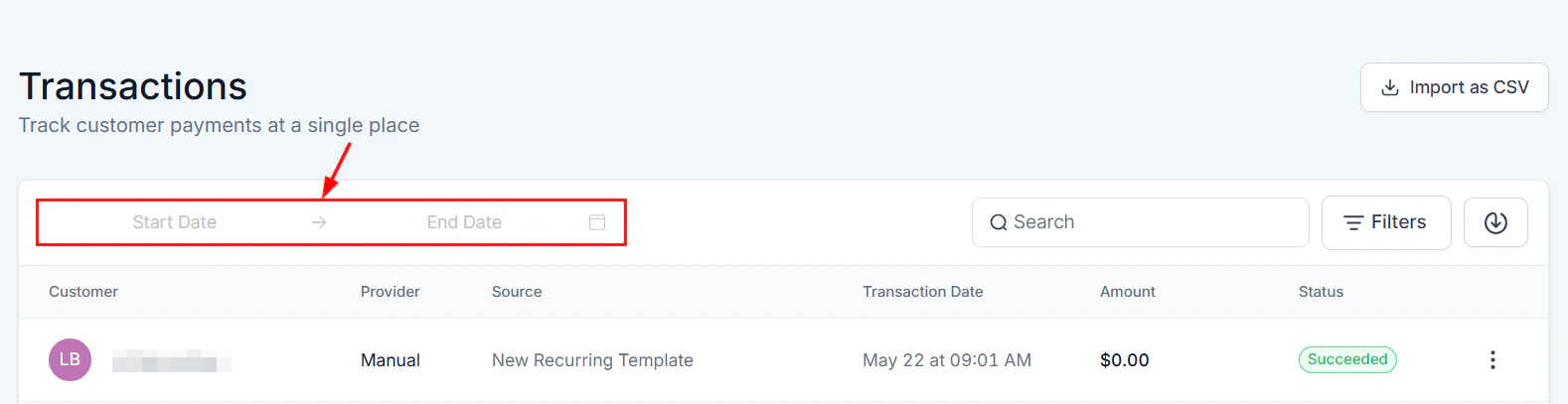
* **Date range** — filter by a custom date range
* **Search** — find a transaction by customer name or email
* **Filters** — filter by Status, Payment Mode (live or test), or Source Type
* **Export** — download a CSV of the current filtered list; the file link is emailed to you
* **Import as CSV** — record offline transactions by importing them
## Transactions overview
The Transactions tab consolidates all sales processed through the HoopAI Platform — including invoices, payment links, order forms, stores, Apple Pay, Google Pay, and Stripe integrations.
| Column | Description |
| -------------------- | -------------------------------------------------------------------------- |
| **Customer** | The contact associated with the transaction |
| **Provider** | The payment integration used (Stripe, PayPal, Square, etc.) |
| **Source** | The funnel, store, calendar, or tool from which the transaction originated |
| **Transaction date** | Date and time the status was last updated (account timezone) |
| **Amount** | Cost of the products purchased |
| **Status** | Succeeded, failed, refunded, partially refunded, or pending |
### Filters and tools
* **Date range** — filter by a custom date range
* **Search** — find a transaction by customer name or email
* **Filters** — filter by Status, Payment Mode (live or test), or Source Type
* **Export** — download a CSV of the current filtered list; the file link is emailed to you
* **Import as CSV** — record offline transactions by importing them
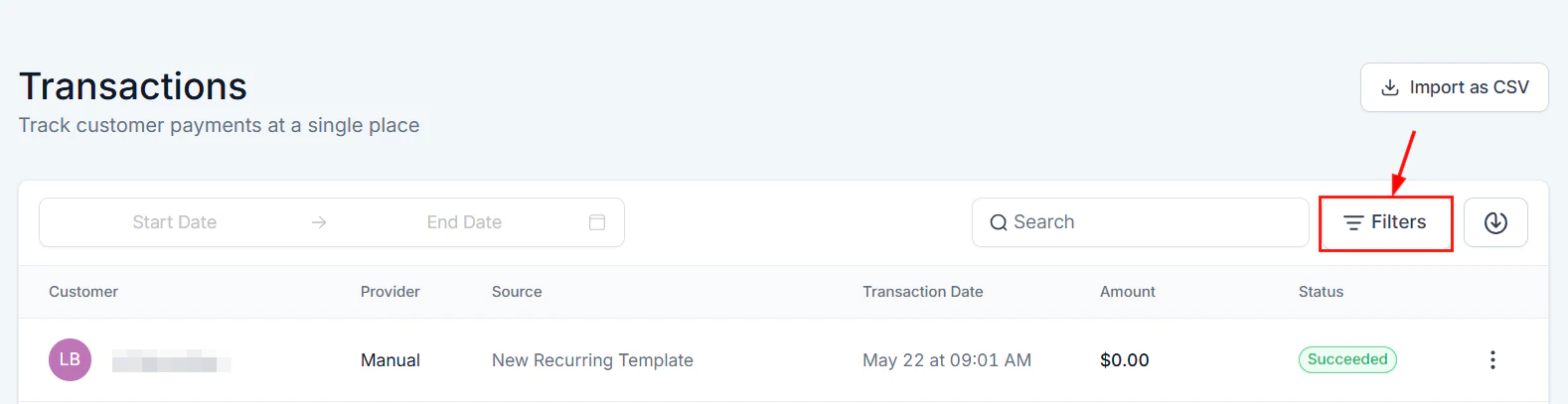 ### Actions menu
Click the three-dot icon on any transaction to:
* **View** — open full transaction details
* **Refund** — issue a full or partial refund
***
***
## Processing refunds
Go to **Payments → Transactions** and search for the transaction by customer name, email, or date.
Click the three-dot menu on the transaction and select **Refund**. A dialog will appear.
* **Full refund**: Leave the amount as-is and click **Refund**.
* **Partial refund**: Edit the amount to the portion you want to refund.
Use the comments/notes field to document the reason for the refund for your records.
Click **Confirm**. The refund is processed through the original payment gateway immediately. The transaction status updates to **Refunded** or **Partially Refunded** automatically.
Refunds are processed through the same gateway that received the original payment. Make sure the gateway is still active and connected before issuing a refund. Note that Authorize.net only allows refunds after 24 hours from the transaction time.
### Refund FAQs
Refunds generally take 4–6 business days to appear in the customer's account, depending on their bank and payment provider.
Yes, as long as the cumulative refund amount does not exceed the original transaction total.
Yes. These refunds are returned to the bank account associated with the customer's Apple or Google Pay wallet.
There is typically no fixed limit within the platform. Check your payment provider's policies for any provider-specific limits.
***
***
## Tracking membership transactions
Membership and community payments are visible alongside all other transactions in the Transactions tab. You can filter by **Type → Membership** to isolate membership-related charges.
This is useful for:
* Auditing which contacts have active vs. lapsed membership payments
* Identifying failed membership renewal charges
* Cross-referencing with your membership roster in **Memberships & Communities**
***
***
## Importing transactions
If you have historical transaction data from another payment system, import it to keep a complete financial record in the HoopAI Platform.
### Actions menu
Click the three-dot icon on any transaction to:
* **View** — open full transaction details
* **Refund** — issue a full or partial refund
***
***
## Processing refunds
Go to **Payments → Transactions** and search for the transaction by customer name, email, or date.
Click the three-dot menu on the transaction and select **Refund**. A dialog will appear.
* **Full refund**: Leave the amount as-is and click **Refund**.
* **Partial refund**: Edit the amount to the portion you want to refund.
Use the comments/notes field to document the reason for the refund for your records.
Click **Confirm**. The refund is processed through the original payment gateway immediately. The transaction status updates to **Refunded** or **Partially Refunded** automatically.
Refunds are processed through the same gateway that received the original payment. Make sure the gateway is still active and connected before issuing a refund. Note that Authorize.net only allows refunds after 24 hours from the transaction time.
### Refund FAQs
Refunds generally take 4–6 business days to appear in the customer's account, depending on their bank and payment provider.
Yes, as long as the cumulative refund amount does not exceed the original transaction total.
Yes. These refunds are returned to the bank account associated with the customer's Apple or Google Pay wallet.
There is typically no fixed limit within the platform. Check your payment provider's policies for any provider-specific limits.
***
***
## Tracking membership transactions
Membership and community payments are visible alongside all other transactions in the Transactions tab. You can filter by **Type → Membership** to isolate membership-related charges.
This is useful for:
* Auditing which contacts have active vs. lapsed membership payments
* Identifying failed membership renewal charges
* Cross-referencing with your membership roster in **Memberships & Communities**
***
***
## Importing transactions
If you have historical transaction data from another payment system, import it to keep a complete financial record in the HoopAI Platform.
 Format your CSV with the required columns: contact name, email, amount, currency, payment date, type, and status.
Go to **Payments → Transactions** and click the **Import** button.
Upload your CSV file. Map each column in your file to the corresponding transaction field in the platform.
Preview the import results and confirm. Imported transactions appear in the transaction list with a source label of "Imported."
***
***
## Frequently asked questions
Yes, as long as PayPal is still connected to your account. The refund is processed through PayPal and the funds are returned to the customer's PayPal account or original payment method.
Go to **Contacts**, open the contact's profile, and scroll to the **Payments** section. All transactions linked to that contact are listed there.
Yes. In the Transactions tab, use the **Export** button to download a CSV of the currently filtered transaction list.
A failed transaction means the payment was declined by the customer's card issuer or the payment gateway. The customer has not been charged. Common causes include insufficient funds, incorrect card details, or a block from the issuer.
Open the contact's record in **Contacts**, scroll to the **Payments** section, and all transactions — including subscription charges — are listed there. You can also filter by **Source Type → Subscription** in the main Transactions tab.
Yes. Go to **Payments → Transactions** and click **Import as CSV**. Prepare your file with the required columns (contact name, email, amount, currency, payment date, type, status), upload it, and map each column. Imported records appear with a source label of "Imported."
A partially refunded transaction is one where only a portion of the original payment amount was returned to the customer. The transaction record shows both the original amount and the refunded amount. Additional partial refunds can be issued as long as the cumulative total does not exceed the original charge.
Format your CSV with the required columns: contact name, email, amount, currency, payment date, type, and status.
Go to **Payments → Transactions** and click the **Import** button.
Upload your CSV file. Map each column in your file to the corresponding transaction field in the platform.
Preview the import results and confirm. Imported transactions appear in the transaction list with a source label of "Imported."
***
***
## Frequently asked questions
Yes, as long as PayPal is still connected to your account. The refund is processed through PayPal and the funds are returned to the customer's PayPal account or original payment method.
Go to **Contacts**, open the contact's profile, and scroll to the **Payments** section. All transactions linked to that contact are listed there.
Yes. In the Transactions tab, use the **Export** button to download a CSV of the currently filtered transaction list.
A failed transaction means the payment was declined by the customer's card issuer or the payment gateway. The customer has not been charged. Common causes include insufficient funds, incorrect card details, or a block from the issuer.
Open the contact's record in **Contacts**, scroll to the **Payments** section, and all transactions — including subscription charges — are listed there. You can also filter by **Source Type → Subscription** in the main Transactions tab.
Yes. Go to **Payments → Transactions** and click **Import as CSV**. Prepare your file with the required columns (contact name, email, amount, currency, payment date, type, status), upload it, and map each column. Imported records appear with a source label of "Imported."
A partially refunded transaction is one where only a portion of the original payment amount was returned to the customer. The transaction record shows both the original amount and the refunded amount. Additional partial refunds can be issued as long as the cumulative total does not exceed the original charge.