> ## Documentation Index
> Fetch the complete documentation index at: https://help.hoopai.com/llms.txt
> Use this file to discover all available pages before exploring further.
# Text-to-Pay — collect payments via SMS
> Send payment request links directly to customers via text message and collect payments instantly from any phone.
Text-to-Pay lets you send a personalized payment request to a customer's phone via SMS. The customer receives a short link, taps it, and is taken to a mobile-optimized checkout page where they can pay instantly — no app download or account required.
This is ideal for service businesses, field teams, and any situation where you need to collect payment quickly from a customer who is not in front of a computer.
Text-to-Pay requires **Stripe Connect** to be active on your account. The customer's phone number must also have SMS capabilities. Go to **Payments → Payment Integrations** to connect Stripe if you have not done so already.
 ***
## How Text-to-Pay works
| Step | What happens |
| ---- | --------------------------------------------------------------------------------------- |
| 1 | You send a payment request to a specific contact with a set amount or selected products |
| 2 | The customer receives an SMS with a short payment link |
| 3 | They tap the link and land on a mobile-optimized checkout page |
| 4 | They pay by card, Apple Pay, or Google Pay |
| 5 | You receive a notification and the transaction appears in Payments → Transactions |
***
## Supported payment methods
When a customer pays via a Text-to-Pay link, they can use:
| Payment method | Availability |
| --------------------------------------------------------- | --------------------------- |
| Credit and debit cards (Visa, Mastercard, Amex, Discover) | All Stripe accounts |
| Apple Pay | Supported on iOS Safari |
| Google Pay | Supported on Android Chrome |
Cash and manual payment methods are not available through Text-to-Pay. Only digital payment methods processed through Stripe are supported.
***
## Three ways to send a Text-to-Pay request
### Option 1 — From the Conversations tab
This is the fastest method when you are already in a conversation with the contact.
Go to **Conversations** and open the contact's SMS conversation thread.
In the message composer area, click the **\$ (dollar sign) icon**.
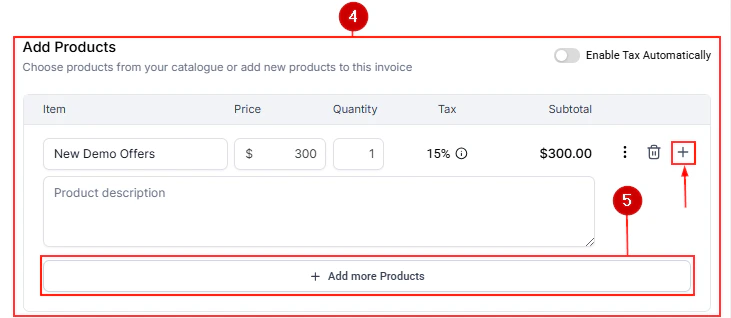
Either enter a custom dollar amount, or click **Add Products** to select items from your product catalog. The subtotal updates automatically as you add products.
Click **Send**. The contact receives an SMS with a personalized payment link immediately.
***
### Option 2 — From a contact record
Use this method when you are reviewing a contact's profile and want to request payment without navigating to Conversations.
Go to **Contacts** and open the contact's record.
Look for the **Request Payment** button in the contact's action panel or within the Payments section of the contact record.
Enter the amount or select products, confirm the contact's phone number is correct, and click **Send via Text**.
***
### Option 3 — From Payments → Invoices (Text2Pay)
This method sends an existing invoice as a Text-to-Pay link rather than as a traditional email invoice.
Go to **Payments → Invoices & Estimates** and open the invoice you want to send.
When clicking **Send**, look for the **Text2Pay** or **Send via SMS** option. Select it.
The invoice is converted into a Text-to-Pay link and delivered to the customer's phone as an SMS. The customer pays directly from the link — no separate invoice page is needed.
Using Text2Pay for invoices is particularly useful when your customers are more responsive to SMS than email. The open rate for SMS is significantly higher than email, which can accelerate payment collection.
***
## What the customer experiences
When the customer receives the Text-to-Pay SMS:
1. They see a short message with your business name and the payment amount.
2. They tap the link and are taken to a **mobile-optimized checkout page** hosted on the HoopAI Platform.
3. The checkout page shows:
* The line items or amount requested
* Your business name and branding
* Payment input fields for card details
* Apple Pay and Google Pay buttons (where supported by the device)
4. After paying, the customer sees a confirmation screen and receives a **receipt email** automatically.
The link remains active until the underlying invoice is paid or voided — it is not single-use. If the customer closes the page before paying, they can open the same link again later.
***
## How Text-to-Pay works
| Step | What happens |
| ---- | --------------------------------------------------------------------------------------- |
| 1 | You send a payment request to a specific contact with a set amount or selected products |
| 2 | The customer receives an SMS with a short payment link |
| 3 | They tap the link and land on a mobile-optimized checkout page |
| 4 | They pay by card, Apple Pay, or Google Pay |
| 5 | You receive a notification and the transaction appears in Payments → Transactions |
***
## Supported payment methods
When a customer pays via a Text-to-Pay link, they can use:
| Payment method | Availability |
| --------------------------------------------------------- | --------------------------- |
| Credit and debit cards (Visa, Mastercard, Amex, Discover) | All Stripe accounts |
| Apple Pay | Supported on iOS Safari |
| Google Pay | Supported on Android Chrome |
Cash and manual payment methods are not available through Text-to-Pay. Only digital payment methods processed through Stripe are supported.
***
## Three ways to send a Text-to-Pay request
### Option 1 — From the Conversations tab
This is the fastest method when you are already in a conversation with the contact.
Go to **Conversations** and open the contact's SMS conversation thread.
In the message composer area, click the **\$ (dollar sign) icon**.
Either enter a custom dollar amount, or click **Add Products** to select items from your product catalog. The subtotal updates automatically as you add products.
Click **Send**. The contact receives an SMS with a personalized payment link immediately.
***
### Option 2 — From a contact record
Use this method when you are reviewing a contact's profile and want to request payment without navigating to Conversations.
Go to **Contacts** and open the contact's record.
Look for the **Request Payment** button in the contact's action panel or within the Payments section of the contact record.
Enter the amount or select products, confirm the contact's phone number is correct, and click **Send via Text**.
***
### Option 3 — From Payments → Invoices (Text2Pay)
This method sends an existing invoice as a Text-to-Pay link rather than as a traditional email invoice.
Go to **Payments → Invoices & Estimates** and open the invoice you want to send.
When clicking **Send**, look for the **Text2Pay** or **Send via SMS** option. Select it.
The invoice is converted into a Text-to-Pay link and delivered to the customer's phone as an SMS. The customer pays directly from the link — no separate invoice page is needed.
Using Text2Pay for invoices is particularly useful when your customers are more responsive to SMS than email. The open rate for SMS is significantly higher than email, which can accelerate payment collection.
***
## What the customer experiences
When the customer receives the Text-to-Pay SMS:
1. They see a short message with your business name and the payment amount.
2. They tap the link and are taken to a **mobile-optimized checkout page** hosted on the HoopAI Platform.
3. The checkout page shows:
* The line items or amount requested
* Your business name and branding
* Payment input fields for card details
* Apple Pay and Google Pay buttons (where supported by the device)
4. After paying, the customer sees a confirmation screen and receives a **receipt email** automatically.
The link remains active until the underlying invoice is paid or voided — it is not single-use. If the customer closes the page before paying, they can open the same link again later.
 ***
## After payment is received
Once the customer completes payment:
* The **transaction appears in Payments → Transactions** with the customer's name, amount, and Stripe as the provider.
* The associated invoice (if applicable) updates its status to **Paid**.
* The **contact activity timeline** logs the payment event.
* The **"Payment Received" workflow trigger** fires, allowing you to automatically send thank-you messages, update opportunity stages, apply tags, or trigger any other automated follow-up.
***
## Text-to-Pay vs. payment links
These two features are related but serve different purposes:
| Feature | Text-to-Pay | Payment Links |
| ------------------------ | --------------------------------------------------------- | --------------------------------------------------- |
| **Purpose** | Send a personalized payment request to a specific contact | Create a reusable link for sharing broadly |
| **Customer specificity** | Tied to one contact and one transaction | Generic — anyone with the link can pay |
| **Amount** | Set at the time of sending | Set when creating the link |
| **Delivery** | Sent directly as an SMS | Shared manually (email, social media, website) |
| **Best for** | One-on-one payment requests | Checkout buttons, course sales, event registrations |
***
## Automating Text-to-Pay via workflows
You can automate Text-to-Pay requests as part of a workflow sequence so payment requests are sent without any manual action.
Go to **Automation → Workflows** and open or create a workflow.
Add a **Send Invoice** action step to your workflow.
In the action settings, choose **SMS** as the delivery channel. Select the invoice template you want to use.
Configure the workflow trigger — for example:
* After a form is submitted
* When an appointment is completed
* When a contact is added to a specific pipeline stage
* On a scheduled date
Activate the workflow. From this point forward, whenever the trigger fires, the payment request is sent automatically to the contact via SMS.
Automating payment requests after an appointment or service completion is one of the most effective ways to increase on-time collection rates. The payment request arrives while the interaction is fresh in the customer's mind.
***
## International Text-to-Pay
Text-to-Pay works internationally as long as:
* Your Stripe account supports the customer's currency.
* The contact's phone number is in a format that supports international SMS delivery.
* Your SMS provider (Twilio or equivalent) is configured to send to the destination country.
The checkout page automatically adapts to display the correct currency symbol and format based on the configured invoice currency.
Check your Stripe account's supported currencies and countries before sending Text-to-Pay requests to international customers. Stripe has different capabilities across regions.
***
## Frequently asked questions
Yes. Stripe Connect is required to use Text-to-Pay. The feature relies on Stripe's payment processing infrastructure to securely handle card payments, Apple Pay, and Google Pay. If your account uses a different payment provider as its primary gateway, you will need to also connect Stripe to use Text-to-Pay.
Not directly through the Text-to-Pay interface. Text-to-Pay is designed for one-on-one payment requests. To send a payment request to multiple contacts at once, create a **Payment Link** and include it in a bulk SMS campaign. Each recipient can pay through the same link.
If the SMS fails to deliver, the underlying payment link is still created and active. You can resend the request from the contact's conversation or copy the payment link and share it via another channel — for example, email or a follow-up phone call.
No. Text-to-Pay only supports digital payment methods processed through Stripe: credit and debit cards, Apple Pay, and Google Pay. For cash payments, record them manually in **Payments → Transactions** using the **Record Payment** option on the invoice.
No. The link remains active until the invoice is paid or voided. If the customer opens the link but does not complete payment, they can return to the same link later and complete the transaction. This is by design — it reduces friction for customers who get interrupted during checkout.
Yes. When creating the request, click **Add Products** to select multiple items from your product catalog. All items are included in a single payment request and displayed as line items on the checkout page. The customer pays the combined total in one transaction.
Yes, provided your Stripe account supports the customer's currency and your SMS provider is configured to deliver to the destination country. The checkout page adapts to the invoice currency automatically. Review your Stripe account's supported regions and your SMS provider's international coverage before sending to overseas customers.
The default SMS message includes your business name and a payment link. You can customize the message text through workflow actions when automating Text-to-Pay, or by manually editing the message in the Conversations composer before sending. Keep the payment link intact when editing the message.
***
## After payment is received
Once the customer completes payment:
* The **transaction appears in Payments → Transactions** with the customer's name, amount, and Stripe as the provider.
* The associated invoice (if applicable) updates its status to **Paid**.
* The **contact activity timeline** logs the payment event.
* The **"Payment Received" workflow trigger** fires, allowing you to automatically send thank-you messages, update opportunity stages, apply tags, or trigger any other automated follow-up.
***
## Text-to-Pay vs. payment links
These two features are related but serve different purposes:
| Feature | Text-to-Pay | Payment Links |
| ------------------------ | --------------------------------------------------------- | --------------------------------------------------- |
| **Purpose** | Send a personalized payment request to a specific contact | Create a reusable link for sharing broadly |
| **Customer specificity** | Tied to one contact and one transaction | Generic — anyone with the link can pay |
| **Amount** | Set at the time of sending | Set when creating the link |
| **Delivery** | Sent directly as an SMS | Shared manually (email, social media, website) |
| **Best for** | One-on-one payment requests | Checkout buttons, course sales, event registrations |
***
## Automating Text-to-Pay via workflows
You can automate Text-to-Pay requests as part of a workflow sequence so payment requests are sent without any manual action.
Go to **Automation → Workflows** and open or create a workflow.
Add a **Send Invoice** action step to your workflow.
In the action settings, choose **SMS** as the delivery channel. Select the invoice template you want to use.
Configure the workflow trigger — for example:
* After a form is submitted
* When an appointment is completed
* When a contact is added to a specific pipeline stage
* On a scheduled date
Activate the workflow. From this point forward, whenever the trigger fires, the payment request is sent automatically to the contact via SMS.
Automating payment requests after an appointment or service completion is one of the most effective ways to increase on-time collection rates. The payment request arrives while the interaction is fresh in the customer's mind.
***
## International Text-to-Pay
Text-to-Pay works internationally as long as:
* Your Stripe account supports the customer's currency.
* The contact's phone number is in a format that supports international SMS delivery.
* Your SMS provider (Twilio or equivalent) is configured to send to the destination country.
The checkout page automatically adapts to display the correct currency symbol and format based on the configured invoice currency.
Check your Stripe account's supported currencies and countries before sending Text-to-Pay requests to international customers. Stripe has different capabilities across regions.
***
## Frequently asked questions
Yes. Stripe Connect is required to use Text-to-Pay. The feature relies on Stripe's payment processing infrastructure to securely handle card payments, Apple Pay, and Google Pay. If your account uses a different payment provider as its primary gateway, you will need to also connect Stripe to use Text-to-Pay.
Not directly through the Text-to-Pay interface. Text-to-Pay is designed for one-on-one payment requests. To send a payment request to multiple contacts at once, create a **Payment Link** and include it in a bulk SMS campaign. Each recipient can pay through the same link.
If the SMS fails to deliver, the underlying payment link is still created and active. You can resend the request from the contact's conversation or copy the payment link and share it via another channel — for example, email or a follow-up phone call.
No. Text-to-Pay only supports digital payment methods processed through Stripe: credit and debit cards, Apple Pay, and Google Pay. For cash payments, record them manually in **Payments → Transactions** using the **Record Payment** option on the invoice.
No. The link remains active until the invoice is paid or voided. If the customer opens the link but does not complete payment, they can return to the same link later and complete the transaction. This is by design — it reduces friction for customers who get interrupted during checkout.
Yes. When creating the request, click **Add Products** to select multiple items from your product catalog. All items are included in a single payment request and displayed as line items on the checkout page. The customer pays the combined total in one transaction.
Yes, provided your Stripe account supports the customer's currency and your SMS provider is configured to deliver to the destination country. The checkout page adapts to the invoice currency automatically. Review your Stripe account's supported regions and your SMS provider's international coverage before sending to overseas customers.
The default SMS message includes your business name and a payment link. You can customize the message text through workflow actions when automating Text-to-Pay, or by manually editing the message in the Conversations composer before sending. Keep the payment link intact when editing the message.