> ## Documentation Index
> Fetch the complete documentation index at: https://help.hoopai.com/llms.txt
> Use this file to discover all available pages before exploring further.
# Subscriptions
> Create, manage, pause, cancel, and modify recurring subscriptions in the HoopAI Platform.
The Subscriptions section gives you a complete view of every active and historical recurring billing relationship in your account. You can create new subscriptions, adjust billing amounts, pause or cancel existing ones, and monitor subscription health — all without leaving the platform.
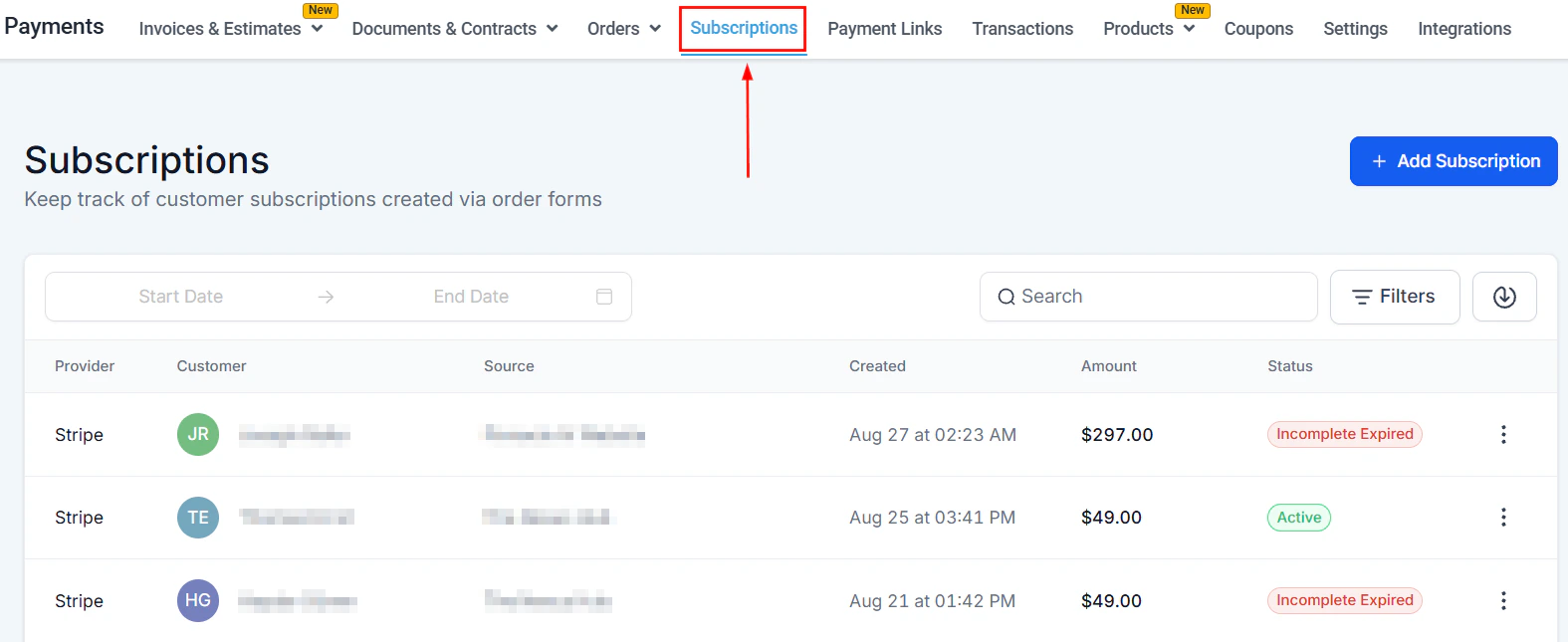
Navigate to **Payments → Subscriptions** to get started.
 Subscriptions require Stripe Connect to be active on your account. Connect Stripe at **Payments → Payment Integrations**.
## Subscriptions overview
The subscriptions dashboard lists all recurring billing relationships with key details:
| Column | Description |
| ----------------- | ------------------------------------------------------------------------ |
| **Provider** | The payment gateway processing this subscription |
| **Customer name** | The subscriber's name and contact link |
| **Source** | The funnel or website where the subscription was created |
| **Created** | Date and time the subscription started |
| **Amount** | Recurring charge amount |
| **Status** | Trial, Active, Overdue, Unpaid, Canceled, Failed, Incomplete, or Expired |
### Dashboard filters
* **Date range** — filter by a calendar period using "from" and "to" dates
* **Search** — find a subscription by customer name
* **Filters** — filter by status, payment mode (live or test), or source type
* **Download** — click the download icon to export your subscription list to your email as a CSV
***
***
## Creating a subscription
Subscriptions require Stripe Connect to be active on your account. Connect Stripe at **Payments → Payment Integrations**.
## Subscriptions overview
The subscriptions dashboard lists all recurring billing relationships with key details:
| Column | Description |
| ----------------- | ------------------------------------------------------------------------ |
| **Provider** | The payment gateway processing this subscription |
| **Customer name** | The subscriber's name and contact link |
| **Source** | The funnel or website where the subscription was created |
| **Created** | Date and time the subscription started |
| **Amount** | Recurring charge amount |
| **Status** | Trial, Active, Overdue, Unpaid, Canceled, Failed, Incomplete, or Expired |
### Dashboard filters
* **Date range** — filter by a calendar period using "from" and "to" dates
* **Search** — find a subscription by customer name
* **Filters** — filter by status, payment mode (live or test), or source type
* **Download** — click the download icon to export your subscription list to your email as a CSV
***
***
## Creating a subscription
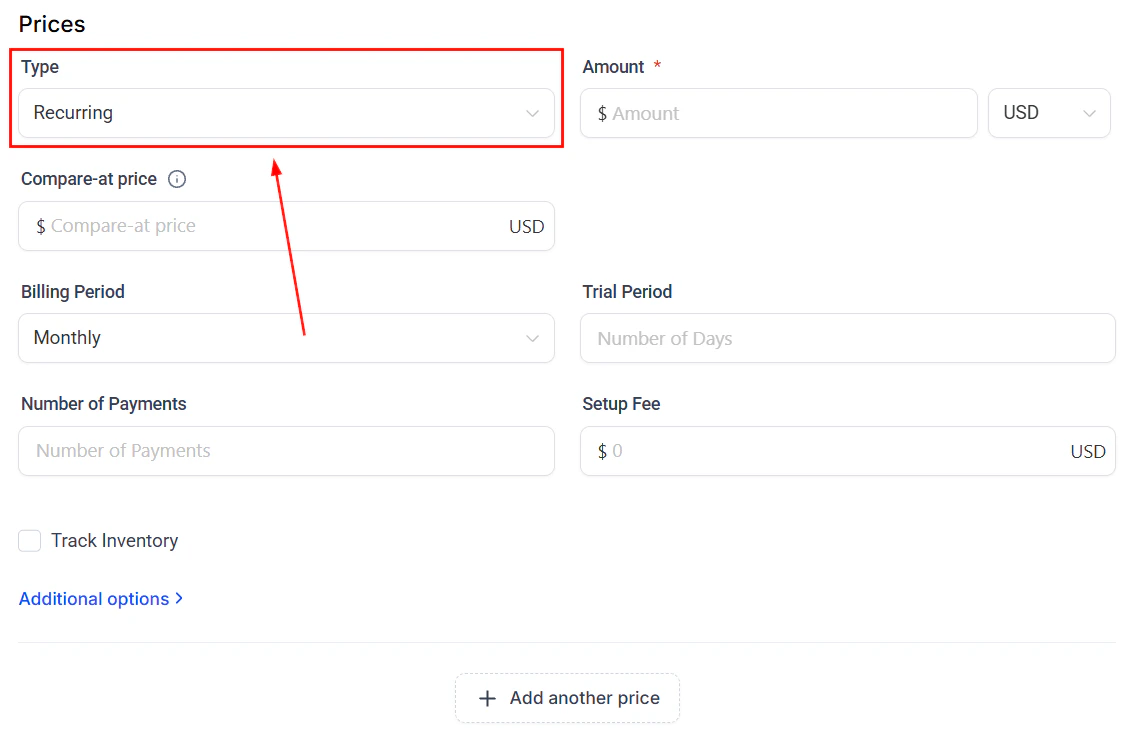
 First, ensure you have a recurring product set up in **Payments → Products**. Set the billing interval (monthly, annual, etc.) and price.
Go to **Payments → Subscriptions** and click **+ New Subscription**.
Search for and select the contact who will be subscribed.
Select the recurring product from your catalog.
Choose from the contact's saved cards or enter a new card number.
Choose when billing begins — immediately, or on a future date.
Toggle on a trial period and enter the number of days. The first charge will not occur until the trial ends.
Click **Create subscription**. The customer is charged on the first billing date and then automatically on each subsequent interval.
***
***
## Cancelling vs. pausing a subscription
Both options stop future charges, but they work differently:
| | Cancel | Pause |
| ------------------- | ------------------------------------- | --------------------------------- |
| **What happens** | Ends the subscription permanently | Temporarily suspends billing |
| **Customer access** | Depends on your cancellation settings | Maintained during the pause |
| **Reactivation** | Requires creating a new subscription | Resume with a click |
| **Best for** | Customer churn, end of service | Temporary leave, billing disputes |
### Cancelling a subscription
Go to **Payments → Subscriptions** and locate the subscription.
Click the three-dot menu and select **Cancel**. Choose whether to cancel immediately or at the end of the current billing period.
The subscription status changes to **Cancelled**. No further charges are made.
### Pausing a subscription
Go to **Payments → Subscriptions** and locate the subscription.
Click the three-dot menu and select **Pause**. Set a resume date or leave it open-ended.
When ready to restart billing, open the subscription and click **Resume**. Billing picks up from where it left off.
***
***
## Viewing subscription details
Click the three-dot menu next to any subscription and select **View Subscription** to open the full detail page. This page shows:
First, ensure you have a recurring product set up in **Payments → Products**. Set the billing interval (monthly, annual, etc.) and price.
Go to **Payments → Subscriptions** and click **+ New Subscription**.
Search for and select the contact who will be subscribed.
Select the recurring product from your catalog.
Choose from the contact's saved cards or enter a new card number.
Choose when billing begins — immediately, or on a future date.
Toggle on a trial period and enter the number of days. The first charge will not occur until the trial ends.
Click **Create subscription**. The customer is charged on the first billing date and then automatically on each subsequent interval.
***
***
## Cancelling vs. pausing a subscription
Both options stop future charges, but they work differently:
| | Cancel | Pause |
| ------------------- | ------------------------------------- | --------------------------------- |
| **What happens** | Ends the subscription permanently | Temporarily suspends billing |
| **Customer access** | Depends on your cancellation settings | Maintained during the pause |
| **Reactivation** | Requires creating a new subscription | Resume with a click |
| **Best for** | Customer churn, end of service | Temporary leave, billing disputes |
### Cancelling a subscription
Go to **Payments → Subscriptions** and locate the subscription.
Click the three-dot menu and select **Cancel**. Choose whether to cancel immediately or at the end of the current billing period.
The subscription status changes to **Cancelled**. No further charges are made.
### Pausing a subscription
Go to **Payments → Subscriptions** and locate the subscription.
Click the three-dot menu and select **Pause**. Set a resume date or leave it open-ended.
When ready to restart billing, open the subscription and click **Resume**. Billing picks up from where it left off.
***
***
## Viewing subscription details
Click the three-dot menu next to any subscription and select **View Subscription** to open the full detail page. This page shows:
 1. **Subscription ID** — unique identifier
2. **Created** — the subscription start date and time
3. **Total amount** — recurring charge
4. **Payment history** — total payments made, upcoming payment dates, and billing start date
5. **Payment provider** — provider name, ID, and account ID
6. **Payment details** — connected card and expiry date
7. **Customer information** — name and email (click the URL arrow to open the contact card)
8. **Source** — internal order ID, source type, funnel or website name, step ID, and page ID
9. **Products** — all subscribed products with price, quantity, and billing frequency
10. **Transactions** — a history of all charges with provider ID, date, amount, and status
11. **Invoices** — any invoices generated for this subscription
### Subscription actions
From the **Actions** menu within the subscription details page:
| Action | Description |
| ----------------------------- | ------------------------------------------------ |
| **Update trial period** | Extend the trial if the customer needs more time |
| **Pause subscription** | Temporarily stop billing without cancelling |
| **Resume subscription** | Restart a paused subscription |
| **Cancel subscription** | End future billing permanently |
| **Update subscription** | Change the end date or add/remove products |
| **Share payment update link** | Let the customer update their payment method |
***
***
## Modifying an existing subscription
Click the three-dot menu next to the subscription (or use the Actions menu in the detail view) and select **Update Subscription**.
Adjust the **End Date** to change when billing stops.
Click the plus icon to add a new product, or the trash icon to remove one. All products in a subscription must share the same billing frequency and currency.
Overwrite the quantity field to adjust the count for any item.
Click **Update Subscription** in the upper-right corner. All changes are logged in the Subscription Details page for auditing.
Changes only affect future billing cycles. Past transactions remain unchanged. Only subscriptions with Active, Scheduled, or Trialing status can be modified.
***
***
## Sharing a payment update link
When a customer's payment method has expired or needs to be updated, send them a secure link to update their card without cancelling the subscription.
Click the three-dot menu next to the subscription and select **Share Payment Update Link**.
Click **Send email** to automatically send a temporary link to the customer's email address.
Click **Copy** to copy the link and send it through any channel (SMS, chat, email).
Click the deactivate option to invalidate any previously shared links for this subscription.
***
***
## Refunding a subscription charge
Subscription charge refunds are handled through **Payments → Transactions**, not from the Subscriptions tab directly.
Go to **Payments → Transactions** and search for the customer name or filter by date to locate the specific subscription charge to refund.
Click the three-dot menu on the transaction and select **Refund**.
Leave the amount as-is for a full refund, or edit it for a partial refund.
Optionally add an internal note explaining the reason for the refund, then click **Confirm**. The refund is processed through Stripe immediately.
Refunding a subscription charge does not automatically cancel the subscription. Cancel the subscription separately from the Subscriptions tab if you do not want future charges to occur.
***
***
## Subscription coupon codes
Apply a coupon to give a subscriber a discounted rate — either for a fixed number of billing cycles, a set duration, or permanently.
See [Coupons](/payments/coupons) for instructions on creating subscription-compatible coupon codes.
***
***
## Subscription settings
Global subscription behavior is configured at **Payments → Payment Settings → Subscription Settings**, including:
* Failed payment retry logic and intervals
* What happens to customer access when payment fails
* Cancellation behavior (immediate vs. end of period)
***
***
## Frequently asked questions
Customers can update their payment method and cancel their subscription through the customer portal (if enabled). Configure the portal at **Sites → Client Portal**.
The system retries the charge according to your retry settings. Both the customer and account user are notified by email. If all retries fail, the subscription status changes to **Past due**.
Yes. When creating a subscription or recurring product, enable the trial period and set the number of days. The first charge is deferred until the trial ends.
Yes. Use the **Modify subscription** option to change the product and price. Stripe handles proration automatically if you change mid-cycle.
Yes. Open the subscription, click **Edit**, and apply a coupon code to adjust the billing amount going forward.
Go to **Payments → Transactions**, find the specific charge, click the three-dot menu, and select **Refund**. You can issue a full or partial refund. Note that refunding does not automatically cancel the subscription — cancel it separately if needed.
Subscriptions can be in one of these states: **Trial** (within a free trial period), **Active** (billing normally), **Overdue** (payment attempted but failed, still retrying), **Unpaid** (all retries exhausted, billing suspended), **Canceled** (ended permanently), **Failed** (initial payment failed), **Incomplete** (requires customer action to complete setup), or **Expired** (reached its end date).
Yes. Use **Update Subscription** and set an **End Date**. The subscription will automatically stop billing on that date without requiring manual cancellation.
1. **Subscription ID** — unique identifier
2. **Created** — the subscription start date and time
3. **Total amount** — recurring charge
4. **Payment history** — total payments made, upcoming payment dates, and billing start date
5. **Payment provider** — provider name, ID, and account ID
6. **Payment details** — connected card and expiry date
7. **Customer information** — name and email (click the URL arrow to open the contact card)
8. **Source** — internal order ID, source type, funnel or website name, step ID, and page ID
9. **Products** — all subscribed products with price, quantity, and billing frequency
10. **Transactions** — a history of all charges with provider ID, date, amount, and status
11. **Invoices** — any invoices generated for this subscription
### Subscription actions
From the **Actions** menu within the subscription details page:
| Action | Description |
| ----------------------------- | ------------------------------------------------ |
| **Update trial period** | Extend the trial if the customer needs more time |
| **Pause subscription** | Temporarily stop billing without cancelling |
| **Resume subscription** | Restart a paused subscription |
| **Cancel subscription** | End future billing permanently |
| **Update subscription** | Change the end date or add/remove products |
| **Share payment update link** | Let the customer update their payment method |
***
***
## Modifying an existing subscription
Click the three-dot menu next to the subscription (or use the Actions menu in the detail view) and select **Update Subscription**.
Adjust the **End Date** to change when billing stops.
Click the plus icon to add a new product, or the trash icon to remove one. All products in a subscription must share the same billing frequency and currency.
Overwrite the quantity field to adjust the count for any item.
Click **Update Subscription** in the upper-right corner. All changes are logged in the Subscription Details page for auditing.
Changes only affect future billing cycles. Past transactions remain unchanged. Only subscriptions with Active, Scheduled, or Trialing status can be modified.
***
***
## Sharing a payment update link
When a customer's payment method has expired or needs to be updated, send them a secure link to update their card without cancelling the subscription.
Click the three-dot menu next to the subscription and select **Share Payment Update Link**.
Click **Send email** to automatically send a temporary link to the customer's email address.
Click **Copy** to copy the link and send it through any channel (SMS, chat, email).
Click the deactivate option to invalidate any previously shared links for this subscription.
***
***
## Refunding a subscription charge
Subscription charge refunds are handled through **Payments → Transactions**, not from the Subscriptions tab directly.
Go to **Payments → Transactions** and search for the customer name or filter by date to locate the specific subscription charge to refund.
Click the three-dot menu on the transaction and select **Refund**.
Leave the amount as-is for a full refund, or edit it for a partial refund.
Optionally add an internal note explaining the reason for the refund, then click **Confirm**. The refund is processed through Stripe immediately.
Refunding a subscription charge does not automatically cancel the subscription. Cancel the subscription separately from the Subscriptions tab if you do not want future charges to occur.
***
***
## Subscription coupon codes
Apply a coupon to give a subscriber a discounted rate — either for a fixed number of billing cycles, a set duration, or permanently.
See [Coupons](/payments/coupons) for instructions on creating subscription-compatible coupon codes.
***
***
## Subscription settings
Global subscription behavior is configured at **Payments → Payment Settings → Subscription Settings**, including:
* Failed payment retry logic and intervals
* What happens to customer access when payment fails
* Cancellation behavior (immediate vs. end of period)
***
***
## Frequently asked questions
Customers can update their payment method and cancel their subscription through the customer portal (if enabled). Configure the portal at **Sites → Client Portal**.
The system retries the charge according to your retry settings. Both the customer and account user are notified by email. If all retries fail, the subscription status changes to **Past due**.
Yes. When creating a subscription or recurring product, enable the trial period and set the number of days. The first charge is deferred until the trial ends.
Yes. Use the **Modify subscription** option to change the product and price. Stripe handles proration automatically if you change mid-cycle.
Yes. Open the subscription, click **Edit**, and apply a coupon code to adjust the billing amount going forward.
Go to **Payments → Transactions**, find the specific charge, click the three-dot menu, and select **Refund**. You can issue a full or partial refund. Note that refunding does not automatically cancel the subscription — cancel it separately if needed.
Subscriptions can be in one of these states: **Trial** (within a free trial period), **Active** (billing normally), **Overdue** (payment attempted but failed, still retrying), **Unpaid** (all retries exhausted, billing suspended), **Canceled** (ended permanently), **Failed** (initial payment failed), **Incomplete** (requires customer action to complete setup), or **Expired** (reached its end date).
Yes. Use **Update Subscription** and set an **End Date**. The subscription will automatically stop billing on that date without requiring manual cancellation.