> ## Documentation Index
> Fetch the complete documentation index at: https://help.hoopai.com/llms.txt
> Use this file to discover all available pages before exploring further.
# Payment links
> Create shareable payment links for your products and send them to contacts individually or in bulk from the HoopAI Platform.
Payment links give you a fast way to collect money without building a full funnel or invoice. Generate a link for any product in your catalog, share it via email, SMS, or any channel, and customers can pay instantly from their browser.
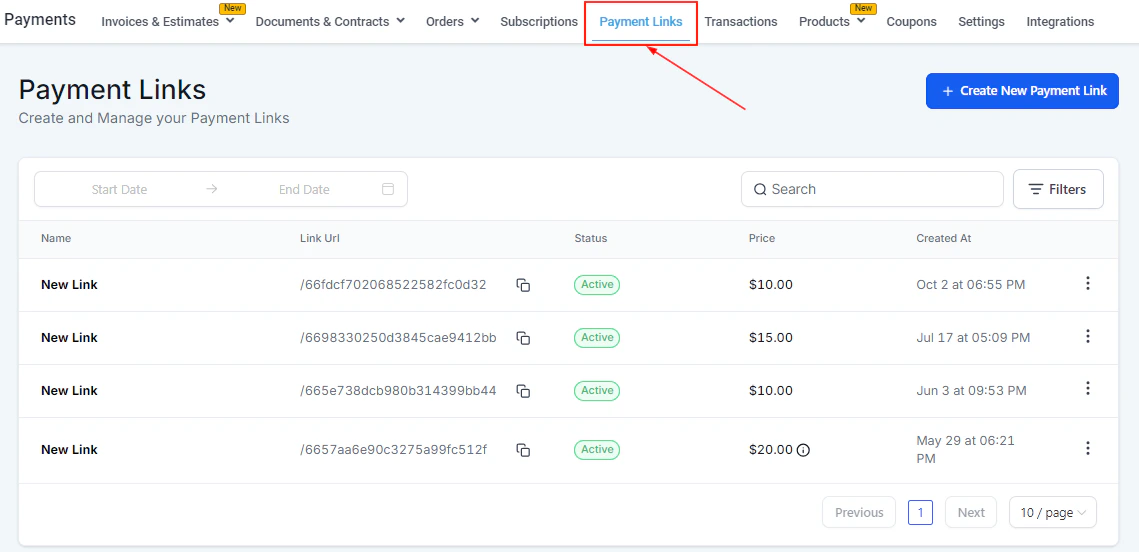
Navigate to **Payments → Payment Links** to get started.
 ## Payment links overview
A payment link is a unique URL tied to one or more products. When a customer opens the link, they see a checkout page branded with your colors and logo. They enter their payment details and complete the purchase — no login required.
Payment links support:
* One-time and recurring products
* Single and multiple products
* Brand color customization
* Coupon/promo code fields
* Custom redirect URLs after payment
* Sending to multiple contacts at once
### Payment links dashboard
The dashboard table shows each link's **name**, **URL** (with a copy button), **status**, **price**, and **creation date**. Use the **date picker** to filter by creation period, the **search bar** to find by name, and **Filters** to sort by status or source.
The three-dot menu on each row lets you **edit**, **deactivate**, or **delete** a payment link.
***
***
## Creating a payment link
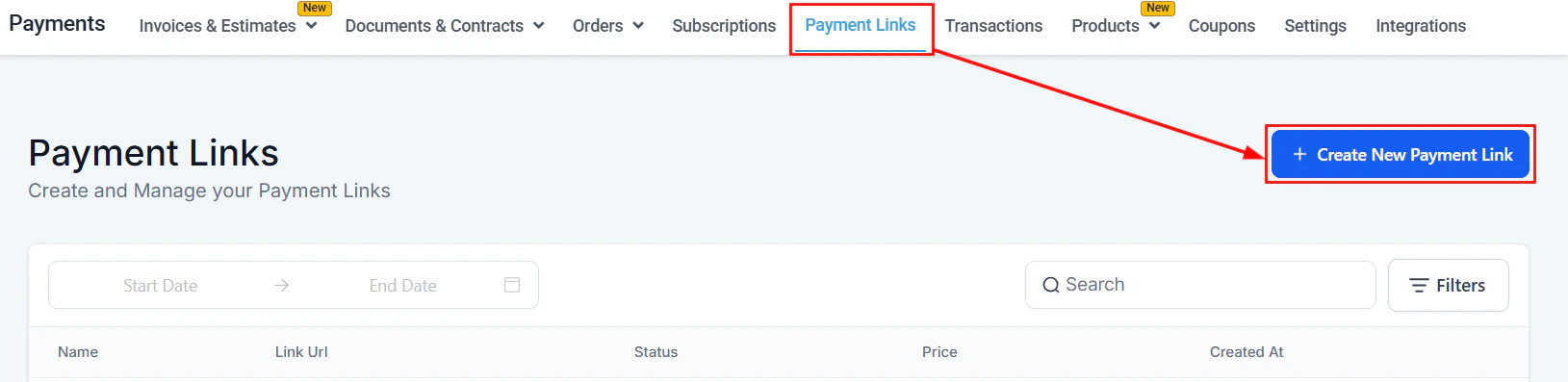
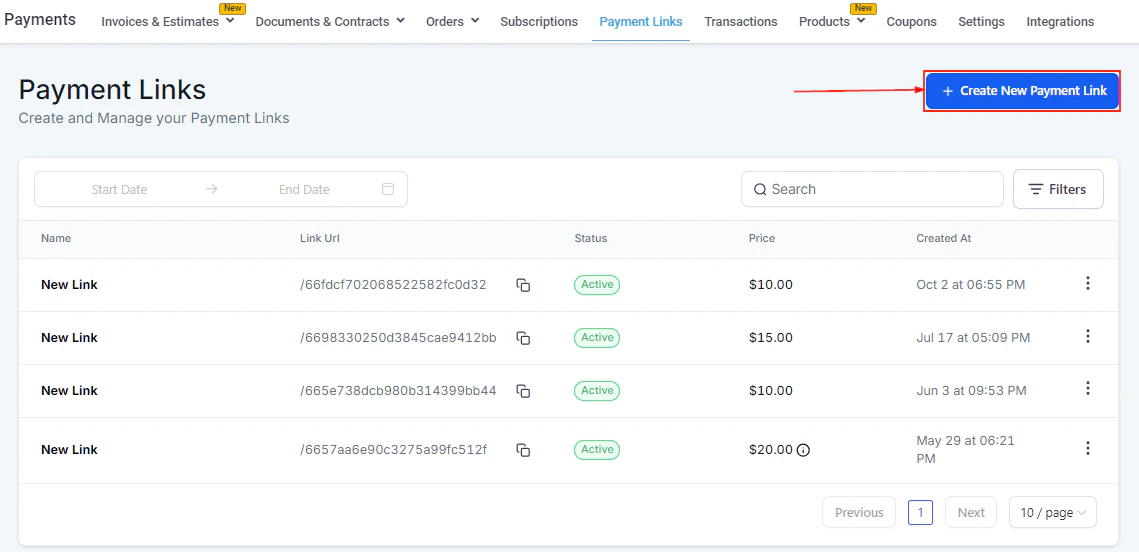
Go to **Payments → Payment Links** and click **+ Create New Payment Link**.
## Payment links overview
A payment link is a unique URL tied to one or more products. When a customer opens the link, they see a checkout page branded with your colors and logo. They enter their payment details and complete the purchase — no login required.
Payment links support:
* One-time and recurring products
* Single and multiple products
* Brand color customization
* Coupon/promo code fields
* Custom redirect URLs after payment
* Sending to multiple contacts at once
### Payment links dashboard
The dashboard table shows each link's **name**, **URL** (with a copy button), **status**, **price**, and **creation date**. Use the **date picker** to filter by creation period, the **search bar** to find by name, and **Filters** to sort by status or source.
The three-dot menu on each row lets you **edit**, **deactivate**, or **delete** a payment link.
***
***
## Creating a payment link
Go to **Payments → Payment Links** and click **+ Create New Payment Link**.
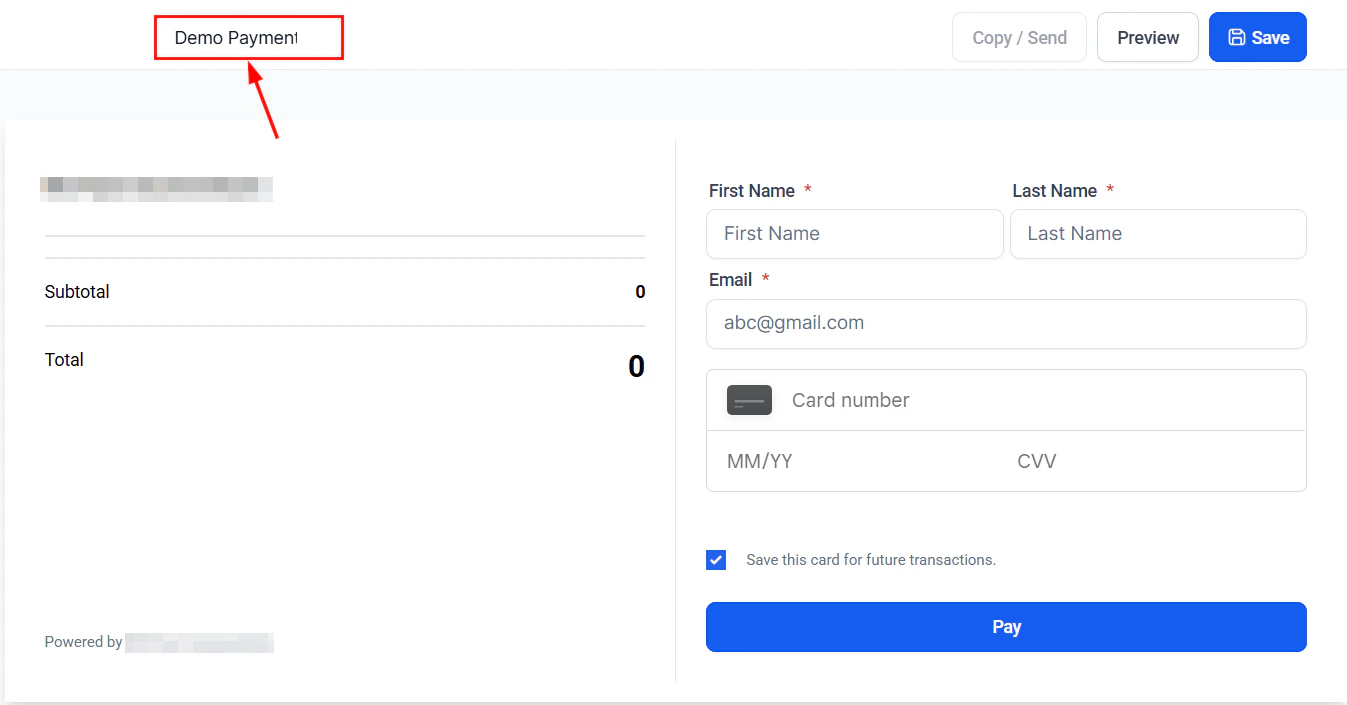
 Enter a name for the link — this is an internal reference and is not shown to customers.
 Search your product catalog and add one or more products. Products are organized into **One-time Products** and **Recurring Products** sections.
* Set a fixed quantity per product, or enable **Allow customers to choose quantity** and configure the minimum and maximum order quantity they can select.
* When multiple recurring products are offered, customers can select only one recurring option at checkout.
In the **Options** panel, toggle the settings that apply:
* **Require phone number** — checkout cannot proceed without a phone number
* **Collect customer address** — adds a delivery address field and saves it to the contact record
* **Allow coupon codes** — adds a coupon/promo code field to the checkout page
* **Enable redirection to custom URL** — after payment, customers are redirected to a URL you specify (choose same tab or new tab)
In **Advanced Options**, choose your button style and set your brand color. The checkout page preview updates in real time.
Click **Create**. Copy the generated URL to share via email, SMS, social media, or embed it as a button on your website.
***
***
## Customizing payment links with brand colors
When creating or editing a payment link, open **Advanced Options** to access branding settings. Enter your primary brand color as a hex code or use the color picker — this is applied to buttons, borders, and accents on the checkout page. The preview updates in real time before you save.
Search your product catalog and add one or more products. Products are organized into **One-time Products** and **Recurring Products** sections.
* Set a fixed quantity per product, or enable **Allow customers to choose quantity** and configure the minimum and maximum order quantity they can select.
* When multiple recurring products are offered, customers can select only one recurring option at checkout.
In the **Options** panel, toggle the settings that apply:
* **Require phone number** — checkout cannot proceed without a phone number
* **Collect customer address** — adds a delivery address field and saves it to the contact record
* **Allow coupon codes** — adds a coupon/promo code field to the checkout page
* **Enable redirection to custom URL** — after payment, customers are redirected to a URL you specify (choose same tab or new tab)
In **Advanced Options**, choose your button style and set your brand color. The checkout page preview updates in real time.
Click **Create**. Copy the generated URL to share via email, SMS, social media, or embed it as a button on your website.
***
***
## Customizing payment links with brand colors
When creating or editing a payment link, open **Advanced Options** to access branding settings. Enter your primary brand color as a hex code or use the color picker — this is applied to buttons, borders, and accents on the checkout page. The preview updates in real time before you save.
 ***
***
## Sending payment links to multiple contacts
Instead of copying and pasting a link into individual messages, you can send a payment link directly to a list of contacts from within the platform.
Go to **Payments → Payment Links** and click on the link you want to send.
Click **Send to contacts** and search for or select multiple contacts from your CRM. You can select individuals or use a smart list or segment.
Select **Email** or **SMS** as the delivery channel.
Confirm and click **Send**. Each contact receives a personalized message with their unique payment link.
Use smart lists to send payment links to targeted segments — for example, all contacts tagged "renewal due" or all contacts in a specific pipeline stage.
***
***
## Text-to-Pay — sending payment requests via SMS
Text-to-Pay lets you send a payment request directly to a contact as an SMS message — no invoice or payment link setup required. The customer receives a text with a secure checkout link and can pay immediately from their phone.
There are two ways to send a Text-to-Pay request:
### From a contact record
Go to **Contacts** and open the contact you want to bill.
In the contact's action bar, click the **Text to Pay** button (dollar sign icon).
Select one or more products from your catalog to include in the payment request.
Edit the SMS message body. A secure checkout link is appended automatically.
Click **Send**. The contact receives the text and can complete payment from their phone.
### From Conversations
Go to **Conversations** and open an active SMS thread with the contact.
Click the **+** icon in the message composer and select **Request Payment** (or the dollar sign icon).
Choose your products, review the message, and click **Send**.
Text-to-Pay requires a connected payment gateway. The customer's checkout page uses the same branded checkout experience as other payment links.
***
***
## Tracking payment link activity
Each payment link in the dashboard shows its **name**, **URL**, **status**, **price**, and the **date created**. Click into a link to see a breakdown of individual transactions associated with it, including purchase amounts and contact details.
***
***
## Frequently asked questions
Yes. Add as many products as needed when creating the link. Customers will see all products listed on the checkout page.
Payment links remain active indefinitely unless you manually deactivate them from the dashboard.
The available payment methods depend on your connected payment gateway. With Stripe, customers can pay by card, Apple Pay, or Google Pay (if enabled).
Yes. In **Automation → Workflows**, add a **Send email** or **Send SMS** action and paste the payment link URL into the message body.
Yes. In the Options panel when creating the link, enable **Require customers to add a phone number**. Checkout cannot be completed without it.
Yes. Enable **Redirect to custom URL** in the Options panel and enter the destination URL. Choose whether it opens in the same tab or a new tab. After payment, customers see a brief interim screen before being redirected.
Text-to-Pay sends a payment request directly to a contact via SMS — without creating a named payment link first. It is a faster path for one-off payment requests initiated from a contact record or an active Conversation. A standard payment link is a reusable URL you can create once and share many times.
The platform does not currently show individual click-through analytics for payment links. You can see which contacts completed a purchase by reviewing transactions linked to the link.
***
***
## Sending payment links to multiple contacts
Instead of copying and pasting a link into individual messages, you can send a payment link directly to a list of contacts from within the platform.
Go to **Payments → Payment Links** and click on the link you want to send.
Click **Send to contacts** and search for or select multiple contacts from your CRM. You can select individuals or use a smart list or segment.
Select **Email** or **SMS** as the delivery channel.
Confirm and click **Send**. Each contact receives a personalized message with their unique payment link.
Use smart lists to send payment links to targeted segments — for example, all contacts tagged "renewal due" or all contacts in a specific pipeline stage.
***
***
## Text-to-Pay — sending payment requests via SMS
Text-to-Pay lets you send a payment request directly to a contact as an SMS message — no invoice or payment link setup required. The customer receives a text with a secure checkout link and can pay immediately from their phone.
There are two ways to send a Text-to-Pay request:
### From a contact record
Go to **Contacts** and open the contact you want to bill.
In the contact's action bar, click the **Text to Pay** button (dollar sign icon).
Select one or more products from your catalog to include in the payment request.
Edit the SMS message body. A secure checkout link is appended automatically.
Click **Send**. The contact receives the text and can complete payment from their phone.
### From Conversations
Go to **Conversations** and open an active SMS thread with the contact.
Click the **+** icon in the message composer and select **Request Payment** (or the dollar sign icon).
Choose your products, review the message, and click **Send**.
Text-to-Pay requires a connected payment gateway. The customer's checkout page uses the same branded checkout experience as other payment links.
***
***
## Tracking payment link activity
Each payment link in the dashboard shows its **name**, **URL**, **status**, **price**, and the **date created**. Click into a link to see a breakdown of individual transactions associated with it, including purchase amounts and contact details.
***
***
## Frequently asked questions
Yes. Add as many products as needed when creating the link. Customers will see all products listed on the checkout page.
Payment links remain active indefinitely unless you manually deactivate them from the dashboard.
The available payment methods depend on your connected payment gateway. With Stripe, customers can pay by card, Apple Pay, or Google Pay (if enabled).
Yes. In **Automation → Workflows**, add a **Send email** or **Send SMS** action and paste the payment link URL into the message body.
Yes. In the Options panel when creating the link, enable **Require customers to add a phone number**. Checkout cannot be completed without it.
Yes. Enable **Redirect to custom URL** in the Options panel and enter the destination URL. Choose whether it opens in the same tab or a new tab. After payment, customers see a brief interim screen before being redirected.
Text-to-Pay sends a payment request directly to a contact via SMS — without creating a named payment link first. It is a faster path for one-off payment requests initiated from a contact record or an active Conversation. A standard payment link is a reusable URL you can create once and share many times.
The platform does not currently show individual click-through analytics for payment links. You can see which contacts completed a purchase by reviewing transactions linked to the link.