> ## Documentation Index
> Fetch the complete documentation index at: https://help.hoopai.com/llms.txt
> Use this file to discover all available pages before exploring further.
# Payments overview — billing and revenue in HoopAI
> Manage invoices, transactions, subscriptions, products, and payment integrations across your entire HoopAI billing workflow.
The Payments section of the HoopAI Platform is your complete toolkit for billing, revenue management, and financial operations. From creating invoices and sending payment links to configuring payment gateways, selling gift cards, running subscriptions, and accepting in-person payments — everything lives here.
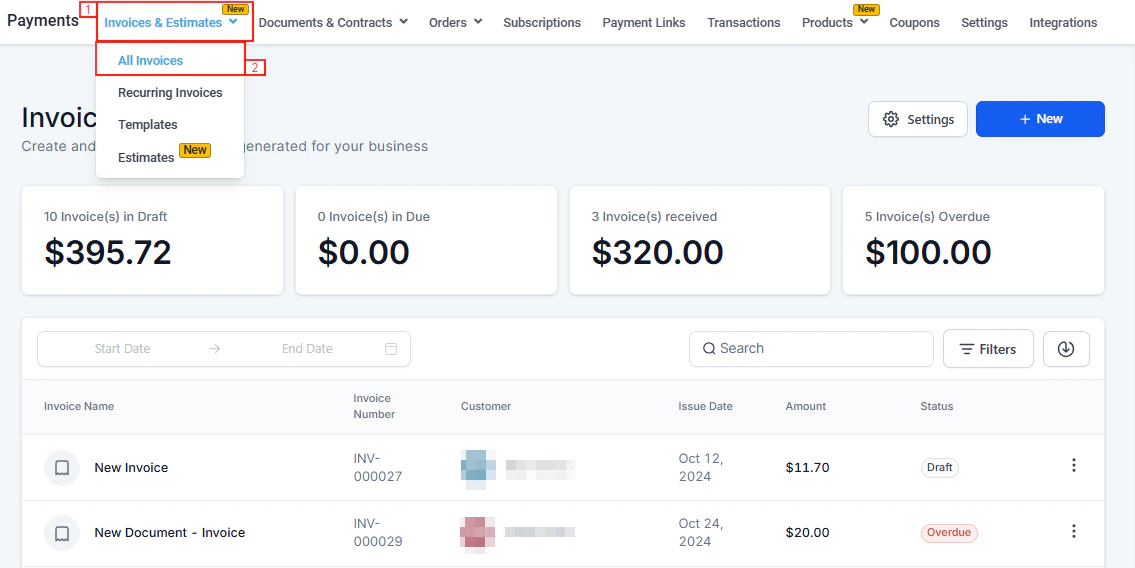
Navigate to **Payments** in the left sidebar to get started.
 ## Core billing
Create one-time invoices, send estimates, set payment plans, and automate reminders.
Set up automated billing schedules — daily, weekly, monthly, or custom — with optional auto-payment.
Send professional quotes to contacts, get approval, and convert to invoices in one click.
Split invoices into installments or collect a deposit, with optional auto-payment per installment.
Automate follow-up emails and SMS before, on, and after invoice due dates.
Build, send, and collect signatures on proposals, contracts, and agreements.
## Collecting payments
Generate shareable payment links for products and send them to contacts in bulk.
Send payment request links via SMS so customers can pay from their phone instantly.
Accept in-person card payments using Tap to Pay on iPhone or Square from the mobile app.
View and fulfill e-commerce orders, manage abandoned checkouts, and handle partial payments.
## Payment methods
Enable one-tap digital wallet payments on invoices, payment links, and order forms.
Accept ACH Direct Debit and SEPA payments for invoices — lower fees, ideal for large transactions.
Offer Klarna, AfterPay, and Affirm installment options to increase conversion and order value.
Record cash, check, or wire transfer payments and set up Cash on Delivery for store orders.
## Products and catalog
Create physical, digital, and free products with inventory tracking and collections.
Create discount codes and promo codes for order forms and subscriptions.
Sell and send digital gift cards, track redemptions, and view the gift card dashboard.
Create and manage recurring subscriptions — pause, cancel, or modify at any time.
## Financial records
Track all transactions, process refunds, and import transaction history.
Issue full or partial refunds and understand refund timelines by payment gateway.
Configure tax rates, apply international VAT/GST, and set up automatic tax calculation.
Import historical transactions, orders, and products; export payment data for accounting.
## Configuration
Connect Stripe, PayPal, Square, NMI, Authorize.net, Adyen, and more.
Set which gateway processes each channel — invoices, order forms, calendars, and subscriptions.
Configure receipts, shipping, subscription retry logic, and abandoned cart emails.
Pass payment processing fees to customers transparently at checkout.
Brand your payment pages with custom logos, colors, and redirect URLs.
Sync invoices and payments with Xero, QuickBooks, and other accounting tools.
***
## Getting started
Go to **Payments → Payment Integrations** and connect at least one payment processor. Stripe is recommended for the full feature set — Apple Pay, Google Pay, ACH, BNPL, Text-to-Pay, and subscriptions all require Stripe Connect.
Navigate to **Payments → Products** and create the products or services you sell. Set prices, variants, and inventory levels. Products are shared across invoices, payment links, order forms, and your online store.
Under **Payments → Payment Settings → Taxes**, add your tax rates. Then configure receipt emails, shipping rates, and subscription preferences. For a dedicated tax setup guide, see [Taxes](/payments/taxes).
Send a one-time invoice from **Payments → Invoices & Estimates**, or create a quick payment link from **Payments → Payment Links**. For recurring billing, set up a recurring invoice template.
Some payment features — ACH debit, Apple Pay, Google Pay, Buy Now Pay Later, Text-to-Pay, and subscriptions — require Stripe Connect. Manual payment recording is available for accounts without Stripe.
***
## Payments and your online store
Products, taxes, shipping rates, and orders are shared between Payments and your Online Store. Changes you make in Payments flow through automatically:
* **Products** created in **Payments → Products** are available in your store immediately
* **Tax rates** configured in **Payments → Payment Settings → Taxes** apply to store checkouts
* **Shipping rates** set up in **Payments → Payment Settings → Shipping & Delivery** appear as options in your store checkout
* **Orders** from your store appear in **Payments → Orders** alongside all other order sources
* **Abandoned carts** from your store are tracked under **Payments → Orders → Abandoned Checkouts**
To set up your online store, go to **Content → Online Stores**. Everything you configure in Payments integrates automatically with your store. See [Online Stores](/stores/overview) for the full store setup guide.
***
## Frequently asked questions
No. You can create and send invoices, payment links, and documents without Stripe. However, to collect online card payments, process ACH debits, enable Apple Pay / Google Pay, use Buy Now Pay Later, send Text-to-Pay links, and run subscriptions, Stripe Connect is required. Other gateways (PayPal, Square, NMI, Authorize.net, Adyen) are also available for online payment collection.
Payment links are quick, shareable URLs tied to one or more products — ideal for one-off sales and bulk sending. Invoices are formal billing documents with line items, due dates, late fees, payment plans, and auto-reminders — best for client billing relationships.
Subscriptions (Stripe-managed) charge customers automatically each cycle without sending a new invoice document. Recurring invoices send a new invoice on a schedule — the customer must pay each one (or autopay handles it). Use subscriptions for SaaS-style silent billing and recurring invoices when you need a formal document each cycle.
Yes. Use **Text-to-Pay** to send a payment request link via SMS directly to a contact. You can also use the Conversations tab to send a payment request mid-conversation. See [Text-to-Pay](/payments/text-to-pay) for details.
Use **Payment Plans** on an invoice. Set up a deposit installment (e.g., 30% now) and a balance installment (e.g., 70% on a later date). Each installment can be paid separately and can be set up with auto-payment. See [Payment plans](/payments/payment-plans).
Yes. The platform supports multiple currencies. Set the currency per invoice, document, or product. The dashboard converts all amounts to your base currency in real time for summary totals.
Go to **Payments → Transactions**, find the transaction, click the three-dot menu, and select **Refund**. You can issue a full or partial refund. See [Refunds](/payments/refunds) for the full guide.
Tax rates created in **Payments → Payment Settings → Taxes** are available across all checkout channels including your online store. Enable taxes on individual products and configure whether pricing is tax-inclusive or tax-exclusive. See [Taxes](/payments/taxes) for the full configuration guide.
Yes. Use the HoopAI mobile app with **Tap to Pay on iPhone** (Stripe required) for contactless in-person payments. You can also connect a Square reader for in-person POS. See [Point of sale](/payments/point-of-sale).
Yes. With Stripe Connect and live mode enabled, you can offer Klarna, AfterPay, and Affirm (Buy Now Pay Later) on payment links, invoices, and order forms. See [Buy now, pay later](/payments/buy-now-pay-later).
## Core billing
Create one-time invoices, send estimates, set payment plans, and automate reminders.
Set up automated billing schedules — daily, weekly, monthly, or custom — with optional auto-payment.
Send professional quotes to contacts, get approval, and convert to invoices in one click.
Split invoices into installments or collect a deposit, with optional auto-payment per installment.
Automate follow-up emails and SMS before, on, and after invoice due dates.
Build, send, and collect signatures on proposals, contracts, and agreements.
## Collecting payments
Generate shareable payment links for products and send them to contacts in bulk.
Send payment request links via SMS so customers can pay from their phone instantly.
Accept in-person card payments using Tap to Pay on iPhone or Square from the mobile app.
View and fulfill e-commerce orders, manage abandoned checkouts, and handle partial payments.
## Payment methods
Enable one-tap digital wallet payments on invoices, payment links, and order forms.
Accept ACH Direct Debit and SEPA payments for invoices — lower fees, ideal for large transactions.
Offer Klarna, AfterPay, and Affirm installment options to increase conversion and order value.
Record cash, check, or wire transfer payments and set up Cash on Delivery for store orders.
## Products and catalog
Create physical, digital, and free products with inventory tracking and collections.
Create discount codes and promo codes for order forms and subscriptions.
Sell and send digital gift cards, track redemptions, and view the gift card dashboard.
Create and manage recurring subscriptions — pause, cancel, or modify at any time.
## Financial records
Track all transactions, process refunds, and import transaction history.
Issue full or partial refunds and understand refund timelines by payment gateway.
Configure tax rates, apply international VAT/GST, and set up automatic tax calculation.
Import historical transactions, orders, and products; export payment data for accounting.
## Configuration
Connect Stripe, PayPal, Square, NMI, Authorize.net, Adyen, and more.
Set which gateway processes each channel — invoices, order forms, calendars, and subscriptions.
Configure receipts, shipping, subscription retry logic, and abandoned cart emails.
Pass payment processing fees to customers transparently at checkout.
Brand your payment pages with custom logos, colors, and redirect URLs.
Sync invoices and payments with Xero, QuickBooks, and other accounting tools.
***
## Getting started
Go to **Payments → Payment Integrations** and connect at least one payment processor. Stripe is recommended for the full feature set — Apple Pay, Google Pay, ACH, BNPL, Text-to-Pay, and subscriptions all require Stripe Connect.
Navigate to **Payments → Products** and create the products or services you sell. Set prices, variants, and inventory levels. Products are shared across invoices, payment links, order forms, and your online store.
Under **Payments → Payment Settings → Taxes**, add your tax rates. Then configure receipt emails, shipping rates, and subscription preferences. For a dedicated tax setup guide, see [Taxes](/payments/taxes).
Send a one-time invoice from **Payments → Invoices & Estimates**, or create a quick payment link from **Payments → Payment Links**. For recurring billing, set up a recurring invoice template.
Some payment features — ACH debit, Apple Pay, Google Pay, Buy Now Pay Later, Text-to-Pay, and subscriptions — require Stripe Connect. Manual payment recording is available for accounts without Stripe.
***
## Payments and your online store
Products, taxes, shipping rates, and orders are shared between Payments and your Online Store. Changes you make in Payments flow through automatically:
* **Products** created in **Payments → Products** are available in your store immediately
* **Tax rates** configured in **Payments → Payment Settings → Taxes** apply to store checkouts
* **Shipping rates** set up in **Payments → Payment Settings → Shipping & Delivery** appear as options in your store checkout
* **Orders** from your store appear in **Payments → Orders** alongside all other order sources
* **Abandoned carts** from your store are tracked under **Payments → Orders → Abandoned Checkouts**
To set up your online store, go to **Content → Online Stores**. Everything you configure in Payments integrates automatically with your store. See [Online Stores](/stores/overview) for the full store setup guide.
***
## Frequently asked questions
No. You can create and send invoices, payment links, and documents without Stripe. However, to collect online card payments, process ACH debits, enable Apple Pay / Google Pay, use Buy Now Pay Later, send Text-to-Pay links, and run subscriptions, Stripe Connect is required. Other gateways (PayPal, Square, NMI, Authorize.net, Adyen) are also available for online payment collection.
Payment links are quick, shareable URLs tied to one or more products — ideal for one-off sales and bulk sending. Invoices are formal billing documents with line items, due dates, late fees, payment plans, and auto-reminders — best for client billing relationships.
Subscriptions (Stripe-managed) charge customers automatically each cycle without sending a new invoice document. Recurring invoices send a new invoice on a schedule — the customer must pay each one (or autopay handles it). Use subscriptions for SaaS-style silent billing and recurring invoices when you need a formal document each cycle.
Yes. Use **Text-to-Pay** to send a payment request link via SMS directly to a contact. You can also use the Conversations tab to send a payment request mid-conversation. See [Text-to-Pay](/payments/text-to-pay) for details.
Use **Payment Plans** on an invoice. Set up a deposit installment (e.g., 30% now) and a balance installment (e.g., 70% on a later date). Each installment can be paid separately and can be set up with auto-payment. See [Payment plans](/payments/payment-plans).
Yes. The platform supports multiple currencies. Set the currency per invoice, document, or product. The dashboard converts all amounts to your base currency in real time for summary totals.
Go to **Payments → Transactions**, find the transaction, click the three-dot menu, and select **Refund**. You can issue a full or partial refund. See [Refunds](/payments/refunds) for the full guide.
Tax rates created in **Payments → Payment Settings → Taxes** are available across all checkout channels including your online store. Enable taxes on individual products and configure whether pricing is tax-inclusive or tax-exclusive. See [Taxes](/payments/taxes) for the full configuration guide.
Yes. Use the HoopAI mobile app with **Tap to Pay on iPhone** (Stripe required) for contactless in-person payments. You can also connect a Square reader for in-person POS. See [Point of sale](/payments/point-of-sale).
Yes. With Stripe Connect and live mode enabled, you can offer Klarna, AfterPay, and Affirm (Buy Now Pay Later) on payment links, invoices, and order forms. See [Buy now, pay later](/payments/buy-now-pay-later).