> ## Documentation Index
> Fetch the complete documentation index at: https://help.hoopai.com/llms.txt
> Use this file to discover all available pages before exploring further.
# Coupons — discount codes and promo codes in HoopAI
> Create percentage and fixed-amount coupon codes for order forms, checkout pages, and recurring subscriptions in HoopAI.
Coupons let you offer discounts on your products and services — whether as percentage-off promotions, fixed-amount discounts, or special pricing for subscription plans. You can create coupon codes for use in two-step order forms, one-page checkout, and recurring subscription billing.
Navigate to **Payments → Coupons** to get started.
 ## Creating a coupon
Go to **Payments → Coupons** and click **+ Create Coupon**.
Enter a **coupon name** for internal reference — used to identify the coupon in your dashboard and reports. Names do not need to be unique, but unique names are recommended for easier management.
Enter a **coupon code** that customers type at checkout (e.g., `SAVE20`, `WELCOME10`). Codes are case-insensitive and automatically converted to uppercase. Only alphanumeric characters are supported — no spaces or special characters.
Click **Generate** to have the platform create a random 7-character alphanumeric code for you.
Select one of:
* **Percentage** — deducts a percentage of the order total (e.g., 20%)
* **Fixed amount** — deducts a flat dollar amount regardless of order size (e.g., \$15 off)
The discount value must be greater than 0.
Enter a **Start Date** — the date the coupon becomes active. Optionally set a **Start Time** for precision (e.g., active from 00:01 on a specific day).
Set an **End Date** and **End Time** to create a time-limited promotion. After the end date, the code becomes invalid and customers see an error if they try to apply it.
* **Limit total uses** — cap the total number of redemptions across all customers
* **Limit to one use per customer** — prevent the same customer from using the code more than once
By default, a coupon applies to any product. Enable **Apply to specific products** and select the products the discount is valid for.
Click **Create**. The coupon is now active and ready to use.
***
## Creating a coupon
Go to **Payments → Coupons** and click **+ Create Coupon**.
Enter a **coupon name** for internal reference — used to identify the coupon in your dashboard and reports. Names do not need to be unique, but unique names are recommended for easier management.
Enter a **coupon code** that customers type at checkout (e.g., `SAVE20`, `WELCOME10`). Codes are case-insensitive and automatically converted to uppercase. Only alphanumeric characters are supported — no spaces or special characters.
Click **Generate** to have the platform create a random 7-character alphanumeric code for you.
Select one of:
* **Percentage** — deducts a percentage of the order total (e.g., 20%)
* **Fixed amount** — deducts a flat dollar amount regardless of order size (e.g., \$15 off)
The discount value must be greater than 0.
Enter a **Start Date** — the date the coupon becomes active. Optionally set a **Start Time** for precision (e.g., active from 00:01 on a specific day).
Set an **End Date** and **End Time** to create a time-limited promotion. After the end date, the code becomes invalid and customers see an error if they try to apply it.
* **Limit total uses** — cap the total number of redemptions across all customers
* **Limit to one use per customer** — prevent the same customer from using the code more than once
By default, a coupon applies to any product. Enable **Apply to specific products** and select the products the discount is valid for.
Click **Create**. The coupon is now active and ready to use.
***
 ***
## Using coupons in two-step order forms
Two-step order forms separate the contact information step from the payment step, giving you a chance to capture leads even if they don't complete checkout. Coupons can be applied at the payment step.
In your order form builder (under **Sites → Funnels** or **Sites → Order Forms**), add the **Coupon** field to the payment step.
At checkout, the customer enters their coupon code in the field and clicks **Apply**. The discount is applied and the order total updates instantly.
The customer reviews the discounted total and completes their payment.
Include the coupon code directly in your marketing emails or SMS messages to reduce friction — customers can copy and paste it into the checkout field.
***
***
## Using coupons in two-step order forms
Two-step order forms separate the contact information step from the payment step, giving you a chance to capture leads even if they don't complete checkout. Coupons can be applied at the payment step.
In your order form builder (under **Sites → Funnels** or **Sites → Order Forms**), add the **Coupon** field to the payment step.
At checkout, the customer enters their coupon code in the field and clicks **Apply**. The discount is applied and the order total updates instantly.
The customer reviews the discounted total and completes their payment.
Include the coupon code directly in your marketing emails or SMS messages to reduce friction — customers can copy and paste it into the checkout field.
***
 ***
## Coupon codes for subscriptions
Subscription coupons let you offer discounted pricing on recurring plans — useful for introductory offers, loyalty discounts, and win-back campaigns.
Go to **Payments → Products** and confirm the target product has a **Recurring** pricing type configured with the correct billing interval.
Go to **Payments → Coupons** and click **+ Create Coupon**. Fill in the name, code, discount type, and validity dates.
Toggle on **Apply coupon to recurring payments**. This ensures the discount applies automatically on each billing cycle — no manual intervention needed.
Choose how long the discount applies:
* **Once** — discount applies only to the first billing cycle
* **Multiple months** — enter the exact number of months the discount will apply
* **Forever** — discount applies to every billing cycle indefinitely
Enable **Apply to specific products** and select the subscription product from the dropdown to limit the coupon to that plan only.
Click **Create**. Then go to the funnel where your subscription is sold. In the funnel step settings, enable **Enable Coupon Codes** so customers can apply the code at checkout.
Subscription coupons require Stripe Connect. The coupon is applied at the Stripe subscription level and renews automatically for the configured duration.
### Viewing applied coupons
After a subscription order is placed, you can verify the coupon was applied in two places:
* **Payments → Orders** — click the three-dot menu next to the order and select **View Order**. The order details show the applied coupon.
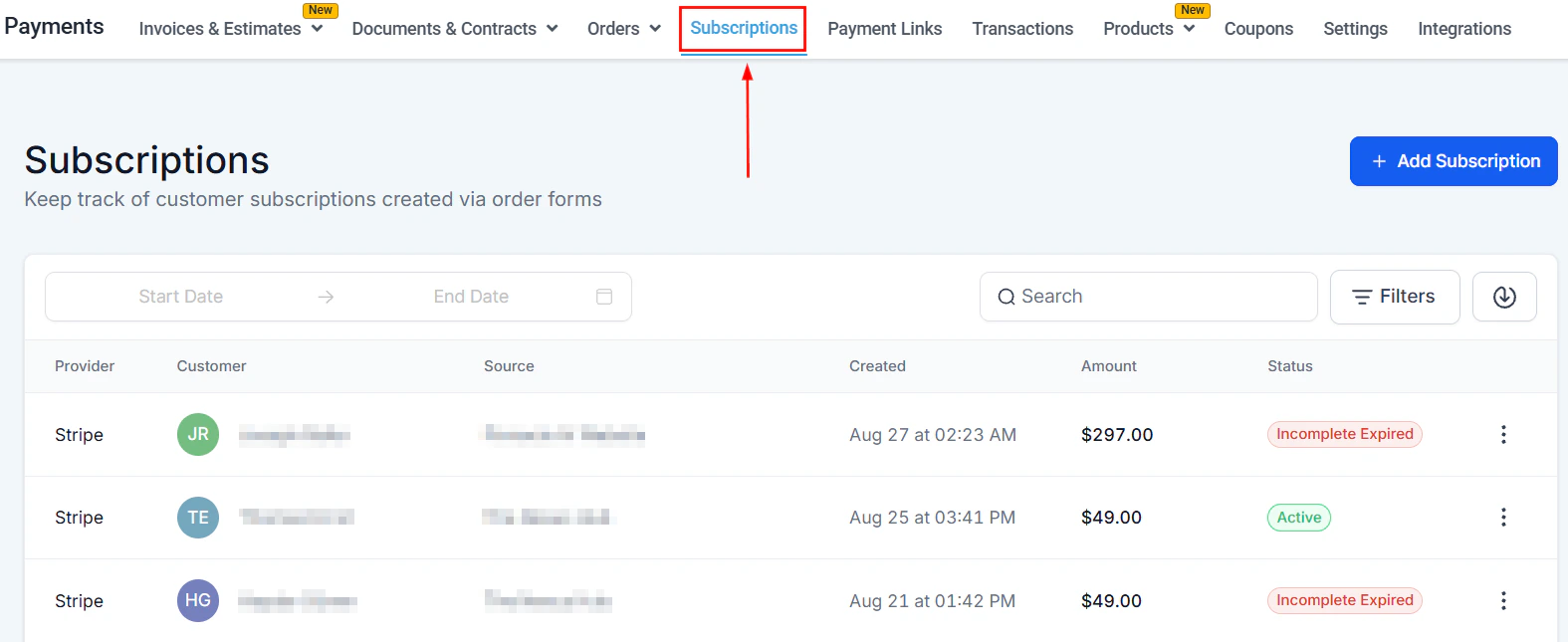
* **Payments → Subscriptions** — click the three-dot menu next to the subscription and select **View Subscription** to see coupon details in the subscription record.
***
***
## Managing coupons
The coupons dashboard shows:
* Coupon name and code
* Discount type and value
* Usage count vs. usage limit
* Expiry date
* Status (active or expired)
Click on any coupon to edit its details, adjust limits, or deactivate it.
***
***
## Frequently asked questions
No. Only one coupon code can be applied per order at checkout.
Set **Limit total uses** to 1 and share the code exclusively with that contact. Alternatively, create a unique code per customer for more control.
Yes. If you apply a coupon to an invoice or order that has a payment plan, the discount is reflected in the first installment or spread across all installments depending on configuration.
After the expiry date, the code becomes invalid. Customers who try to apply it will see an error message at checkout.
Yes. The coupons dashboard shows the total redemption count for each coupon. Click into the coupon for a detailed usage log.
The platform does not have a native "new customers only" rule. To achieve this, create a single-use coupon (limit total uses to 1) or use unique per-customer codes, and distribute them only to new contacts through a targeted workflow or campaign.
Yes. When creating a payment link, enable the **Allow coupon codes** option in the Options panel. A coupon field will appear on the checkout page and customers can enter any valid, active coupon code.
***
## Coupon codes for subscriptions
Subscription coupons let you offer discounted pricing on recurring plans — useful for introductory offers, loyalty discounts, and win-back campaigns.
Go to **Payments → Products** and confirm the target product has a **Recurring** pricing type configured with the correct billing interval.
Go to **Payments → Coupons** and click **+ Create Coupon**. Fill in the name, code, discount type, and validity dates.
Toggle on **Apply coupon to recurring payments**. This ensures the discount applies automatically on each billing cycle — no manual intervention needed.
Choose how long the discount applies:
* **Once** — discount applies only to the first billing cycle
* **Multiple months** — enter the exact number of months the discount will apply
* **Forever** — discount applies to every billing cycle indefinitely
Enable **Apply to specific products** and select the subscription product from the dropdown to limit the coupon to that plan only.
Click **Create**. Then go to the funnel where your subscription is sold. In the funnel step settings, enable **Enable Coupon Codes** so customers can apply the code at checkout.
Subscription coupons require Stripe Connect. The coupon is applied at the Stripe subscription level and renews automatically for the configured duration.
### Viewing applied coupons
After a subscription order is placed, you can verify the coupon was applied in two places:
* **Payments → Orders** — click the three-dot menu next to the order and select **View Order**. The order details show the applied coupon.
* **Payments → Subscriptions** — click the three-dot menu next to the subscription and select **View Subscription** to see coupon details in the subscription record.
***
***
## Managing coupons
The coupons dashboard shows:
* Coupon name and code
* Discount type and value
* Usage count vs. usage limit
* Expiry date
* Status (active or expired)
Click on any coupon to edit its details, adjust limits, or deactivate it.
***
***
## Frequently asked questions
No. Only one coupon code can be applied per order at checkout.
Set **Limit total uses** to 1 and share the code exclusively with that contact. Alternatively, create a unique code per customer for more control.
Yes. If you apply a coupon to an invoice or order that has a payment plan, the discount is reflected in the first installment or spread across all installments depending on configuration.
After the expiry date, the code becomes invalid. Customers who try to apply it will see an error message at checkout.
Yes. The coupons dashboard shows the total redemption count for each coupon. Click into the coupon for a detailed usage log.
The platform does not have a native "new customers only" rule. To achieve this, create a single-use coupon (limit total uses to 1) or use unique per-customer codes, and distribute them only to new contacts through a targeted workflow or campaign.
Yes. When creating a payment link, enable the **Allow coupon codes** option in the Options panel. A coupon field will appear on the checkout page and customers can enter any valid, active coupon code.