> ## Documentation Index
> Fetch the complete documentation index at: https://help.hoopai.com/llms.txt
> Use this file to discover all available pages before exploring further.
# Pipelines
> Create and manage sales pipelines, set stage permissions, and use smart tags to organize opportunities in the HoopAI Platform.
Pipelines are the backbone of the Opportunities section. Each pipeline represents a sales process with a defined set of stages that opportunities move through from open to close.
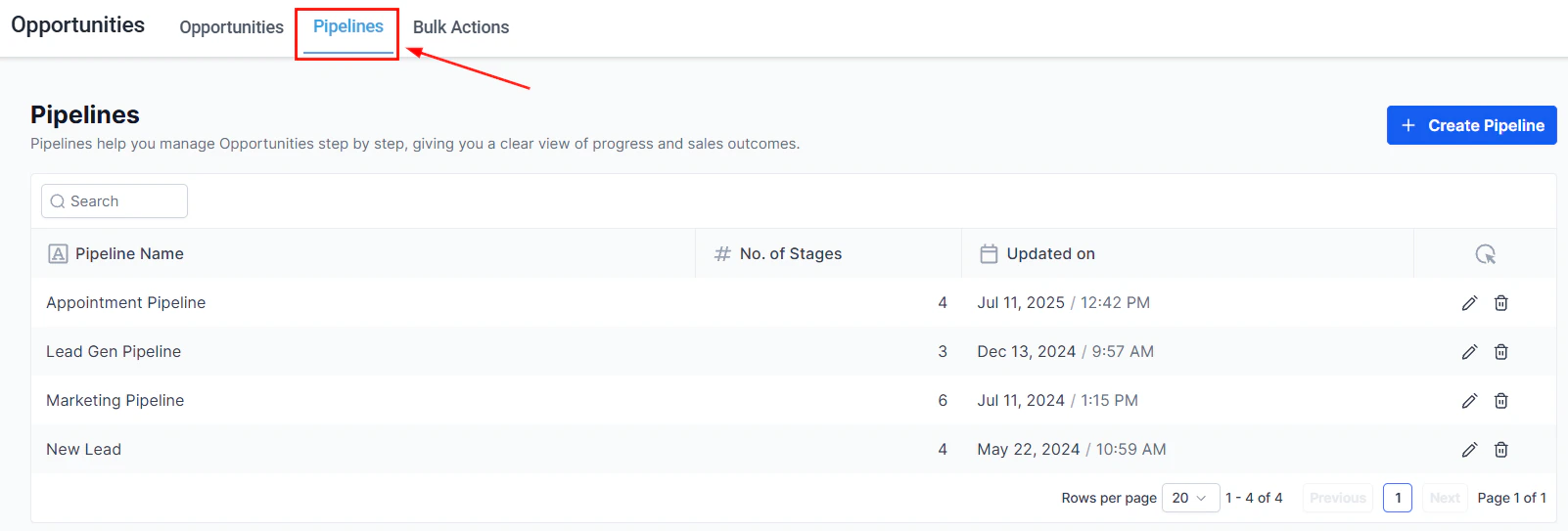 ## Creating a pipeline
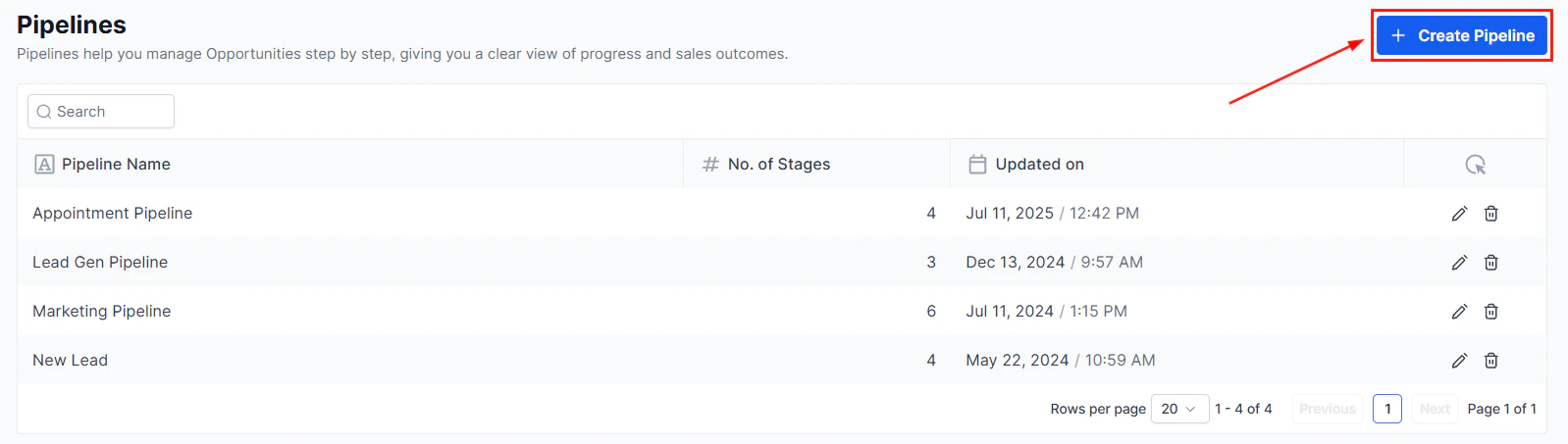
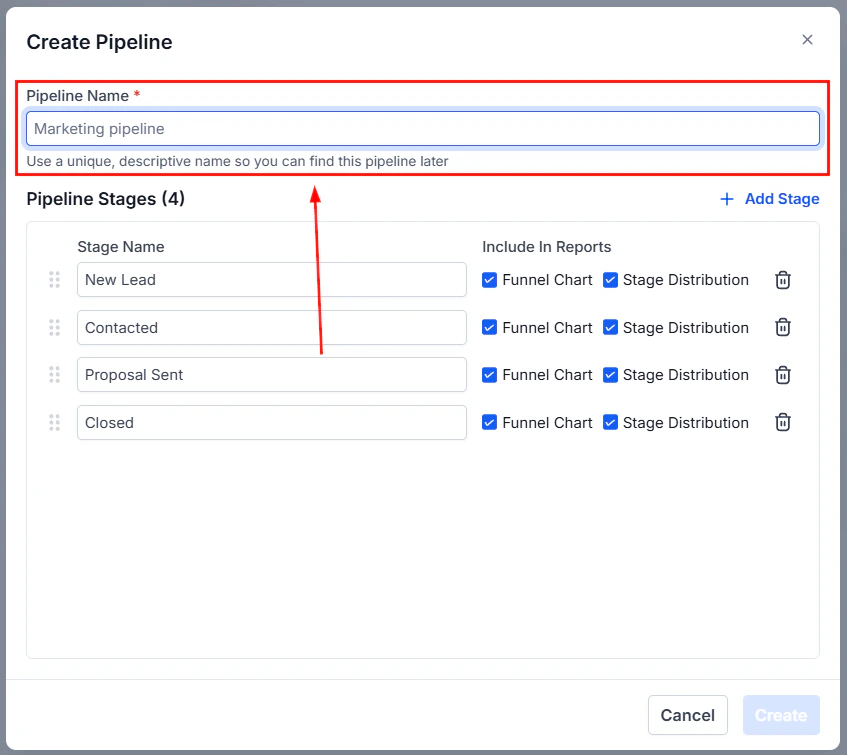
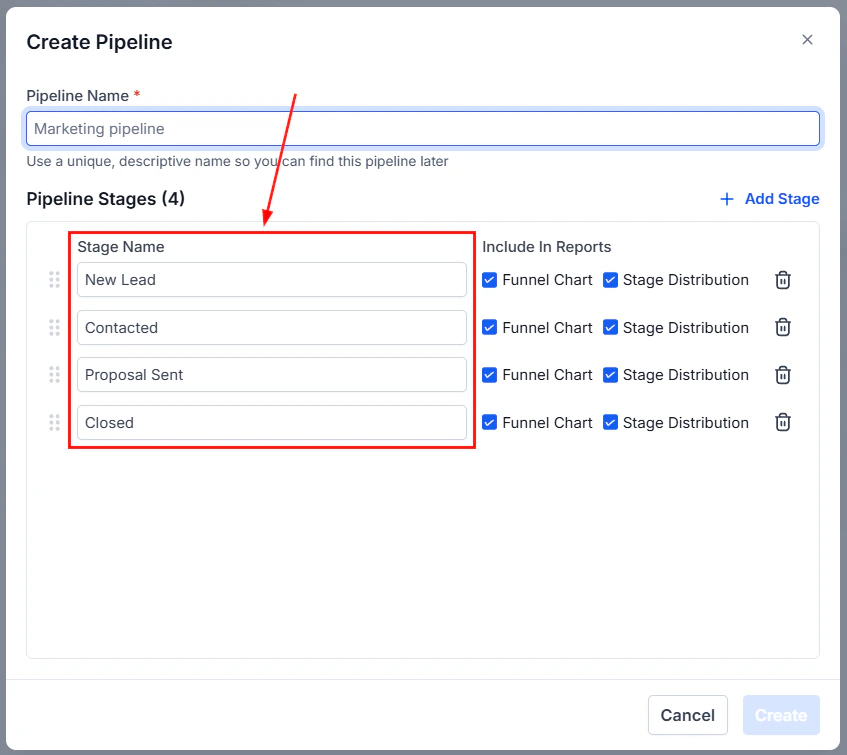
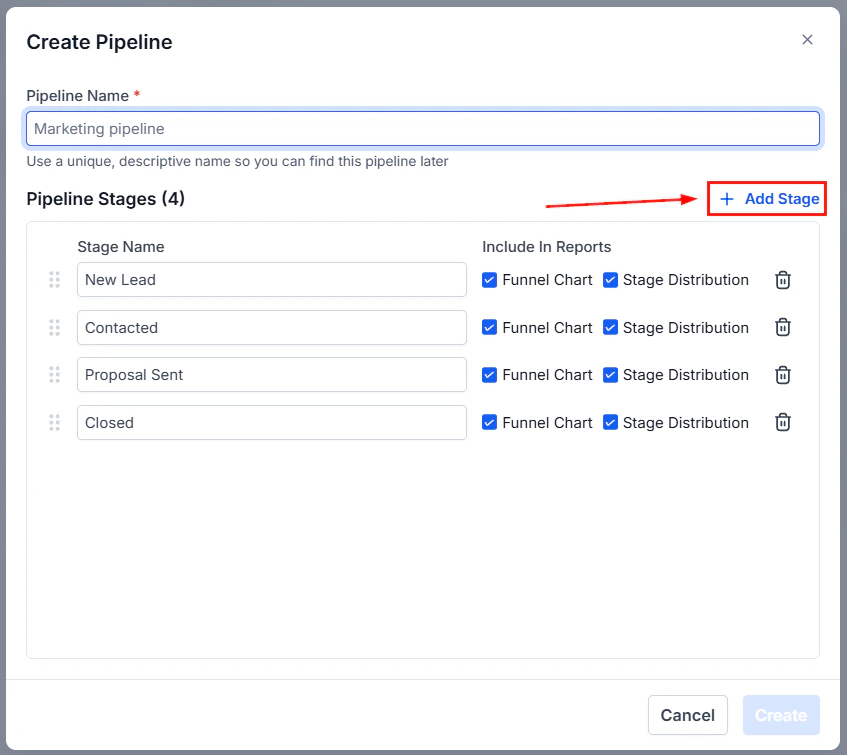
To create a new pipeline, navigate to **Opportunities** and open **Pipeline Settings** (or **Opportunity Settings**). Click **"+ Add Pipeline"** and configure:
* **Pipeline name** — a clear name describing the sales process
* **Stages** — the steps an opportunity moves through (e.g., Lead, Qualified, Proposal, Closed Won, Closed Lost)
* **Stage colors** — optional color coding for visual clarity on the board
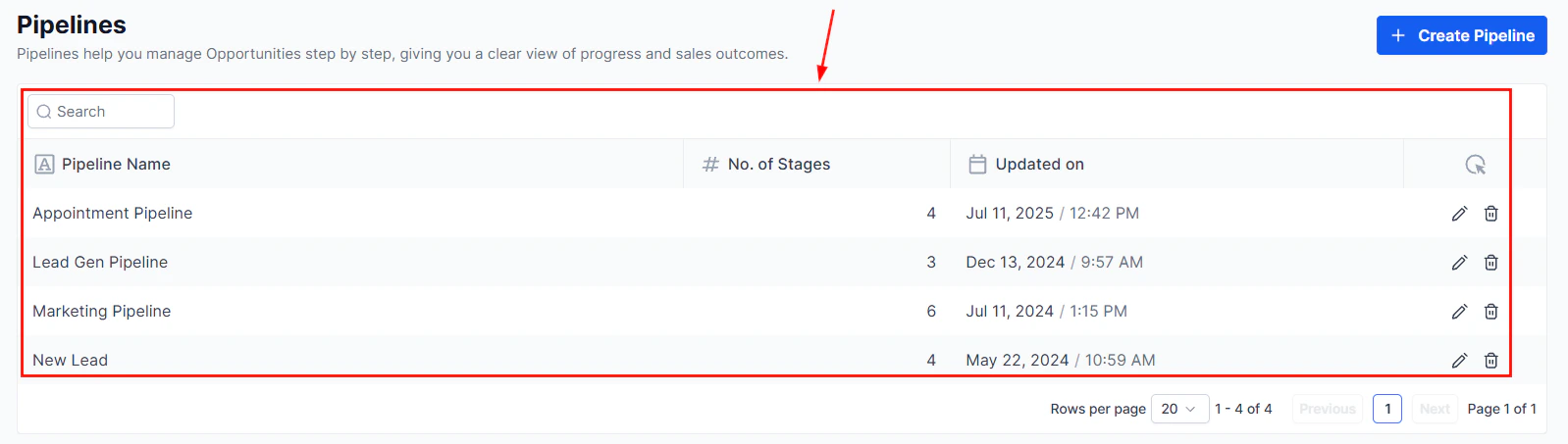
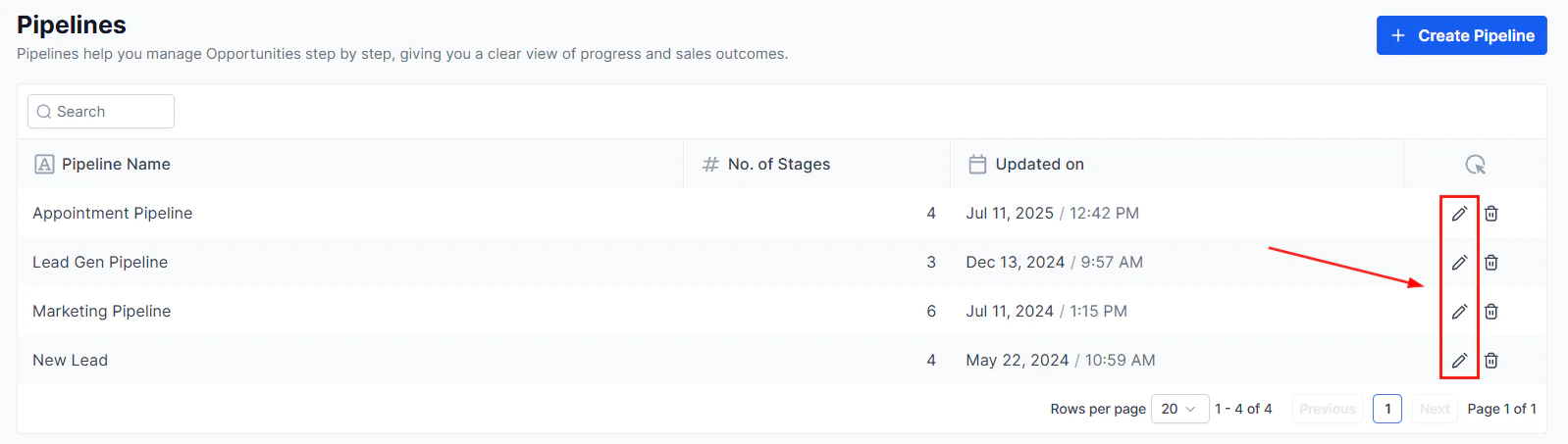
## Creating a pipeline
To create a new pipeline, navigate to **Opportunities** and open **Pipeline Settings** (or **Opportunity Settings**). Click **"+ Add Pipeline"** and configure:
* **Pipeline name** — a clear name describing the sales process
* **Stages** — the steps an opportunity moves through (e.g., Lead, Qualified, Proposal, Closed Won, Closed Lost)
* **Stage colors** — optional color coding for visual clarity on the board
 ***
## Pipeline permissions
Pipeline permissions control which team members can view, create, edit, or delete opportunities within a pipeline.
***
## Pipeline permissions
Pipeline permissions control which team members can view, create, edit, or delete opportunities within a pipeline.
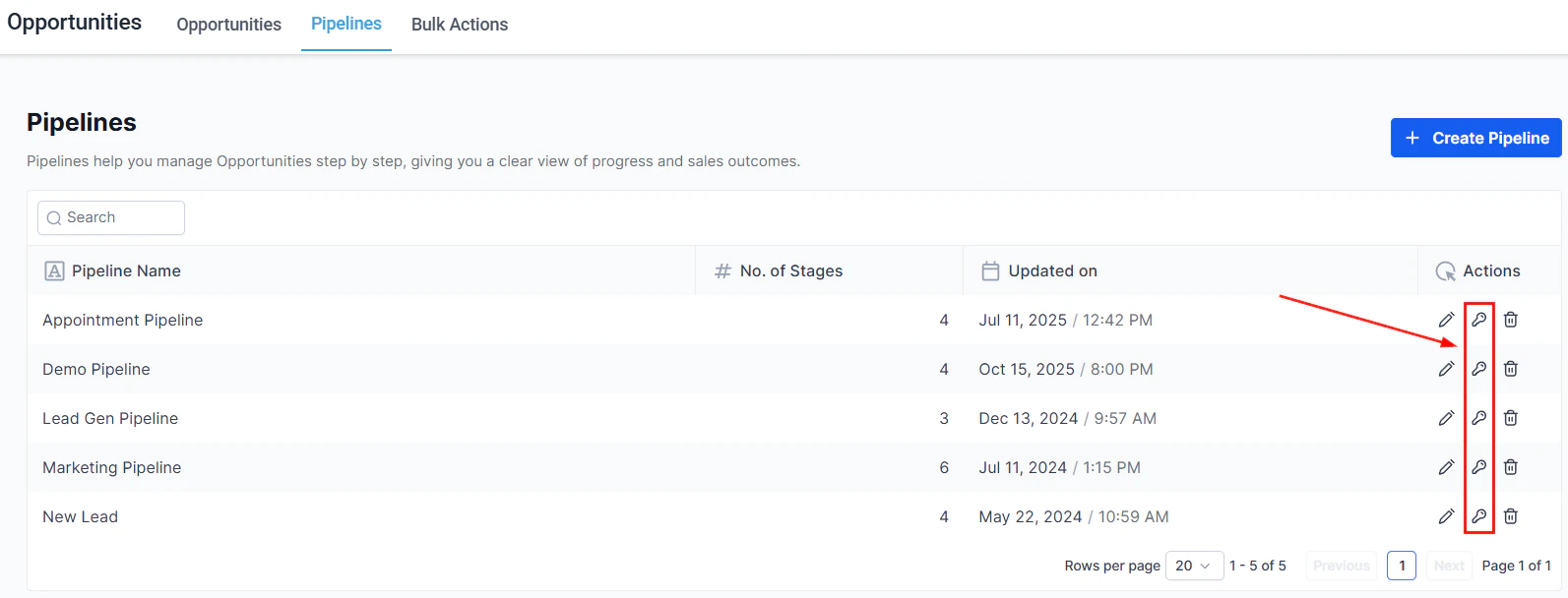 Navigate to **Opportunities > Opportunity Settings** and select the pipeline you want to configure.
Assign permission levels to roles or individual users:
* **Full access** — can view, create, edit, and delete opportunities
* **Edit** — can edit existing opportunities but cannot delete them
* **View only** — read-only access to opportunities in this pipeline
* **No access** — pipeline is hidden from this user or role
Navigate to **Opportunities > Opportunity Settings** and select the pipeline you want to configure.
Assign permission levels to roles or individual users:
* **Full access** — can view, create, edit, and delete opportunities
* **Edit** — can edit existing opportunities but cannot delete them
* **View only** — read-only access to opportunities in this pipeline
* **No access** — pipeline is hidden from this user or role
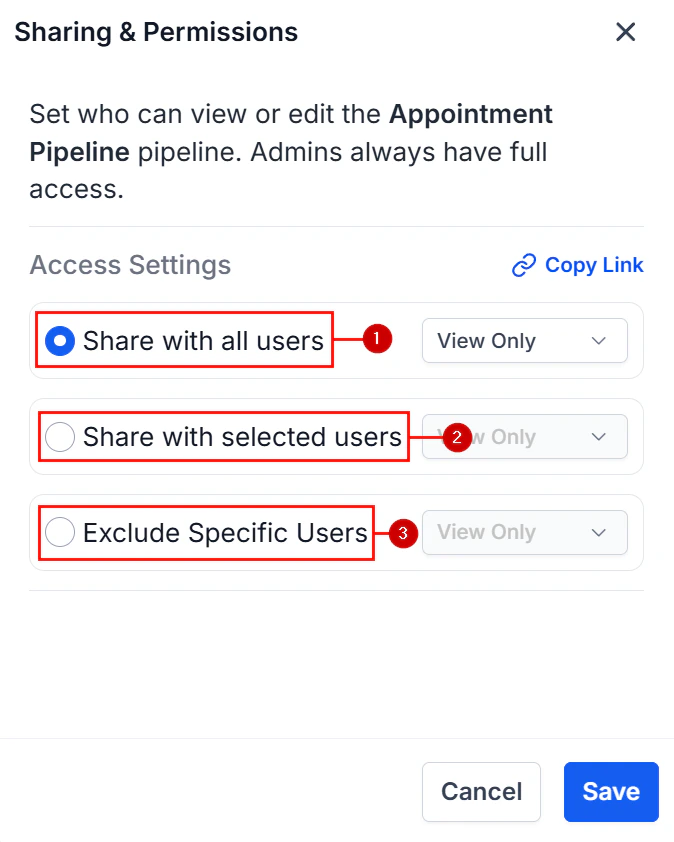 Click **Save** to apply the permission changes.
***
## Smart tags in pipelines
Smart tags are automatically applied to opportunities based on conditions you define. They appear as labels on opportunity cards and help your team quickly identify deal characteristics at a glance.
Click **Save** to apply the permission changes.
***
## Smart tags in pipelines
Smart tags are automatically applied to opportunities based on conditions you define. They appear as labels on opportunity cards and help your team quickly identify deal characteristics at a glance.
 ### Setting up smart tags
Go to **Opportunities > Opportunity Settings** and select your pipeline.
### Setting up smart tags
Go to **Opportunities > Opportunity Settings** and select your pipeline.
 Click the **Smart Tags** tab.
Click **"+ Add Smart Tag"**. Define:
* **Tag name** — what the tag is called
* **Color** — visual indicator
* **Conditions** — the criteria an opportunity must meet for the tag to be applied automatically
Click the **Smart Tags** tab.
Click **"+ Add Smart Tag"**. Define:
* **Tag name** — what the tag is called
* **Color** — visual indicator
* **Conditions** — the criteria an opportunity must meet for the tag to be applied automatically
 Click **Save**. The tag will now appear automatically on matching opportunities.
***
## Managing pipelines
From the **Opportunity Settings** screen you can:
Click **Save**. The tag will now appear automatically on matching opportunities.
***
## Managing pipelines
From the **Opportunity Settings** screen you can:
 * **Reorder pipelines** — drag and drop to change the order they appear in the pipeline dropdown
* **Rename a pipeline** — click the pipeline name to edit it
* **Archive a pipeline** — hide a pipeline without deleting historical data
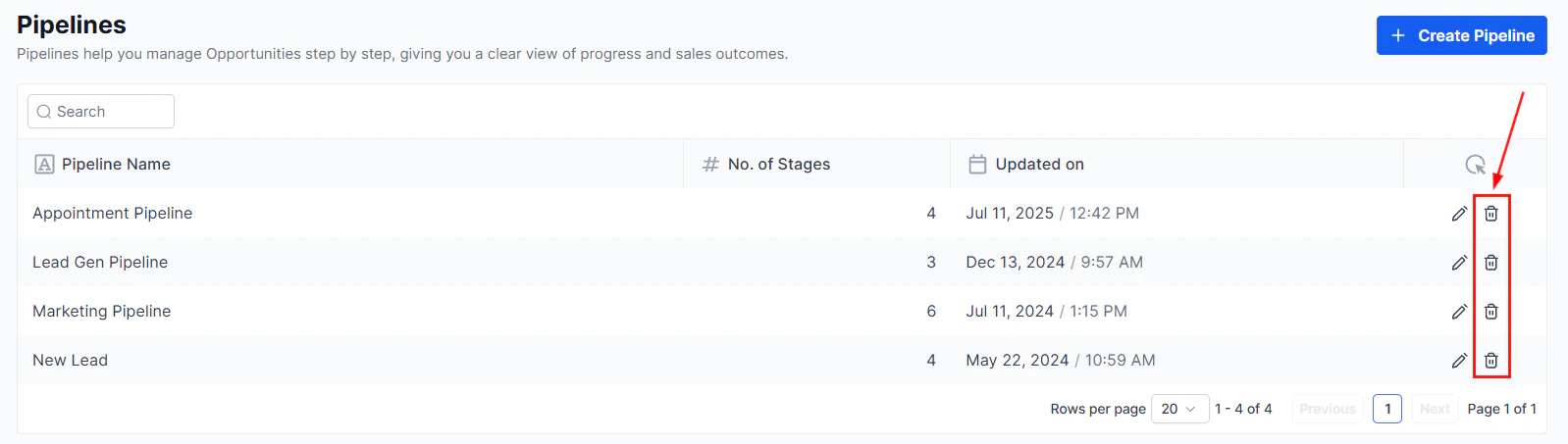
* **Delete a pipeline** — permanently remove a pipeline (use with caution; this affects historical reporting)
* **Reorder pipelines** — drag and drop to change the order they appear in the pipeline dropdown
* **Rename a pipeline** — click the pipeline name to edit it
* **Archive a pipeline** — hide a pipeline without deleting historical data
* **Delete a pipeline** — permanently remove a pipeline (use with caution; this affects historical reporting)
 Deleting a pipeline removes all associated opportunity records. Archive instead of delete when you want to preserve historical data.
***
## Opportunity settings
The **Opportunity Settings** page (accessed via **Opportunities > Opportunity Settings**) controls global behaviour for the Opportunities section, including:
* **Separate contact and opportunity ownership** — enable this to allow contacts and opportunities to have different assigned owners. When off, the same user is the owner of both. Changes apply only to new records created after the setting is enabled.
* **Lost reasons** — manage the list of reasons available when marking a deal as lost
* **Deleted opportunities** — view and restore recently deleted opportunity records
If you enable separate ownership, review any automations that update ownership to ensure they address both contact and opportunity owners independently.
***
## FAQs
There is no hard limit on the number of pipelines. Create as many as your sales processes require — for example, separate pipelines for different product lines, regions, or deal types.
Yes. In Pipeline Settings, drag and drop stages to reorder them. Cards on the board rearrange to reflect the new order.
You will be prompted to move any existing opportunities in that stage to another stage before deletion can proceed.
Yes. Toggle the setting off in Opportunity Settings. New opportunities and contacts created after disabling will revert to shared ownership. Existing records are not affected.
No. The separate ownership setting only applies to opportunities and contacts created after the setting is enabled. Existing records retain their current ownership.
Four levels are available: **Full access** (view, create, edit, delete), **Edit** (edit existing but cannot delete), **View only** (read-only), and **No access** (pipeline hidden from this user or role).
Deleting a pipeline removes all associated opportunity records. Archive instead of delete when you want to preserve historical data.
***
## Opportunity settings
The **Opportunity Settings** page (accessed via **Opportunities > Opportunity Settings**) controls global behaviour for the Opportunities section, including:
* **Separate contact and opportunity ownership** — enable this to allow contacts and opportunities to have different assigned owners. When off, the same user is the owner of both. Changes apply only to new records created after the setting is enabled.
* **Lost reasons** — manage the list of reasons available when marking a deal as lost
* **Deleted opportunities** — view and restore recently deleted opportunity records
If you enable separate ownership, review any automations that update ownership to ensure they address both contact and opportunity owners independently.
***
## FAQs
There is no hard limit on the number of pipelines. Create as many as your sales processes require — for example, separate pipelines for different product lines, regions, or deal types.
Yes. In Pipeline Settings, drag and drop stages to reorder them. Cards on the board rearrange to reflect the new order.
You will be prompted to move any existing opportunities in that stage to another stage before deletion can proceed.
Yes. Toggle the setting off in Opportunity Settings. New opportunities and contacts created after disabling will revert to shared ownership. Existing records are not affected.
No. The separate ownership setting only applies to opportunities and contacts created after the setting is enabled. Existing records retain their current ownership.
Four levels are available: **Full access** (view, create, edit, delete), **Edit** (edit existing but cannot delete), **View only** (read-only), and **No access** (pipeline hidden from this user or role).